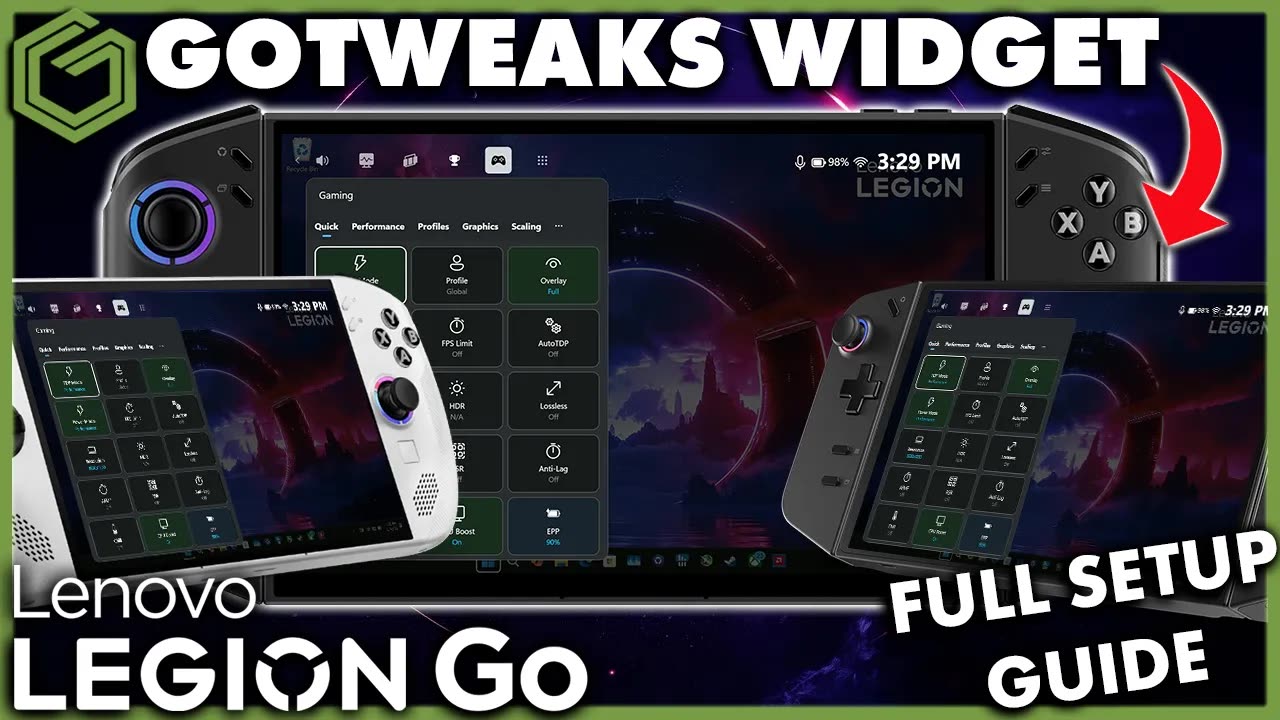
 ▶Watch on YouTube
- GoTweaks is an Xbox Game Bar widget that adds a lot more control and customization to Windows on the Legion Go and Legion Go 2. It's the same widget I covered before, now with a proper name and a lot more features.
- It's made for the Legion Go and Legion Go 2 (Z1 Extreme and Z2 Extreme). It should work on some GPD and other AMD handhelds too, but that needs more testing.
- Release V14.1 installs with a simple install.exe. No more manual install.
- You'll want RTSS for the overlay, and Lossless Scaling (owned on Steam) if you want to use the built-in Scaling tab.
- It can use the Xbox default game profiles from the Xbox Ally devices, your own per-game profiles, or global settings.
- V14.1 has been stable for me on both my Legion Go 2 and original Legion Go.
GoTweaks is a Game Bar widget for the Legion Go and Legion Go 2 in Windows, and I've been using it on my Legion Go 2 and my original Legion Go. It works really well to get a lot more out of these devices, with way more customization than Legion Space gives you. Here's how to install the new version, set up Lossless Scaling and RTSS, and what you can do in each tab.
What you need
- A Legion Go or Legion Go 2 in Windows. I tested both, and the process is the same on the original Legion Go.
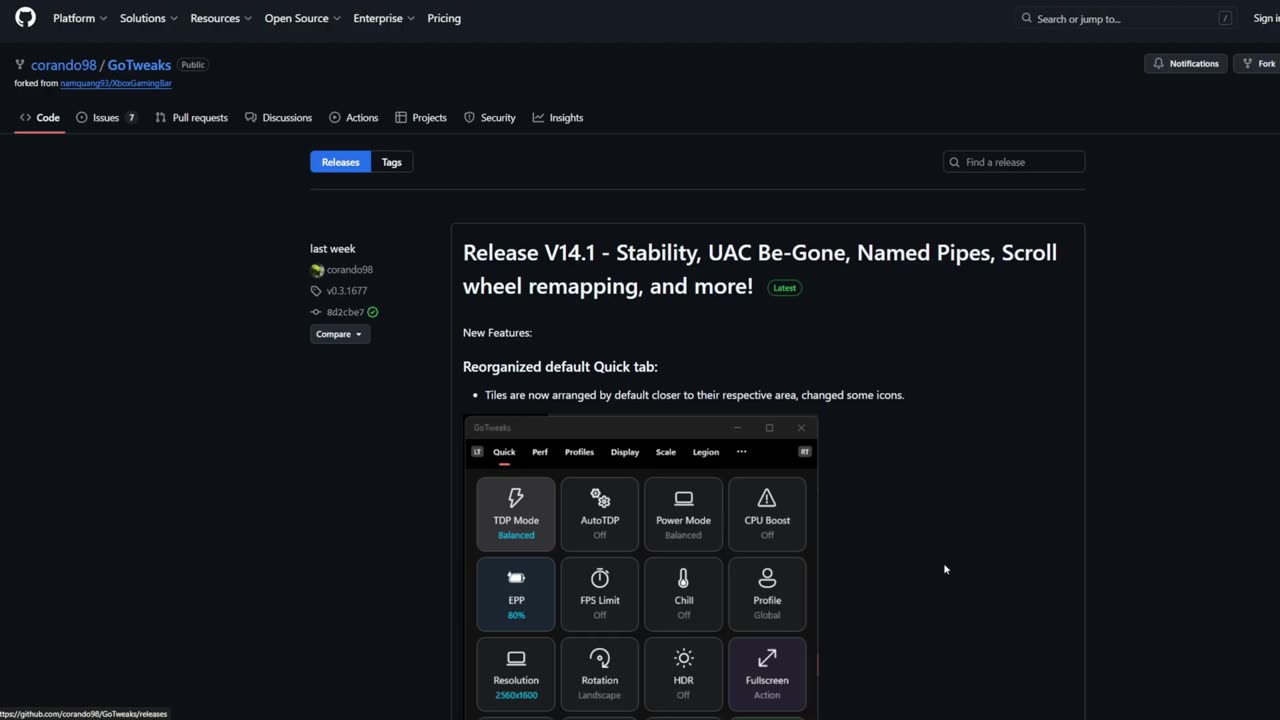
- The GoTweaks release from GitHub. I used V14.1, the newest when I made the video, which installed as version 0.3.1677.0. There have been newer releases since, so grab the top one.
- RTSS (RivaTuner Statistics Server) if you want the overlay.
- Lossless Scaling on Steam if you want the Scaling tab. I believe it's $7 to $10.
⬇ Download GoTweaks (GitHub Releases)
github.com/corando98/GoTweaks/releases
Step 1: Set a Game Bar hotkey (optional)
Before installing, I like having a button for Windows + G so I can bring up the Game Bar, and GoTweaks, quickly.
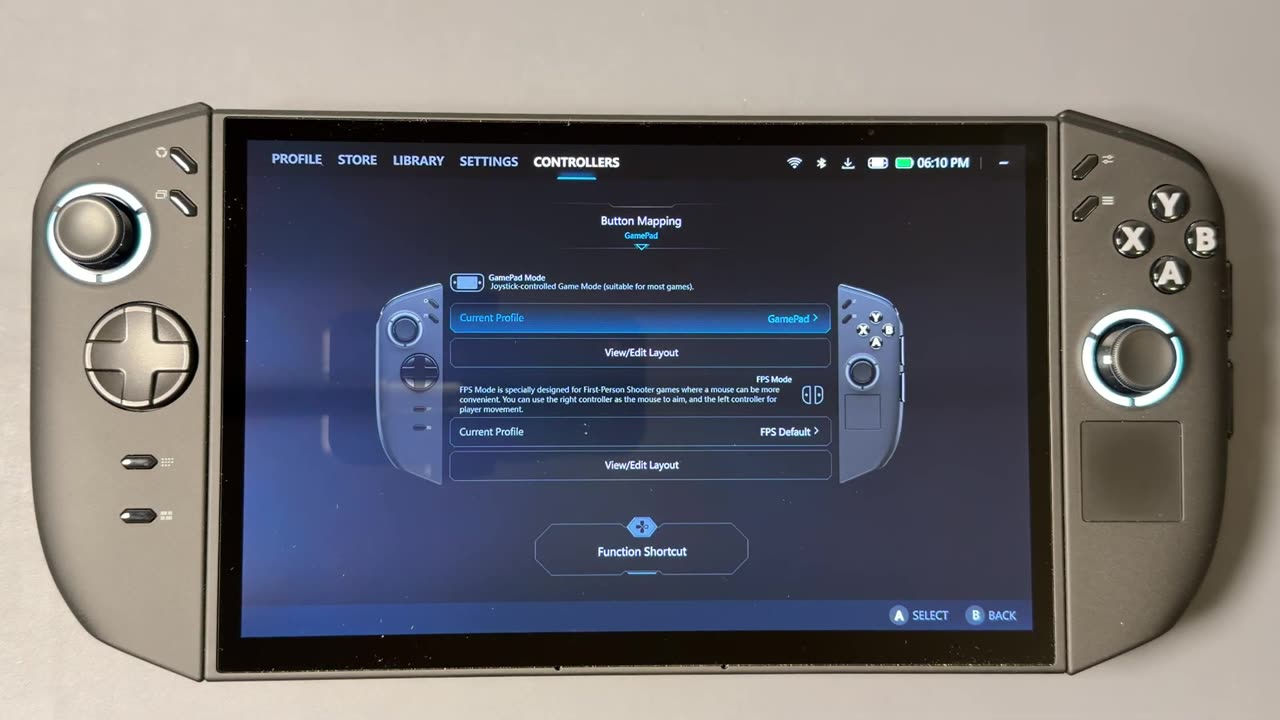
- Open Legion Space, go to Controllers and open View/Edit Layout.
- Touch the button you want to use. I use the top front button on the Legion Go 2, and a rear button on the original Legion Go since its controllers don't have those two extra front buttons.
- Choose Key combination, set Win + G, and press Y to confirm.
You can also get to the Xbox button by holding the Legion button and pressing another button, but I found the hotkey easier. You can change these later in GoTweaks too.
Step 2: Install GoTweaks
- Go to the GoTweaks GitHub releases and download the Xbox Gaming Bar widget package from the newest release.
- Close the browser and open your Downloads folder.
- Right-click the download, choose Extract All, then Extract. It opens the extracted folder.
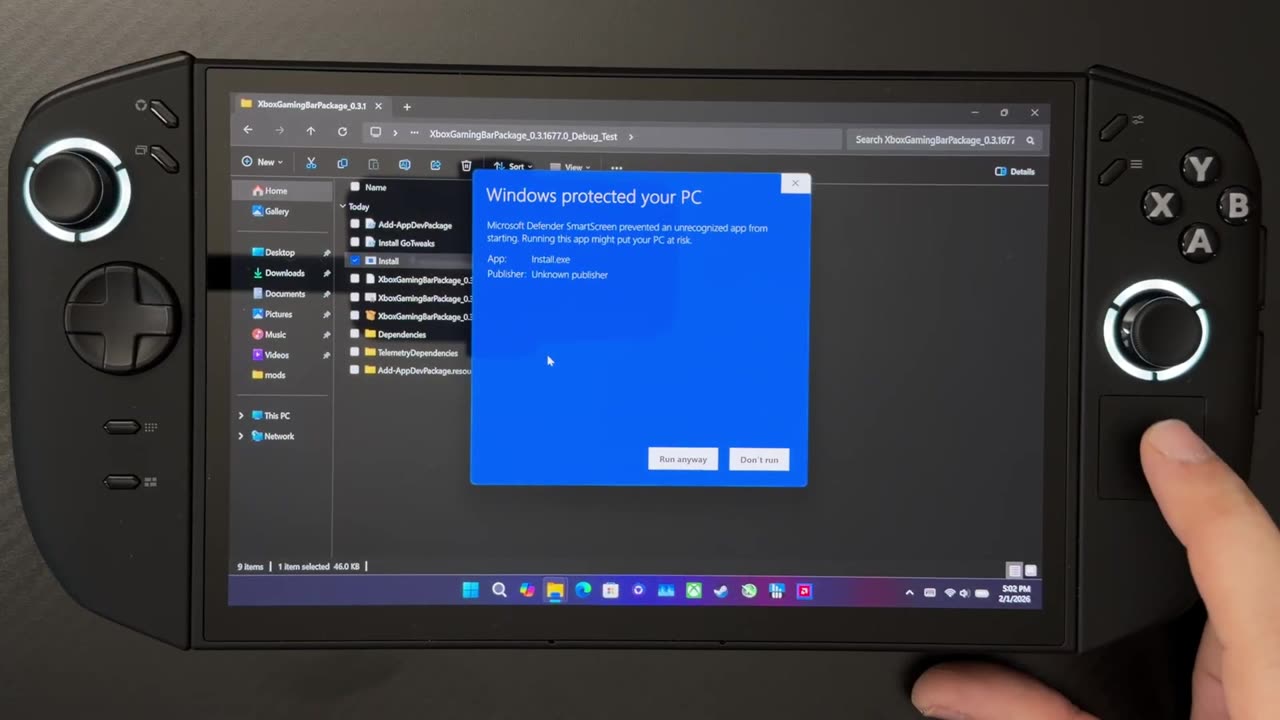
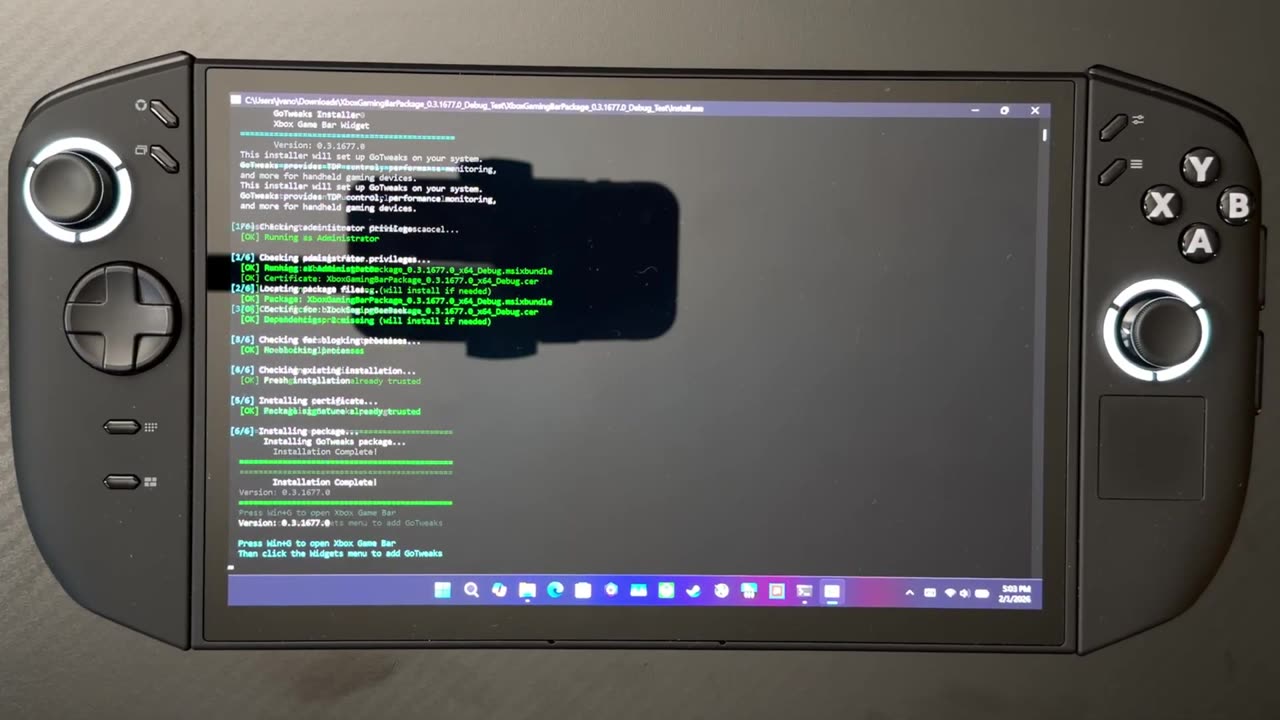
- Double-click Install (Install application). If Windows SmartScreen pops up, click More info, then Run anyway.
- The installer asks you to press a key to continue. I brought up the on-screen keyboard and hit Enter. You get the same prompt again, so press Enter once more.
- It runs through the install really quickly. When it says Installation Complete, press any key or close it.
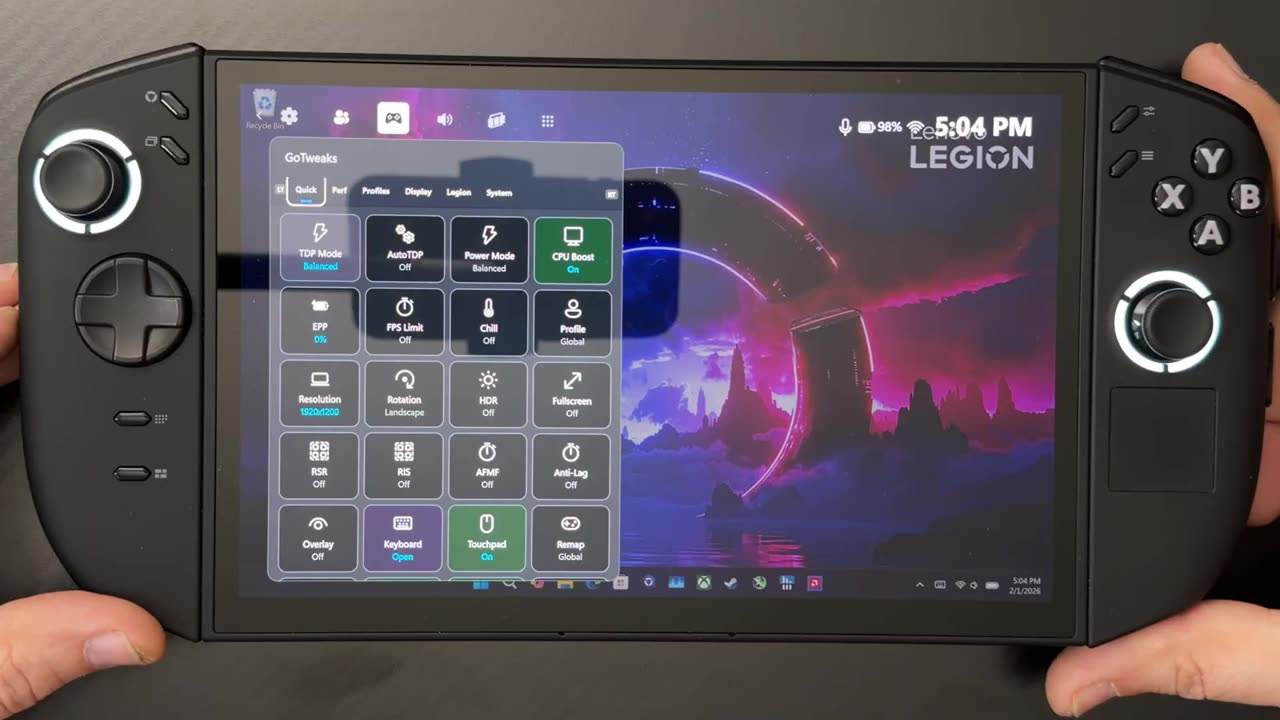
- Press Win + G to open the Game Bar, and GoTweaks loads and does its initial setup. If it doesn't open for you, the installer says to click the Widgets menu in the Game Bar to add GoTweaks.
If it gives you any problems, restart the device. If the install.exe doesn't work for you, my original widget video shows the manual install.
Step 3: Set up Lossless Scaling and RTSS
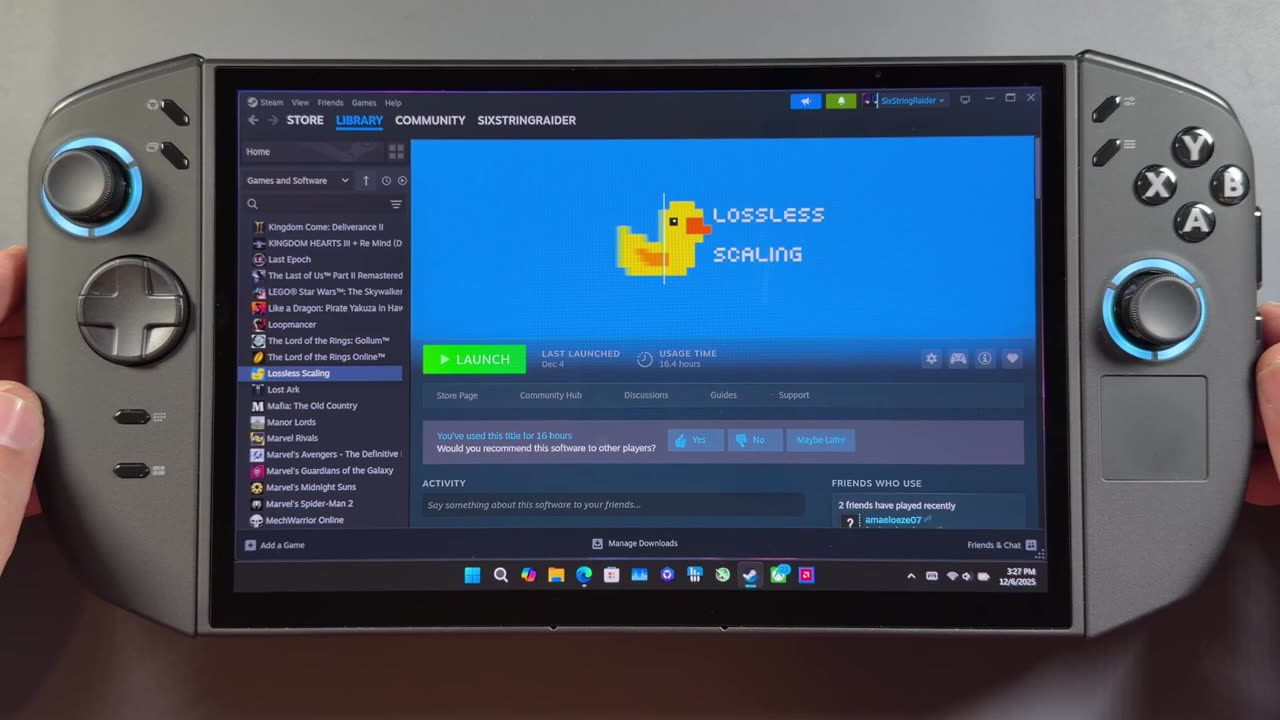
Lossless Scaling: you need to own it on Steam. You can set it to launch at Windows startup without even opening Steam, which is nice.
- Open Lossless Scaling and go into its settings. Set your upscaling if you use any, and more importantly frame generation, which is what a lot of people use it for.
- Turn on launching at Windows startup.
- Minimize it, don't close it.
Lossless Scaling on Steam
store.steampowered.com/app/993090/Lossless_Scaling/
RTSS: GoTweaks uses it for the overlay, which I think a lot of people will want.
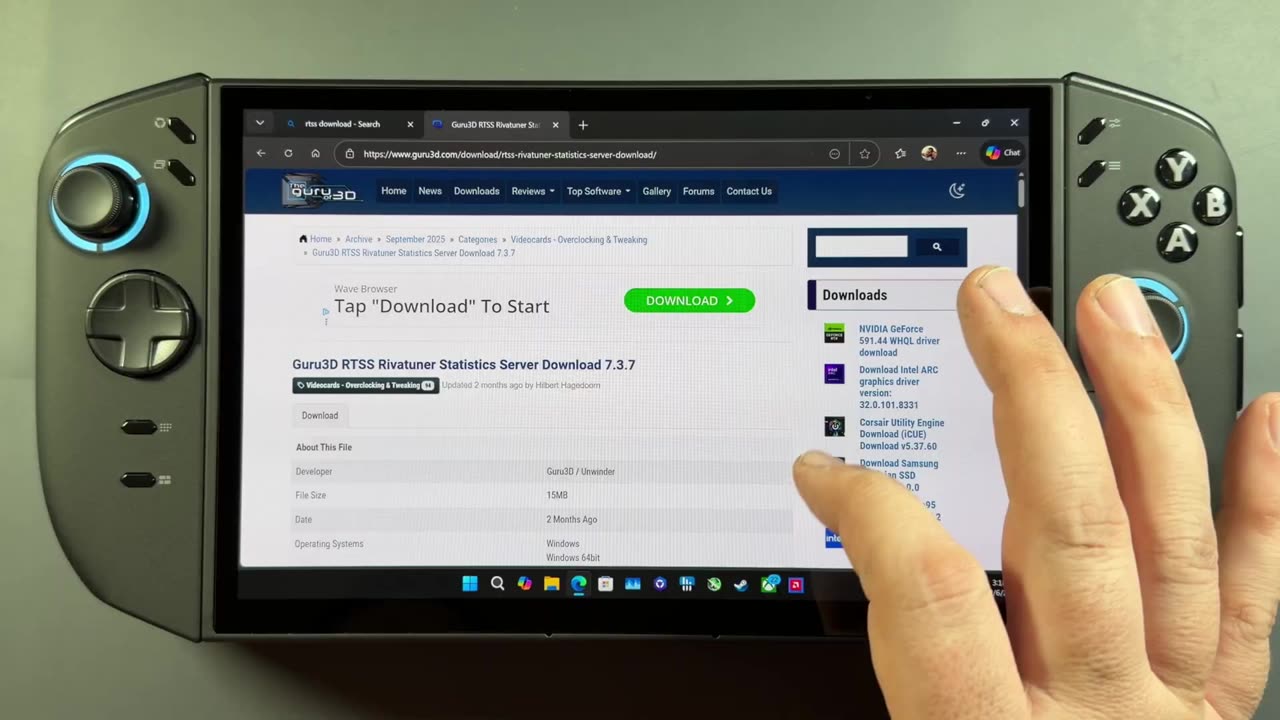
- Download RTSS from Guru3D.
- In Downloads, right-click it, Extract All, then double-click the setup and follow the prompts. It's quick and easy.
- In GoTweaks, turn on auto start for RTSS for the OSD.
- I also suggest opening RTSS manually the first time: This PC → C: → Program Files (x86) → RivaTuner Statistics Server, then open RTSS. If you don't, it doesn't always auto-open the way you want. I've noticed that with RTSS over the years.
⬇ Download RTSS (Guru3D)
guru3d.com/download/rtss-rivatuner-statistics-server-download/
Step 4: Set your baseline
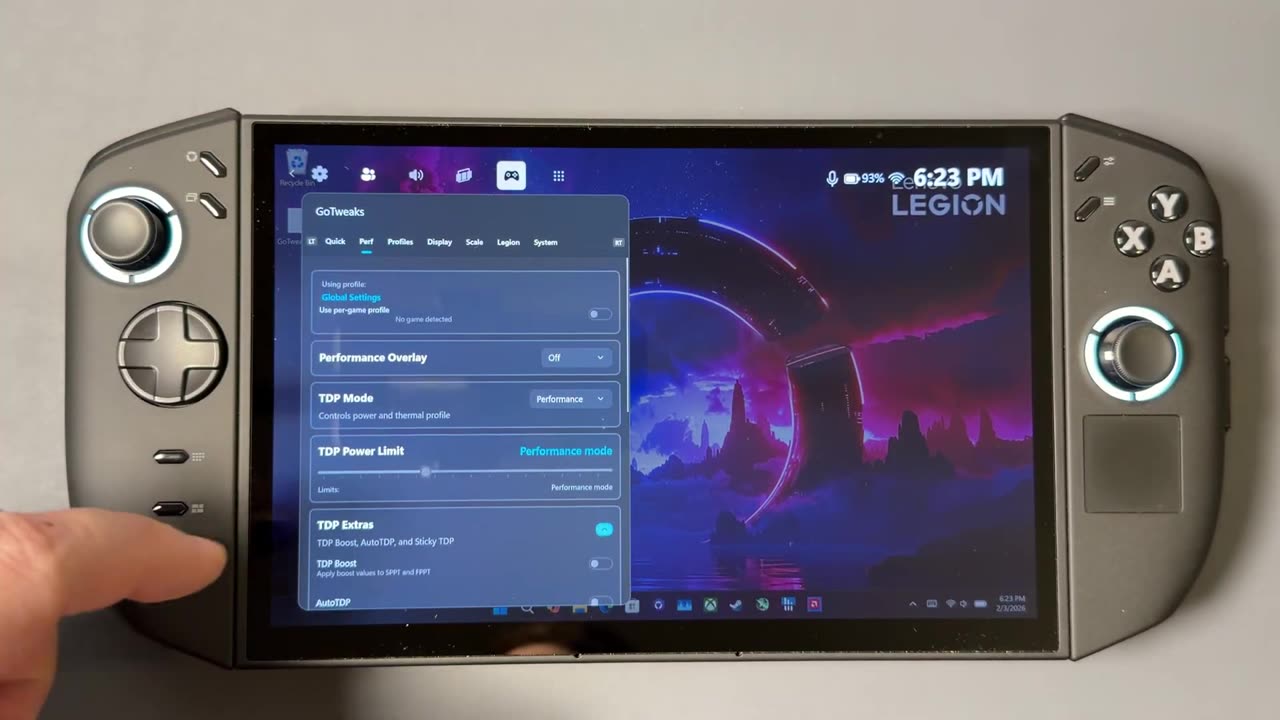
Go to the Performance tab, then CPU extras, and turn CPU boost on with EPP at 80. Those are the defaults, and sometimes they get set to off and 0. That gets you to your baseline, and you're pretty much set up.
Updating and uninstalling
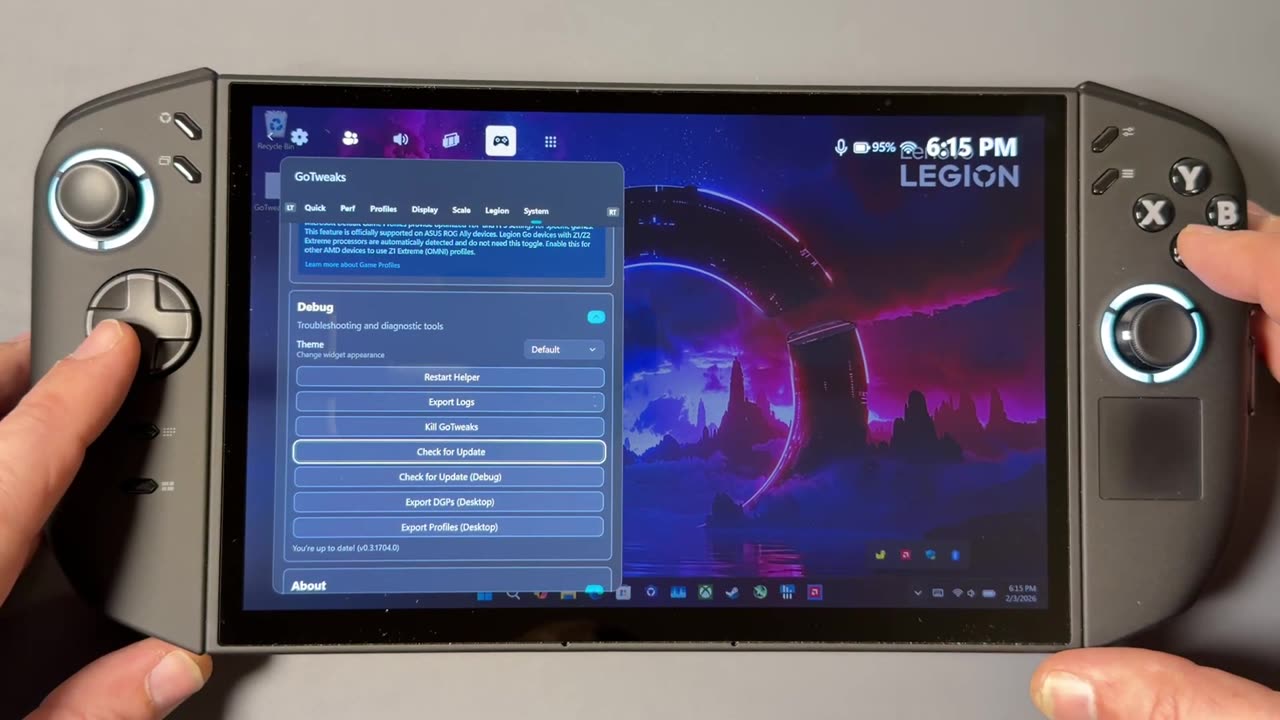
- Update: go to the System tab, then the Debug menu, and use Check for Update. It works pretty well and picks up new releases from the site.
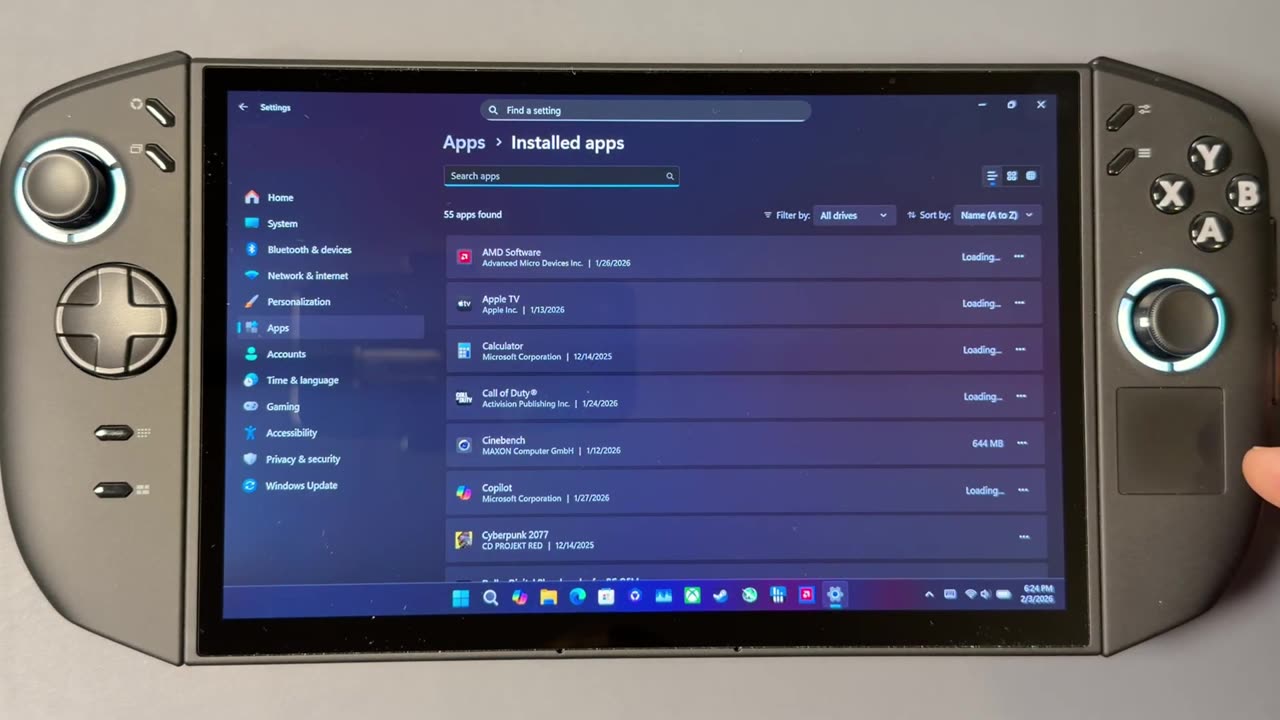
- Uninstall: in Windows, go to Settings → Apps → Installed apps, find GoTweaks, tap the three dots and choose Uninstall.
- When I made the video, a Prepare for uninstall option was coming to the Debug menu to set things back to their defaults first. Anything left changed is probably going to stay that way until you change it some other way, so keep that in mind.
What's in each tab
- Quick: the quick access tiles for most of the things you'll want to toggle. You can customize what's on it, where things are, how many columns, and add custom shortcut tiles.
- Performance: the performance overlay (basic, detailed or full), TDP modes that match Lenovo's (Performance, Balanced and so on), custom TDP limits, TDP extras for custom mode, OS power mode like in Legion Space, CPU extras (CPU boost and EPP), FPS limit, and an Advanced section with core options and AC/DC power plans.
- Profiles: per-game profiles, so your TDP, resolution, HDR and more are set when you launch a game.
- Display: resolution, refresh rate, HDR on and off, and some handy AMD Adrenalin toggles.
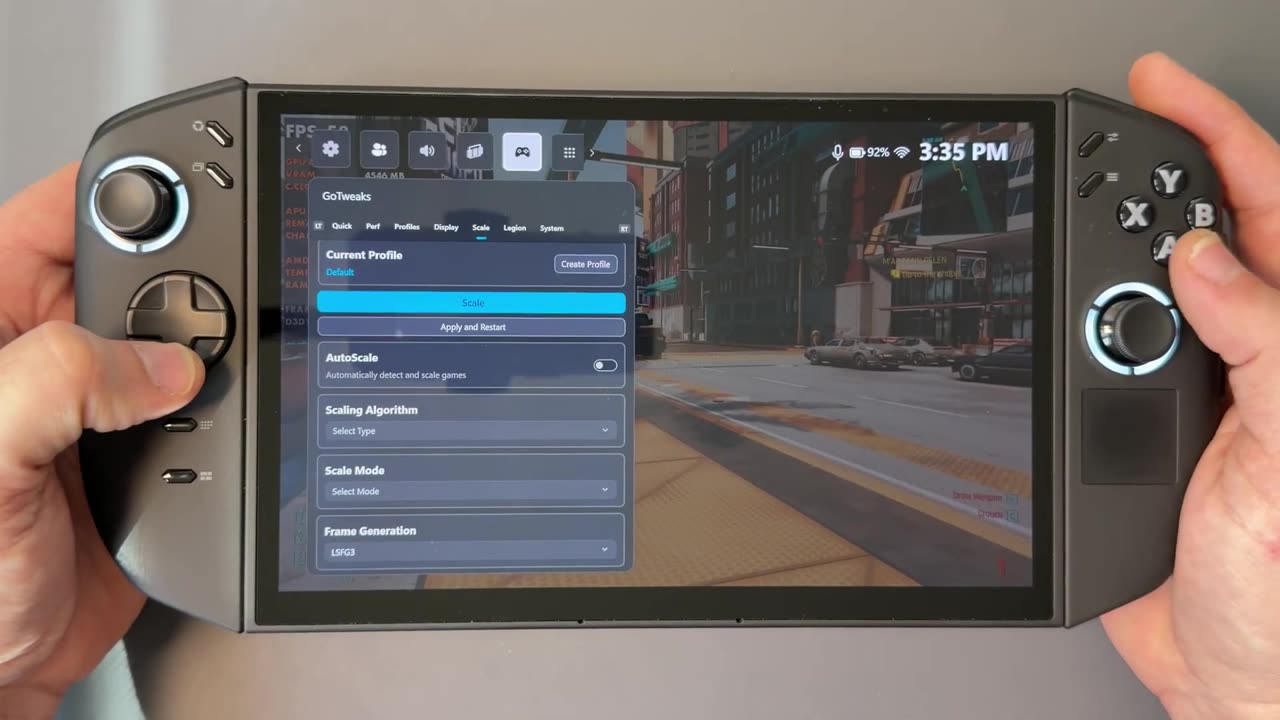
- Scaling: shows up once Lossless Scaling is set up, so you can control it from the widget.
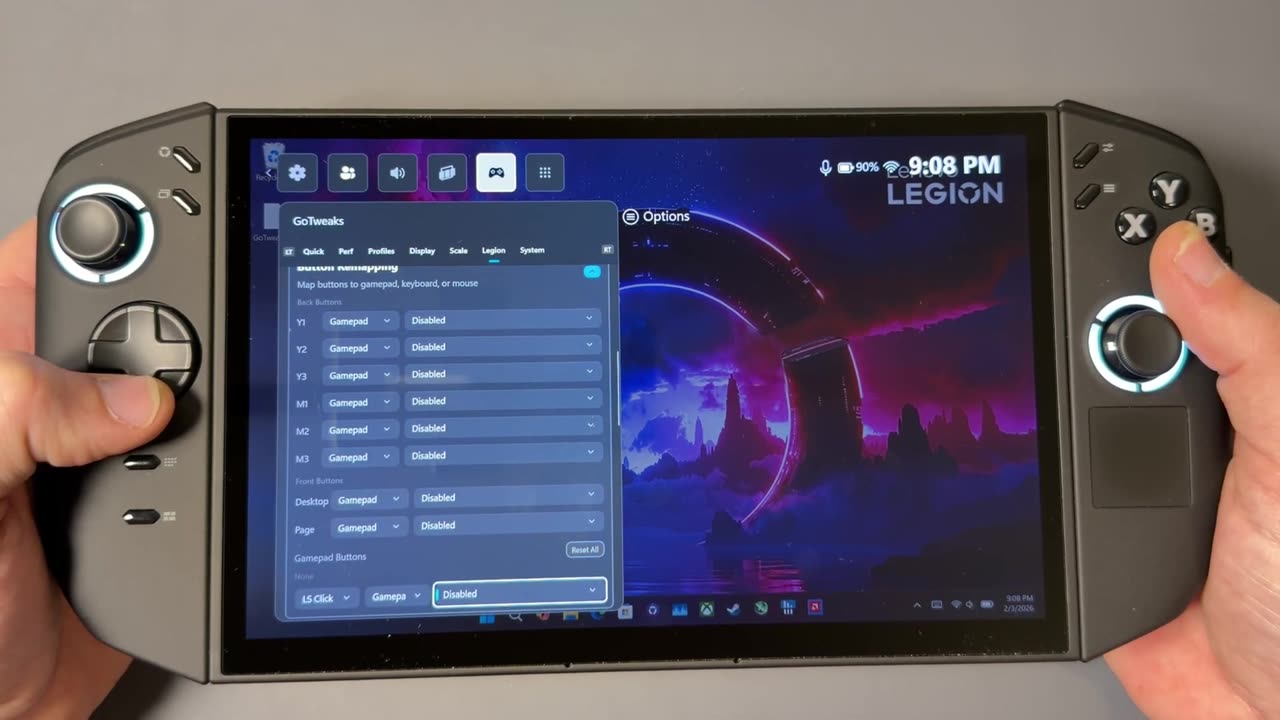
- Legion: controllers, touchpad and vibration, per-game controller profiles, button remapping, a Nintendo layout toggle, desktop controls, joystick as mouse, dead zones and gyro. You can also change what the Legion left and right buttons do, like making them the Xbox guide instead of opening Legion Space, which is handy on the original Go. Lighting, fan (full speed or a custom curve), battery and labs are in here too.
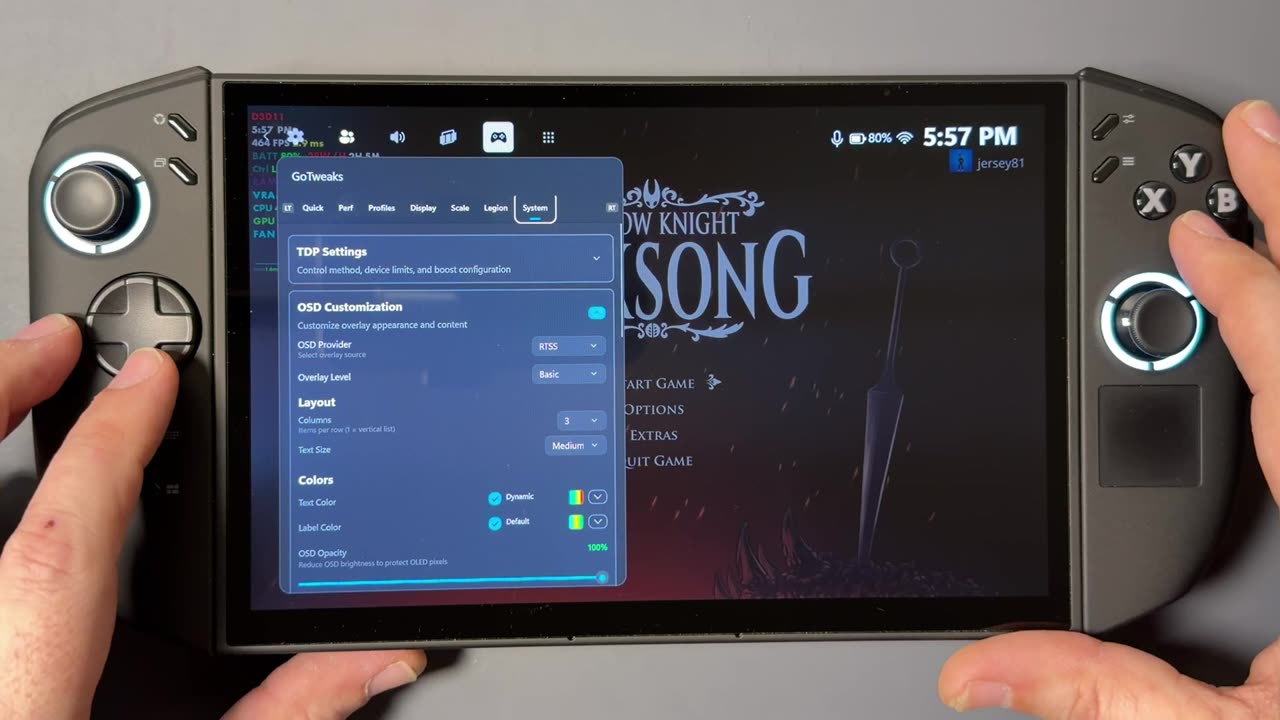
- System: TDP settings, extra boost settings, OSD customization, hotkeys, forcing default game profiles (not needed on the Go devices), and the Debug menu for updates, logs and closing GoTweaks.
A lot of this was lacking in Legion Space, and the Legion tab especially is where you can really dig in.
Lossless Scaling from the widget
I know a lot of you on handhelds like using Lossless Scaling, especially for frame generation, and having it built into GoTweaks is really useful. With Lossless open, go to the Scaling tab and hit Scale, and whatever settings you already applied start working. I was just doubling the frame rate, and Lossless's overlay showed about 88 to 90 FPS while my overlay showed the base frame rate being scaled.
Customizing the overlay
A lot of people will probably just use the defaults, but there's plenty you can change:
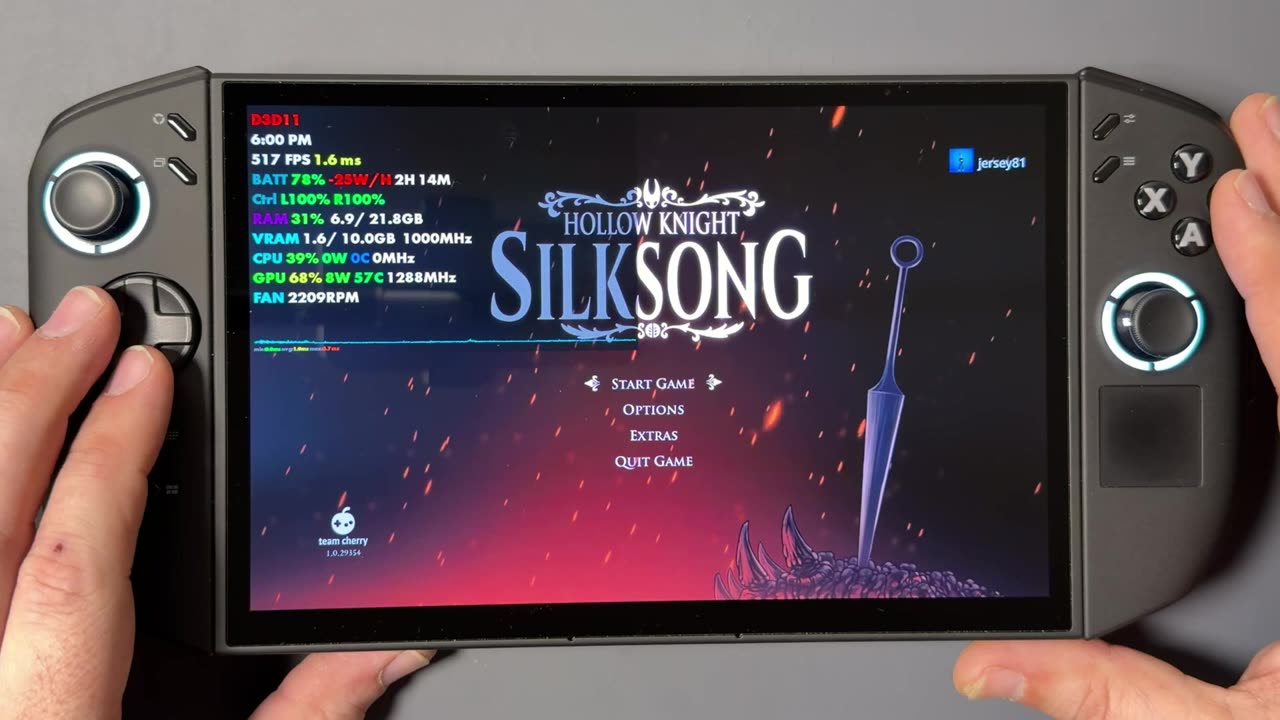
- In Performance → Performance overlay, pick Off, Basic (a couple of lines), Detailed or Full.
- In System → OSD customization, the provider is RTSS. You can check off what shows in the overlay and use the arrows to change the order.
- Columns change the layout. Eight columns spreads the full overlay across the top instead of down the side, which may be less in the way. Three or one squish it back over to the left.
- Change the font size to change the overlay size, pick colors (dynamic, default, or just about any color from the charts), and lower the opacity, like 50%, so it's there but darker.
Game profiles: Xbox default, per-game or global
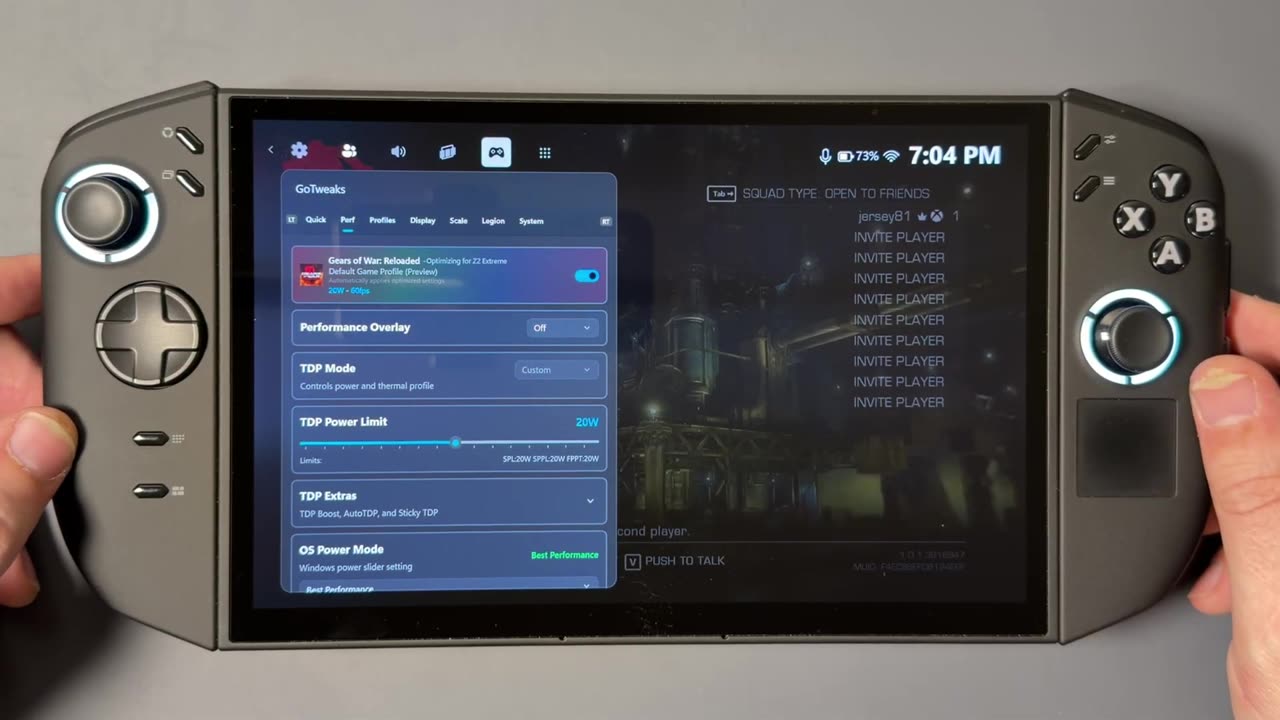
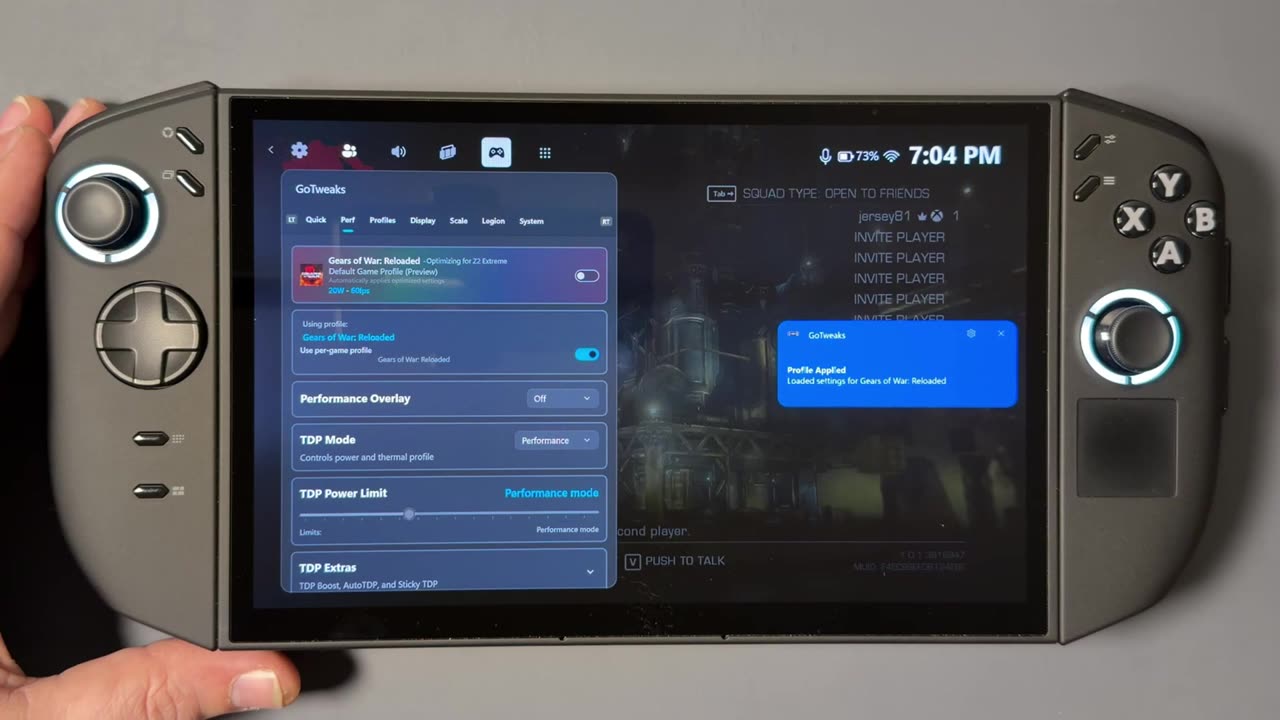
This is the other really cool part. You need a game open for it to work. I used Gears of War: Reloaded because it has the Xbox game profiles that the Xbox Ally devices use built in.
- With the game running, GoTweaks detects it and shows what everything is running on.
- In the Performance tab, the Xbox default game profile option uses the same settings you'd get on the Xbox Ally X or Xbox Ally. It's really cool to have those carry over to the Z2 Extreme and Z1 Extreme Legion Go devices.
- Turn that off and you're back on the device's global settings.
- Pick the per-game profile instead and you're using your own custom profile. Anything in the checked categories, from TDP to resolution, HDR and even controller settings, saves automatically when you close the game.
- In the Profiles tab, your saved game shows up at the bottom, and you can delete profiles there.
All of this has worked great on my original Legion Go too, where I run the Xbox full screen experience. The Xbox profiles are there, along with my own profiles and global, for all the games I've tested.
My take
I really like all the improvements since I first covered this widget, now that it's GoTweaks with a proper name and extra features like the Xbox game profiles, which I think are really cool to have on the Legion Go devices. It's been working great for me on both of my Legion Gos. That doesn't mean it'll be perfect for everyone, and there can be fringe cases, but with all of our testing on these recent builds, we haven't had any problems.
FAQ
What is GoTweaks?
An Xbox Game Bar widget for the Legion Go and Legion Go 2 in Windows that adds TDP and power controls, an RTSS overlay, per-game and Xbox default profiles, controller remapping, display toggles and Lossless Scaling controls.
Which devices does GoTweaks support?
It's made for the Legion Go and Legion Go 2 (Z1 Extreme and Z2 Extreme). It should work on some GPD and other AMD handhelds as well, but that needs more testing.
Do I need RTSS and Lossless Scaling?
RTSS is needed for the overlay. Lossless Scaling is only needed for the Scaling tab, and you have to own it on Steam.
How do I update or uninstall GoTweaks?
Update from System → Debug → Check for Update. Uninstall from Windows Settings → Apps → Installed apps → GoTweaks → Uninstall.
Want more handheld tests?
New Steam Deck, ROG Ally, Legion Go and Steam Machine performance videos every week.