 ▶Watch on YouTube
This follows up my Legion Go 2 SteamOS video and covers some of the issues that may or may not be bugging you on SteamOS while Valve still needs to make some updates. Game performance is usually better on SteamOS, with better frame times at both 17 and 25 watts on the Z2 Extreme Legion Go 2 compared to Windows, but not everything is great. Things like the screen brightness, the RGB lights and the sound can be a problem. I'm using Decky Loader and a handful of plugins I've been running on the Go 2 the past few days to help with all of that.
- Decky Loader, with developer mode on so you can install plugins from a zip file
- Legion Go 2 Brightness fix for a working brightness slider in game mode
- HueSync for the RGB lights on the sticks and the power LED
- AudioForge to boost and tune the sound
- LeGoTDP for TDP presets and separate power limit sliders
- Decky LSFG-VK to use Lossless Scaling frame gen in your games
There's always more than one way to do a lot of this. This is just how I fixed a few of the issues while testing the device this way. I've put the links for every tool right in each step.
Step 1: Install Decky Loader
If you already have Decky Loader installed, skip this step. Otherwise, switch to desktop mode, open your browser and go to the Decky Loader website.
⬇ Download Decky Loader
decky.xyz
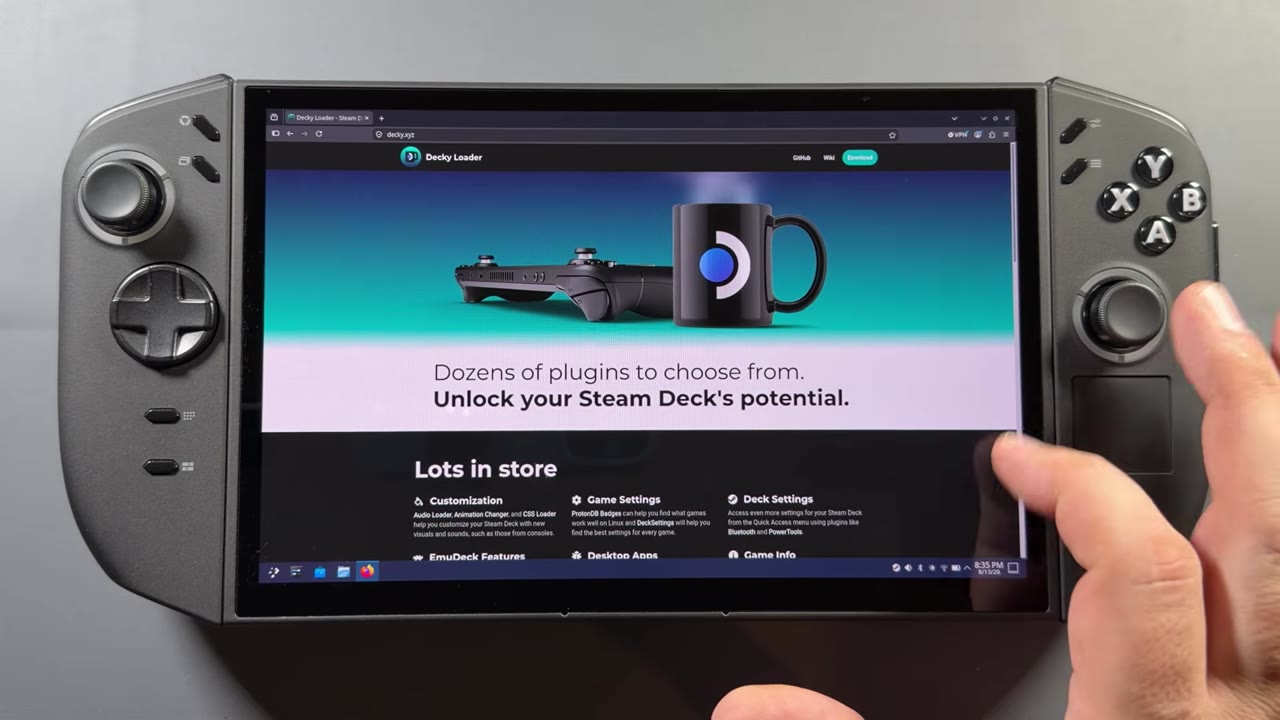
- Download Decky Loader and open it from your Downloads folder.
- Click Launch, then Continue.
- When it asks about a password, let it temporarily set and erase one for the install.
- Pick the release version. It downloads and installs quickly. Click OK when it's done.
Head back to game mode, press the quick access menu button and scroll all the way down to the plug icon. Decky Loader is there, with its general settings and an empty plugins area for now. There's also the store, which I'll come back to at the end.
Step 2: Turn on developer mode
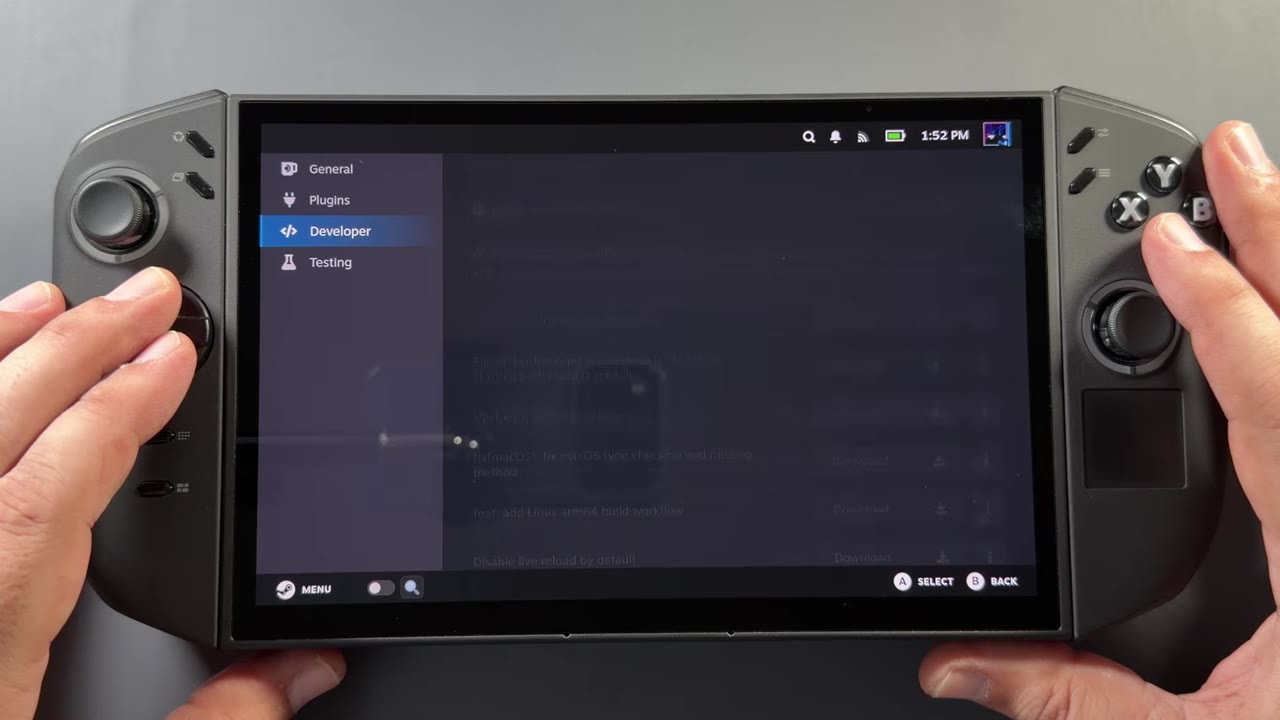
A lot of these plugins have to be installed from desktop mode, either from a zip file or with a one-step command. For the zip installs, open Decky Loader's settings (the gear icon) and turn on Developer mode. That adds a Developer tab where you can install plugins from a zip file or a URL.
Step 3: Fix the screen brightness
A lot of people have complained about the brightness slider not working on the Legion Go 2 in SteamOS. As far as I know, it works with HDR, but with regular SDR it doesn't, so I use the Legion Go 2 Brightness fix. There's more than one plugin out there for this. This is one that was recommended to me. It's made for CachyOS, and it works just fine here too.
⬇ Download Legion Go 2 Brightness fix (GitHub Releases)
github.com/jorgemmsilva/decky-plugin-fix-lego2-brightness-cachyos/releases
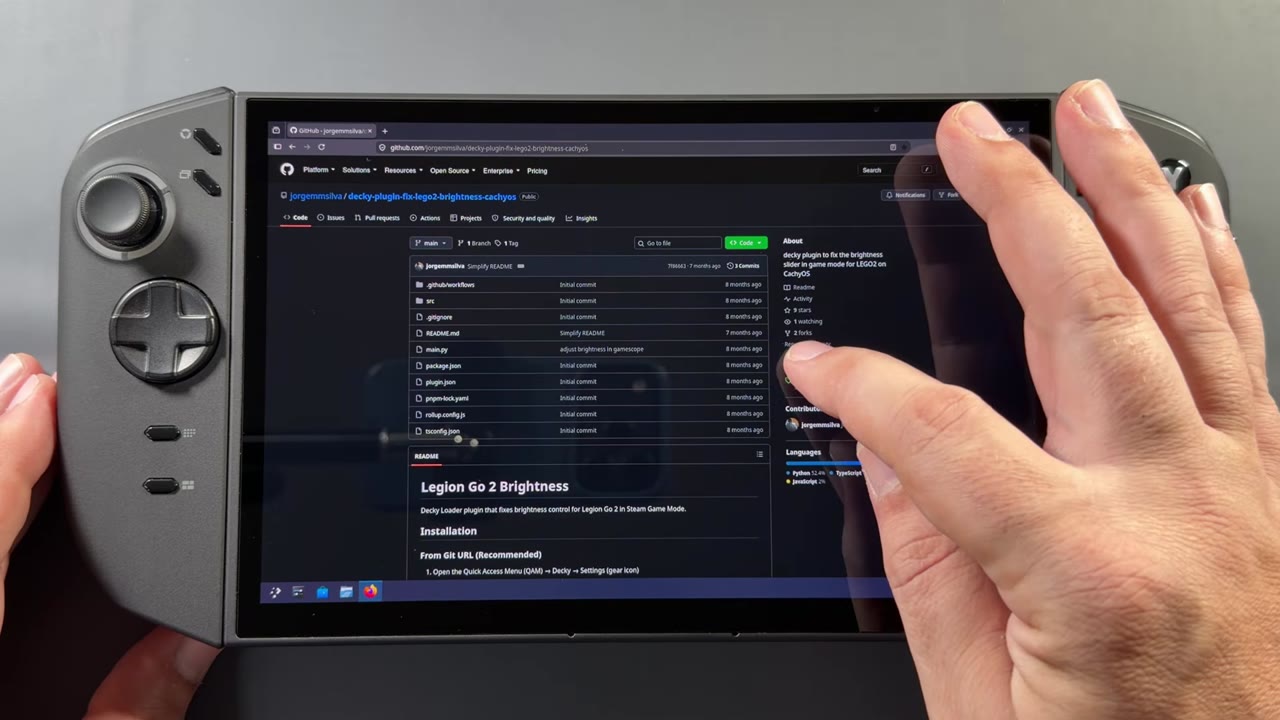
- In desktop mode, go to the plugin's Releases page and download the zip from the top release (1.0.0 when I made the video).
- Go back to game mode, open the quick access menu, then Decky Loader → gear icon → Developer.
- Choose Install plugin from zip file, browse to your Downloads folder and pick the brightness zip.
- Click Install. It only takes a second.
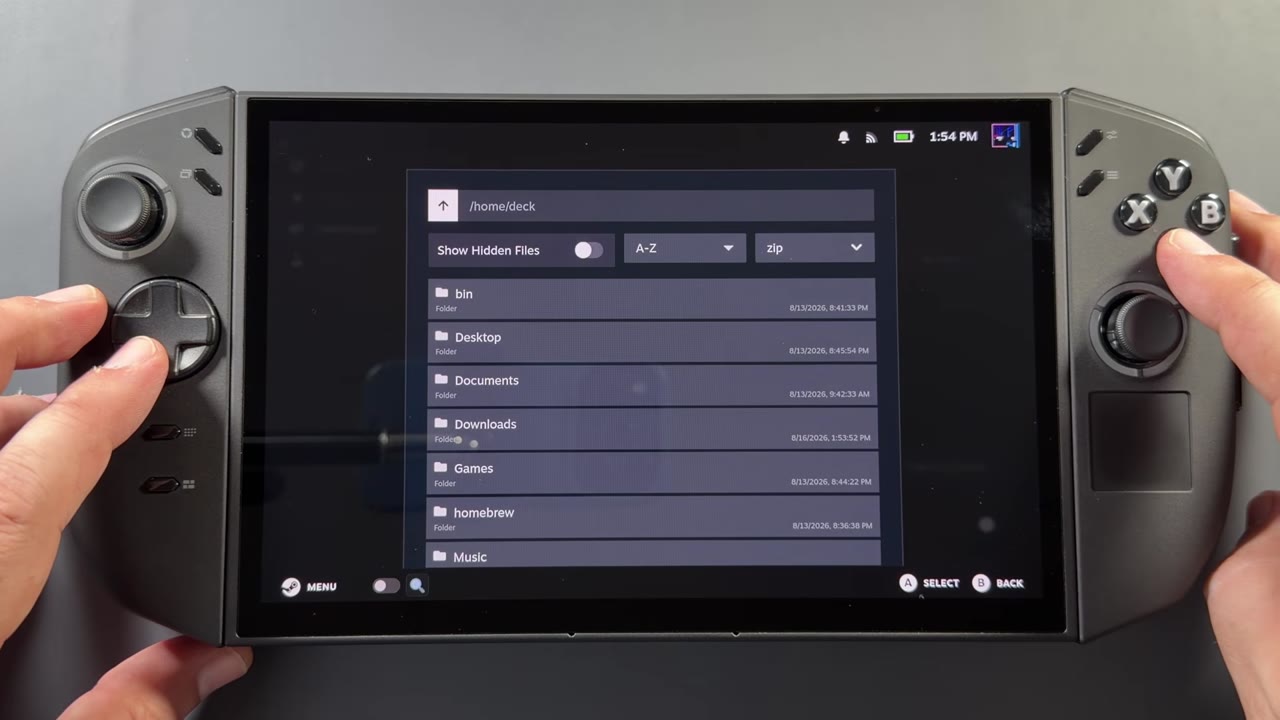
Now there's a brightness slider in Decky Loader, so you can finally change the brightness in game mode. It does seem to wash out some of the colors here and there, but it solves the brightness issue for now.
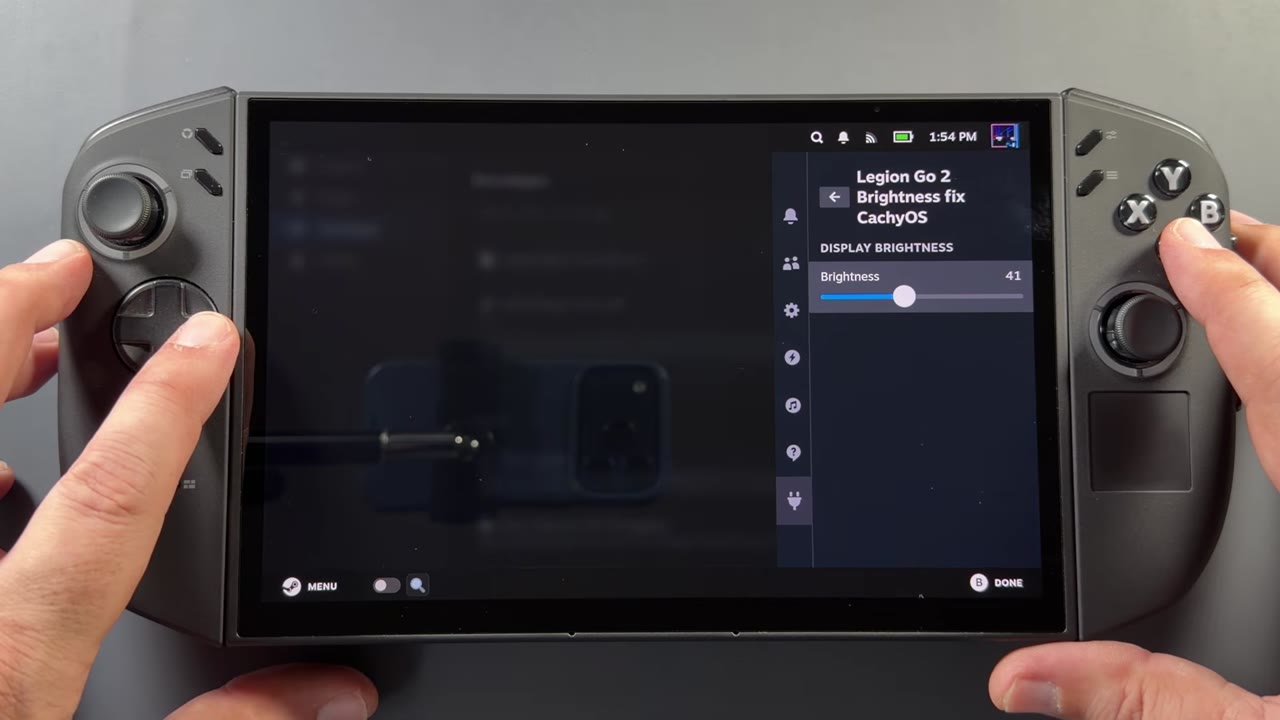
Step 4: Control the RGB lights with HueSync
For the RGB lighting, I'm using HueSync. This one is installed a bit differently: instead of releases, there's a one-step install command at the bottom of the GitHub page.
⬇ Get HueSync (GitHub, one-step install)
github.com/honjow/HueSync
- In desktop mode, open the HueSync GitHub page and scroll down to the one-step installation.
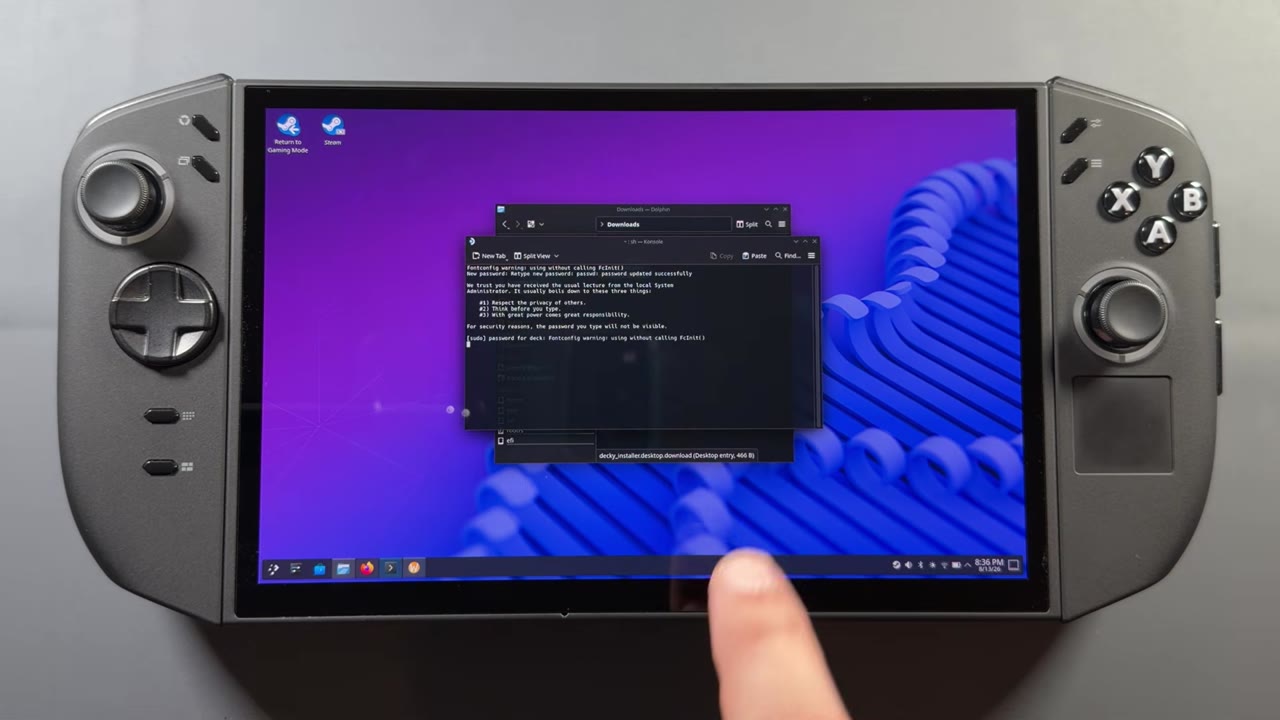
- Click the copy button, open the Console, paste the command and press Enter.
- It asks for your password. If you don't have one yet, go to Settings → Users → Change password and make one, then type it into the console. You won't see it as you type. Press Enter and it finishes the install.
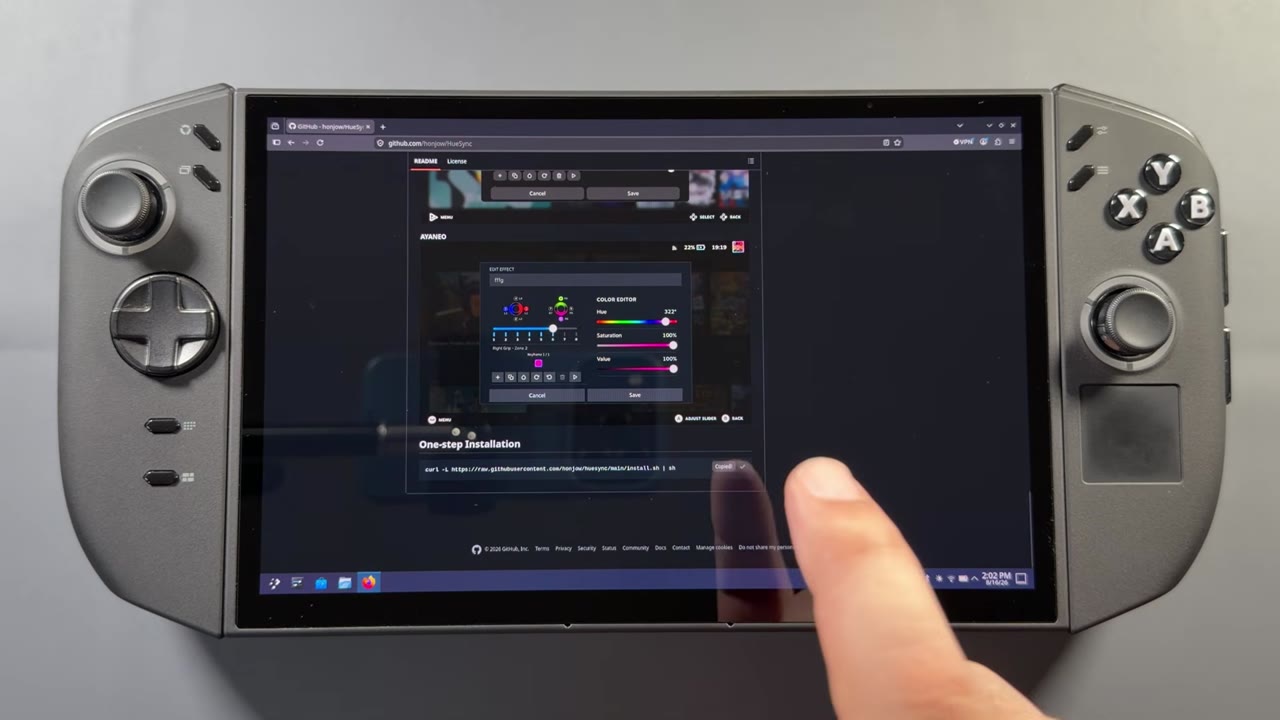
Back in game mode, HueSync shows up in Decky Loader. You can switch profiles by power mode, control the power LED and turn it off during sleep. Turn on Enable RGB Lighting Control, and you can toggle the lights and pick effects like rainbow, solid and pulse, with speed and color options. On solid, just slide the color and it changes as soon as you stop.
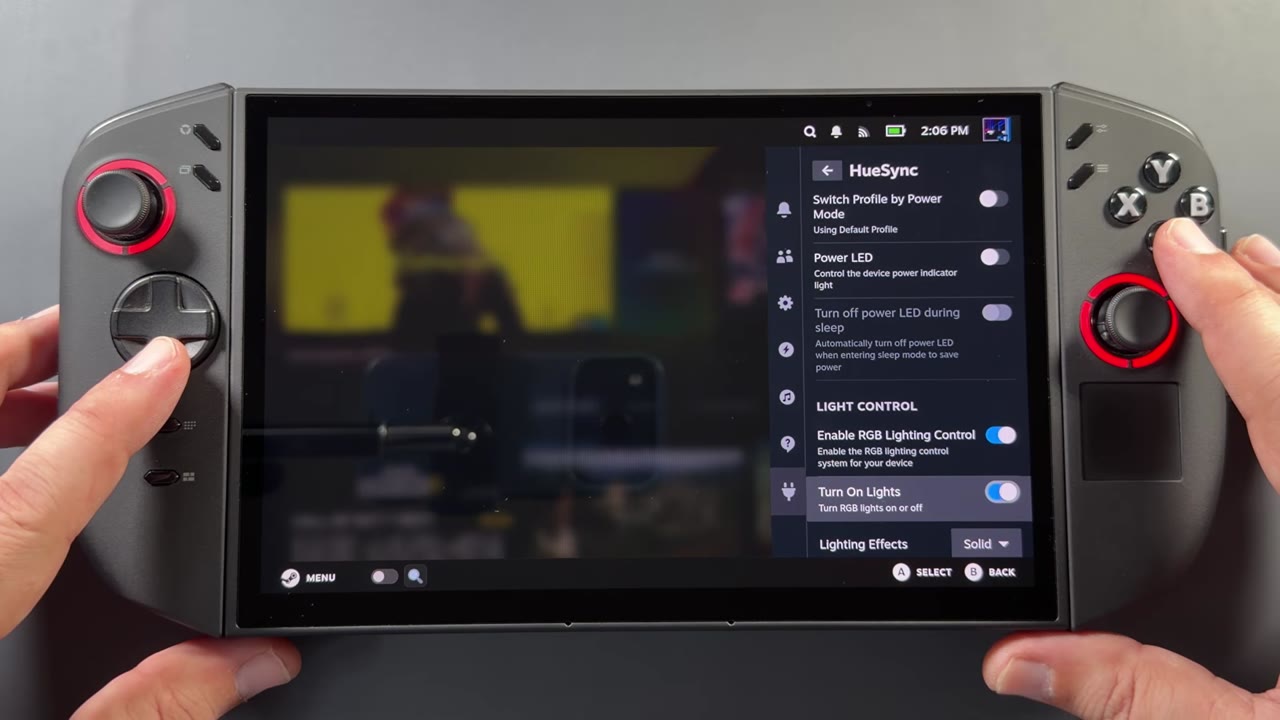
I don't really care if the lights are on or off, but I know a lot of people want this control. The brightness slider for the lights works too, so between the brightness fix and HueSync, you can play in a darker room without everything blasting at full brightness.
Step 5: Boost and tune the audio with AudioForge
This may or may not affect you. I didn't really have a problem, but some people say the speakers are much quieter in SteamOS than in Windows on the Go 2. I tried DeckSP straight from the store, and it made the sound stop working in game mode for me. I was told to use AudioForge, a different fork of the same idea, and that worked just fine.
⬇ Get AudioForge (GitHub, quick install)
github.com/neoseek/AudioForge
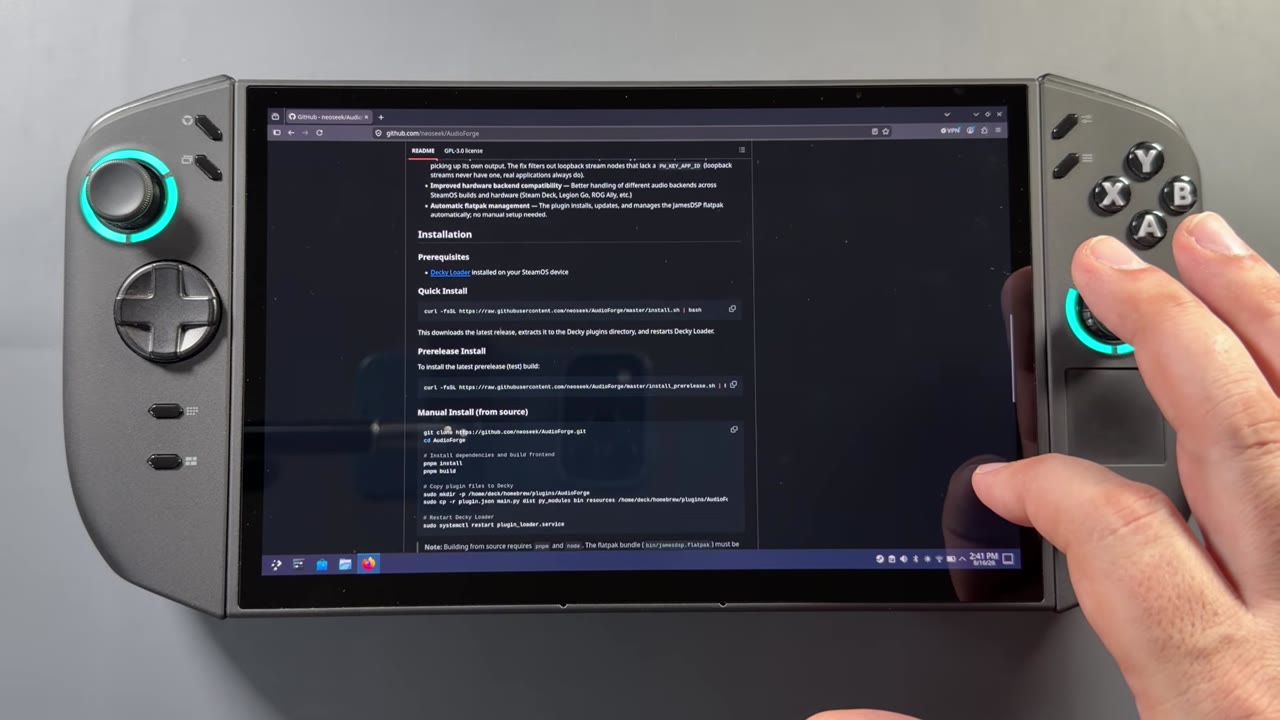
It has the same kind of quick install as HueSync. In desktop mode, copy the quick install command from the GitHub page, paste it into the console, press Enter and type your password.
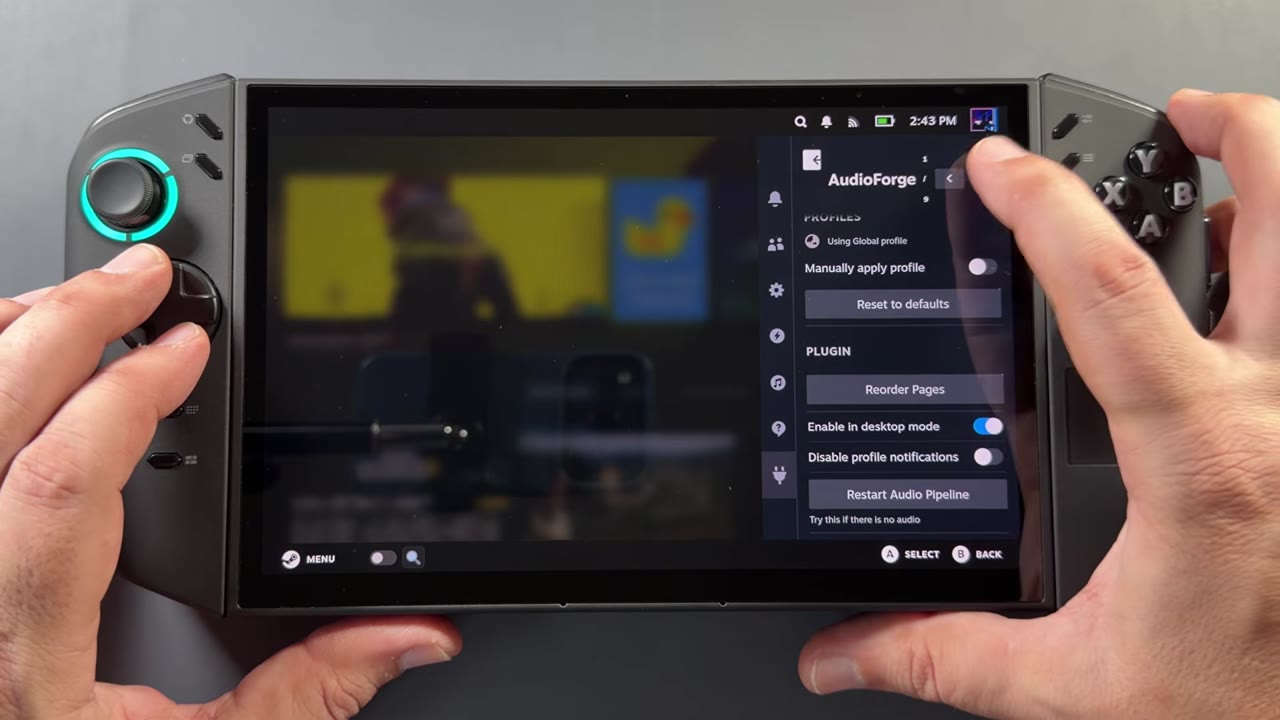
In game mode, AudioForge has nine tabs. The first covers applying profiles manually, reordering pages, restarting the audio pipeline and enabling it in desktop mode. The Master tab is probably one of the more important ones: you can raise the gain to make it louder and change the threshold, which is what really boosts the audio. The preset equalizers aren't bad either. A lot of people recommended Clear, or maybe Bass, and that seemed to help with both loudness and clarity. There's also dynamic range, stereo wideness and more. A lot of it you probably won't want to mess with, but it's an easy way to boost the sound, add a little bass or clean up the audio.
Step 6: TDP presets with LeGoTDP
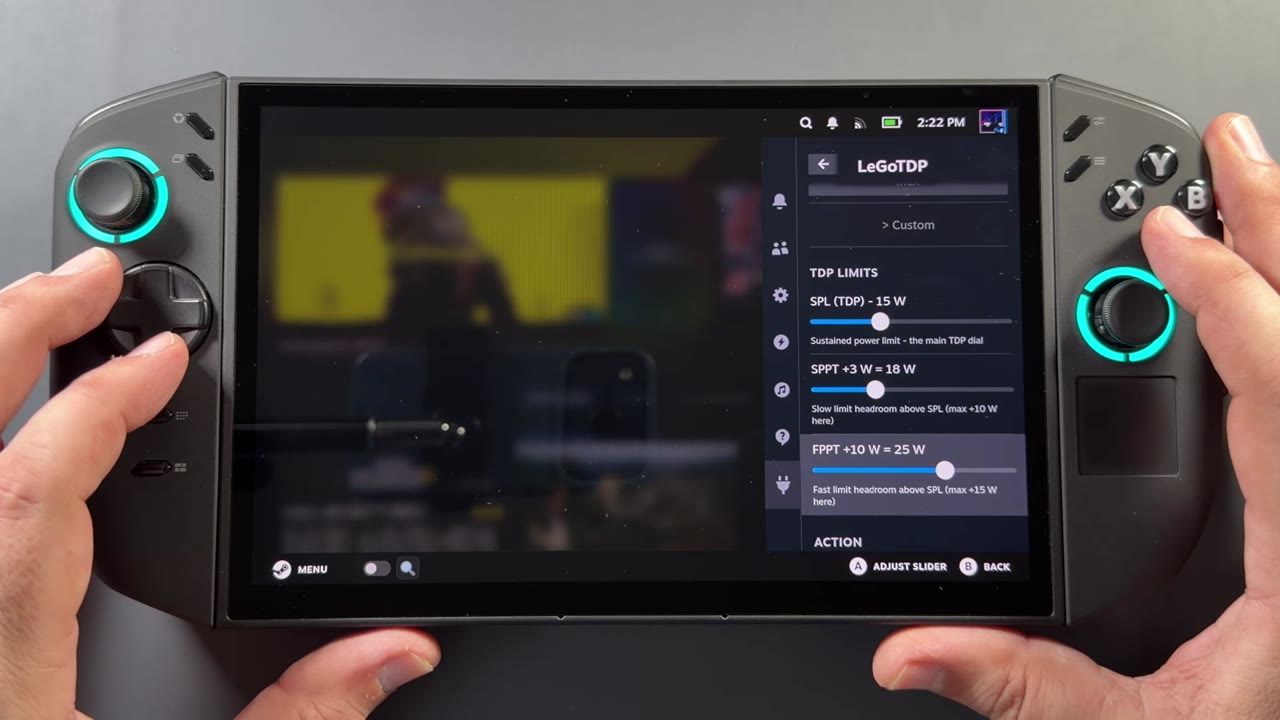
I found LeGoTDP pretty useful over Steam's single TDP slider. You get all three power limit sliders, plus presets you can use in per-game profiles.
⬇ Download LeGoTDP (GitHub Releases)
github.com/Rayekkk/LeGoTDP/releases
- In desktop mode, go to the LeGoTDP Releases page and download the zip file.
- Back in game mode, open Decky Loader → gear icon → Developer → Install plugin from zip file, just like the brightness fix.
- Pick the LeGoTDP zip from your Downloads folder and install it.
You can enable or disable it. Disabled, it lets Steam do its thing with the single slider. Enabled, you get quick presets that remind me of the Windows presets in Legion Space, from minimum and silent up through balanced, performance and max, plus custom. If you know what you're doing, you can set the limits yourself.
Step 7: Lossless Scaling frame gen with Decky LSFG-VK
This one certainly isn't a need, but I really like using it on SteamOS devices. You do have to own Lossless Scaling on Steam and have it installed on the device first. It's not free, but if I remember right it's under $10, and it's gotten a lot of updates over the past year or two.
⬇ Download Decky LSFG-VK (GitHub Releases)
github.com/xXJSONDeruloXx/decky-lsfg-vk/releases
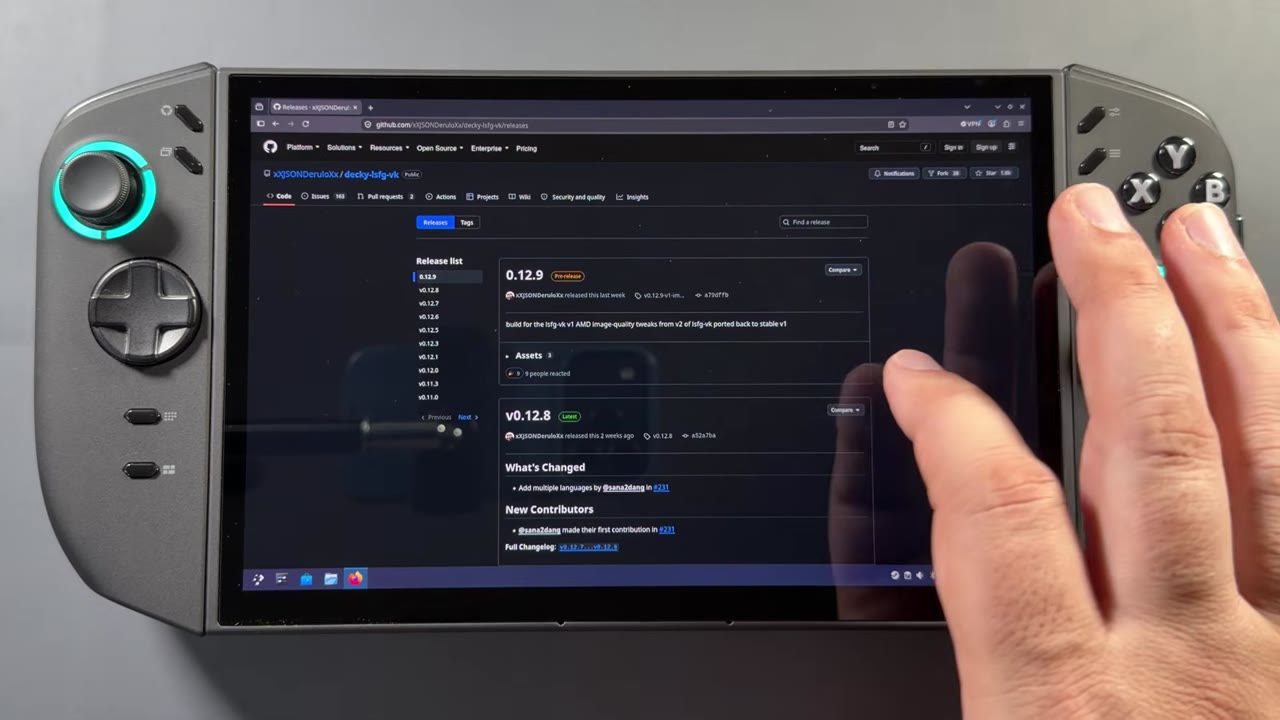
- In desktop mode, go to the Decky LSFG-VK Releases page and download the newest release zip.
- Back in game mode, install it from the zip file through Decky Loader's Developer tab.
- Open the plugin and click the extra install button it shows. It's really quick.
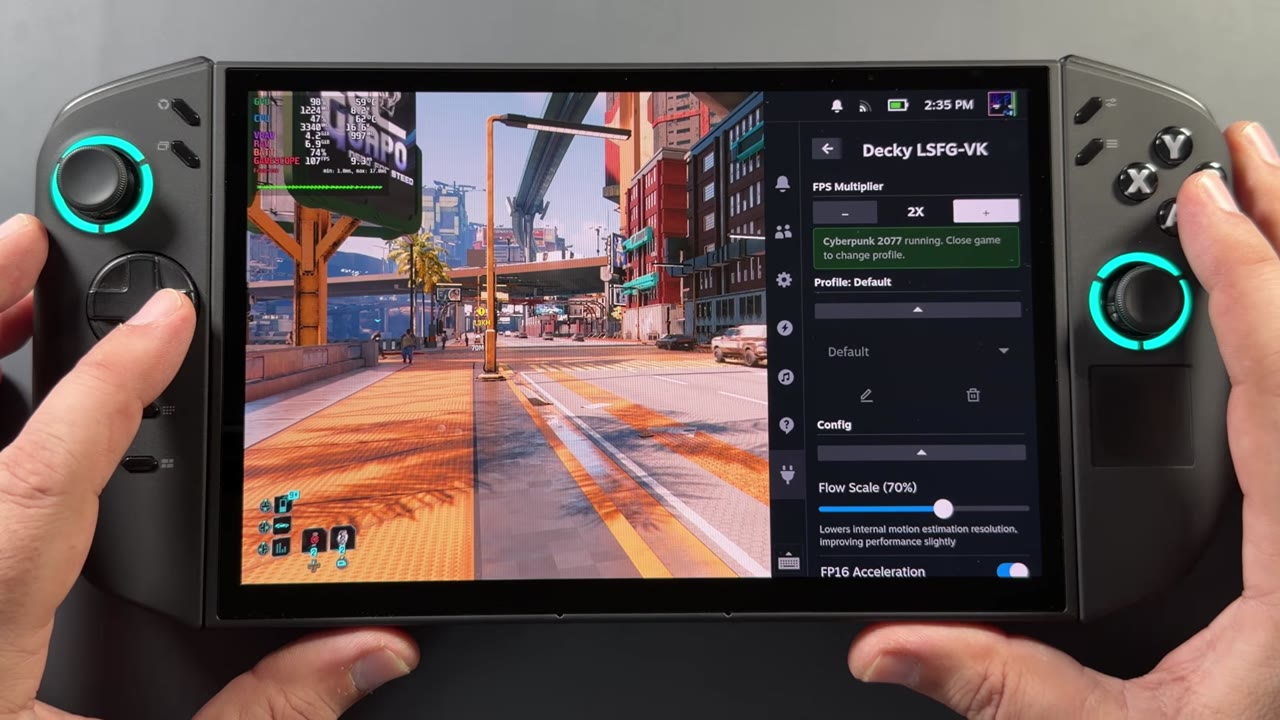
Then you can adjust the settings. Flow scale is typically between 60 and 80 depending on the game and performance. I set it to 70 to show it working. There's a base FPS cap if you want to use that instead of an in-game cap, and I typically turn on Performance mode on these devices to help a little. The FPS multiplier at the top has off, 2x, 3x and 4x.
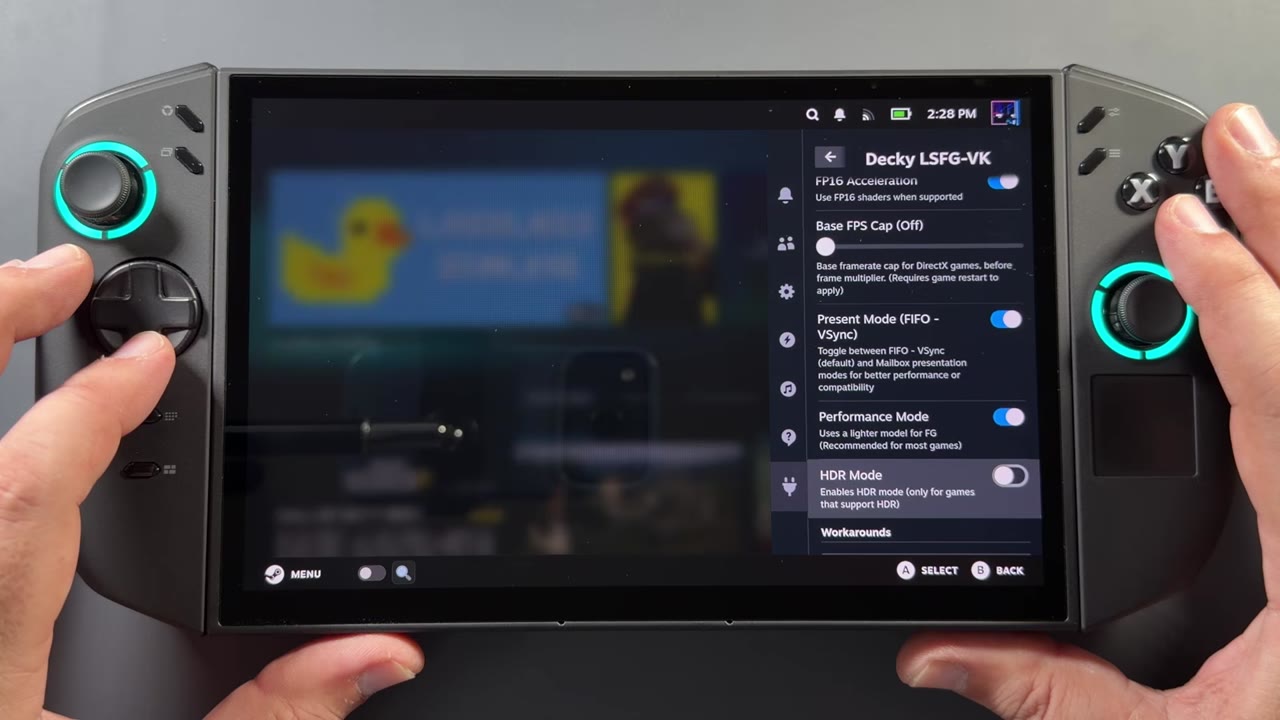
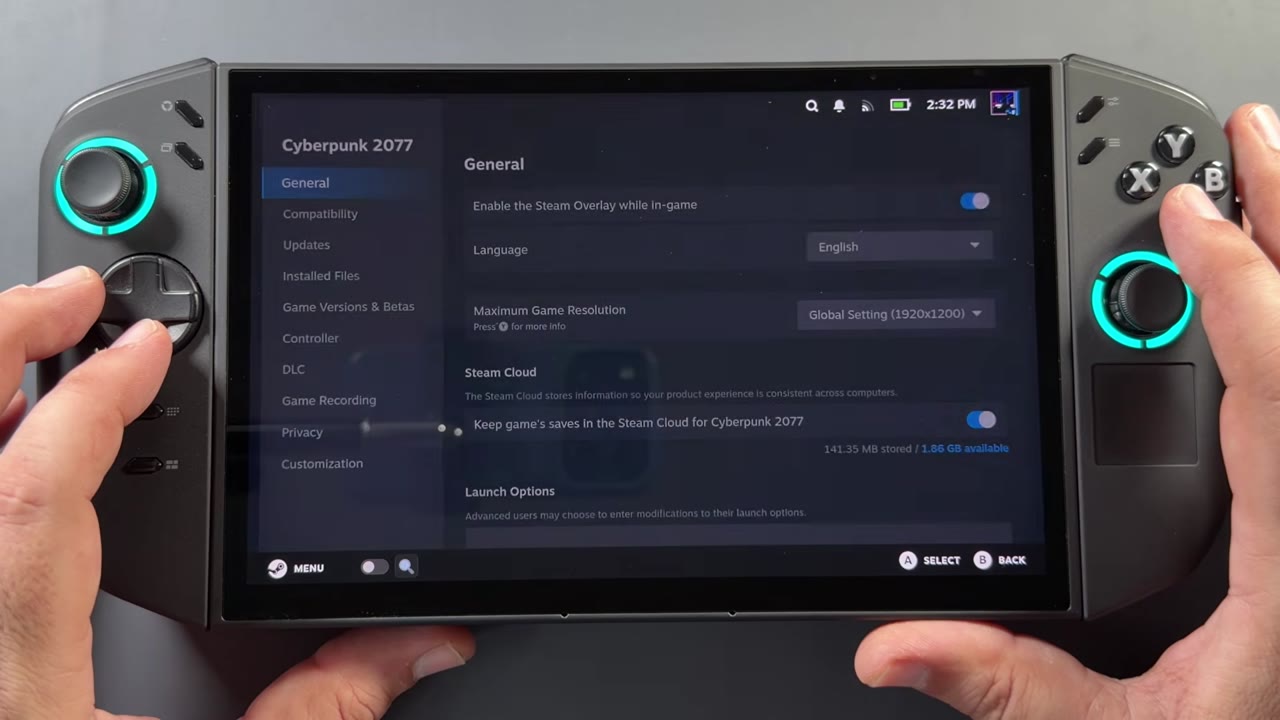
Use the plugin's Copy launch option button, then paste that into the launch options of any game you want to use it with. For Cyberpunk, I went to its properties, brought up the keyboard and pasted the command under Launch Options. You have to remember to do that for each game.
In Cyberpunk with my medium settings, I typically get 50 to 65 FPS. At 2x, the frame rate jumps up to about 108 to 110, and at 3x it's about 140 to 144. It gets pretty janky at 3x and 4x a lot of the time, but I do like 2x in a lot of games, especially capped at 30, 40 or even 60. Even uncapped, 2x works out pretty well in a lot of games, especially on the VRR display.
More from the Decky store
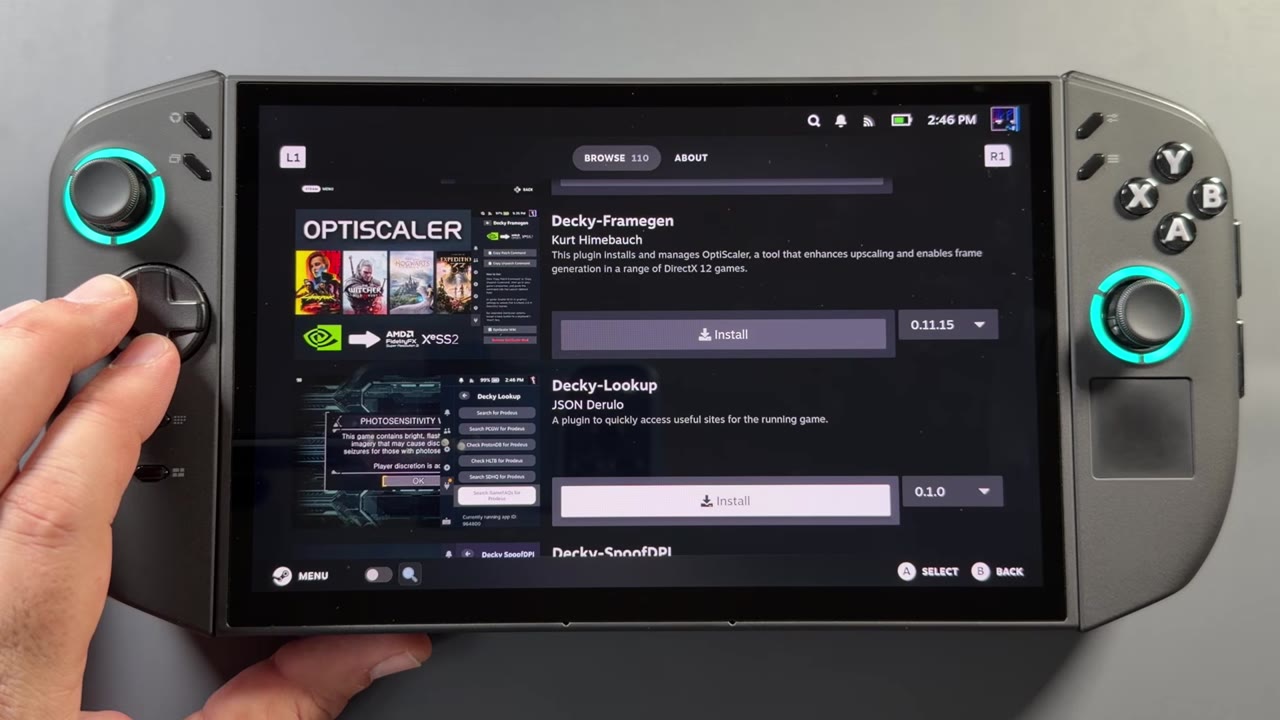
Those are the five fixes, or ways to make SteamOS a little better on the Legion Go 2, until Valve gets some of this straightened out, including something as simple as the brightness slider in game mode. The Decky Loader store has lots more that works and is just fun to have:
- Decky Framegen, another way to get frame gen and upscaling through OptiScaler besides Lossless Scaling
- HLTB (How Long To Beat) for info on how long games take to play through
- ProtonDB Badges
- SteamGridDB, which I use a lot for custom artwork
- Themes and tweaks to mess with the Steam UI
I'll ultimately be going back to Windows on the Go 2 once I finish a few more videos, to test it the way it's intended as a Windows handheld for now. I'll be revisiting SteamOS as Valve makes updates and gets simple things like the brightness slider working properly. For how games run on SteamOS here, see my Legion Go 2 SteamOS games test.