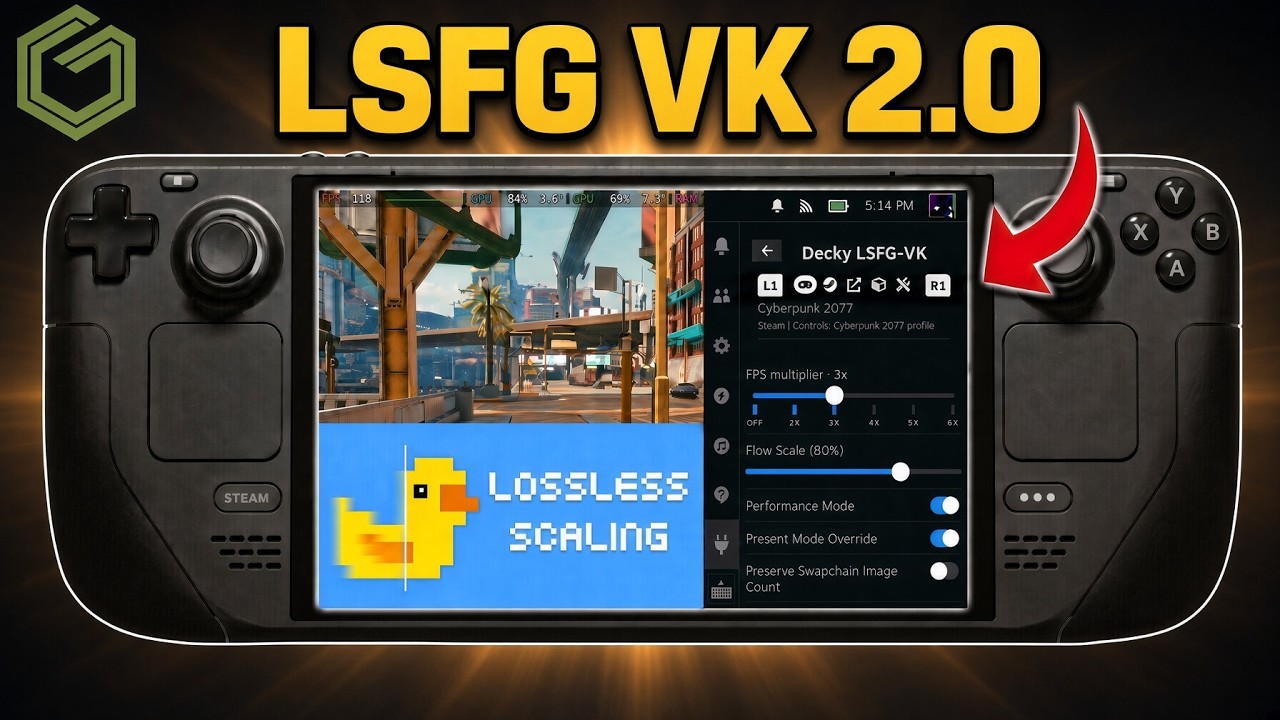
 ▶Watch on YouTube
- Lossless Scaling 2.0 on SteamOS runs through the LSFG-VK Decky plugin (2.00 release).
- You need Decky Loader, and you need to own Lossless Scaling in your Steam library.
- Big quality-of-life change: no more copy-pasting launch commands. You enable games per title inside the plugin.
- In my testing, frame gen was capped at the screen refresh: 90 FPS on the Deck screen, 120 FPS docked.
What's up, guys! It's time to take a quick look at Lossless Scaling again on the Steam Deck. This is Lossless Scaling 2.0, by way of the LSFG-VK plugin, and it brings some really nice quality-of-life changes. It's not so much a guide, but I will kind of show everything I did to get it running.
So, the newest release of LSFG-VK, 2.00, was only about two days old when I made the video. It adds separate tabs for Steam games, non-Steam games, Flatpaks, settings and your config files. And you can now enable a Steam or non-Steam game right inside the plugin, so no more copying and pasting launch commands for each game.
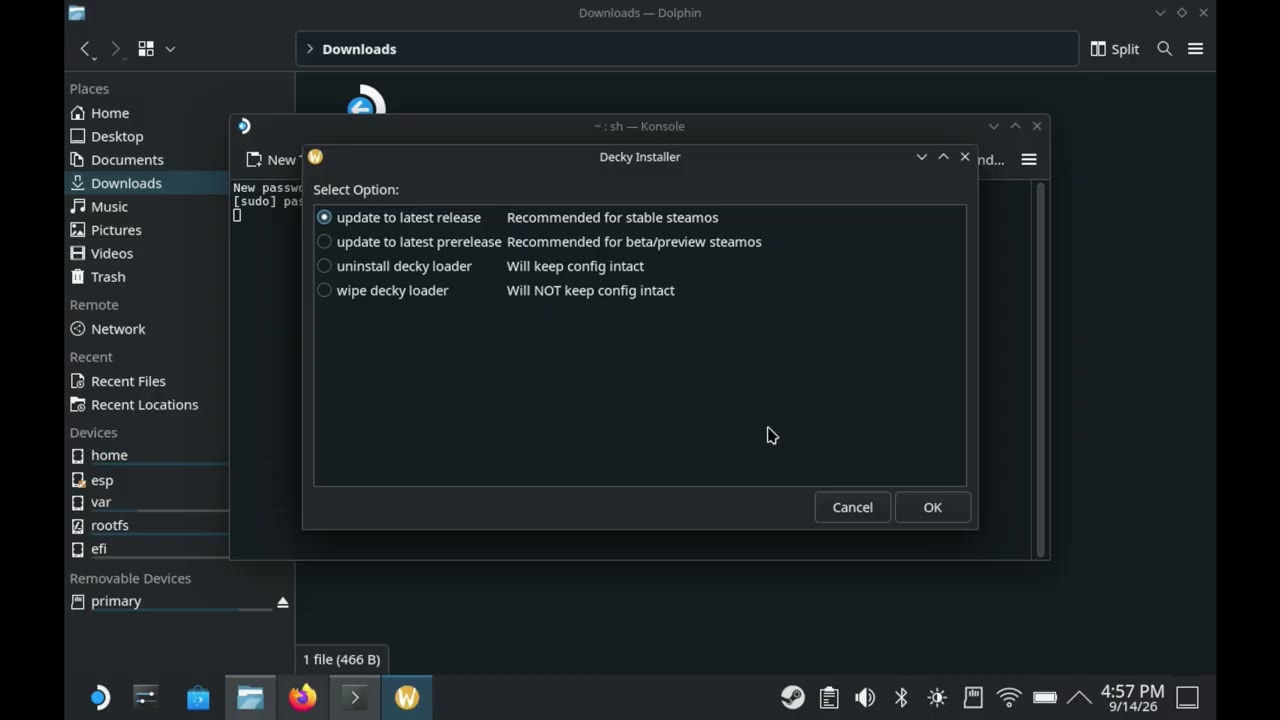
Step 1: Install (or update) Decky Loader
If you already have Decky Loader, you can skip this step and go right to getting 2.0.
- Switch to Desktop Mode and go to decky.xyz in your browser.
- Download the Decky installer, open it from your Downloads folder and choose Launch, then Continue.
- It sets a temporary password for you and finishes the install. If you already had Decky, it just updates, like it did for me.
Step 2: Download LSFG-VK 2.0 (still in Desktop Mode)
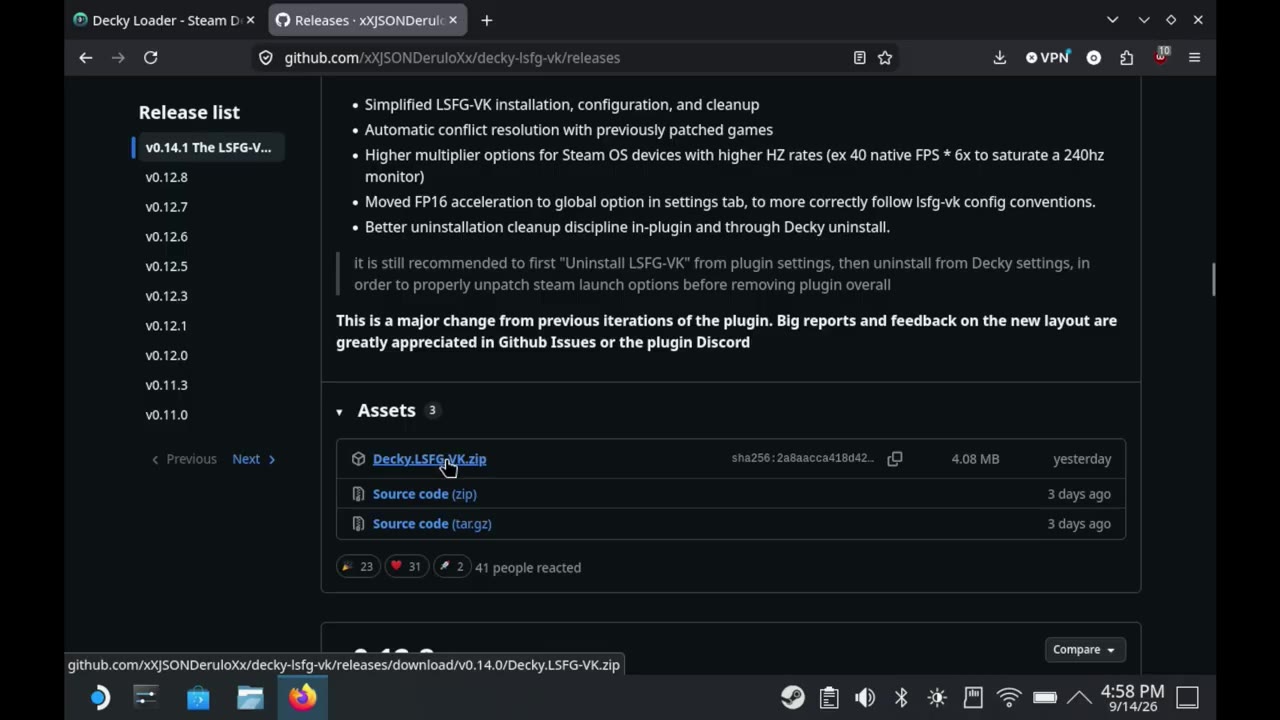
- Go to the LSFG-VK GitHub and find the newest release (2.00 at time of the video).
- Scroll down and download the Decky LSFG-VK zip file. That's it for Desktop Mode.
Step 3: Install the plugin in Game Mode
- Back in Game Mode, open the Quick Access Menu and go all the way down to Decky Loader.
- Open Decky's settings (gear icon) and, under General, make sure Developer Mode is on.
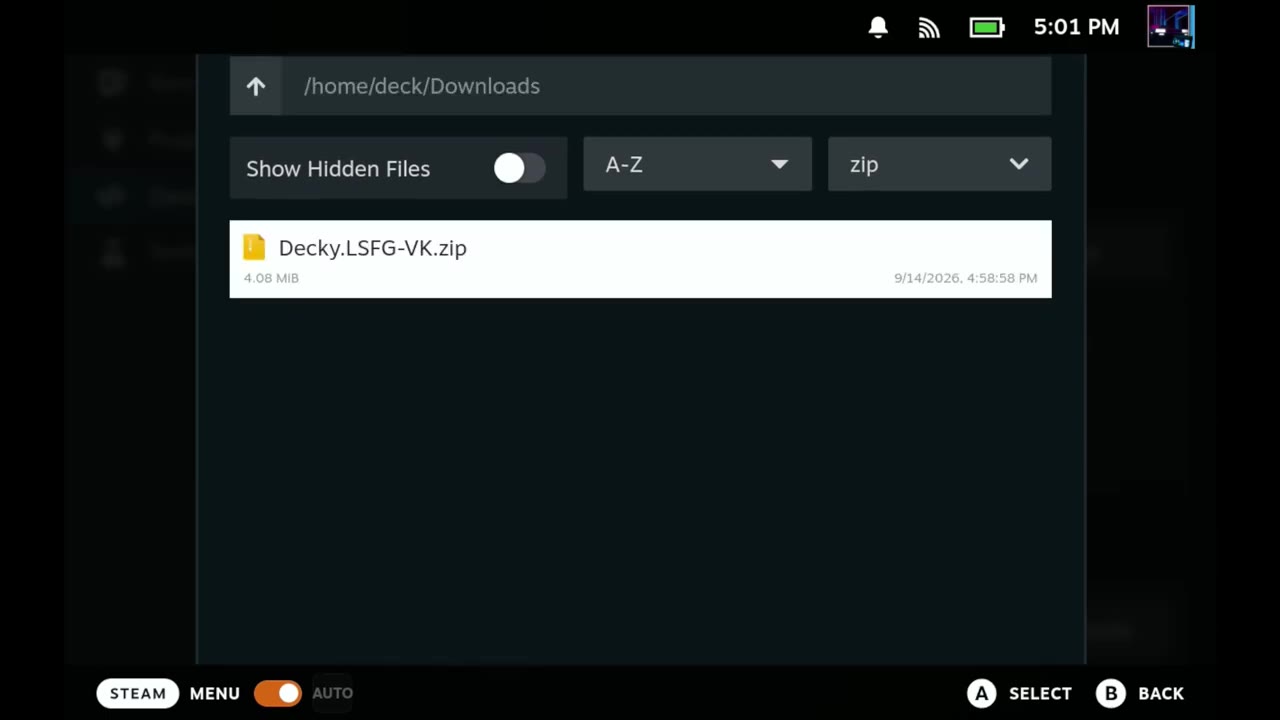
- Go to the Developer tab → Install plugin from zip file → Browse → Downloads, and pick the LSFG-VK zip.
- I had to restart my Steam Deck before it showed up properly.
Now, I already had the original LSFG-VK plugin installed and I didn't uninstall it. I've done it both ways and had it work fine either way. If you run into trouble, you might have to start over, but I didn't have any issues.
Step 4: Switch Lossless Scaling to the LSFG-VK branch
- Go to Lossless Scaling in your Steam library (you do need to own it and have it downloaded).
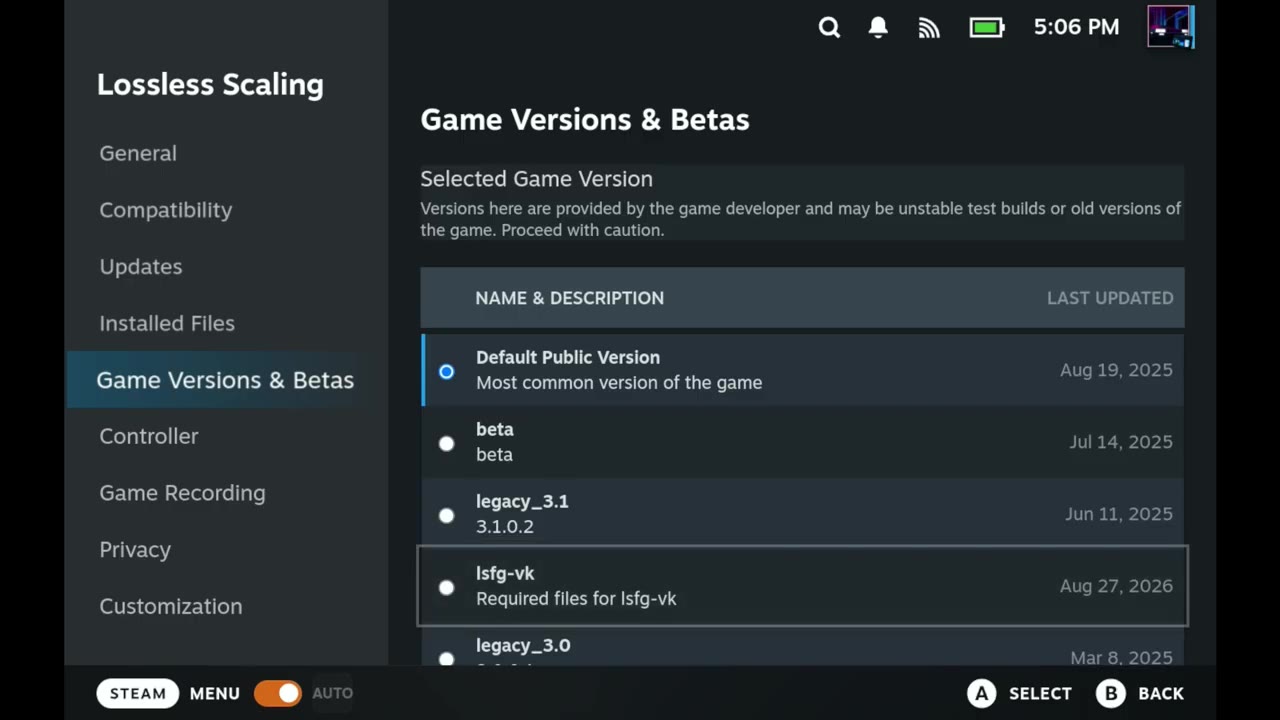
- Gear icon → Properties → Game Versions & Betas.
- Pick the newest entry (August 27th, 2026 when I did this): the required files for LSFG-VK.
- Go back to the LSFG-VK plugin in Decky and hit Install.
Step 5: Enable it per game
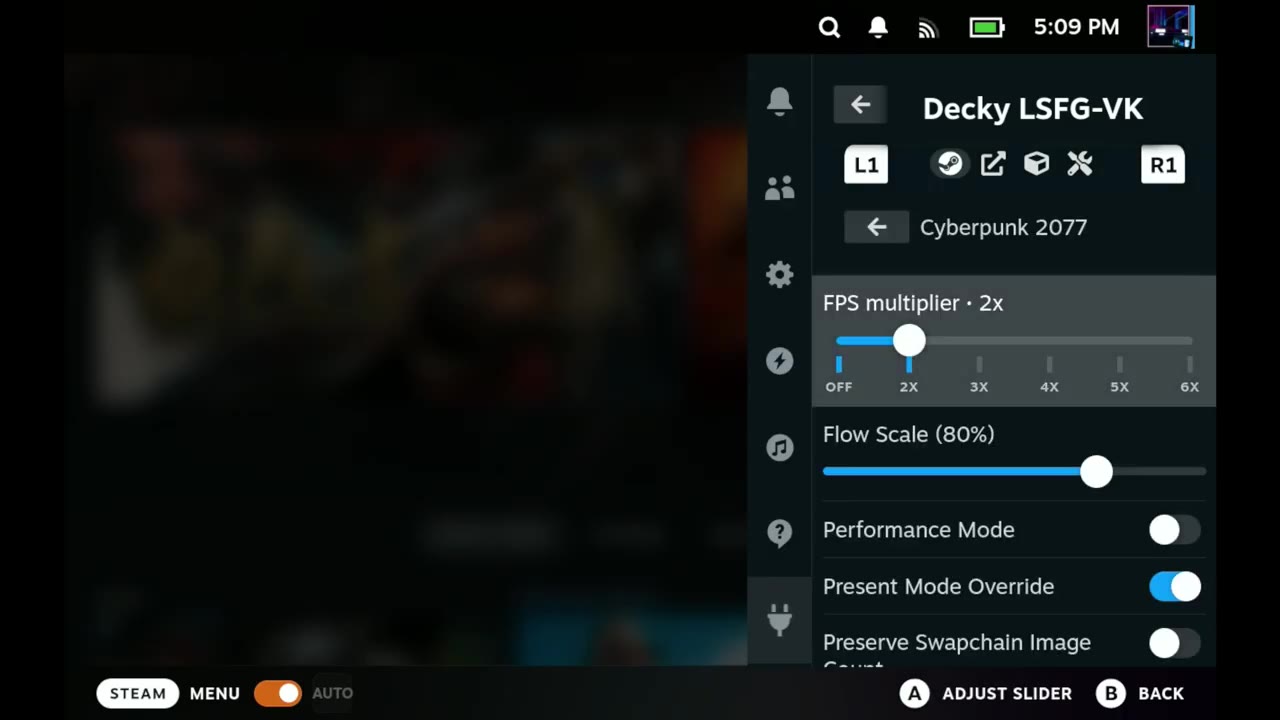
Everything's going to look a bit different from before. Use L1 and R1 to move between the tabs at the top. On the Steam Games tab you can enable all of your games across the board or go in one by one. Non-Steam games work too. I want to try it with Assassin's Creed Black Flag Resynced through the Ubisoft launcher, and it should be good for emulation through the Flatpak tab as well.
So, for Cyberpunk 2077, I clicked Enable for next launch. That turns it on automatically and shows the settings you're used to, like the FPS multiplier, flow scale and performance mode. These are saved per game. I like where this is going over the original plugin, and it's a lot easier than copying and pasting that launch command.
How it ran
Cyberpunk 2077
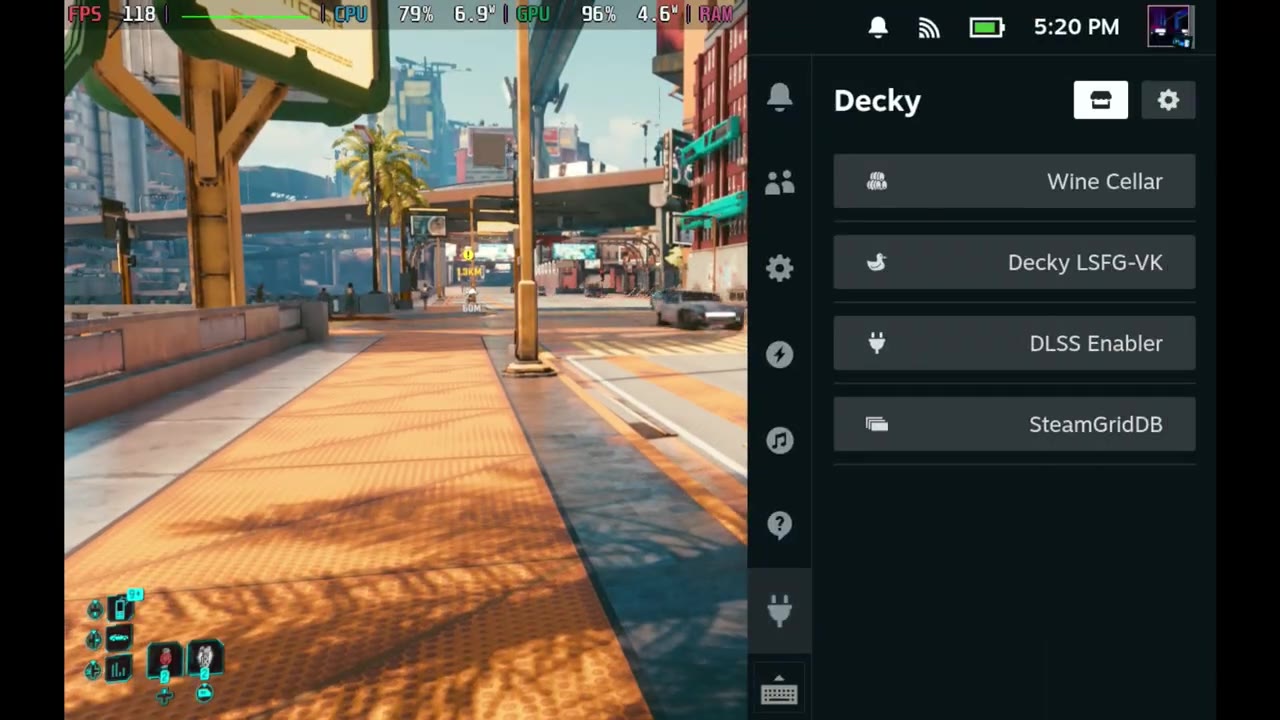
I was running it at three times. Now, for whatever reason, LSFG was capping my frame rate to the screen refresh: 120 FPS docked to my capture card and 90 FPS on the Deck screen. It used to be that I could go above that. I went through all the settings trying to get a fully unlocked frame rate and couldn't find anything to get me back there. Still, it was working really well. Input latency felt as good or better than the previous versions, and image quality was pretty decent.
Onimusha
- Base frame rate with my settings: 35–45 FPS
- 2x: does a pretty good job
- 3x: pretty much a locked 90 FPS (because of the cap), with occasional changes here and there
I usually use in-game frame gen, but I would possibly use LSFG here at 2x over the in-game option. It was actually working pretty well for me. At 3x it looks and feels pretty decent in person too. You do have 4x, 5x and 6x, but that wouldn't work great on lower-refresh displays anyway, and I think a lot of people opt for 2x or 3x because of input latency.
Verdict
So, Lossless Scaling 2.0 is working really well on the Steam Deck, and it just keeps improving from what we've covered over time. Setting games up per title is a lot nicer than the old launch commands. The one thing I couldn't figure out is the frame rate cap at the screen refresh. I've only spent a couple of days tinkering with it, so if somebody knows a little more about that, let me know.
But anyways, guys, let me know if you're using Lossless Scaling, if you're using 2.0, if it's working out well for you, and what device you're using it on in the comments down below. As always, thanks a lot for coming to check this out. I really appreciate it, and I'll see you in the next one.
Want more handheld tests?
New Steam Deck, ROG Ally, Legion Go and Steam Machine performance videos every week.