This guide is from my video published Aug 1, 2022. Software and menus change over time, so some of these steps may be different now.
 ▶Watch on YouTube
- Every launcher is the same rinse-and-repeat process. I show the full thing with Epic.
- Install GE-Proton layers with ProtonUp-Qt and restart Steam so they show up.
- Add the installer as a non-Steam game, run it, remove it, then add the launcher .exe from the compatdata folder.
- For SD card installs, add a STEAM_COMPAT_MOUNTS launch option to each launcher.
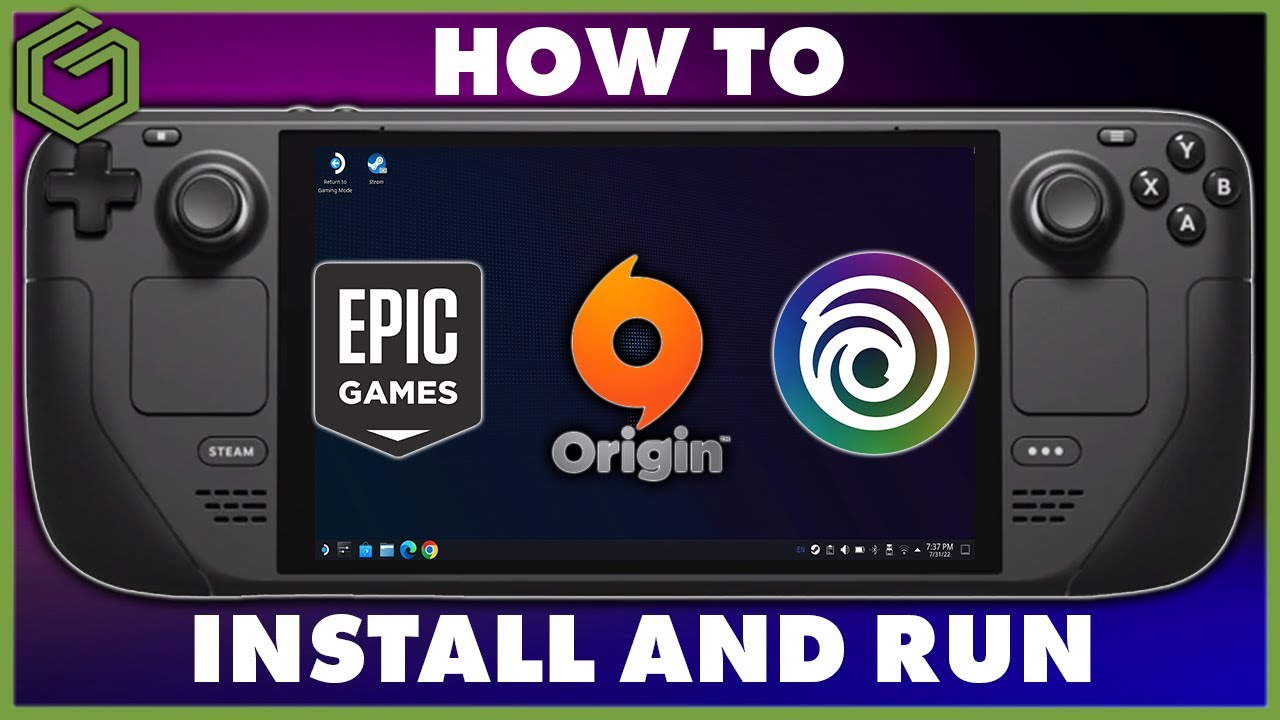
Epic, Ubisoft and Origin all install on the Steam Deck with the exact same process, so this guide walks through Epic in full, then Origin, and by then you'll know how to do Ubisoft. Most Windows apps you install on the Steam Deck go the same way. We'll also cover Proton compatibility layers, custom artwork and using your SD card for games.
Step 1: Get your GE-Proton layers
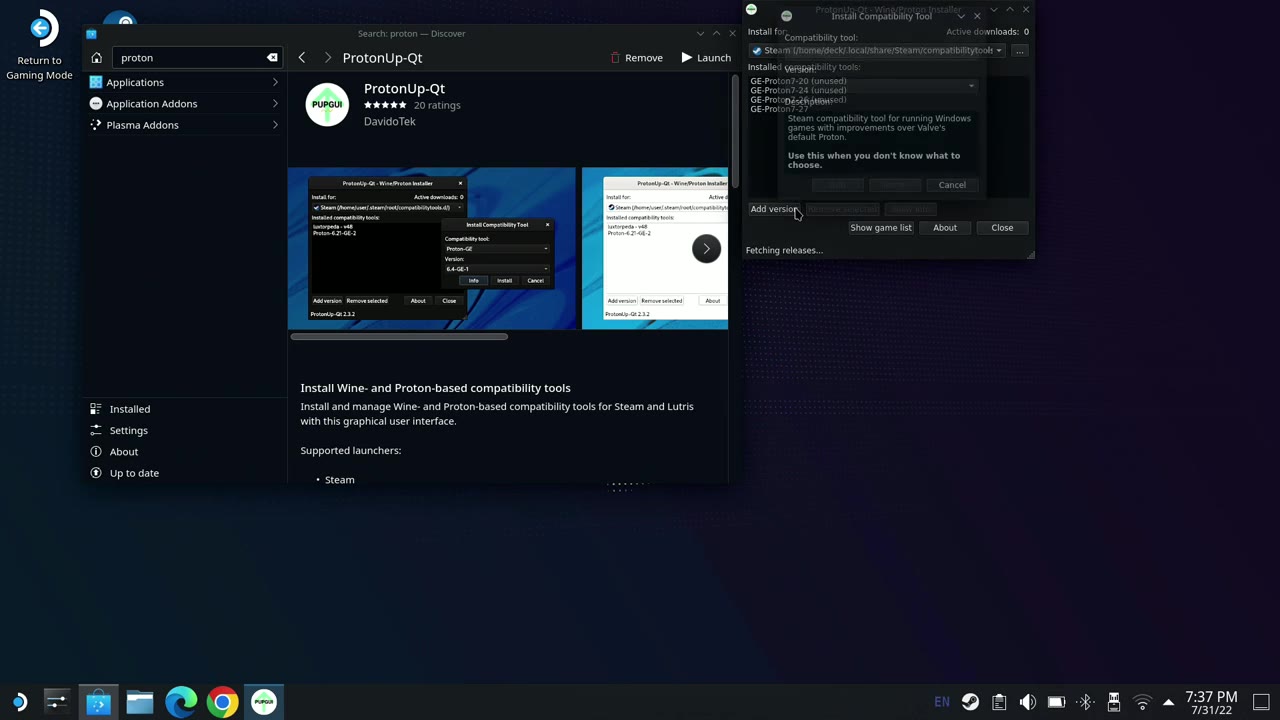
- In desktop mode, open Discover, search for Proton and install ProtonUp-Qt if you don't have it.
- Launch it and install the GE-Proton versions you want. They go straight into Steam. Keep a few versions around, since the newest isn't always the best for every game.
- New layers won't show in Steam until you restart Steam.
Step 2: Prep your files
- In Dolphin, open the three-line menu and turn on Show Hidden Files. You'll need it to get into the local data folders.
- Download the Epic, Origin and Ubisoft installers with whatever browser you like, just like you would on Windows. Know where your downloads are going.
Step 3: Run the installer through Steam
- In Steam, go to Add a Game → Add a Non-Steam Game → Browse and go to your Downloads folder.
- Set the file type to All Files. It often defaults to something else, so you won't see everything.
- Pick the Epic installer, click Open, then Add Selected Programs.
- In its Properties → Compatibility, force compatibility and pick a GE-Proton layer. I started with the newest.
- Click Play and go through the installer like you would on Windows.
- When it's done, right-click the installer → Manage → Remove non-Steam game. I don't like clutter.
Step 4: Add the actual launcher
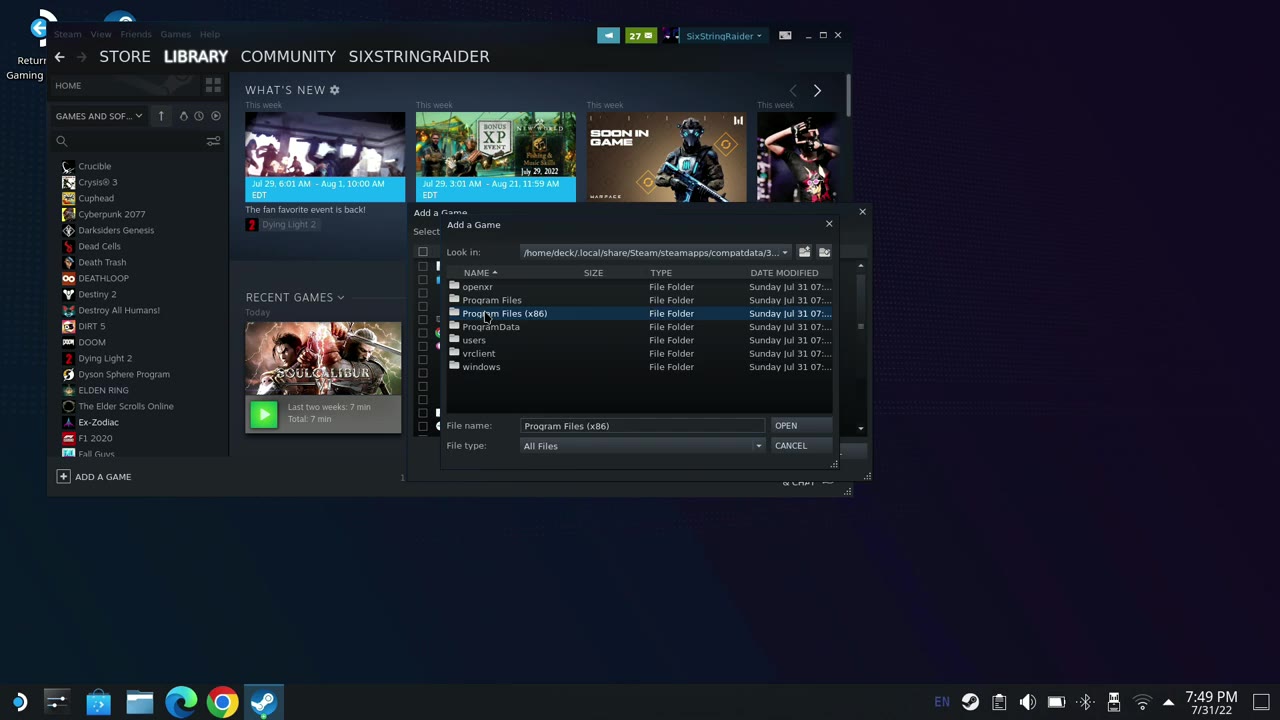
- Add a non-Steam game again, Browse, set All Files, and go to /home/deck/.local/share/Steam/steamapps/compatdata. It's the same path every time.
- The low-numbered folders are system or Steam files. The long-numbered folders are your Windows programs. Find the one for your launcher.
- For Epic, go into pfx → drive_c → Program Files (x86) → Epic Games → Launcher → Portal → Binaries → Win32 and pick the Epic launcher .exe.
- Click Open, Add Selected Programs, then set its compatibility to GE-Proton too.
- Launch it, let it update and sign in.
Step 5: Install games on the SD card
- In Dolphin, go to Removable Devices → Primary. I make folders for each launcher (Epic, Origin, Ubisoft) here. It's cleaner and easier to find later.
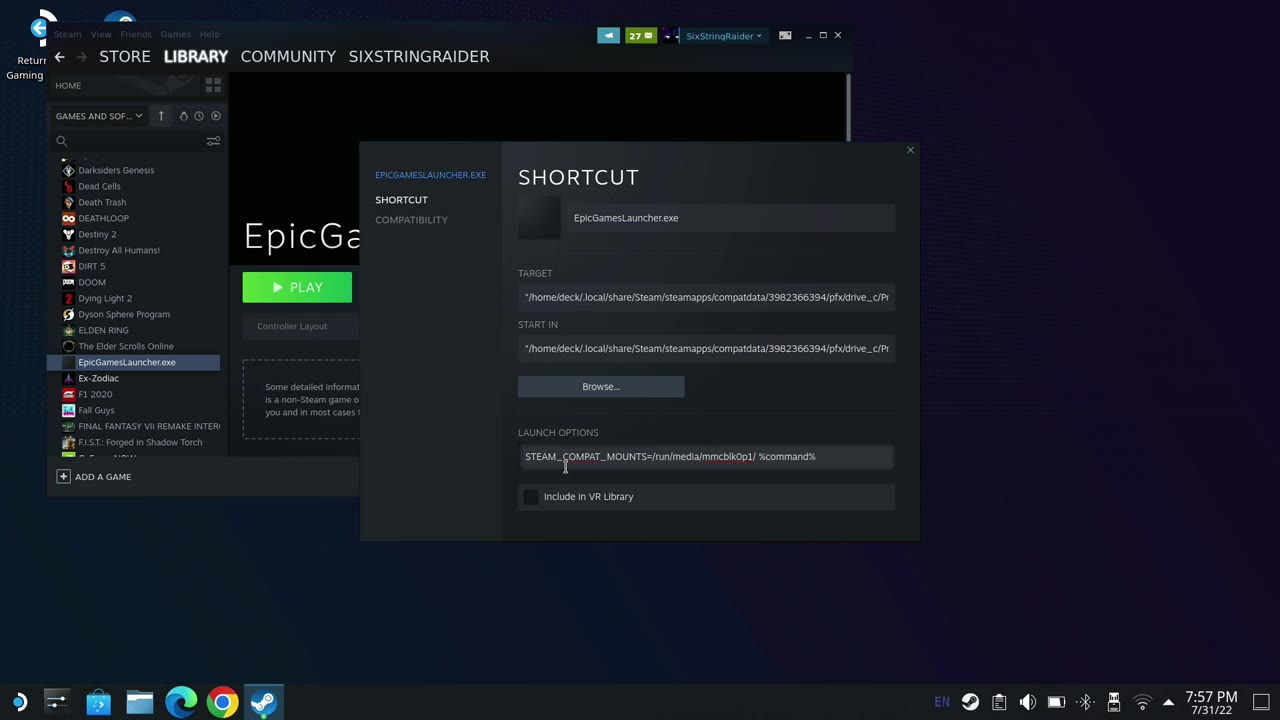
- Note the path at the top. You need it for the launch option.
- In the launcher's Properties → Launch Options, enter STEAM_COMPAT_MOUNTS= followed by that path, then a space and %command%. Do this for every launcher.
- Now when you install a game, expand the computer and pick the drive letter. For me it was E, but it's never labeled SD card and it isn't always E. The folders you made tell you it's the right one.
Step 6: Custom artwork
- In Properties, click the empty icon space and pick your icon image. Do the same for the custom background, and rename it to something clean like "Epic Games".
- Add artwork to the grayed-out spots in Recent in your library too. If the narrow one doesn't stick, open something else so the launcher moves over, then add it again.
- You might have to experiment with sizes and images before it all looks right in game mode.
Origin and Ubisoft
Same exact thing. For Origin, add OriginThinSetup.exe from Downloads, set GE-Proton, run it, remove it, then add the Origin .exe from its numbered folder under pfx → drive_c → Program Files (x86) → Origin. Set compatibility and the SD card launch option, and you're good. Ubisoft is the same again.
In game mode
All my artwork showed up properly, so no grayed-out boxes. Check controller layouts too. Somebody made an Epic Games controller layout for the Steam Deck that works great, with the trackpads for clicking and the controller for games. All three launchers have run really well for me, even in game mode. Crysis 3 Remastered ran with no stutters or problems and a decent frame rate on low settings. It may not be the easiest thing, but once you've done it a couple of times, it becomes second nature.
Let me know on X or in the YouTube comments which launchers you've got running on your Steam Deck. Thanks for reading.
Want more handheld tests?
New Steam Deck, ROG Ally, Legion Go and Steam Machine performance videos every week.