This guide is from my video published Dec 6, 2022. Software and menus change over time, so some of these steps may be different now.
 ▶Watch on YouTube
- Install Lutris from the Discover store in desktop mode.
- Lutris sets up Wine and dependencies the first time you install a launcher like Epic.
- Add Lutris to Steam as a non-Steam game to use it in game mode.
- Switch to Gamepad with Mouse Trackpad and set the right trackpad click to left click.
Lutris works on the Steam Deck in both desktop mode and game mode, and this guide covers installing it and using it in each. I'm not going deep into all of Lutris's settings here. This covers getting it installed, adding it to Steam and using it in game mode.
Step 1: Install Lutris from Discover
- Press the Steam button, go to Power → Switch to Desktop.
- Open the Discover app. I do like to let "Fetching updates" finish first, because it slows the search down a lot if you don't.
- Click Applications, search for Lutris and click Install.
- When it's done, click Launch and close Discover. Lutris checks for updates on first launch.
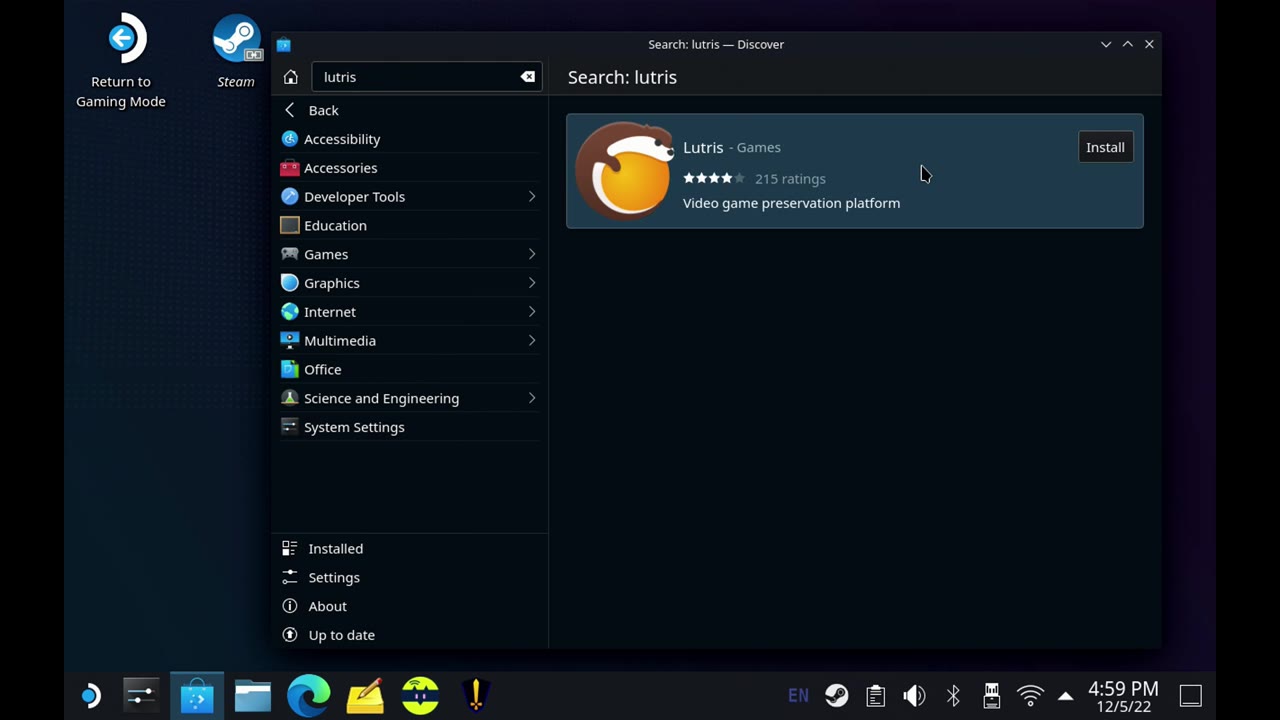
One thing I do right away: the three-line menu at the top → Preferences → Use dark theme.
Step 2: Install a launcher through Lutris (Epic as the example)
- I clicked Connect, which queued up the Epic install. There are other ways to queue it up too, and this works the same for Ubisoft, the EA app and others.
- Note where it's installing, then click Install. It takes a few minutes. I got a double download prompt and just continued.
- It configures Wine for the first time, then installs the dependencies. When it's finished, click Launch.
- Windows now shows under Platforms at the bottom of Lutris, with Epic in it. Sign into Epic and your library is there.
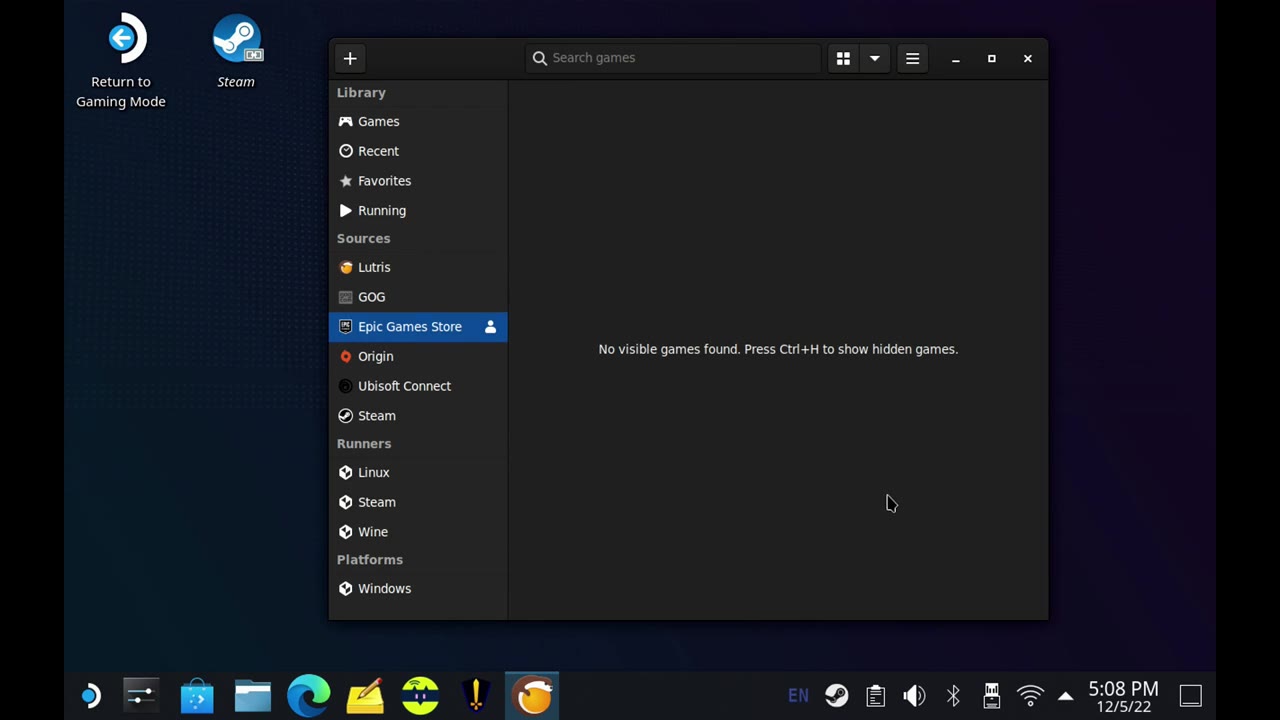
When you install a game, you can keep the default location or pick an SD card or another folder. I stuck with the SSD. I don't really like SD card performance for third-party games as much as I do for regular SteamOS games. I installed Crysis Remastered as a test.
Side note: if you sign in through the Connect button, you can see your game library right in Lutris, not just in Epic. That works with the other launchers too.
Step 3: Add Lutris to Steam
- Open Steam in desktop mode and choose Add a Game → Add a Non-Steam Game.
- Lutris shows up in the list since it's a native app. Select it and click Add Selected Programs.
- Optional: add custom artwork (banner, icon, and the recent-games banner and capsule) so it looks clean in game mode. I put the sizes I made in the Discord.
- Restart into game mode.
Step 4: Fix the controls in game mode
Lutris launches really quickly in game mode, but off the bat you only have the touchscreen. Two easy changes fix it:
- Press the Steam button → Controller settings, and change Gamepad with Joystick Trackpad to Gamepad with Mouse Trackpad. Now the right trackpad moves the mouse.
- Go to Edit Layout → Trackpads, select the right trackpad Click, tab over to Mouse and pick Left Mouse Click.
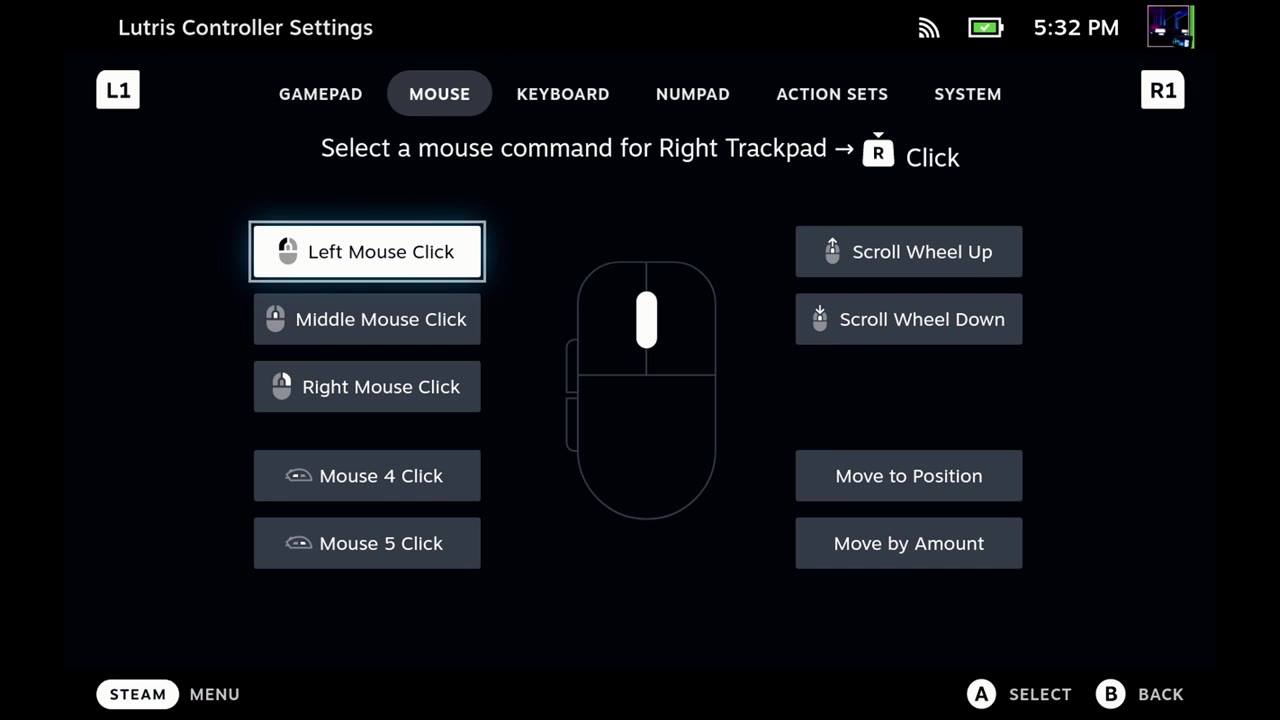
Your controller still works in game. Now I can launch, install and uninstall games from game mode, or do the same in desktop mode. It's been pretty fast and pretty decent in the couple of games I've played, running everything off the SSD.
Let me know on X or in the YouTube comments if you're using Lutris on your Steam Deck and which launchers you're running through it. Thanks for reading.
Want more handheld tests?
New Steam Deck, ROG Ally, Legion Go and Steam Machine performance videos every week.