This guide is from my video published May 13, 2023. Software and menus change over time, so some of these steps may be different now.
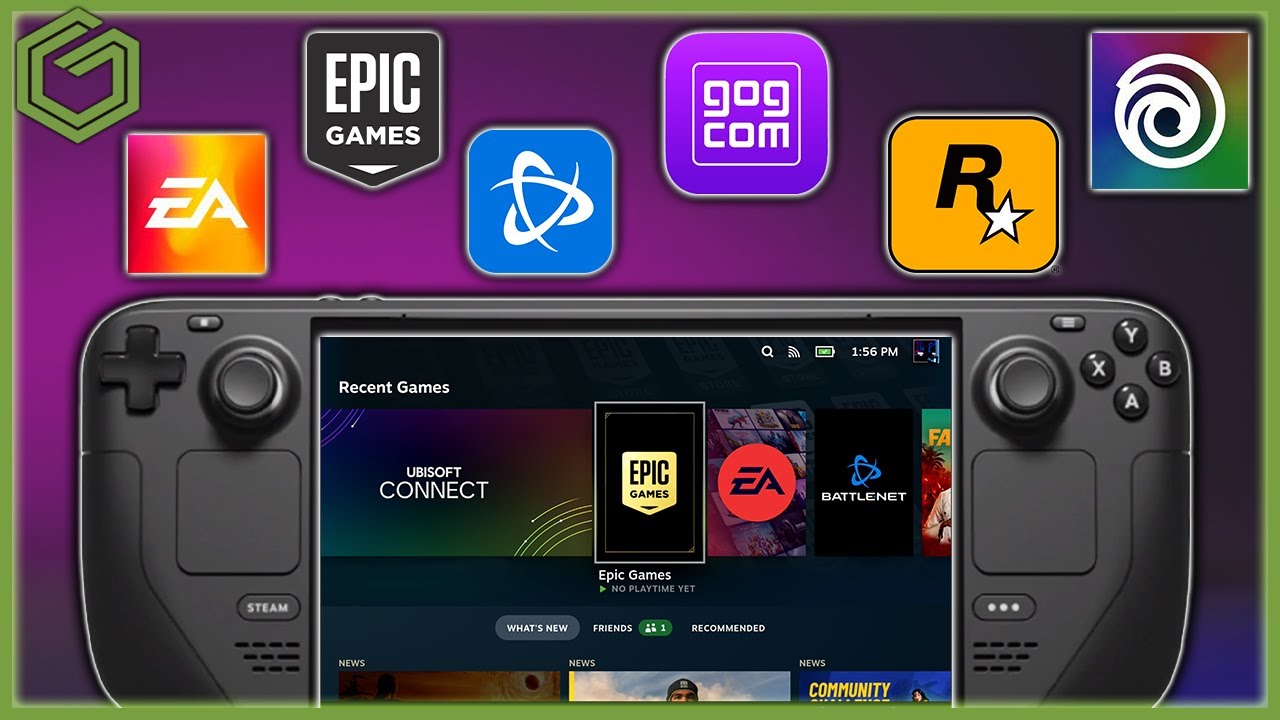 ▶Watch on YouTube
- NonSteamLaunchers from GitHub installs and adds the launchers to Steam for you.
- Start in desktop mode. It uses GE-Proton to install, then restarts Steam.
- Force Proton Experimental on each launcher. It's the only one that worked for the EA app.
- Decky Loader plus the SteamGridDB plugin handles the artwork from game mode.
NonSteamLaunchers is the easiest way I've found to get your third-party launchers like Battle.net, Epic and others onto the Steam Deck. It's done with some really cool software from GitHub, and it has worked flawlessly for me. Huge shout out to the SDG (Steam Deck Gaming) channel for keeping me in the loop on it.
Step 1: Download NonSteamLaunchers (desktop mode)
- Switch to desktop mode and open whatever browser you like.
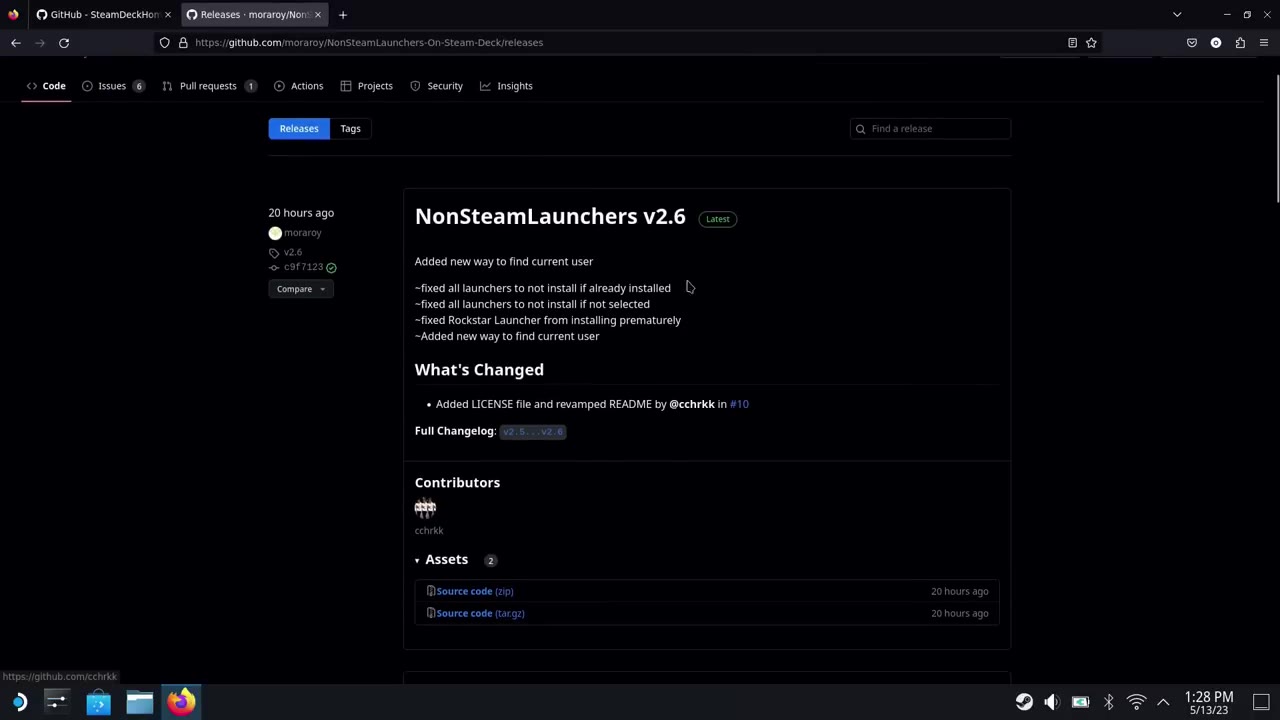
- Go to the NonSteamLaunchers on Steam Deck GitHub page, click Releases on the right and download the source code for the latest release.
- Open Dolphin, go to Downloads, right-click the download and choose Extract archive here.
- Open the new folder and double-click the file inside, then choose Execute.
Step 2: Pick your launchers
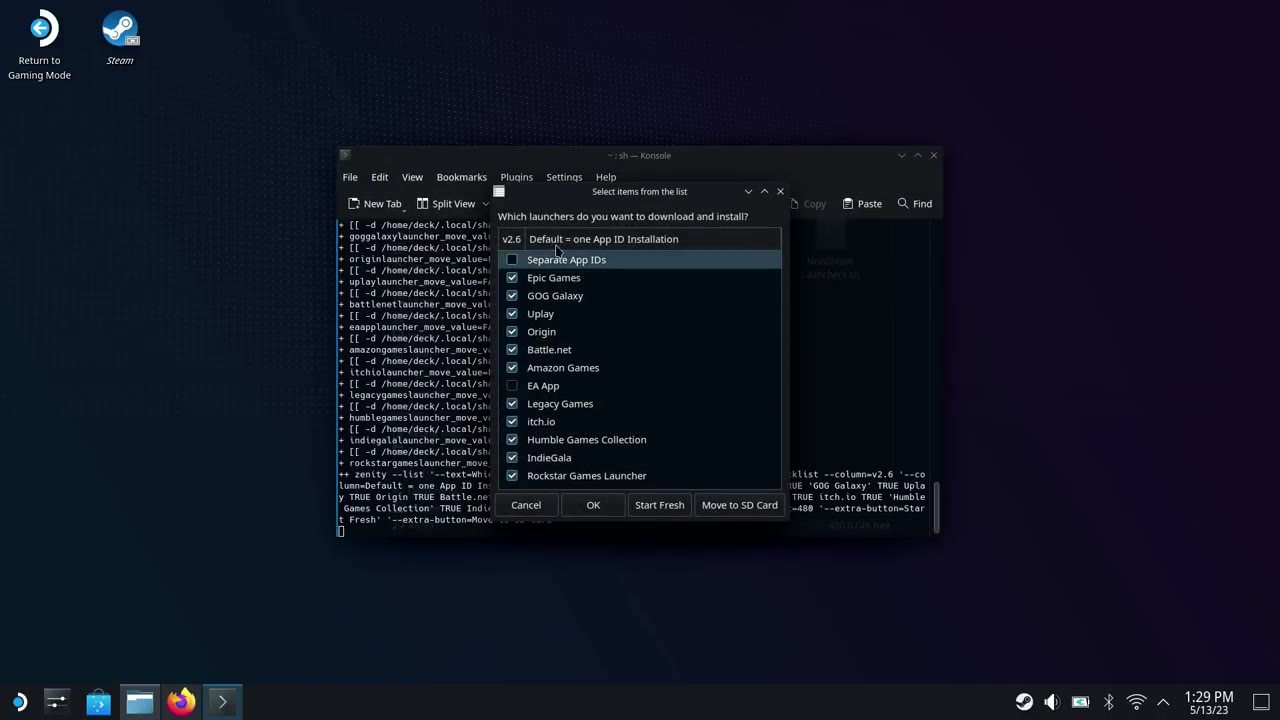
You get a list with the most popular launchers up top, and Rockstar, Humble, Amazon, EA, GOG and more further down. I just picked the four main ones I needed: Uplay (Ubisoft), the EA app (Origin's been discontinued), Epic Games and Battle.net.
At the bottom there's a Start Fresh option that removes what it installed, and an option to move things to the SD card. If you use Start Fresh, I'd recommend uninstalling any games first.
- Let it run. It grabs GE-Proton and installs each launcher automatically. This took quite a few minutes for me.
- At the end, if EA tries to open, close it. You don't want to log in there yet. Then click OK.
- Steam restarts, and the launchers are now in your library as non-Steam games.
Step 3: Set compatibility and log in (still in desktop mode)
- For each launcher, go to Properties → Compatibility and force Proton Experimental. It's the only one that works for the EA app, and it works well for the others too.
- Open each launcher one at a time, let it update and log in. It's easier to deal with verification codes here with a mouse and keyboard.
- In each launcher's settings, I turn off launching at startup, make closing the app actually close it instead of minimizing, and make sure cloud saves are on.
Step 4: Install Decky Loader for artwork
- Download Decky Loader from its website, then run it from your Downloads folder (Execute, then Continue).
- If you haven't set a sudo password yet, it'll fail. Click No, then go to System Settings → Users, pick your Steam Deck user and click Change Password. Use something you won't forget.
- Run the Decky installer again, enter the password, choose Release and click OK.
Step 5: Add artwork in game mode
- Switch back to game mode. Your four launchers show up as non-Steam games without artwork.
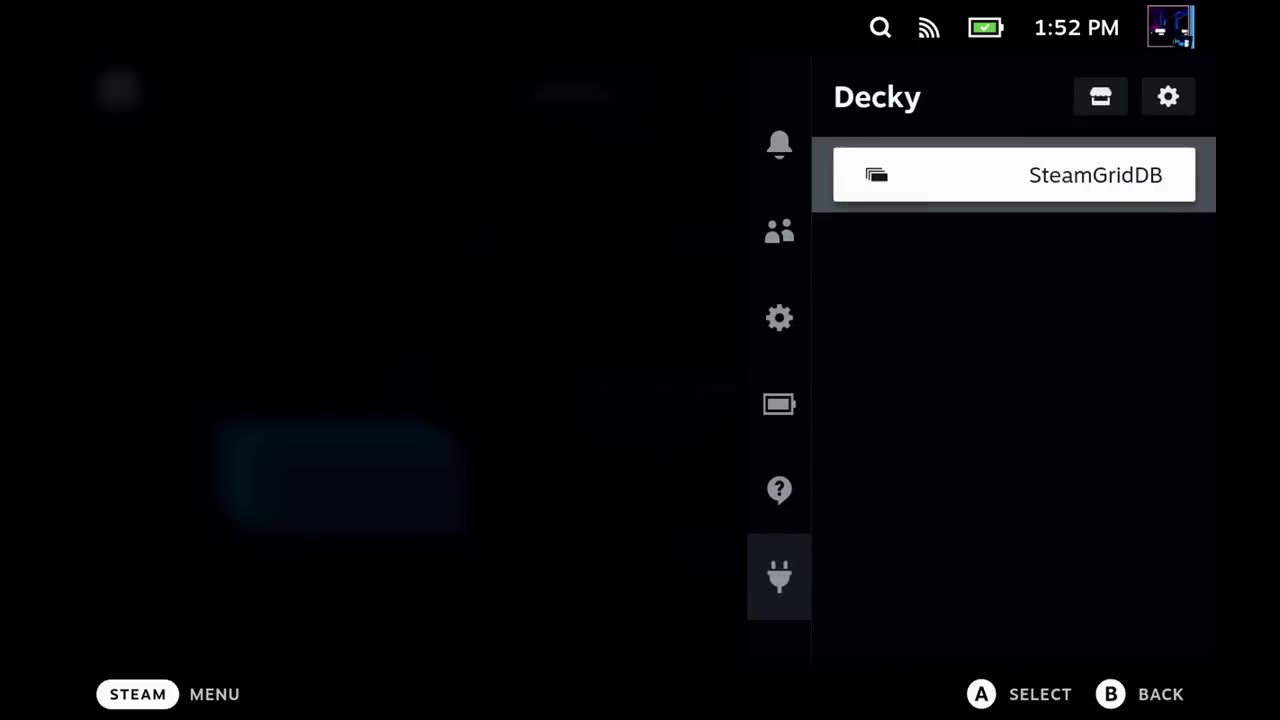
- Open the Decky store and install SteamGridDB.
- On each launcher, press the Start button and choose Change artwork. Pick your capsule, wide capsule, hero, logo and icon.
- Changing the icon asks for a restart. I clicked Later, finished all four, then restarted once.
Step 6: Fix controls in a launcher
In the EA app, I only had the touchscreen. Here's the fix, and you'll probably need it for the other launchers too:
- Go to the launcher's Controller settings and change Gamepad with Joystick Trackpad to Gamepad with Mouse Trackpad.
- Go to Edit Layout → Trackpads and set the right trackpad click to Left Mouse Click.
Now you can move the mouse with your right thumb and click to select, and your controller still works as normal in game. I installed Diablo through Battle.net on the internal SSD to test, and it went in with no problems.
Let me know on X or in the YouTube comments which launchers you're running on your Steam Deck and if this worked for you. Thanks for reading.
Want more handheld tests?
New Steam Deck, ROG Ally, Legion Go and Steam Machine performance videos every week.