This guide is from my video published Oct 10, 2022. Software and menus change over time, so some of these steps may be different now.
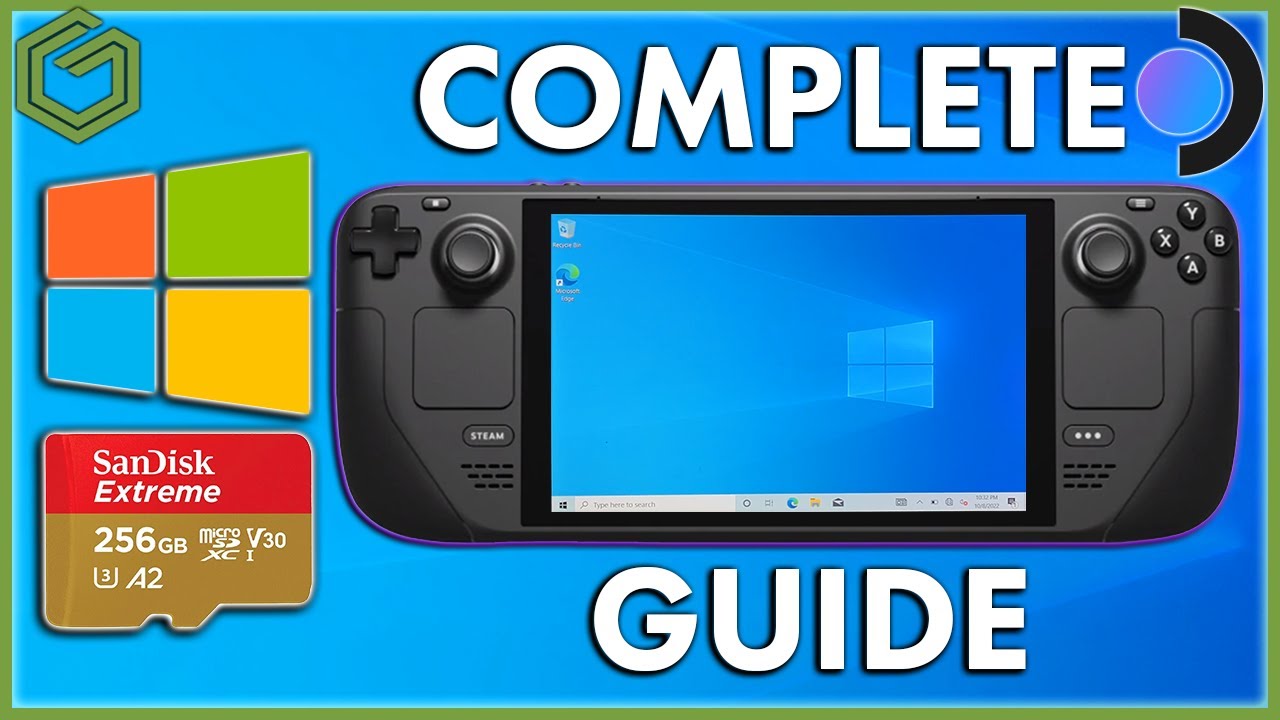 ▶Watch on YouTube
- Make a Windows 10 ISO with the Media Creation Tool, then write it to the micro SD with Rufus (Windows To Go).
- Copy Valve's Windows drivers and the SWICD files onto the card first, since Windows 10 has no Wi-Fi at the start.
- Boot it by holding Volume Down + Power and picking the SD card.
- For non-Steam games, run Steam, then SWICD, and disable lizard mode.
Running Windows 10 off a micro SD card is a nice way to get Windows on the Steam Deck without touching the internal SSD. It's relatively easy; there are just a lot of steps. I did it all fully handheld with no dock, mouse or keyboard, so that's how this goes. If you do have a dock, you can use Ethernet and a keyboard and mouse to skip a few steps.
A few caveats first
You're running Windows through the SD card reader, so there are performance limits. Windows updates take the longest, and loading into games can take a bit longer. Once you're in game or using the OS, it's pretty snappy. You could also burn out SD cards faster. There's a lot of debate on how long they'll last running an OS. I don't believe you can damage anything on the deck, but we're all out here experimenting.
What you need
- A micro SD card. I've used a Samsung EVO and a SanDisk Extreme, both 256 GB.
- A Windows PC, plus an SD adapter, SD card reader or a USB micro SD reader
- Windows 10 Media Creation Tool and Rufus
- Valve's Steam Deck Windows drivers: APU, Wi-Fi, Bluetooth, SD card reader and audio
- The three SWICD files from GitHub for controller support
I highly recommend Windows 10. I've had a much more stable experience with 10 than with 11 on an SD card. The steps are the same if you want to try 11.
Step 1: Make the Windows 10 ISO
- Open the Media Creation Tool and choose to create installation media.
- I used 64-bit, Windows 10 Home and English. Uncheck the recommended options box if you need to change anything, like the language.
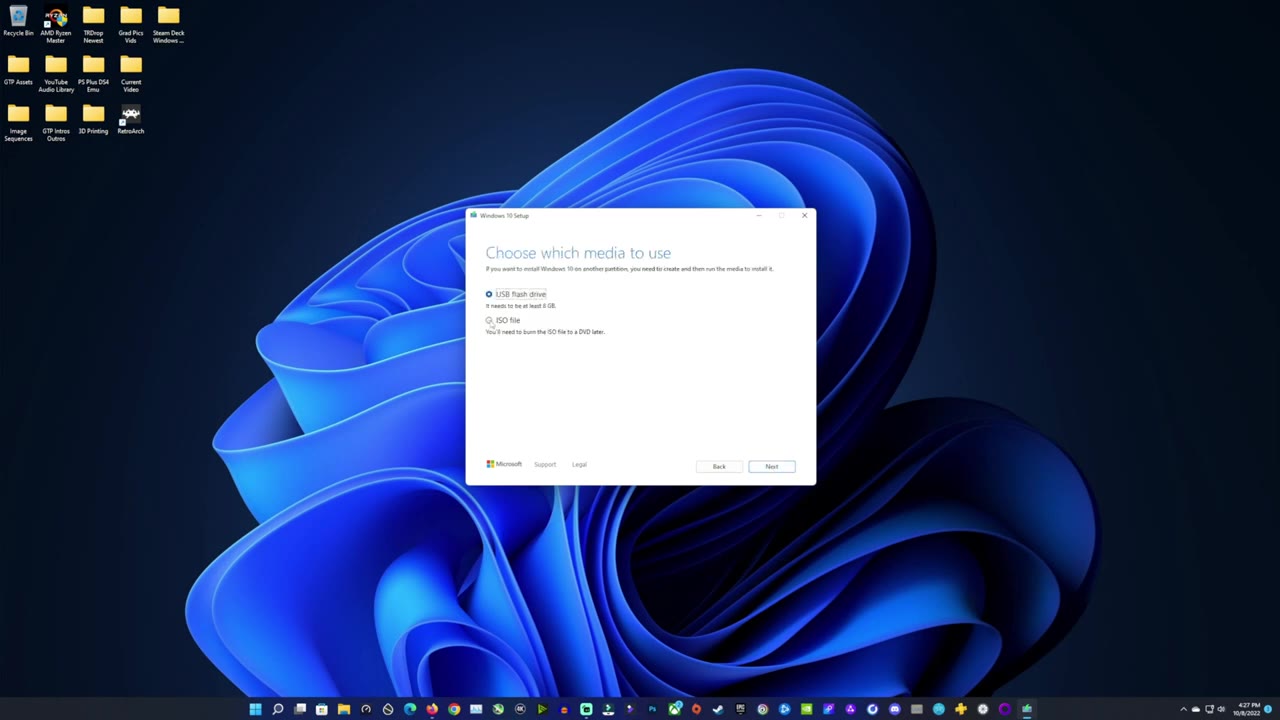
- Pick ISO file, let it save (mine went to Documents) and click Finish when it's done.
Step 2: Write it to the micro SD with Rufus
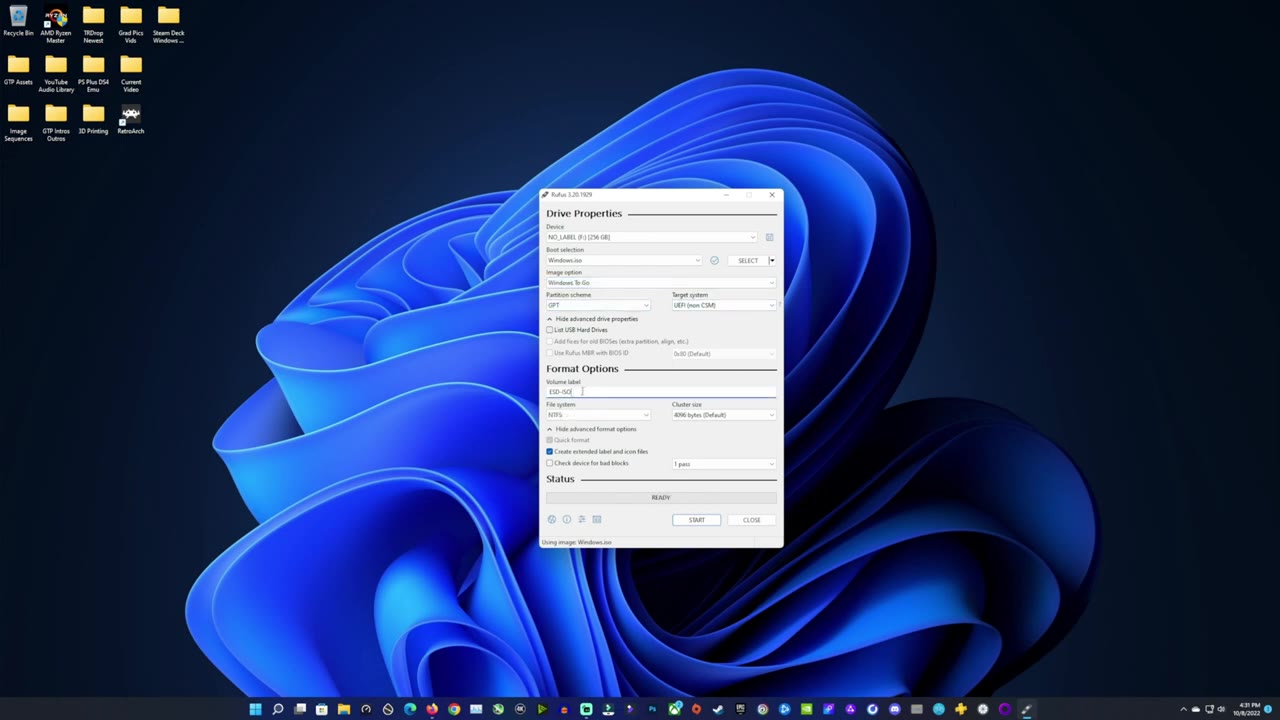
- Plug in the micro SD before opening Rufus so it picks it up. I used Rufus 3.20. Some people had issues and went back to 3.19, but I haven't.
- Click Select and pick your Windows ISO.
- Change the image option to Windows To Go, leave it on GPT, and leave everything else alone. You can rename the volume (I called mine "Windows 10 Steam Deck").
- Click Start. Pick your edition (Home for me) and don't allow access to internal drives. That's an extra safety factor so the internal SSD isn't touched.
- Make sure you're wiping the right drive. When it says Ready, click Close.
Step 3: Copy drivers onto the card
- In the root of the card, make a Steam Deck drivers folder and copy all of Valve's drivers into it. Windows 10 won't have Wi-Fi at first, so this way you won't need to download anything.
- Copy the three SWICD files over too.
- Eject the card just for safety.
Step 4: Boot Windows on the Steam Deck
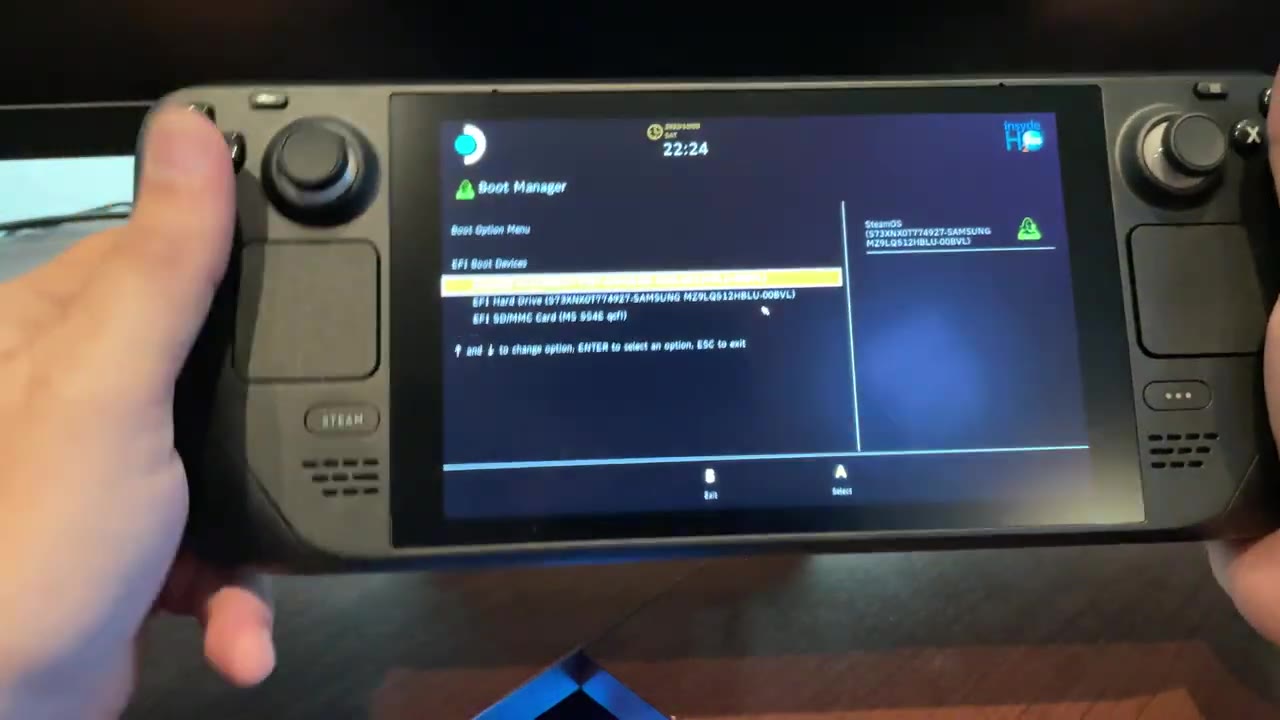
- Put the micro SD in the Steam Deck. Hold Volume Down, press Power, and don't let go of Volume Down until the menu comes up.
- Pick the SD card and press A. It should boot to it by default until you boot SteamOS again or pull the card, so restarts during setup are fine.
- The screen is sideways, so hold it like a tablet and use the touchscreen for setup.
- Click I don't have internet, then Continue with limited setup, and make a local account. It won't matter once you sign into your Microsoft account later.
- On the desktop, hold on the screen → Display settings, and change Portrait to Landscape.
Step 5: Install the drivers
Until Steam is installed, use the touchpad to move, the right trigger to right-click and the left trigger to left-click.
- Wi-Fi first. Extract it, run the setup, then connect to your network.
- For typing, pin the touch keyboard to the taskbar. In Settings → Devices → Typing, turn on showing the touch keyboard when not in tablet mode and there's no keyboard attached.
- Bluetooth: extract, run the install driver file and click Yes.
- SD card reader: extract and run the setup. It asks to restart, but I said No and waited for the APU driver.
- Audio (two drivers): extract each one, then select the Setup Information file and choose Install from the menu. Don't double-click it.
- APU: run the setup. It installs AMD Adrenalin, then restart to finish. If you have trouble with it, you can reinstall it with a factory reset install.
Step 6: Install the controller software
Do these in this order, and make sure Steam or anything else isn't installed or running yet:
- Install ViGEmBus.
- Install VC_redist.x64 (agree, install, yes).
- Install SWICD. Click More info → Run anyway, then go through the install.
Step 7: Using it with Steam and other launchers
I signed in, installed Game Pass, Battle.net, Epic, EA and Steam, and set Steam to open with Windows. Steam handles the trackpads well, so you're not stuck using the triggers.
- For Steam games, you don't need SWICD. Steam handles the controls.
- For games from other launchers, open SWICD after Steam is running.
- In SWICD, disable lizard mode: uncheck the mouse movement and button inputs. Without that, the game can swap back and forth between keyboard and mouse and controller, or mis-map things.
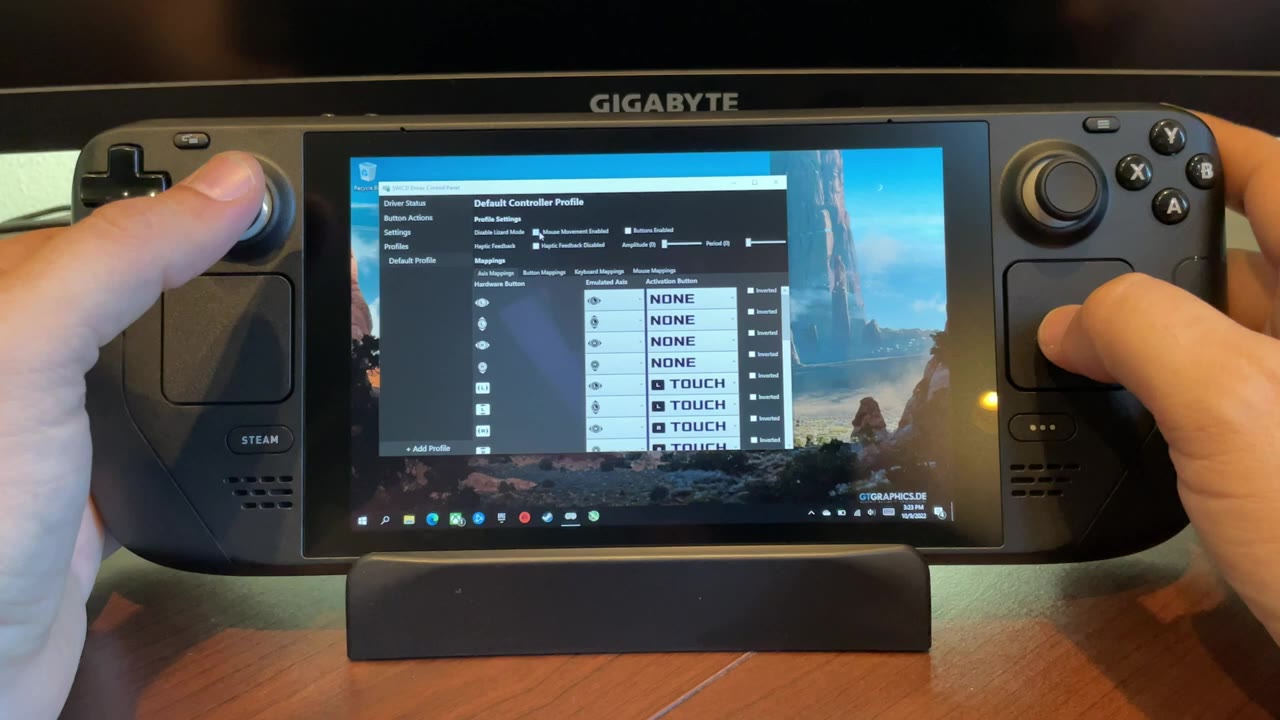
With Steam closed, disabling lizard mode kills the touchpads in Windows. That's why I always keep Steam open, since the trackpads still work with it running. I haven't remapped anything. By default, the Steam button acts like the Xbox button.
I'm still waiting for Valve's official dual boot. There are unofficial ways to put Windows on the internal drive, but I really like the ease of the SD card method. I game on SteamOS a good bit, so it's nice to just throw the card in, boot Windows, and play the games that don't run, or don't run well, on SteamOS.
Let me know on X or in the YouTube comments if you're running Windows off a micro SD on your Steam Deck and which card you're using. Thanks for reading.
Want more handheld tests?
New Steam Deck, ROG Ally, Legion Go and Steam Machine performance videos every week.