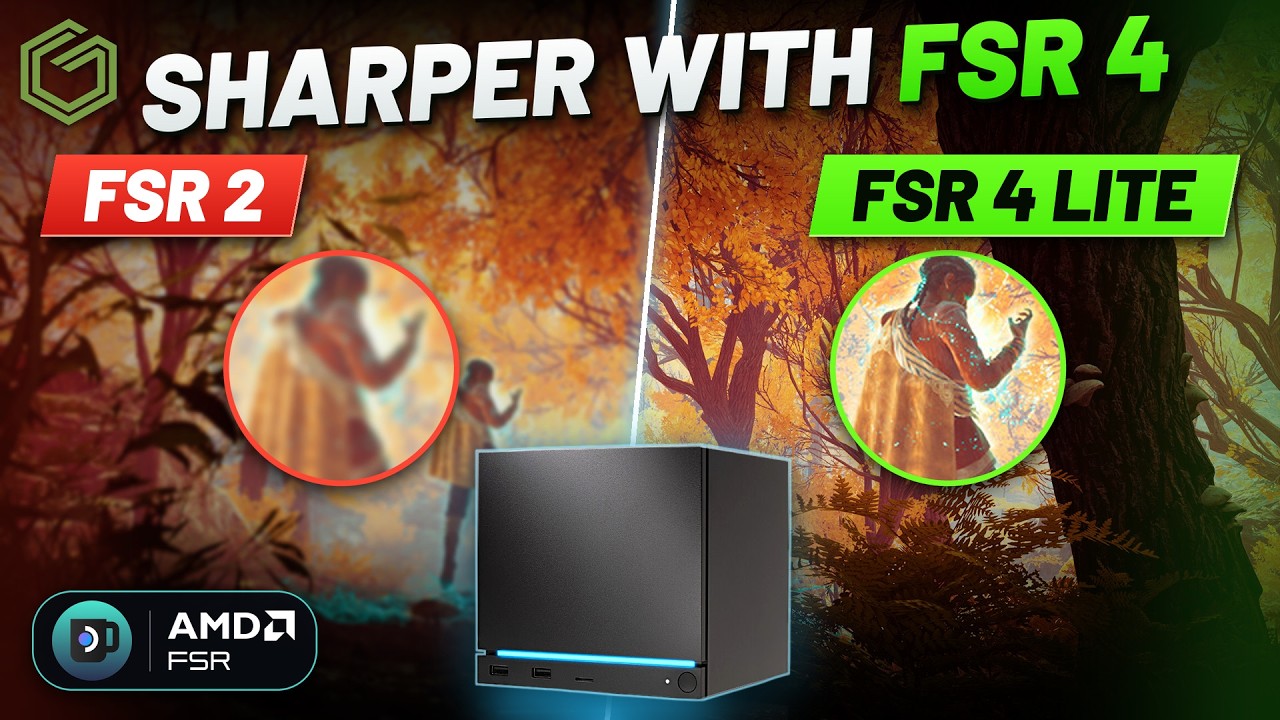
 ▶Watch on YouTube
- A new FSR 4.1 Lite plugin for Decky Loader injects FSR 4 Lite into games that don't already have FSR 4, through OptiScaler.
- You need Decky Loader, Developer mode turned on in Decky, and the game set to Proton Experimental.
- Install the plugin from its zip, press Install FSR 4.1 Lite with the game on its menu, restart the game and pick DLSS in its graphics settings.
- In Banishers: Ghosts of New Eden, which only has FSR 2.2, FSR 4.1 Lite looked noticeably cleaner but ran a few FPS lower, mode for mode. It's an image quality upgrade, not a performance boost.
Somebody brought a new FSR 4.1 Lite plugin for Decky Loader to my attention, and it's pretty easy to use. It lets you inject FSR 4 Lite into games that don't already have FSR 4, so I set it up on the Steam Machine and compared it in Banishers: Ghosts of New Eden, which only uses FSR 2.2 in the game.
Before you start
- This is an unofficial community plugin from GitHub, not something from the Decky Loader store, and it gets updated a lot. It updated four times in about 24 hours while I was working on this. I tested version 2.2.38; when you check the releases there will most likely be a newer one.
- Decky warns you about third-party plugins when you install from a zip: the Decky Loader team hasn't reviewed them. Use it at your own risk.
- You need Decky Loader installed and working first. If you already have it, skip ahead to installing the plugin.
- The game has to run on Proton Experimental for FSR 4 to work.
Setup at a glance
| Setting | What I used |
|---|---|
| Decky Loader | Release branch, installed from decky.xyz in Desktop Mode |
| Decky → Settings → General | Developer mode: On |
| Decky → Settings → Developer | Install Plugin from ZIP File → Browse |
| Plugin version | FSR 4.1 Lite 2.2.38 (FSR4Lite-2.2.38.zip) |
| Plugin setup | Accept and download (OptiScaler and AMD's FSR 4.1.2 files, about 205 MB, once) |
| Update OptiScaler automatically | Off (so nothing changed while I tested) |
| Show FPS and resolution / Show AMD's watermark | Off |
| Game compatibility tool | Proton Experimental |
| In-game anti-aliasing / upscaling | NVIDIA DLSS (this is what runs FSR 4.1 Lite) |
| Upscaler modes compared | Performance and Quality, at 1440p and 4K |
Step 1: Install Decky Loader
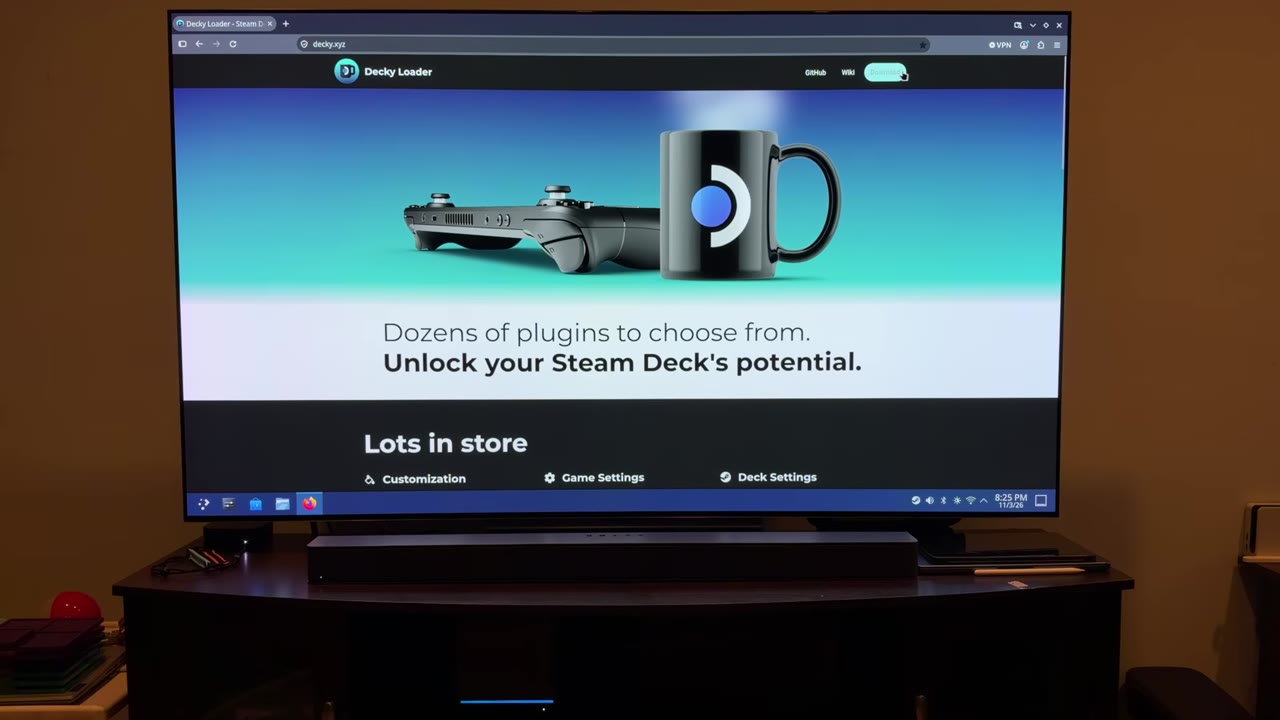
- Switch to Desktop Mode and open whatever browser you prefer.
- Go to decky.xyz and download the installer.
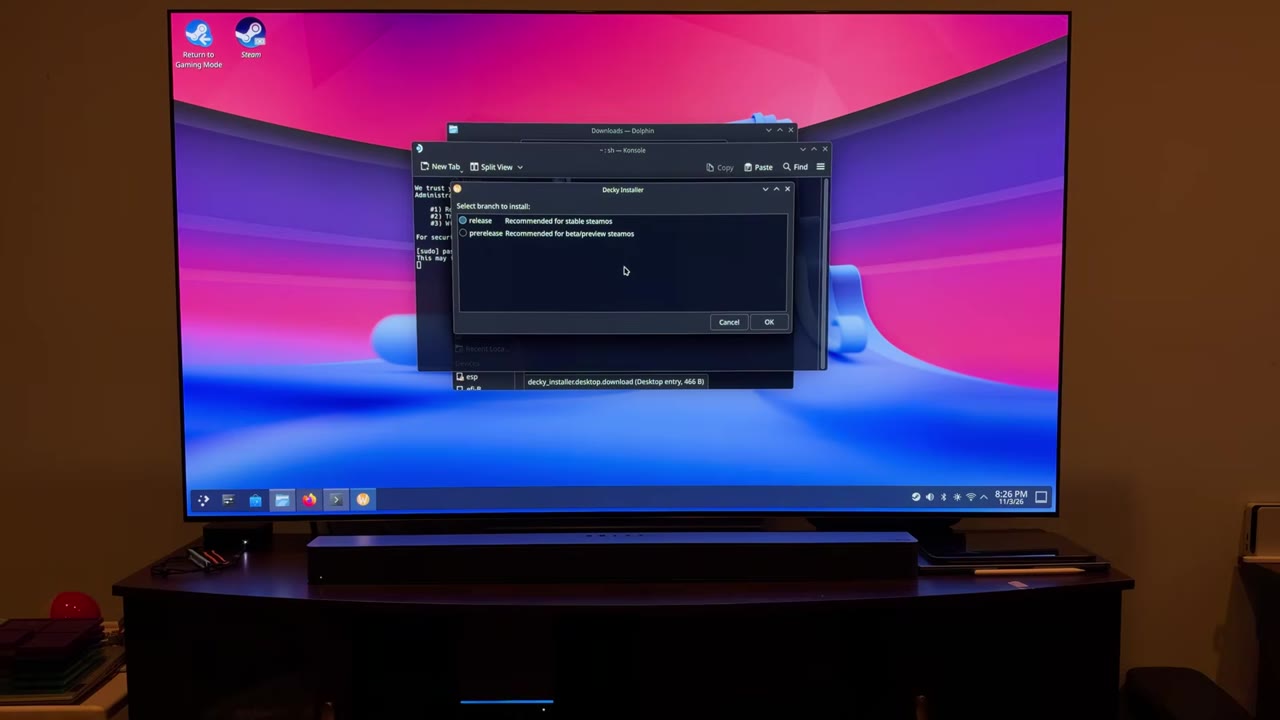
- Open your Downloads folder, run the Decky Loader installer and choose launch and continue.
- Pick the release branch, then let it download and install. That usually only takes a minute or less.
- Press OK when it's done, close everything and choose Return to Gaming Mode.
- Open the Quick Access menu and check that Decky shows up at the bottom of the sidebar.
If you already have a password set for your user, like I did, the installer asks you to type it in. If you don't, Decky creates a temporary one, installs, and then deletes it.
Step 2: Download the FSR 4.1 Lite plugin
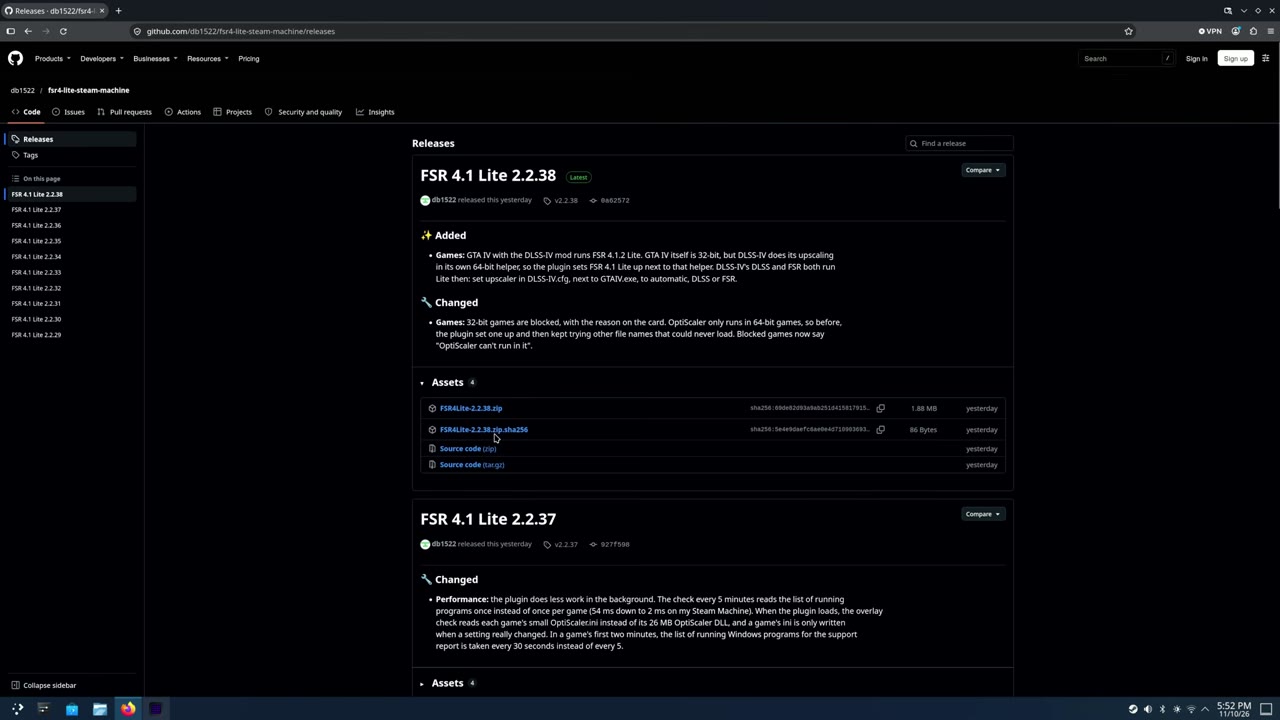
- Back in Desktop Mode, open the plugin's GitHub page (fsr4-lite-steam-machine) and go to Releases.
- Download the zip file from the top release.
- Check that it's in your Downloads folder, leave it there, and go back to Gaming Mode.
Step 3: Install the plugin from the zip
- Open Quick Access, go down to Decky and select the settings gear.
- On General, scroll down and turn on Developer mode. More tabs show up on the left.
- Open the Developer tab and choose Install Plugin from ZIP File → Browse.
- Select Continue on the Third-Party Plugin Installation warning.
- Go to your Downloads folder, pick the FSR4Lite zip and confirm Install.
- Back out of Decky's settings. FSR 4.1 Lite now shows up in the Decky list.
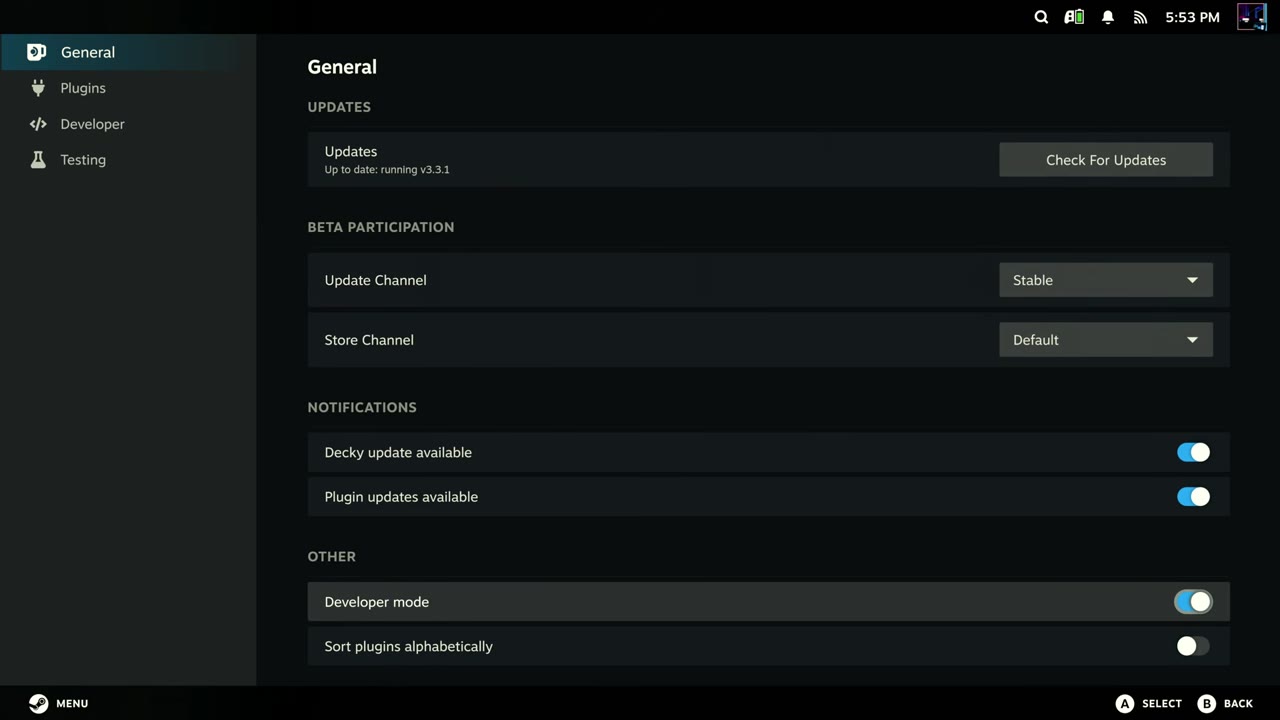
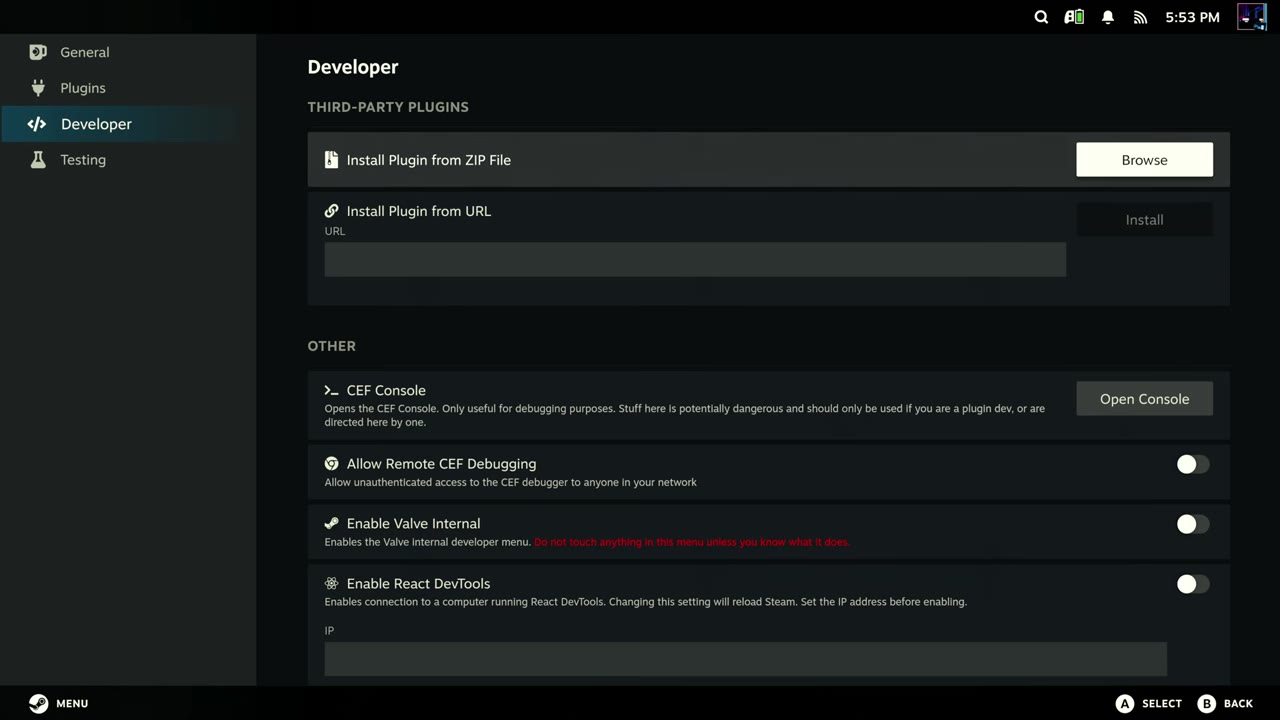
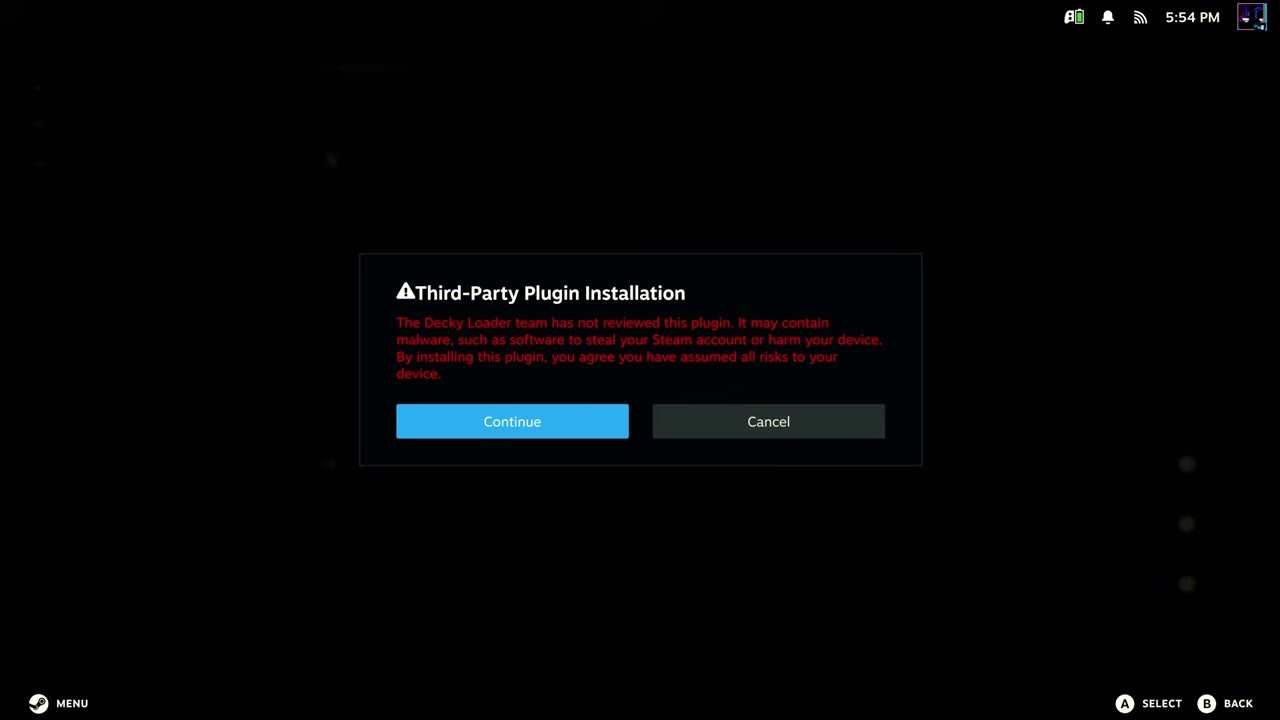
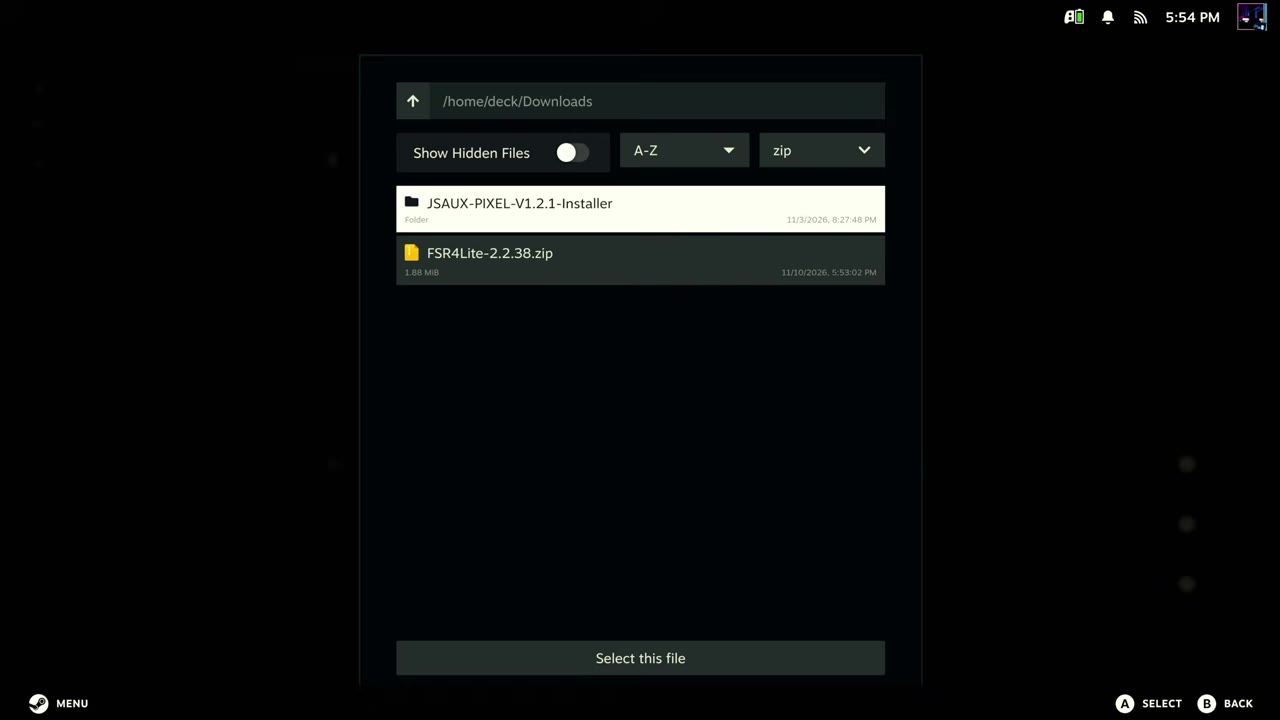
Step 4: Set up the plugin
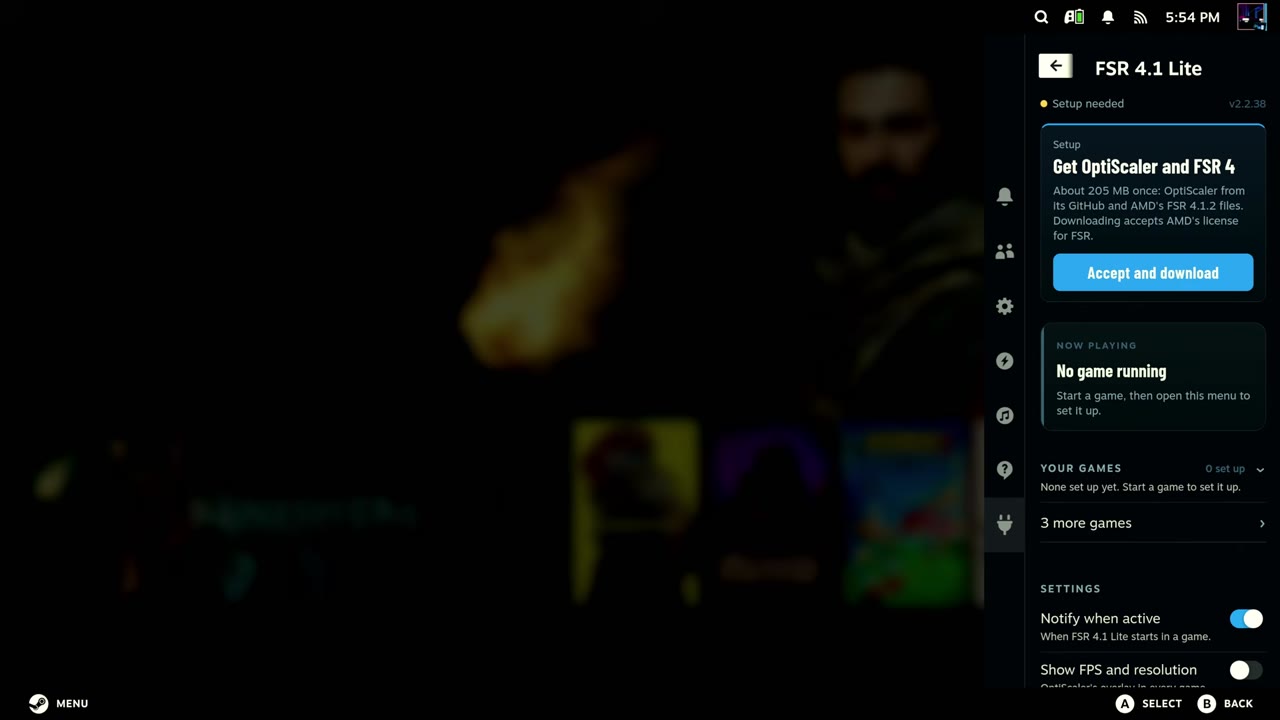
- Open FSR 4.1 Lite in Decky. It shows Setup needed.
- Select Accept and download. This grabs OptiScaler from its GitHub and AMD's FSR 4.1.2 files, about 205 MB once, and accepts AMD's license for FSR. It doesn't take long.
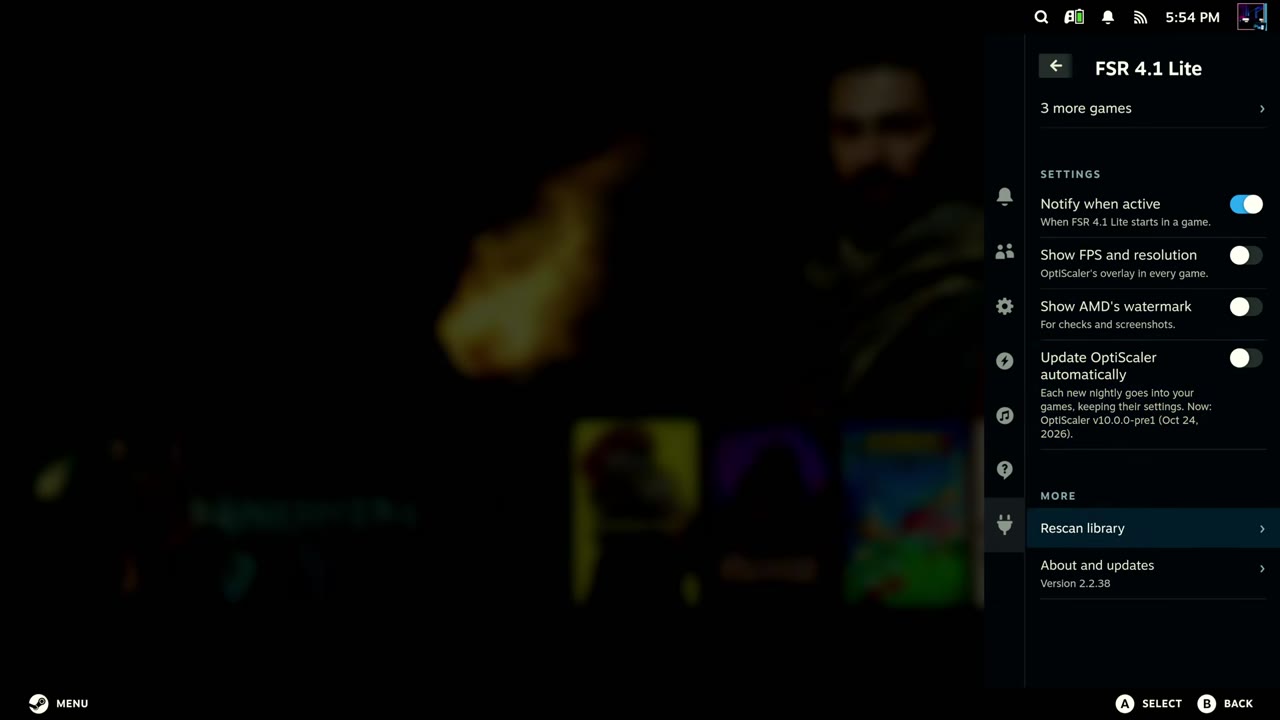
- Look over the settings lower down: Notify when active, Show FPS and resolution, Show AMD's watermark and Update OptiScaler automatically.
I turned Update OptiScaler automatically off for now. I think it checks for updates every six hours or so, and I didn't want anything changing while I was testing. If you want consistent results, I'd do the same.
Step 5: Switch the game to Proton Experimental
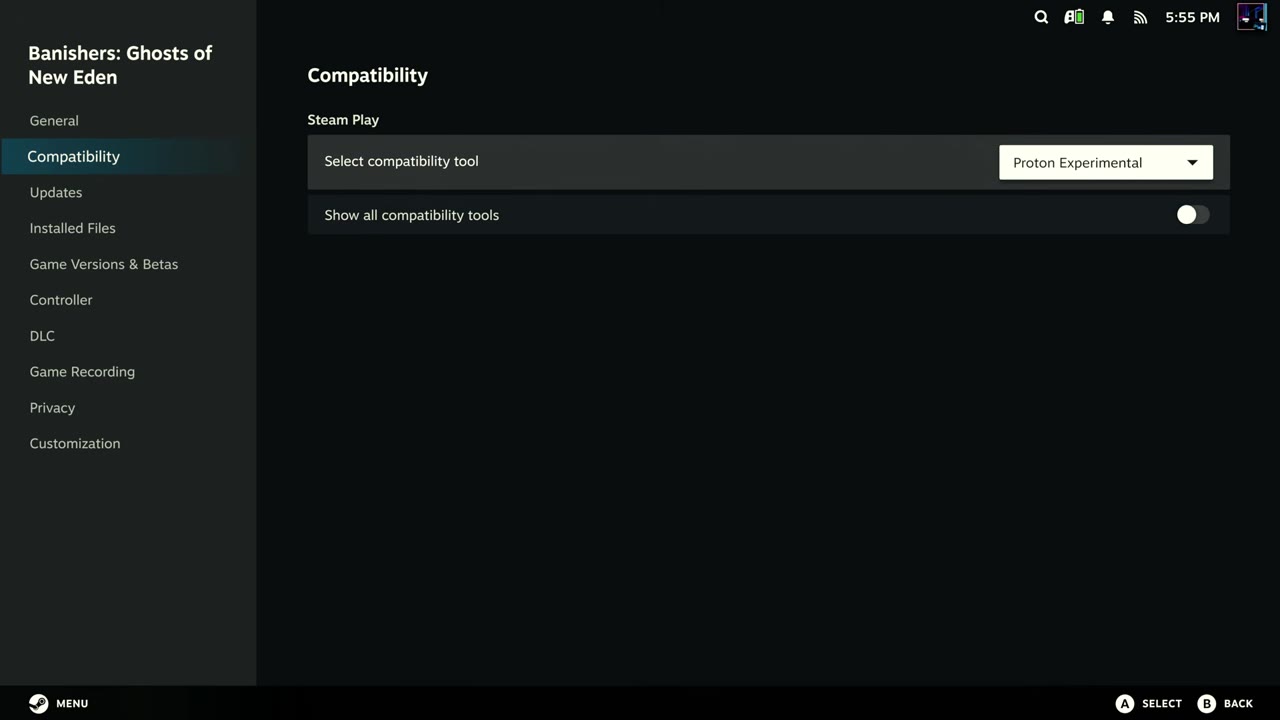
- In your library, open the game's Properties → Compatibility.
- Set the compatibility tool to Proton Experimental. FSR 4 won't work without it.
Step 6: Install FSR 4.1 Lite into the game
- Start the game and wait for its main menu.
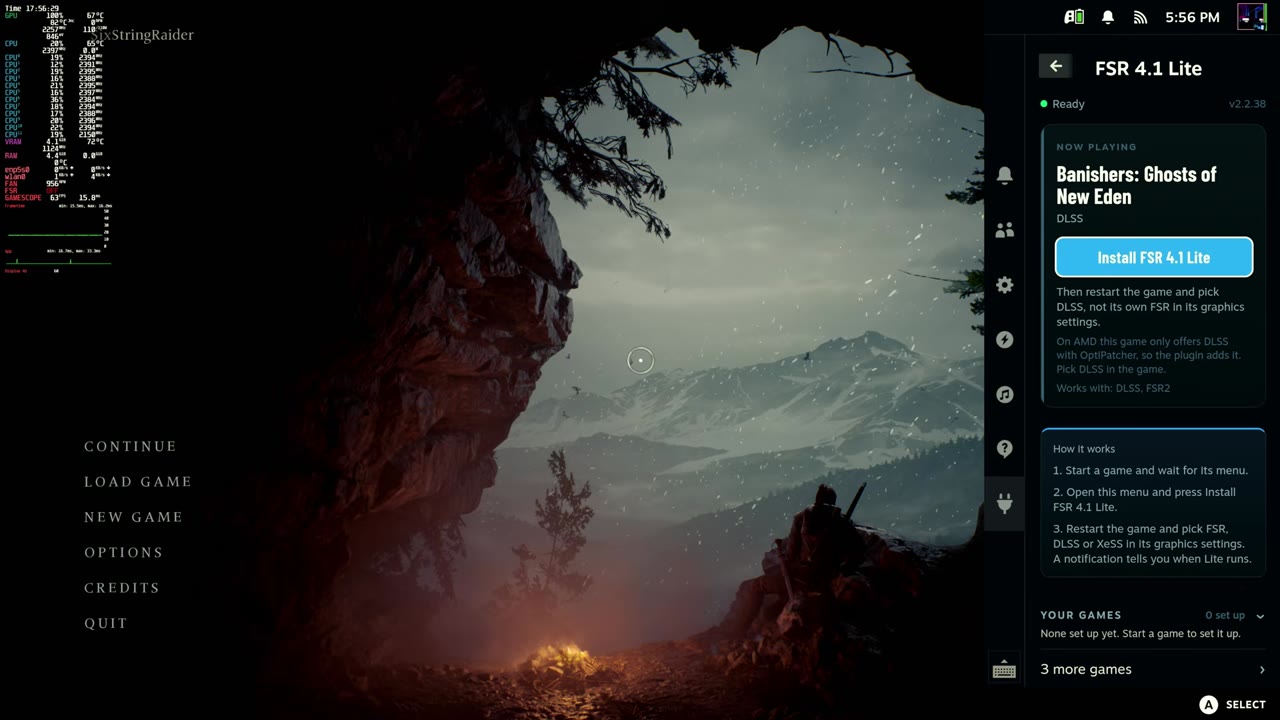
- Open Quick Access → FSR 4.1 Lite. The game shows under Now playing. Select Install FSR 4.1 Lite.
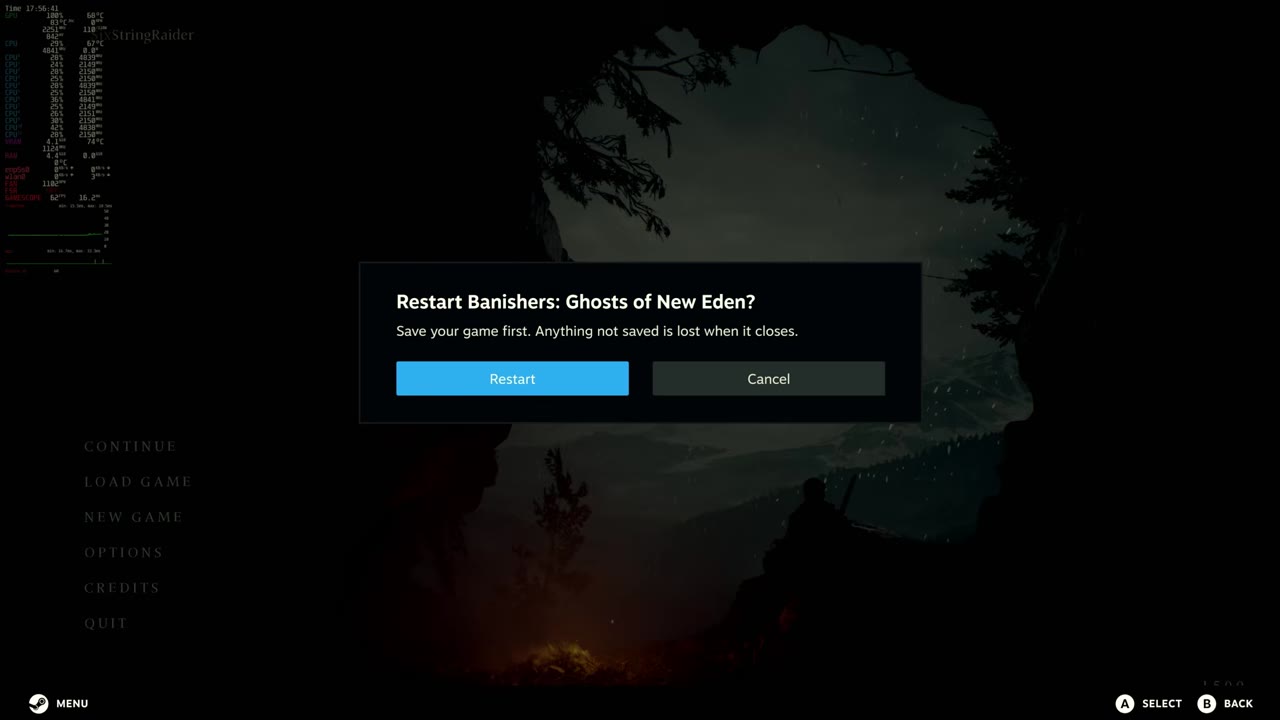
- When it says it's working, choose Restart. You have to restart the game for it to kick in.
- Back on the menu, the plugin says Starting until you change the game's graphics settings.
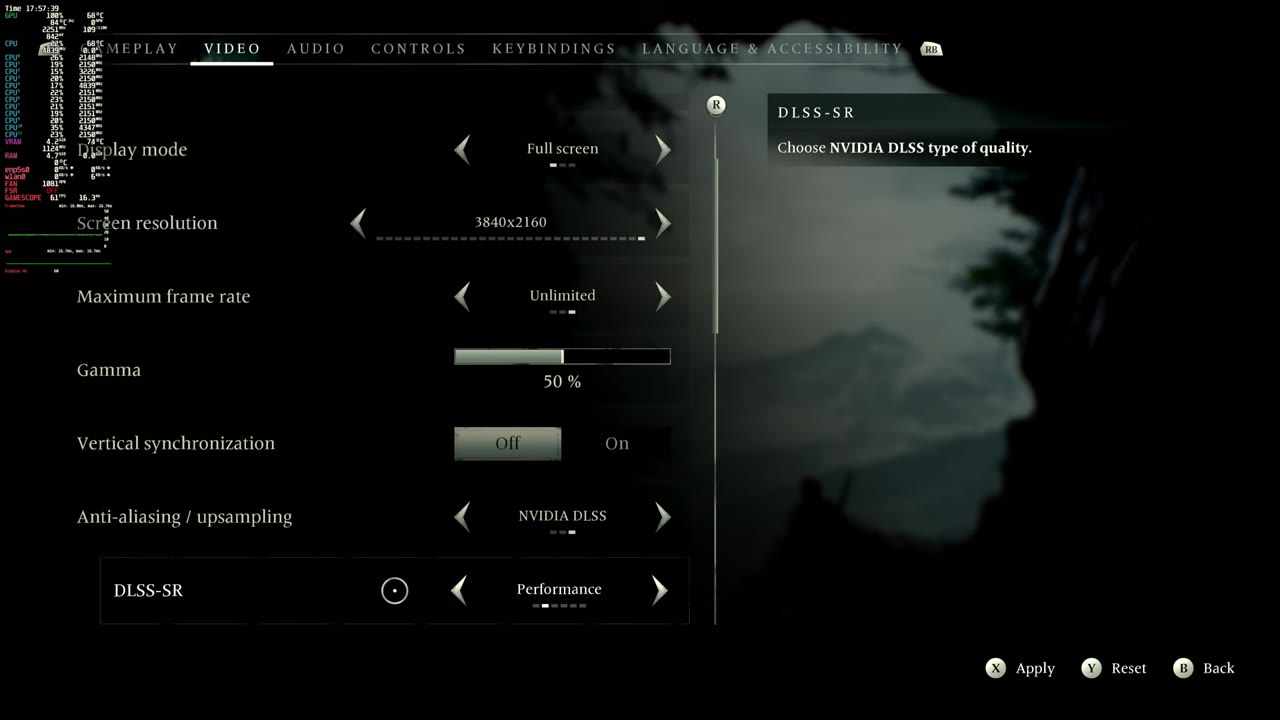
- In the game's video settings, set Anti-aliasing / upscaling to NVIDIA DLSS and pick a DLSS mode. DLSS here is actually FSR 4.1 Lite.
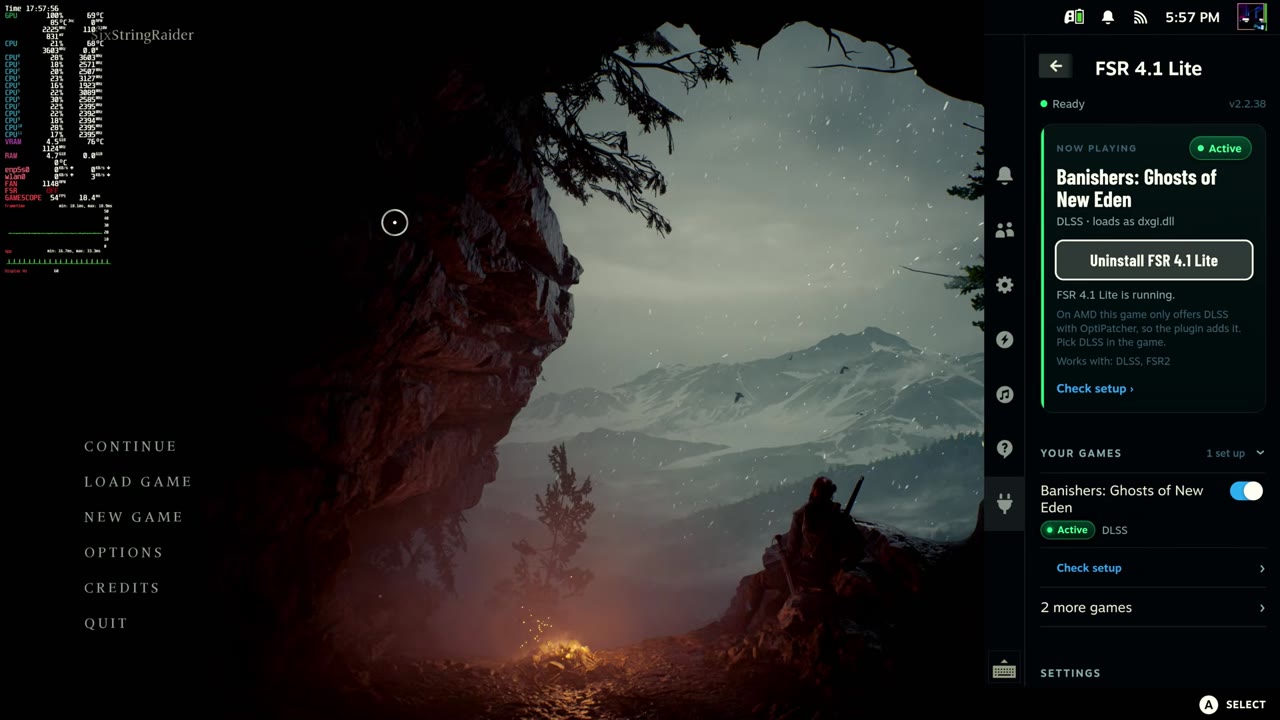
- Open the plugin again. It should say Active for the game and FSR 4.1 Lite is running.
For Banishers, the plugin explains why it's DLSS and not FSR: on AMD this game only offers DLSS with OptiPatcher, so the plugin adds it. Its "How it works" box says you can pick FSR, DLSS or XeSS in other games, depending on what the game has.
How FSR 4.1 Lite looked and ran in Banishers
There's a lot out there about FSR 4 giving you more FPS. FSR 4 doesn't give you more FPS than FSR 3 or an older version on any device. It runs a bit slower but gives you much better image quality. I know it can be hard to see on YouTube with compression, but locally I can see it dramatically comparing the before shots on the left to the after shots with the plugin on the right, especially in the trees and the grass. That holds whether it's Quality against Quality, Performance against Performance, or Quality and Performance next to each other.
Where people say it gains FPS is that you can use FSR 4 Performance instead of FSR 2 Quality, still have it look as good or better, and get better performance. Mode for mode, the older FSR still runs a little faster. It's the same on the Xbox Ally X with the FSR 4.1 preview driver: it looks much better, but you typically lose around 3 to 5 FPS against the older model.
These are the overlay readings from the side-by-side clips in the video, FSR 2.2 before the plugin against FSR 4.1 Lite after it:
| Scene | Resolution | FSR 2.2 (before plugin) | FSR 4.1 Lite (after plugin) |
|---|---|---|---|
| Outdoor, trees | 1440p | Performance: 78 FPS | Performance: 72–73 FPS |
| Outdoor, trees | 1440p | Quality: 65–66 FPS | Quality: 64–65 FPS |
| Outdoor, trees | 4K | Performance: 52 FPS | Performance: 48 FPS |
| Barn interior | 1440p | Performance: 73 FPS | Performance: 69 FPS |
| Barn interior | 1440p | Quality: 63 FPS | Performance: 69 FPS |
| Forest | 4K | Performance: 42–46 FPS | Performance: 40–43 FPS |
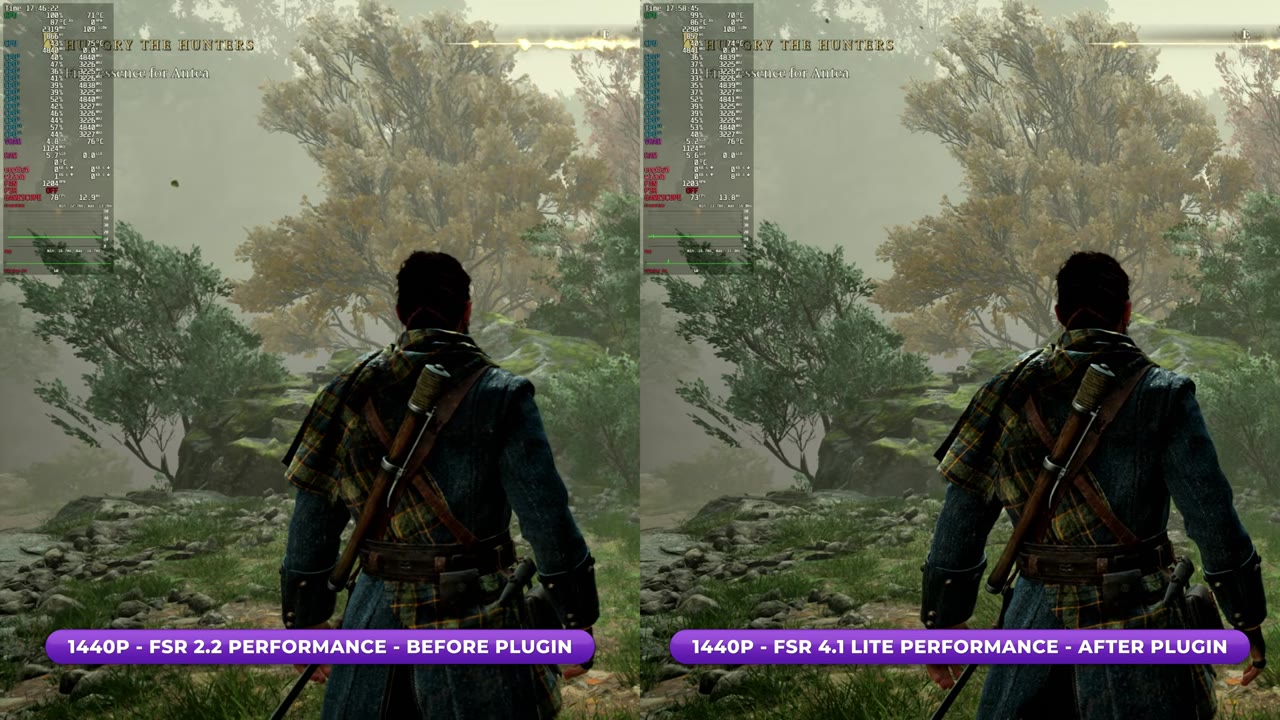
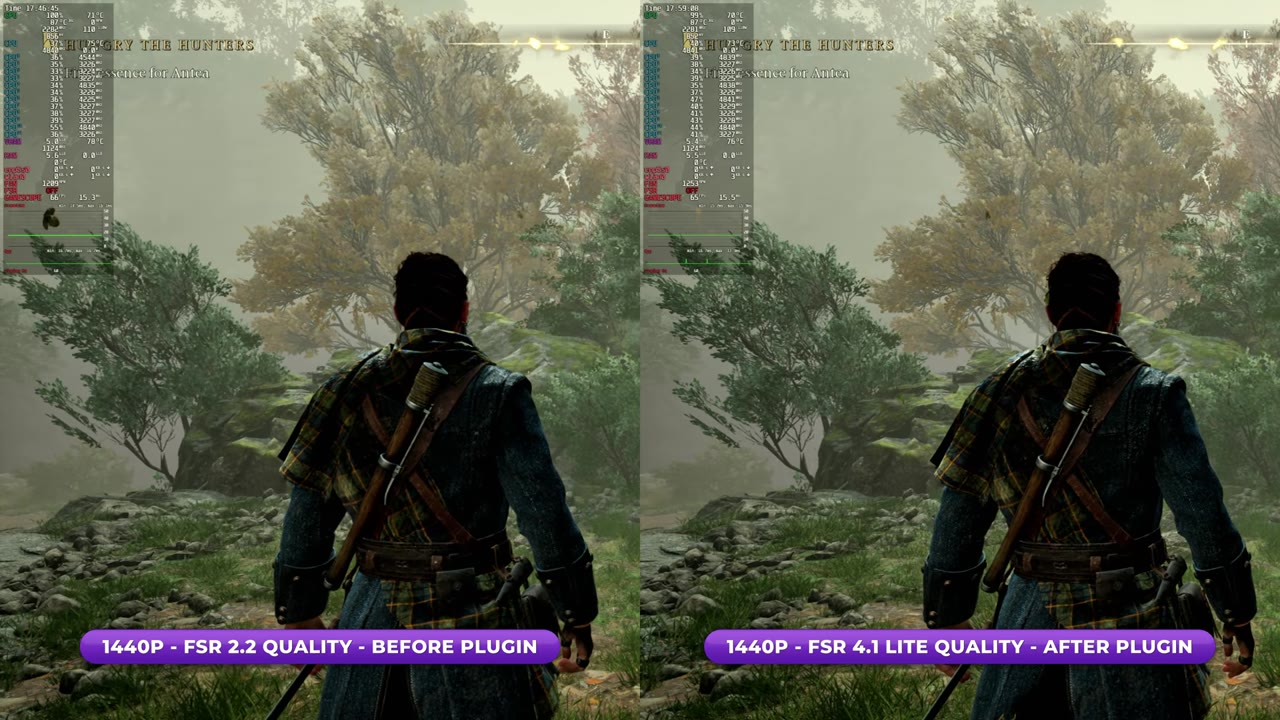
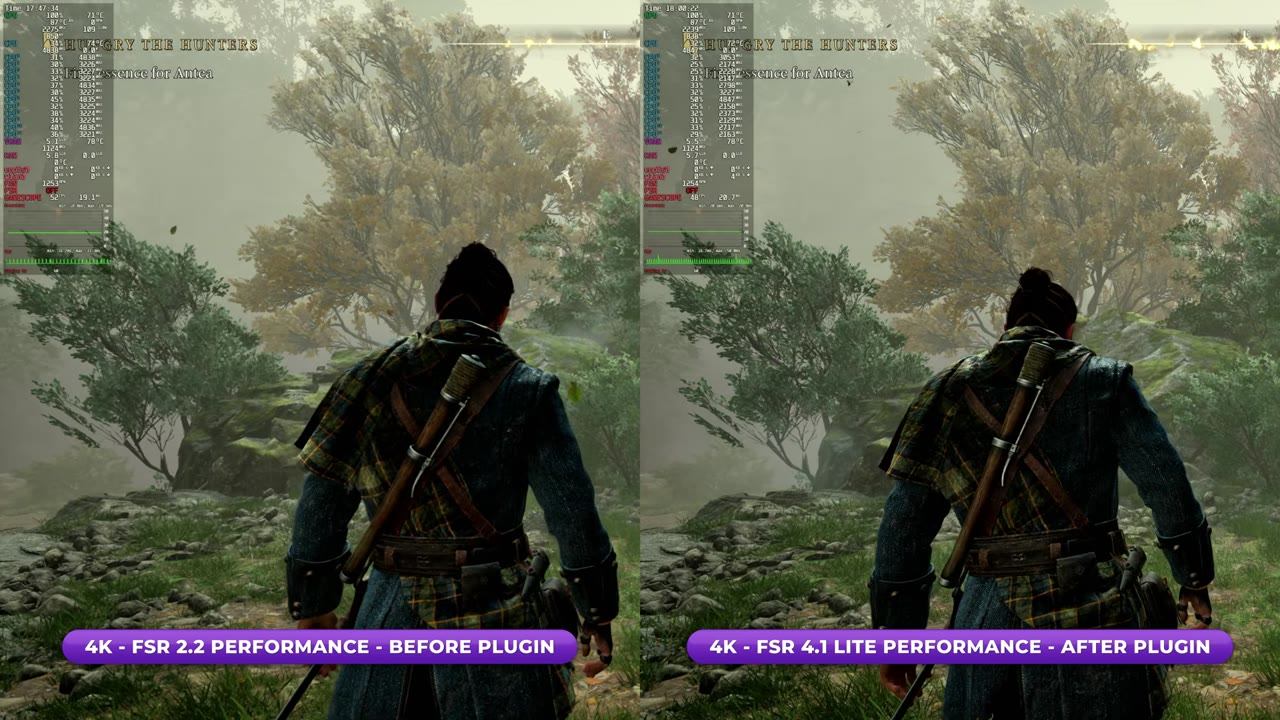
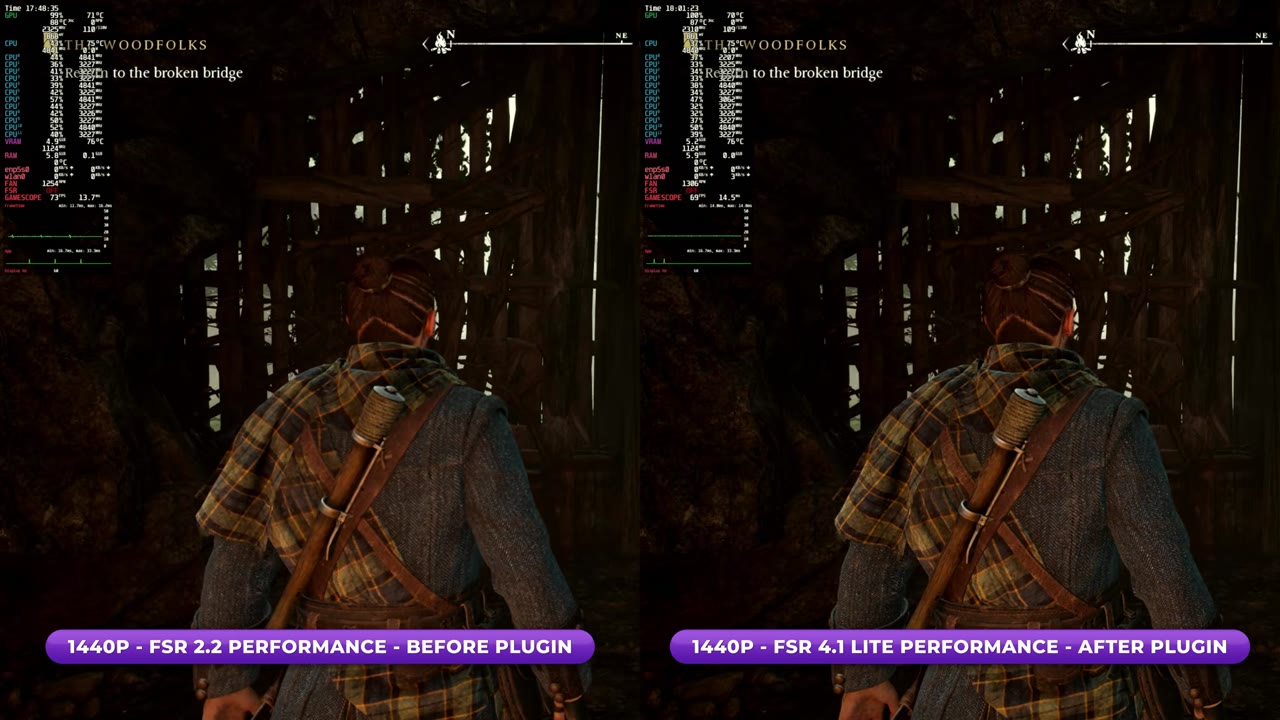
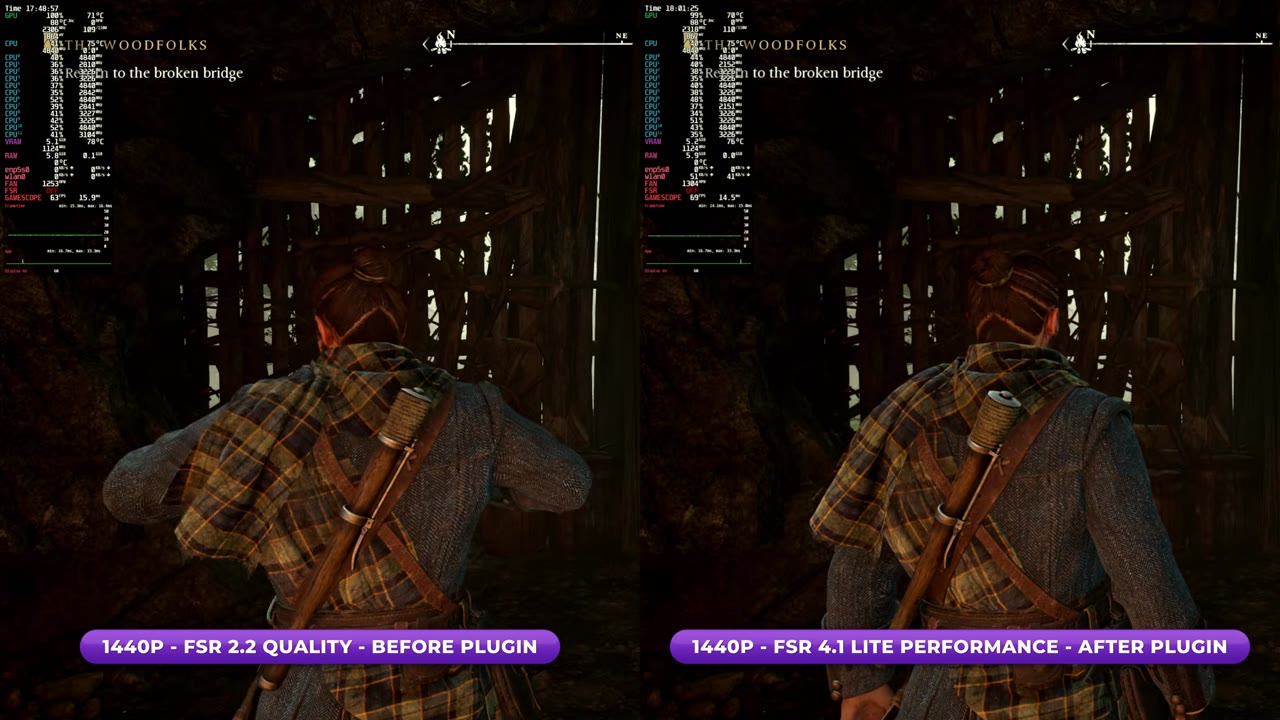
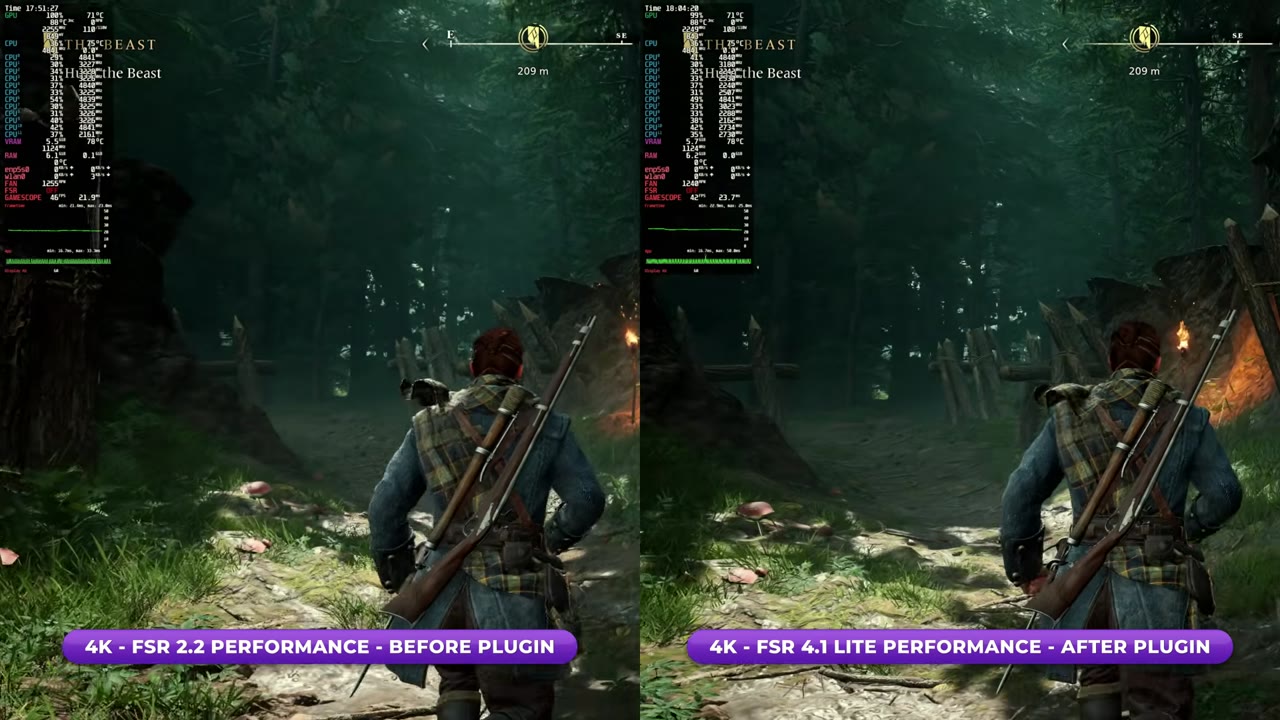
That small FPS loss is normal. I've seen it with every game I've tested and every device I've tried FSR 4 on, and it's in pretty much every bit of documentation about FSR 4 too. Even the Lite version is a little heavier to run. What you get is a much better, cleaner image, especially with more aggressive upscaling, and to me that trade-off is usually worth it with FSR 4.
The plugin hasn't given me any problems so far. It's getting a lot of updates, and it certainly isn't the only way to get FSR 4 into games like this, but it's one of the newer and easier ones. It reminds me a lot of what I've seen with FSR 4 through OptiScaler and drivers on the Ally.
FAQ
What do you need for the FSR 4.1 Lite plugin on the Steam Machine?
Decky Loader with Developer mode turned on, the plugin zip from its GitHub releases, and the game set to Proton Experimental.
Does FSR 4 Lite give you more FPS?
Not mode for mode. In Banishers, FSR 4.1 Lite read a few FPS lower than FSR 2.2 at the same setting. It can come out ahead if you use FSR 4.1 Lite Performance instead of FSR 2.2 Quality: 69 FPS against 63 FPS in the barn at 1440p.
Why do you pick DLSS in Banishers?
The plugin uses the game's DLSS option to run FSR 4.1 Lite. On AMD, Banishers only offers DLSS with OptiPatcher, so the plugin adds it.
Want more handheld tests?
New Steam Deck, ROG Ally, Legion Go and Steam Machine performance videos every week.