This guide is from my video published May 28, 2025. Software and menus change over time, so some of these steps may be different now.
 ▶Watch on YouTube
- Make the install USB on a Windows PC with the SteamOS recovery image and Rufus.
- Disable Secure Boot in the Legion Go BIOS first (hold Volume Up + Power).
- Boot the USB from the Boot Menu and pick Wipe device and install SteamOS. This erases everything.
- SteamOS has no TDP slider on the Legion Go yet, so Decky Loader + SimpleDeckyTDP fills the gap.
Valve has officially released SteamOS for the Legion Go and the ROG Ally. I already covered the Ally, so this is the full Legion Go install, plus TDP controls, since those are lacking in SteamOS right now.
What you need
- A Windows PC to make the install media
- A USB flash drive (I used a 32 GB SanDisk). It gets wiped.
- A USB-C hub to plug the drive into the Legion Go
Step 1: Make the SteamOS USB
- Go to Valve's Steam Deck recovery page and find Install SteamOS on other devices. It has Legion Go and ROG Ally instructions for Secure Boot and the BIOS.
- Click Install SteamOS on your device, then download the recovery image and grab Rufus. Either of the top two Rufus downloads is fine. I use the standard one.
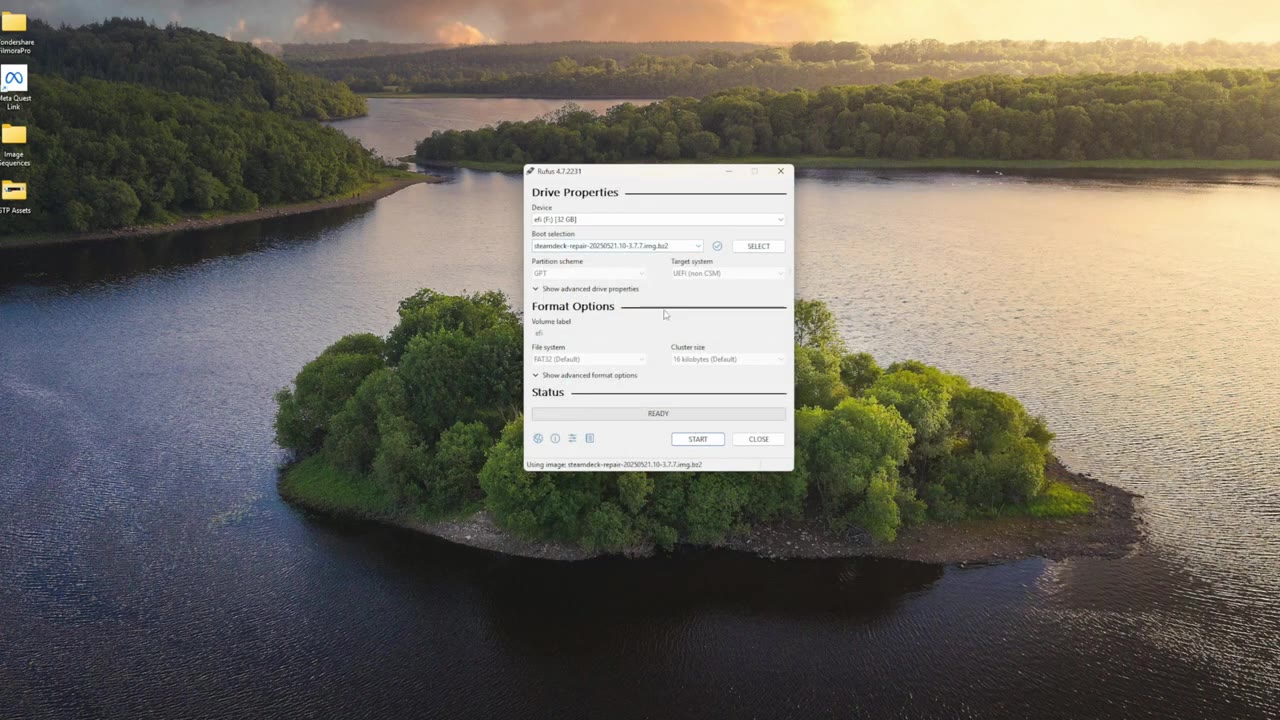
- Plug in your USB drive and open Rufus. Make sure it's picking up the right drive.
- Click Select and pick the SteamOS image you downloaded. You don't need to unzip it, and you don't need to change any other settings.
- Click Start. It warns that it'll delete everything on the drive. Double-check it's the right drive. When it's done, close Rufus and eject the drive.
Step 2: Disable Secure Boot
- With the Legion Go off, hold Volume Up and turn it on. Keep holding until the menu pops up.
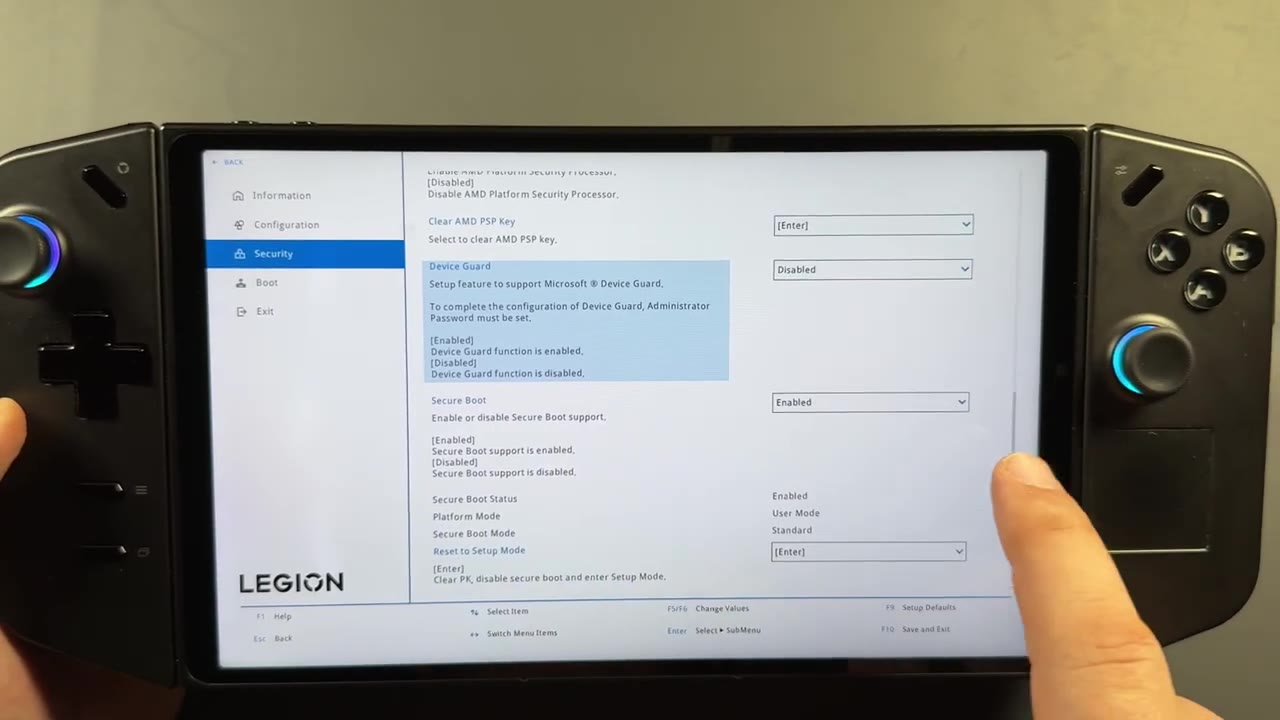
- Pick BIOS Setup, tap More Settings in the bottom right, then the Security tab on the left.
- Scroll toward the bottom to Secure Boot and set it to Disabled.
- Click Exit on the left and exit saving changes. Windows will want your password instead of your PIN after this, but I was ready to install SteamOS, so I just shut it down.
Step 3: Install SteamOS
- Plug your hub into the Legion Go and the USB drive into the hub.
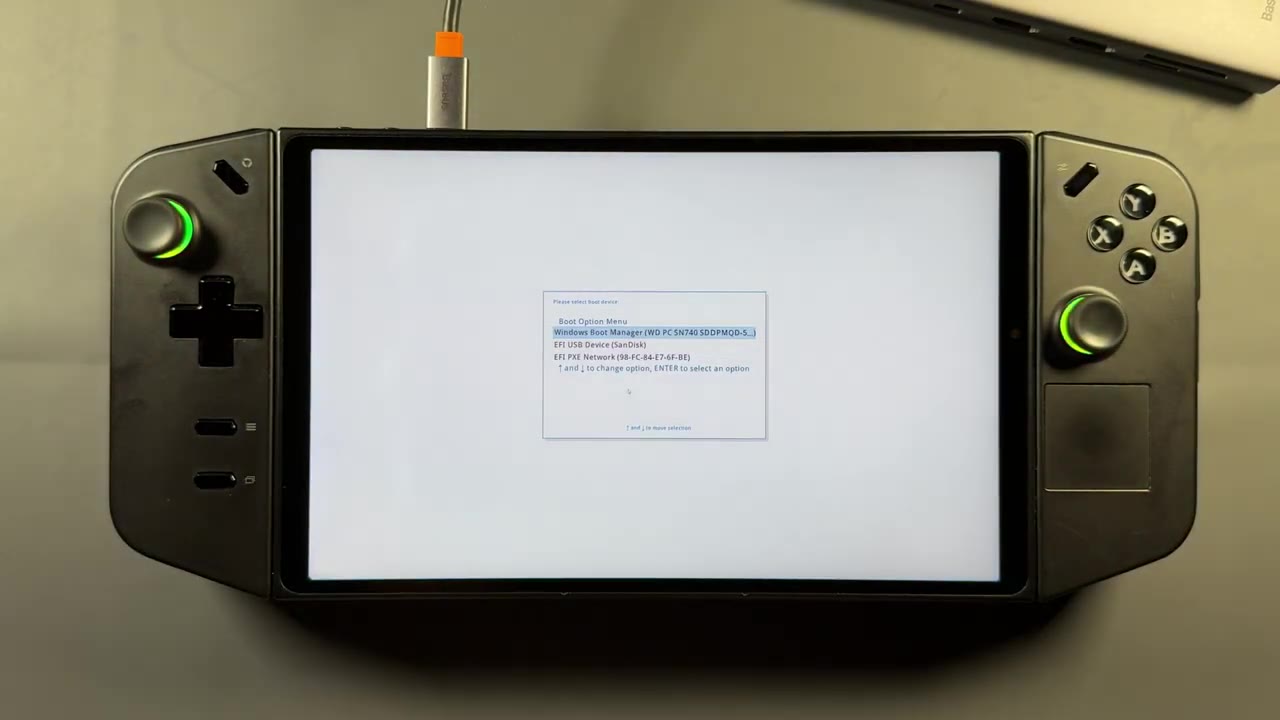
- Hold Volume Up and power on again, but this time choose Boot Menu and pick your USB drive.
- It boots into a SteamOS desktop with four options up top. Tap Wipe device and install SteamOS. Everything is one tap here.
- It warns that the entire device gets wiped. Be sure, then hit Proceed. It only takes a few minutes.
- Click Proceed again to restart. Once it's restarting, you can unplug the USB drive.
Then it's the same first-time setup as a Steam Deck: get online and sign into your account. The Legion button up top is your Steam button now. I went ahead and did a system update right away, since there was already one waiting after the install.
Step 4: Add TDP controls with Decky Loader
Here's the one big difference: there's no TDP control from Valve on the Legion Go yet. Mine was running at 25 W. On my ROG Ally it defaulted to 15 W and I couldn't change it. Until Valve adds it, I'm using Decky Loader and SimpleDeckyTDP.
- Go to Power → Switch to Desktop, open a browser and download Decky Loader from decky.xyz.
- Open Files → Downloads, run the Decky Loader file, click Execute and Continue. Let it create a temporary password, then choose the stable release.
- I like to hop back to game mode and check Decky shows up at the bottom of the quick access menu.
- Back in desktop mode, go to the SimpleDeckyTDP GitHub page and copy the quick install command.
- Open Konsole (menu → System), paste the command and press Enter.
- It asks for a password, but Decky deleted the temporary one. Go to Settings → Users → Change Password and make your own. Don't forget it.
- Enter the password in Konsole and it finalizes the plugin install. Switch back to game mode.
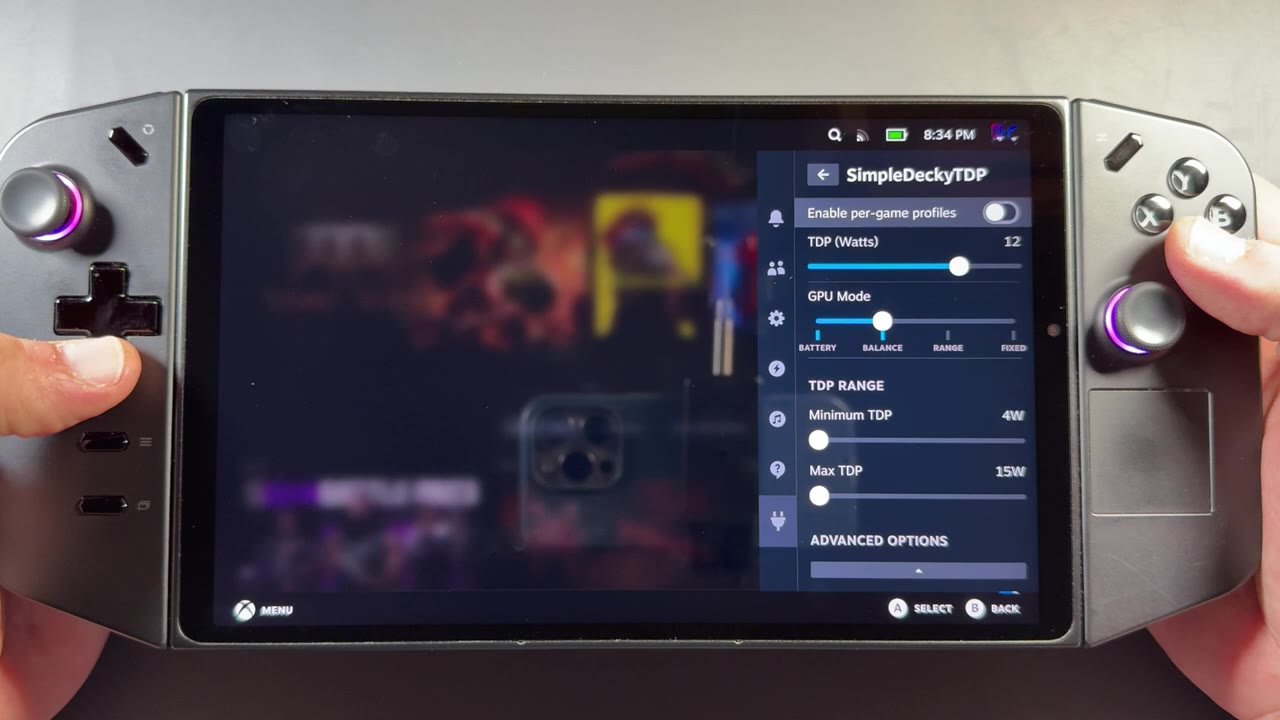
Now you've got SimpleDeckyTDP in the Decky menu, with a range of about 4 W up to 30 or 40 W, plus some GPU and CPU controls. Going all the way up to 30 W worked fine, and it still adjusts dynamically as it needs to. I don't really like running more than 30 W handheld, which is how it worked on Windows too. I often run this Z1 Extreme Legion Go at about 17 to 22 or 25 W.
Let me know on X or in the YouTube comments if you've put SteamOS on your Legion Go and what TDP you're running it at. Thanks for reading.
Want more handheld tests?
New Steam Deck, ROG Ally, Legion Go and Steam Machine performance videos every week.