 ▶Watch on YouTube
- You can stream Marvel's Wolverine, or any PS5 game you own that's streamable on PlayStation cloud, with no console.
- You need to own the game and have the PlayStation Plus Premium tier for cloud streaming.
- Asobi on the Steam Deck (SteamOS) and Pylux on the Legion Go 2 (Windows). Both are unofficial apps.
- Both streamed really well for me, handheld and docked at 4K, with cloud latency I could live with.
I've played the first three or four hours of Marvel's Wolverine strictly through PlayStation cloud gaming, with no console, because I don't have a PS5 here right now. Here's how I've been doing it on the PlayStation Portal, the Steam Deck and the Legion Go 2, handheld and docked to the TV. It works for Wolverine or really any PS5 game you own that can be streamed through PlayStation cloud.
Two of these routes use unofficial apps: Asobi on the Steam Deck and Pylux on the Legion Go 2 with Windows. If you're not comfortable with their login systems, or with using them at all, you'll have to hang out and wait for PlayStation to update its apps, or use a Portal.
What you need
- The game in your PlayStation library. I paid full price for Wolverine.
- A PlayStation Plus Premium subscription for cloud streaming
- Asobi for SteamOS (I did a full video on it), or Pylux from GitHub for Windows (it also runs on SteamOS and Linux)
- Good enough internet and distance to Sony's data centers. Results will depend on your setup.
The PlayStation Portal
I've used the Portal a lot. It's been about a year and a half since I got rid of my PlayStations to fund other things like handhelds, and I've been using the streaming service on the Portal, the Steam Deck and other devices since. I've done a lot of cloud gaming since 2019, and I used to cover it pretty much exclusively on the channel before handhelds went more mainstream.
I really do like the Portal. It's more of a PS5 accessory, but since Sony allowed standalone cloud streaming for a lot of the PS5 games you own, it's filled the gap nicely while I don't have a console. My saves stay there for when I replace the PS5 or eventually get a PS6. The catch is that you can't dock the Portal, so it's more limited. That's where the Steam Deck or another SteamOS device comes in.
Steam Deck: Asobi
Asobi has been a really nice app on SteamOS. As far as I know you can still apply for the playtest, the app will be for sale soon, and there's a Windows version coming eventually that I'm looking forward to. I don't know anything about pricing yet. During the trial it shows where Premium is active, and once it's for sale you'll have to pay for it.
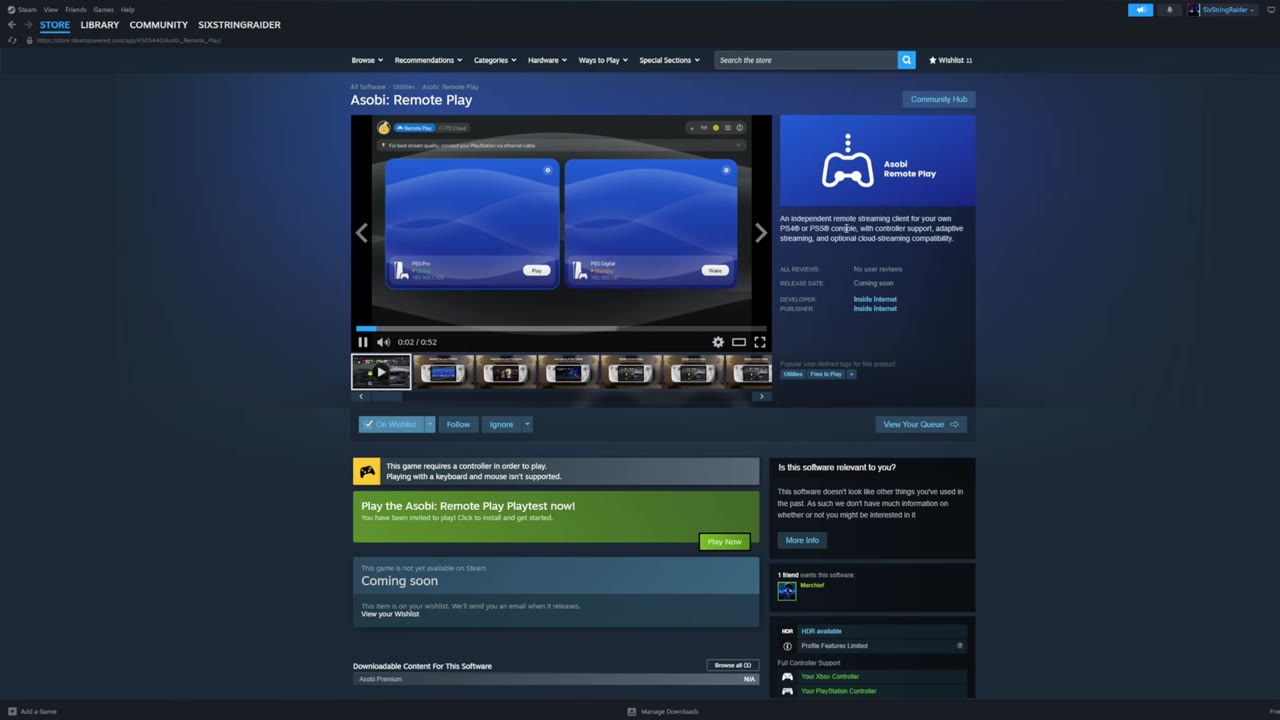
- Inside Asobi you get tabs for your recent games, your owned games and more.
- There are shortcuts and button mapping for everything.
- Settings cover resolution, frame rate, HDR, frame generation and haptics, and you can save them. I use 4K when docked to the TV and 1080p on the Deck itself.
- From the recents tab, launch the game. Wolverine showed up in Asobi right away at launch, within minutes for me.
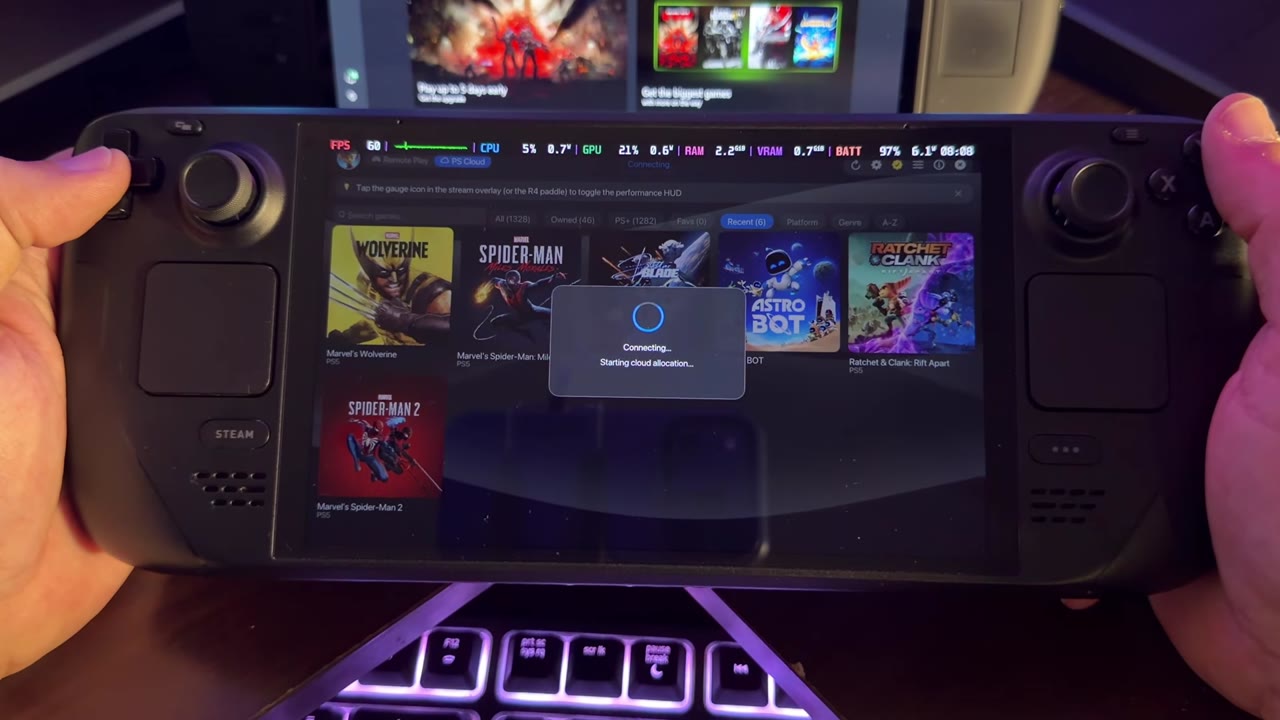
Asobi on the Steam Deck has been one of the better cloud-only experiences I've had outside the Portal. I rarely get a hiccup, a stutter or many frame drops. The odd banding you might see in my footage came from the camera and the different lighting and Wi-Fi spot I recorded in. It wasn't there in person. In person it looks really good, streams really well and doesn't have a lot of latency for me. I've played a lot of PS5 games this way since Asobi came out on the Steam Deck in August, so Wolverine doing well didn't surprise me.
Legion Go 2 (Windows): Pylux
On Windows, Pylux is pretty much the only way to do this right now. The official Sony app hasn't been updated and still doesn't support PS5 cloud streaming. Asobi has SteamOS covered, and you can use Pylux there too.
- Go to the Pylux GitHub, where all the versions are listed, and download the Windows installer.
- Run the installer and get everything installed, then launch Pylux. You can add it to Steam as a shortcut too.
- Skip the console connection if you don't have a console, and go to the cloud play area.
- Filter to just your owned games: on the left, click off streamable and store.
- Sign in with the update login token tab. You get a QR code to follow, or an alternative method. Follow their instructions. It took me less than three minutes.
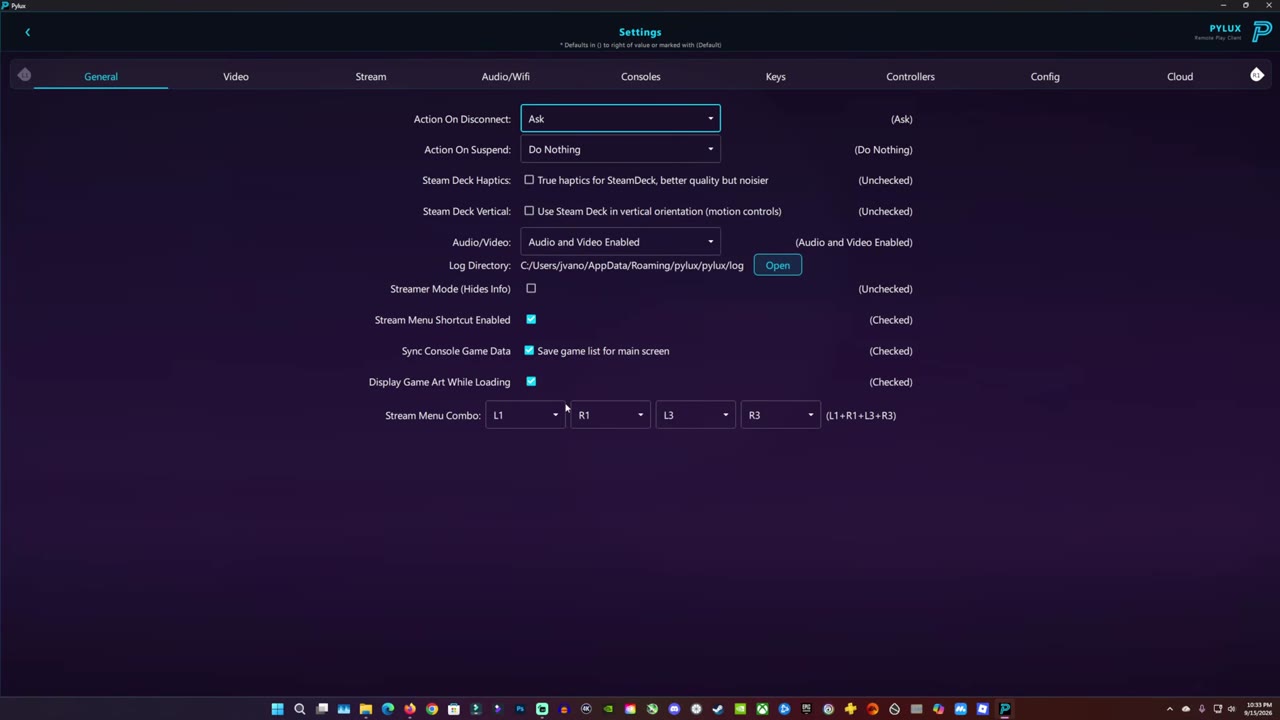
There are a lot of settings in Pylux, probably more than in Asobi. You'll want to look at the video hardware decoder, fullscreen and quality. If you stream from your own console, the quality settings there are for local and remote play. There are also audio, console registration, key binds and controller configuration. The cloud tab under configuration is where you set your PS5 cloud streaming resolution, such as 1440p or 4K like in Asobi, with bitrate adjustments and everything else on auto.
I'm using Xbox mode on the Legion Go 2, and I added Pylux to my apps there so I can launch it and the game right from Xbox mode. Pressing L1 + R1 and L3 + R3 (both bumpers and both stick clicks) opens the stream menu, where you can make quick adjustments to your mic, zoom, quality, display and volume, or exit the stream.
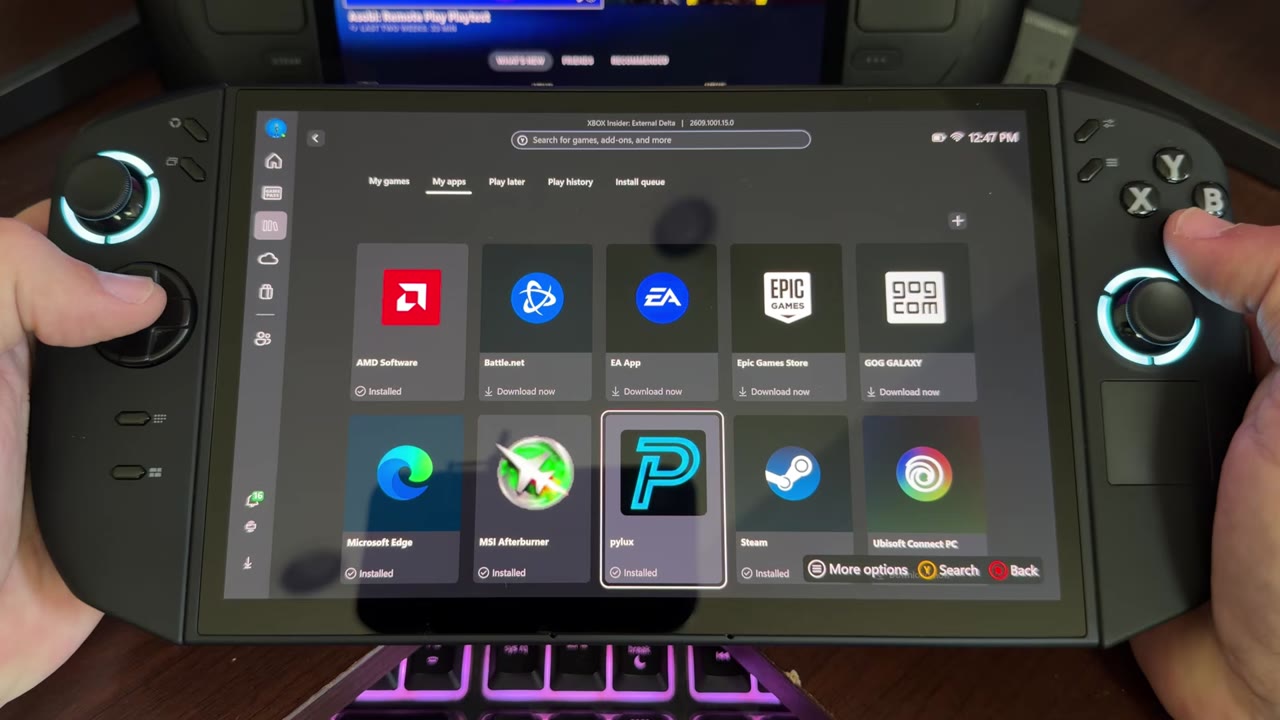
Wolverine took a lot longer to show up in Pylux than in Asobi. It was over a day for me. As far as I understand, that's normal for Pylux: new releases can take a bit to appear.
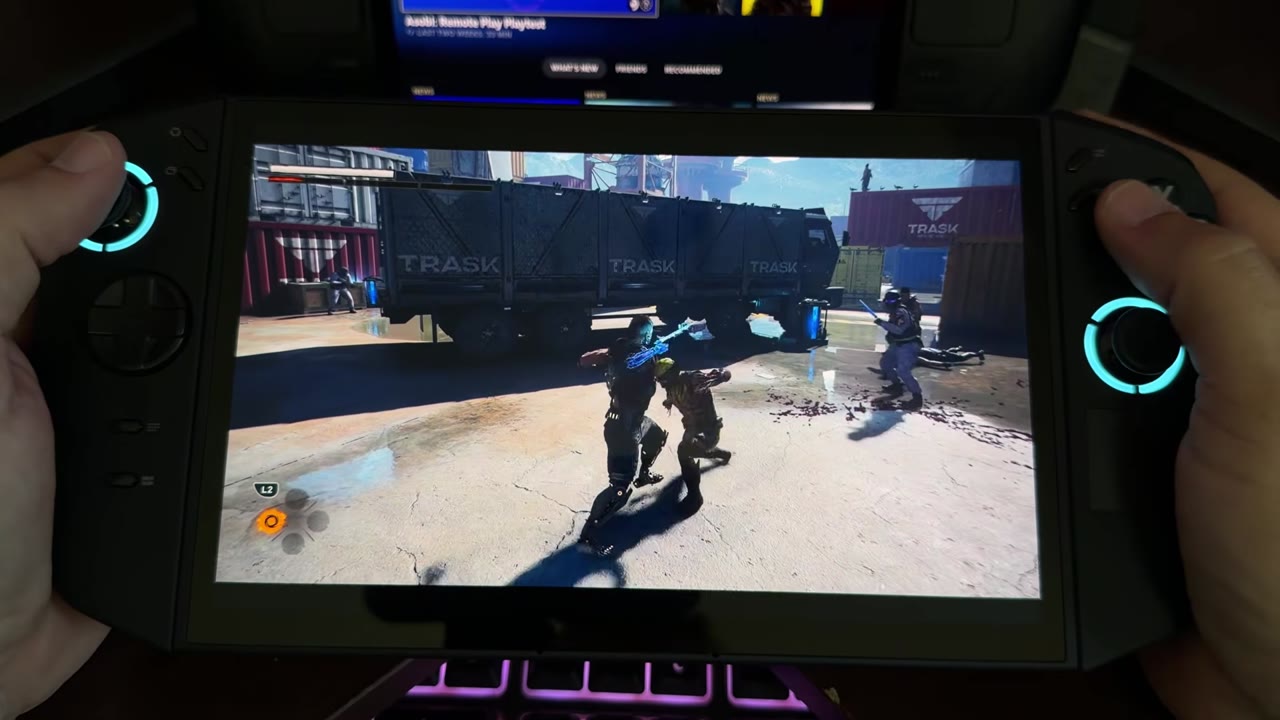
Asobi does tend to work a little better for me, especially on SteamOS and the Steam Deck. Still, I was pretty surprised by how well Pylux did once I tuned it. I very rarely had a stutter, or the stream buffering with that pixelation you sometimes get. It happened a couple of times, but for the most part it was good. Input latency was similar to what I'm used to on the Portal or Asobi, and I could handle combat without much trouble. I can tell there's cloud latency, but it's nothing crazy. Sony has improved the service a lot over the past few years, which is why it's a shame it's locked down to the Portal and the PS5, with no official support anywhere else yet.
Docked at 4K
I also docked the Steam Deck to my capture card and to my 65-inch OLED TV, with Asobi set to output 4K. It didn't add any extra pixelation, buffering or input latency. It felt the same as 1080p. In person it's a very clean stream, even in motion, in darker areas and in combat, and picture quality stayed pretty nice. For the most part there were no skips or stutters in the stream. Input latency was pretty normal for cloud, or above average for PlayStation. It sounded great in the room too, with my system mimicking surround sound, and the Steam Deck controls let me do everything I'd do with a PlayStation controller.
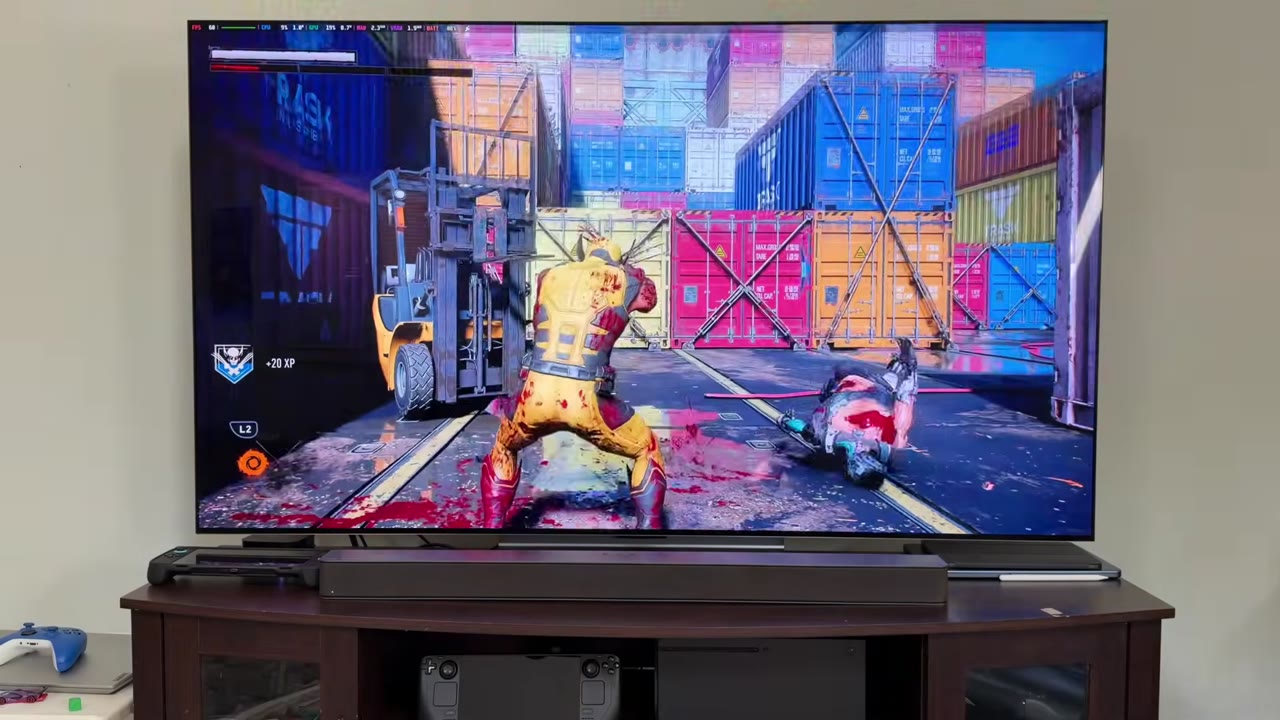
With my location, my internet and however far I am from the data centers, this has gotten me through a lot of games over the past year and a half or so without a PS5, not just Wolverine.
My take
Even with all the bad reviews, and I do see the hand-holding and other issues, there's a lot of fun to be had in Wolverine. The beginning has been fun, and I'm mostly interested in how it runs and looks on different devices. It's at least running well on all of these. If you're okay with cloud gaming, and your setup is good enough that the input latency doesn't bother you, this is a good way to play through it.
Want more handheld tests?
New Steam Deck, ROG Ally, Legion Go and Steam Machine performance videos every week.