 ▶Watch on YouTube · 13:59
- World of Warcraft: Forever has built-in controller support (Options → Gamepad, currently in alpha).
- Windows handhelds: just install Battle.net — no workarounds.
- SteamOS: install Battle.net via Unifideck (Decky plugin) or NonSteamLaunchers.
- In the starting zones I saw roughly 60–80 FPS on Steam Machine at 4K and 60–90 FPS on Steam Deck at 800p.
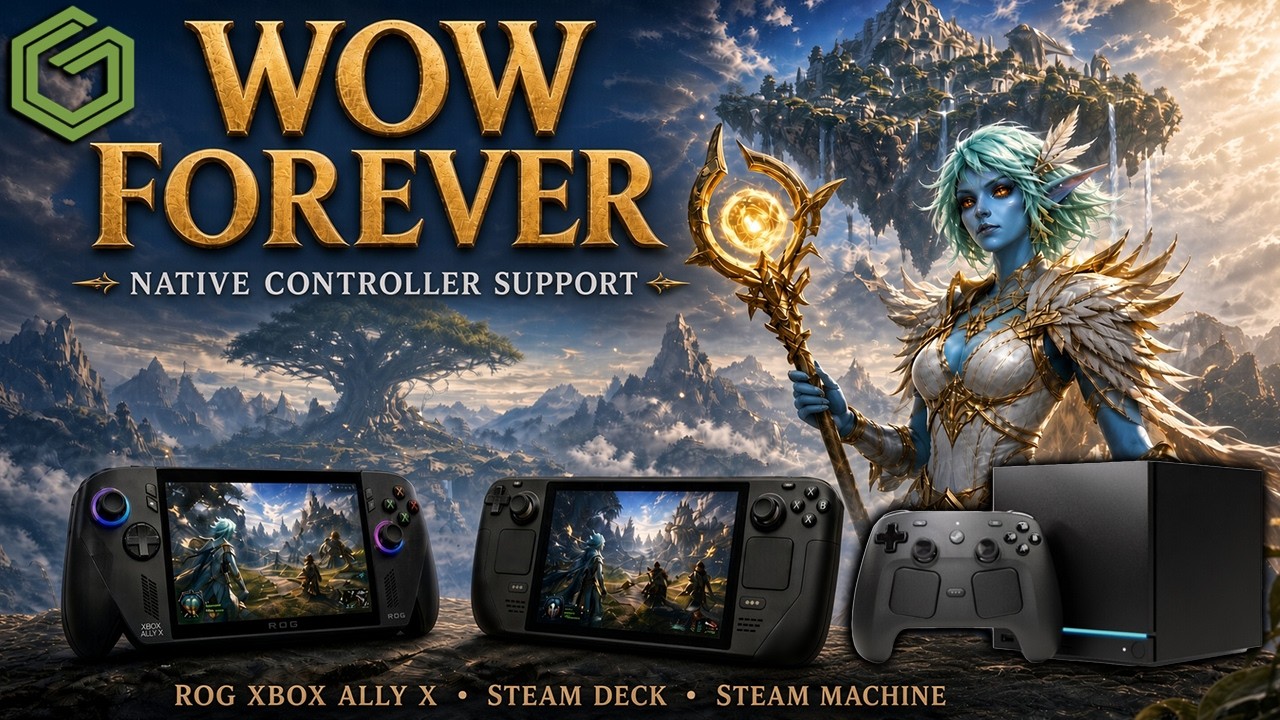
World of Warcraft: Forever is the thing that's pulled me back into WoW after about 13 years away. My friends and I played from 2007 to 2013, and back then we always talked about "what if they brought this to console with controller support?" Well, here it is. I tested it in the beta on the Xbox Ally X, the Steam Machine and the Steam Deck, and it's running really well on all of them.
Quick note: this isn't a full settings deep-dive. I wanted to see how the game runs and how the controller support feels. I'll get into more settings when the game launches. Beta access currently comes with certain pre-orders; otherwise the release date is November 4th.
Step 1: Turn on gamepad support (every device)
On every device, once you're in the game go to Options → Gamepad and switch it on. It's labeled alpha, and I'm sure they have work to do, but it's working really well. Between my Xbox Ally X, my Steam Deck and my Steam Machine with the Steam Controller, none of them gave me problems with controller input or mappings. If something acts up, try restarting the Deck or Steam Machine.
Windows handhelds (Xbox Ally X)
Any Windows handheld is easy: launch Battle.net, sign in, install World of Warcraft: Forever. I ran it from Xbox mode, and Battle.net has full controller support there too.
Settings I used
- 1080p, V-Sync off
- High-definition character models on
- Mostly a mix of Good and Fair, plus a couple of High settings
- 16x texture filtering
- FSR 1.0 available in the menu
- Frame rate caps off
Out of the box I wanted it a bit smoother, so I moved some of the Good and High settings down to Fair or Low, and dropped Environment Detail and Ground Clutter from 5 to 4. That cleared up a lot of the stuttering (it still pops up here and there), gave better FPS, and leaves more headroom for busier areas. Keep in mind we're in the early zones; big cities, high population and dungeons will hit performance differently.
Steam Machine: Battle.net via Unifideck
On the Steam Machine I tried Unifideck instead of NonSteamLaunchers (I usually prefer NonSteamLaunchers, but wanted to try something different). Here's the quick and dirty setup:
- Switch to Desktop Mode and open your browser.
- Download Decky Loader from decky.xyz.
- Go to the Unifideck GitHub → Releases and download the Unifideck .zip (the top one).
- In Dolphin, open Downloads and run the Decky Loader installer. It takes about 30 seconds. Leave the Unifideck zip alone for now.
- Go back to Game Mode, open the Quick Access Menu, and find Decky Loader at the bottom.
- Go to Decky's settings (gear icon) and turn on Developer Mode.
- Open the new Developer tab → Install plugin from zip file → Browse → Downloads → pick the Unifideck zip.
- Open Unifideck from the Quick Access Menu, choose the Battle.net store connection and sign in.
- The launcher opens with full controller support. Install WoW: Forever, hit Play, and enable Gamepad in Options.
Performance
I left it at 4K with 100% resolution scale (FSR and the other defaults still on), turned V-Sync off and removed the frame rate caps. With that I was getting about 60–80 FPS in this area. It could get worse in other places, but there's plenty of room in the settings and resolution to play with. With the Steam Controller hooked up to the TV, it's going to be great for the living room.
Steam Deck (OLED): Battle.net via NonSteamLaunchers
- In Desktop Mode, go to the NonSteamLaunchers GitHub (there's also a website now). You don't need Decky Loader for this, but there's a Decky plugin version too if you prefer it.
- Download the desktop version, then run it from Downloads. The install is quick.
- When it opens, tick Battle.net and click OK. It shows you the install path, and you can use it later to uninstall or start fresh.
- When the launcher pops up, choose the Steam option. I like to do the first sign-in on desktop, but you can also sign in from Game Mode.
- Back in Game Mode, add artwork with SteamGridDB from the Decky store if it's missing.
- Install the game in Battle.net (full controller support), hit Play, and enable Gamepad in Options.
Settings I used
- Fullscreen windowed, V-Sync off
- 800p, high-definition character models
- Mostly Fair and Low, with High texture resolution
- Environment Detail and Ground Clutter at 4
- 8x texture filtering
- Ray tracing off, FidelityFX left alone
- Frame rate caps off
Performance
This gets me 60–90 FPS or higher in the beginning areas, which leaves plenty of headroom for busier spots. On the smaller screen, 800p looks really good, and on the OLED it's honestly surreal to run around in WoW on a handheld.
Verdict
The highlight here is the controller support. It frees WoW from mouse and keyboard and lets you play it just about anywhere: the Xbox Ally X or any Windows handheld, the Steam Deck, the Steam Machine in the living room, and probably consoles down the road. I've also played on the Legion Go 2's bigger screen and it's really nice there too. Between the OLED Steam Deck and the performance you can get, this is a really good title to play on a handheld, and I'm looking forward to the full release. Let me know in the comments how it's running for you!
Want more handheld tests?
New Steam Deck, ROG Ally, Legion Go and Steam Machine performance videos every week.