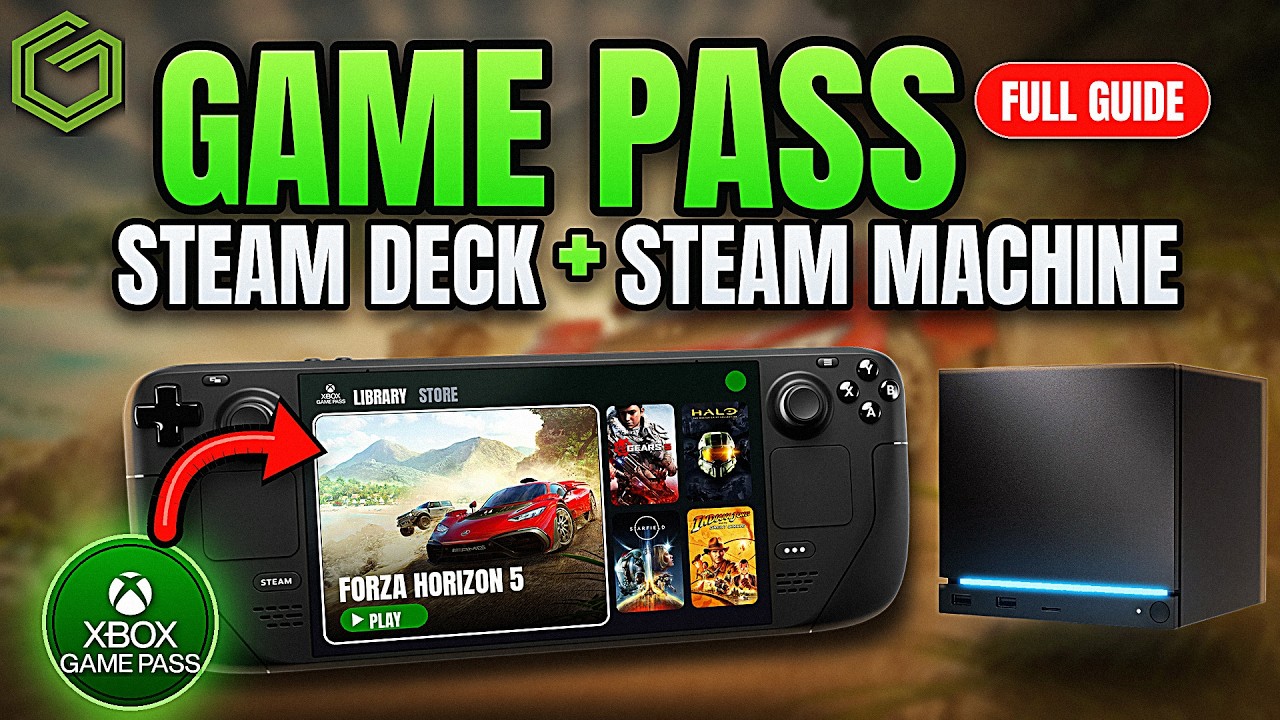
 ▶Watch on YouTube
- Xodus Nexus lets you download and play some Xbox Game Pass games natively on the Steam Deck and Steam Machine, not through the cloud.
- It's unofficial and experimental. You use it, and sign into your Xbox account, at your own risk.
- Setup happens in desktop mode: download the AppImage, install the backend and runtime, sign in through Google Chrome, then add Nexus to Steam.
- Some games need the VC++ install from the game's right-click menu before they'll launch.
- Minecraft Dungeons 2, a new online Game Pass game I don't own, launched and played online with my save on both devices.
Playing Xbox Game Pass games natively on the Steam Deck, rather than through cloud streaming, is something we've talked about for a long time. The new Xodus Nexus app makes it possible for some games. I set it up on my Steam Deck and my Steam Machine, and the process was identical on both. It's early days, so there are caveats, and I'll cover the good and the bad here along with the install. For the background on what Xodus Nexus is, see my news post on the launcher.
Before you start
- Xodus Nexus is on GitHub. The page has all the install information, how it works, and a compatibility games list. It also has its own caution warning: this is not official from Xbox, and you do all of this at your own risk, including signing into your Xbox account.
- You need a Microsoft account and an Xbox Game Pass subscription.
- You'll want Google Chrome installed and set as your default browser for the sign-in later. It suggested that you do, and at least I needed it.
- The compatibility list had around 65 to 68 games the last time I checked, and it's constantly being updated with how games are running. There are still restrictions, things that don't work, and games that aren't working.
Credits & Shoutouts
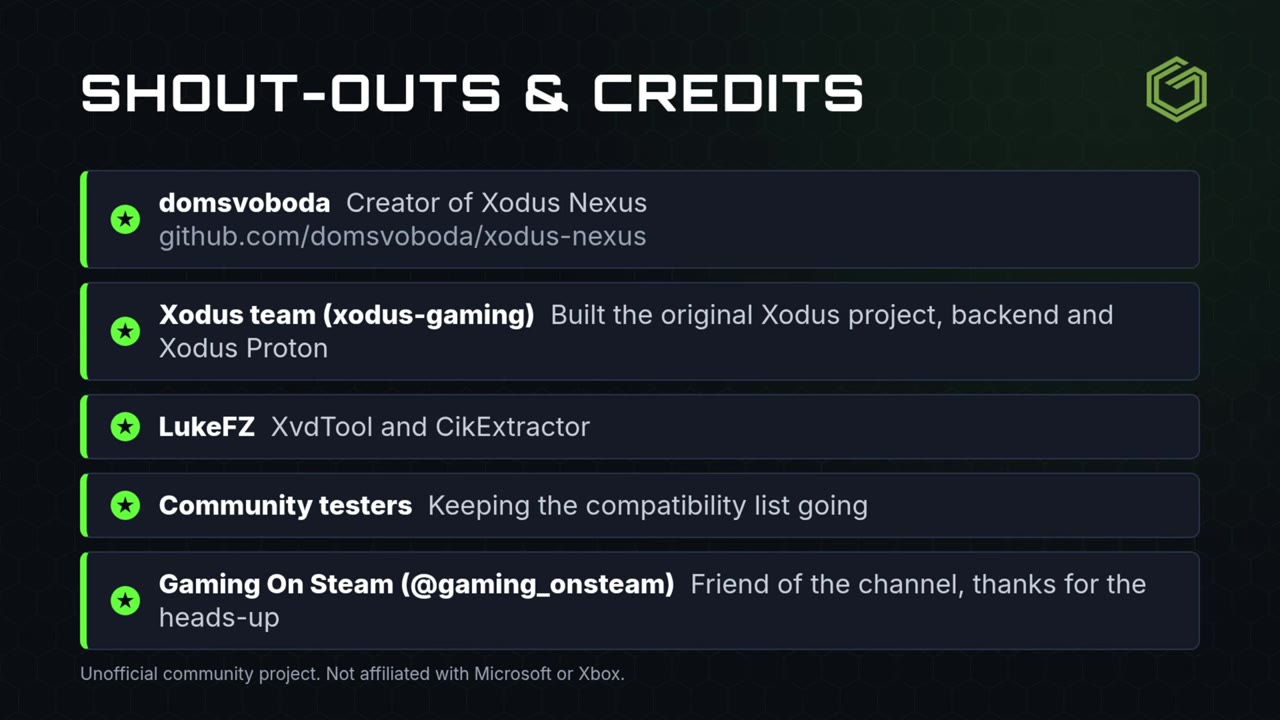
Credit to the people who have worked on getting this going, because it seems like it's going to be pretty handy to have:
- domsvoboda: creator of Xodus Nexus (github.com/domsvoboda/xodus-nexus).
- Xodus team (xodus-gaming): built the original Xodus project, the backend and Xodus Proton.
- LukeFZ: XvdTool and CikExtractor.
- Community testers: keeping the compatibility list going.
- Gaming On Steam (@gaming_onsteam): a friend of the channel for years, who originally gave me the heads-up about this.
Limits & Catches
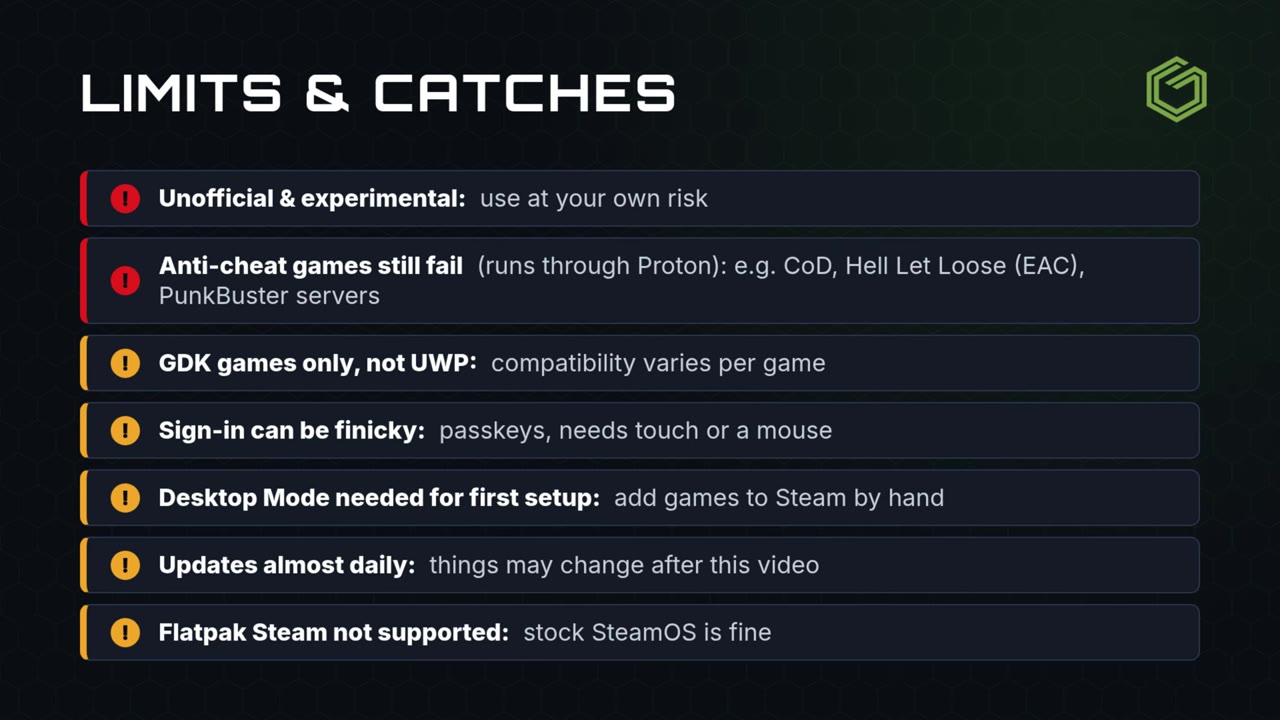
- Unofficial and experimental: use it at your own risk.
- Anti-cheat games still fail (it runs through Proton): for example Call of Duty, Hell Let Loose (EAC) and PunkBuster servers.
- GDK games only, not UWP: compatibility varies per game.
- Sign-in can be finicky: passkeys, and it needs touch or a mouse.
- Desktop mode is needed for the first setup: add games to Steam by hand.
- Updates almost daily: things may change after this video.
- Flatpak Steam isn't supported: stock SteamOS is fine.
Step 1: Switch to desktop mode
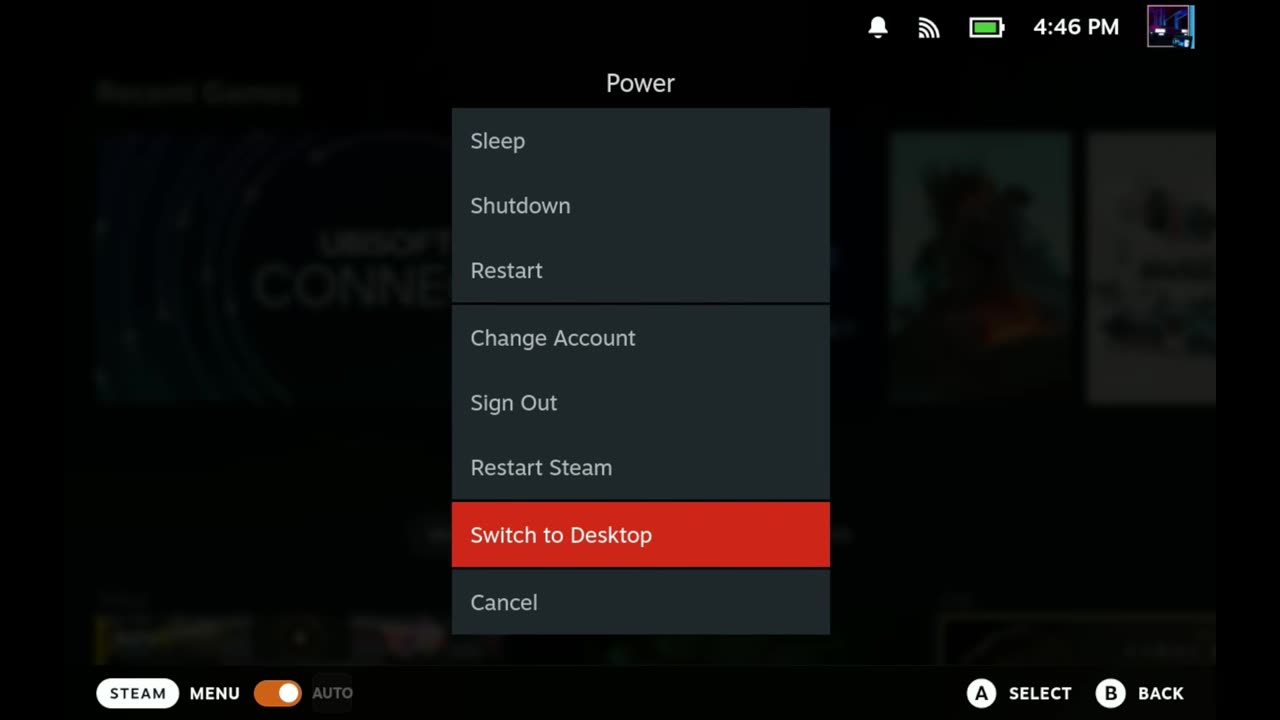
The download and install are done in desktop mode. In Gaming Mode on the Steam Deck, press the Steam button, go to Power and choose Switch to Desktop, then confirm.
Step 2: Download the AppImage from GitHub
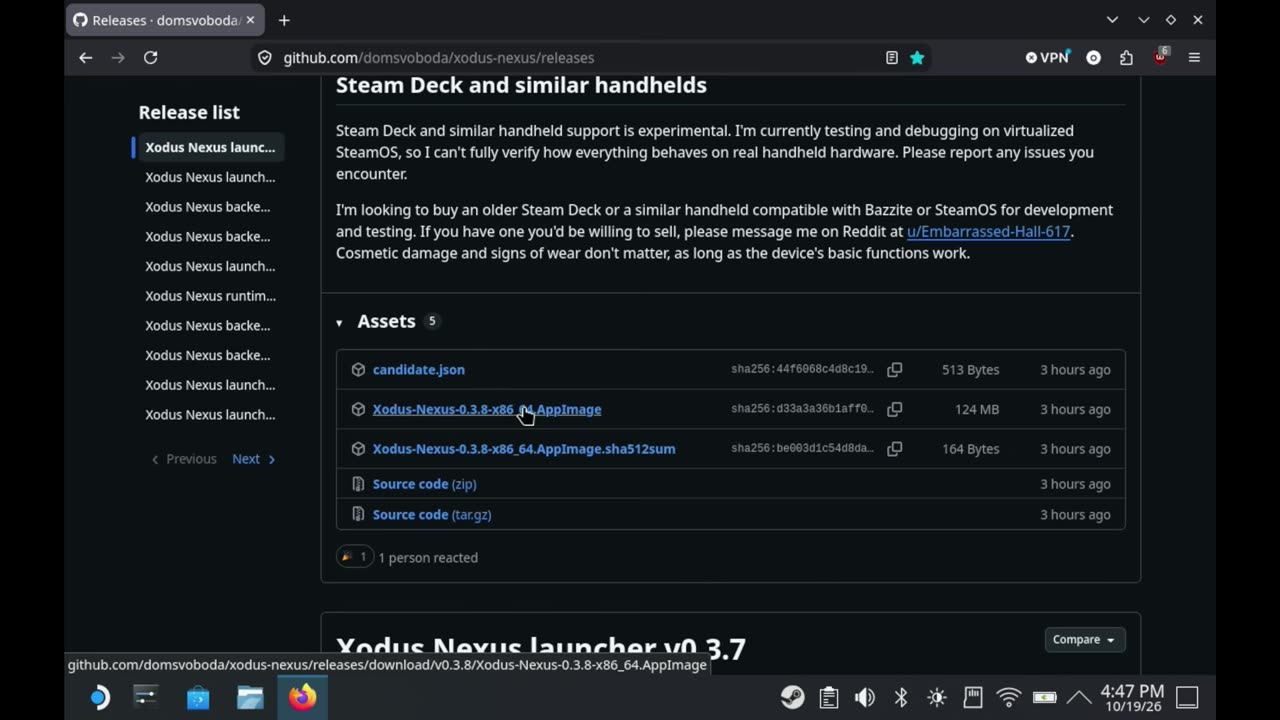
I used Firefox for the download, but make sure Chrome is on there too for the sign-in later. Go to the Releases page on the Xodus Nexus GitHub. It has the same caution note at the top. The newest release when I made the video was 3 hours old: version 0.3.8. Under Assets, click Xodus-Nexus-0.3.8-x86_64.AppImage. Let it download, then close the browser. It's the only thing you need to grab from there. The version will likely be newer by the time you read this.
⬇ Download Xodus Nexus (GitHub Releases)
github.com/domsvoboda/xodus-nexus/releases
Step 3: Launch the AppImage
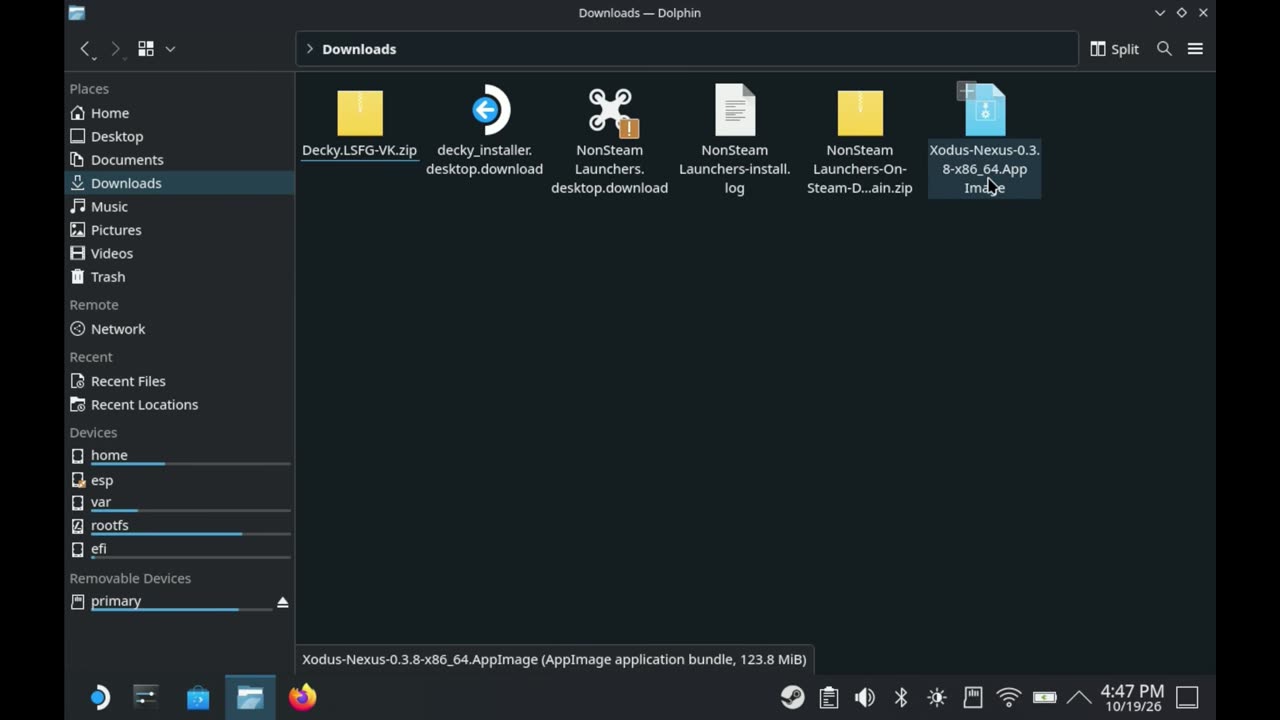
Open the Dolphin file manager and go to your Downloads folder. Click the Xodus Nexus AppImage to open it.
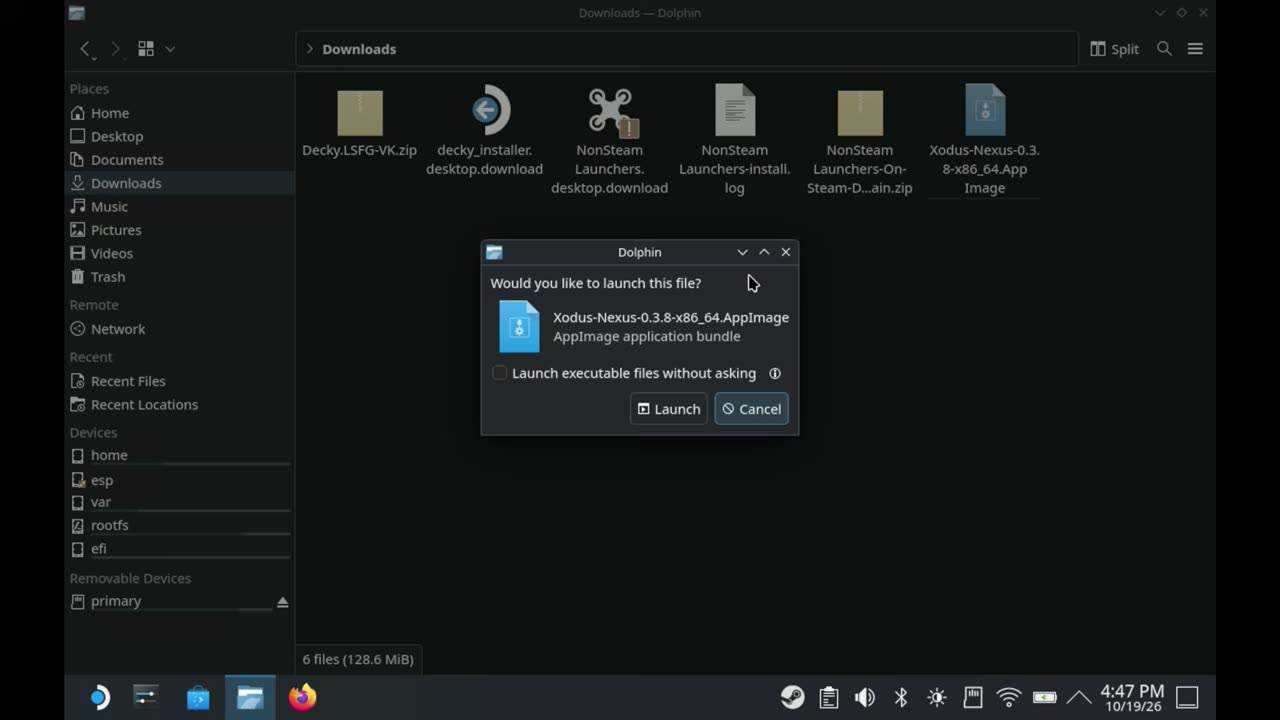
When it asks whether you want to launch the file, click Launch, then Continue. Rather than a separate installer, it pretty much just runs the Xodus app.
Step 4: Set up Xodus Nexus
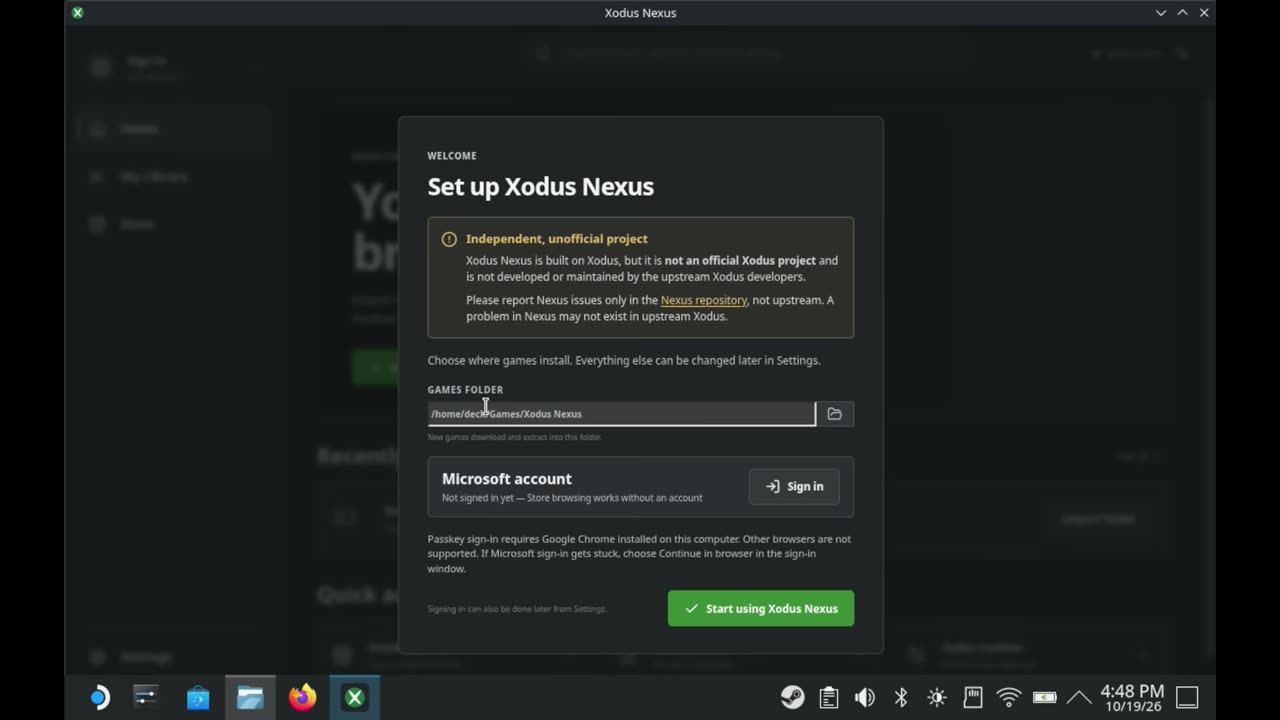
The Set up Xodus Nexus screen comes up first. You don't need to sign in right off the bat here. I'd wait on that. It also shows the location your games are going to be installed to, which is good to know. Click Start using Xodus Nexus, and you'll end up in the app, ready for some setup in Settings.
Step 5: Install the backend and runtime
There are about four things to do in Settings. Do the first two before you sign in or add anything to Steam. I noticed it seems to work a little better that way, for whatever reason.
- Xodus backend: if it hasn't been installed already, install it. Mine already said validated right away, and I checked for updates.
- Runtime: right under that. Install it here.
You can always check these for updates later if something isn't working. All of this has been a little finicky, but I've been able to get it working fine.
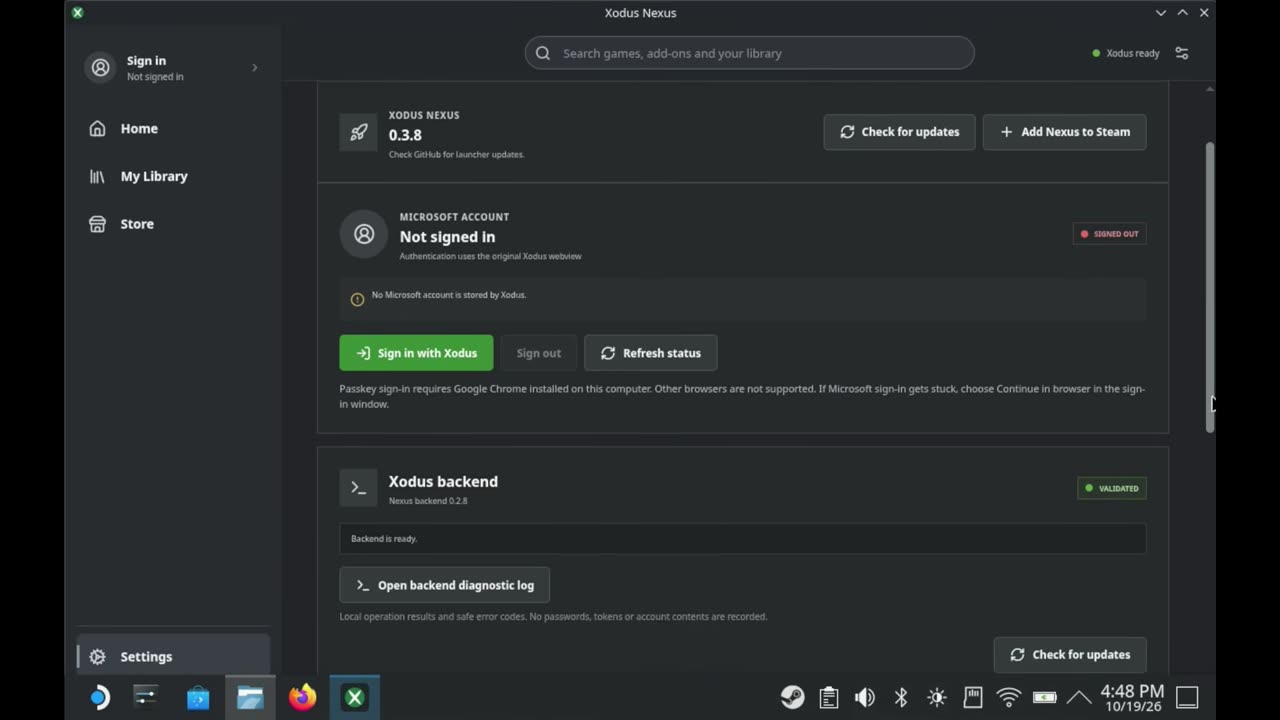
Step 6: Sign in with Xodus
With both installed, go back up to the top and click Sign in with Xodus to sign into your Xbox account. Again, only do this if you want to. For me, and probably for most people, it wants to continue in browser, which is where you need Chrome. It opens your default browser (Chrome, for me), and you sign into your Microsoft account there. Once I was signed in, it showed up in Xodus just fine, with access to my Game Pass subscription.
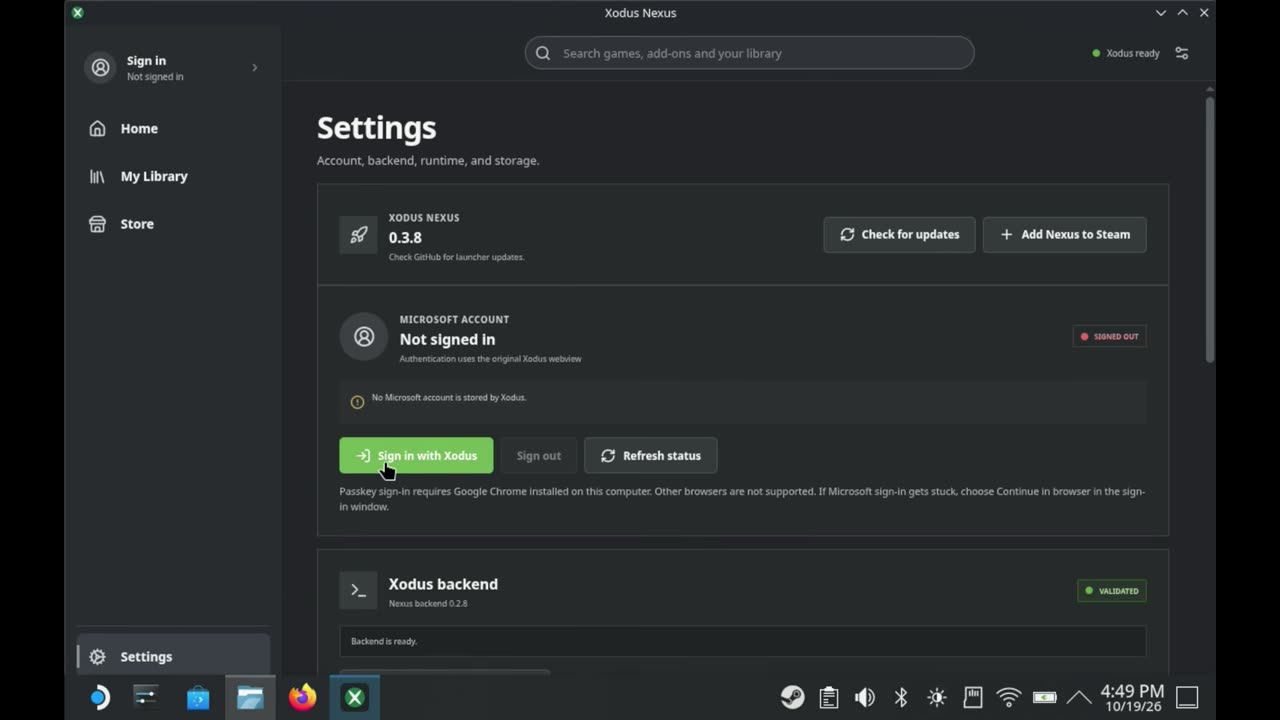
Step 7: Add Nexus to Steam
To have it there when you go back to Gaming Mode, click Add Nexus to Steam in Settings as well. That's all the setup I had to do. From there you can search for games you want to try, or that might be compatible, and give them a shot. It looks pretty similar to the Xbox app.
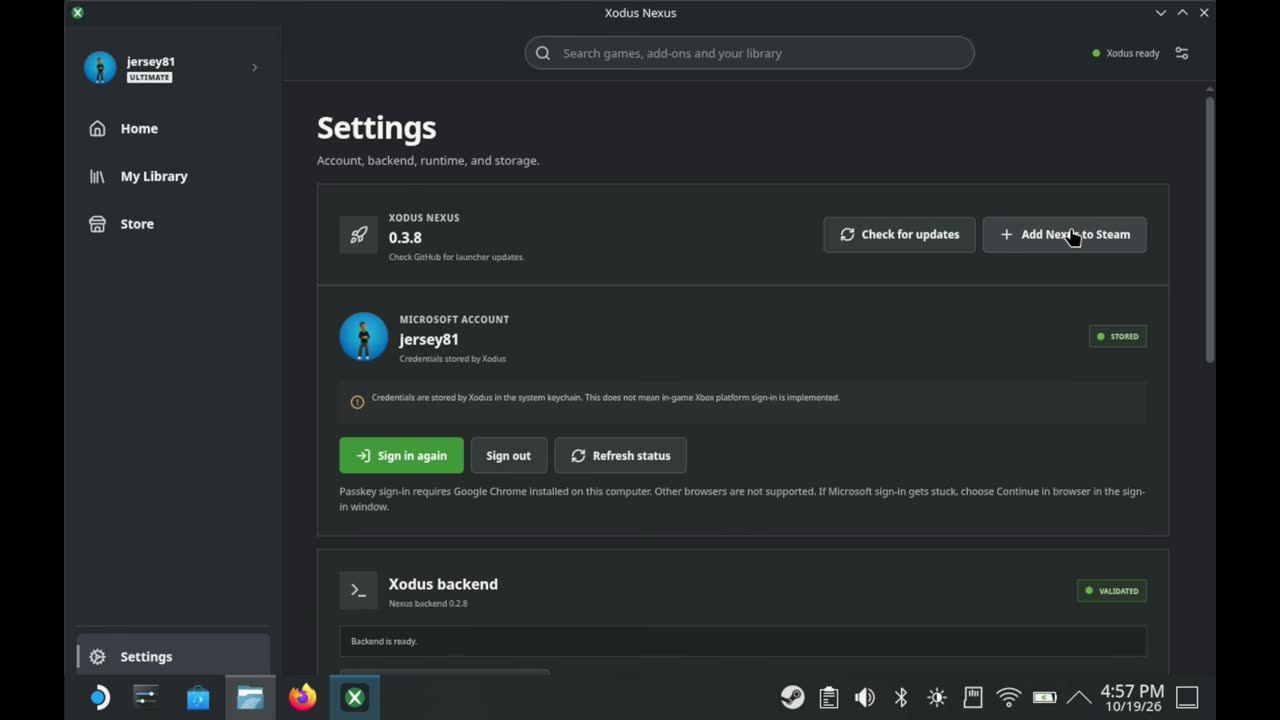
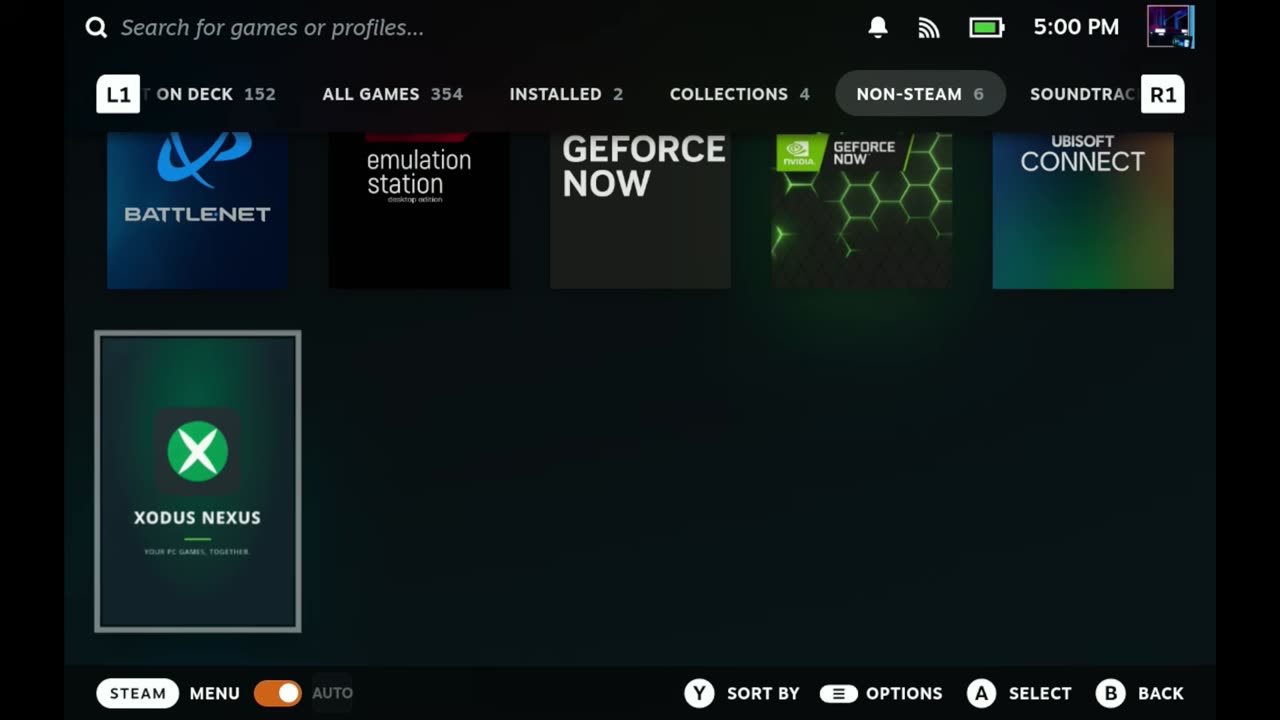
Step 8: Launch it from Gaming Mode
Back in Gaming Mode, Xodus Nexus is under your Non-Steam games with its artwork and everything. Click Play and it comes up just like it did in desktop mode, already signed in, so you can start picking games to install. You get the store, My Library and everything else from desktop mode.
Step 9: Install a game
The only game I grabbed so far was Minecraft Dungeons 2. It's a new release, it's online, it's in Game Pass, and I don't own it, so I wanted to see how that would work with me signed in with my membership.
- Search for the game and bring it up, then click to install.
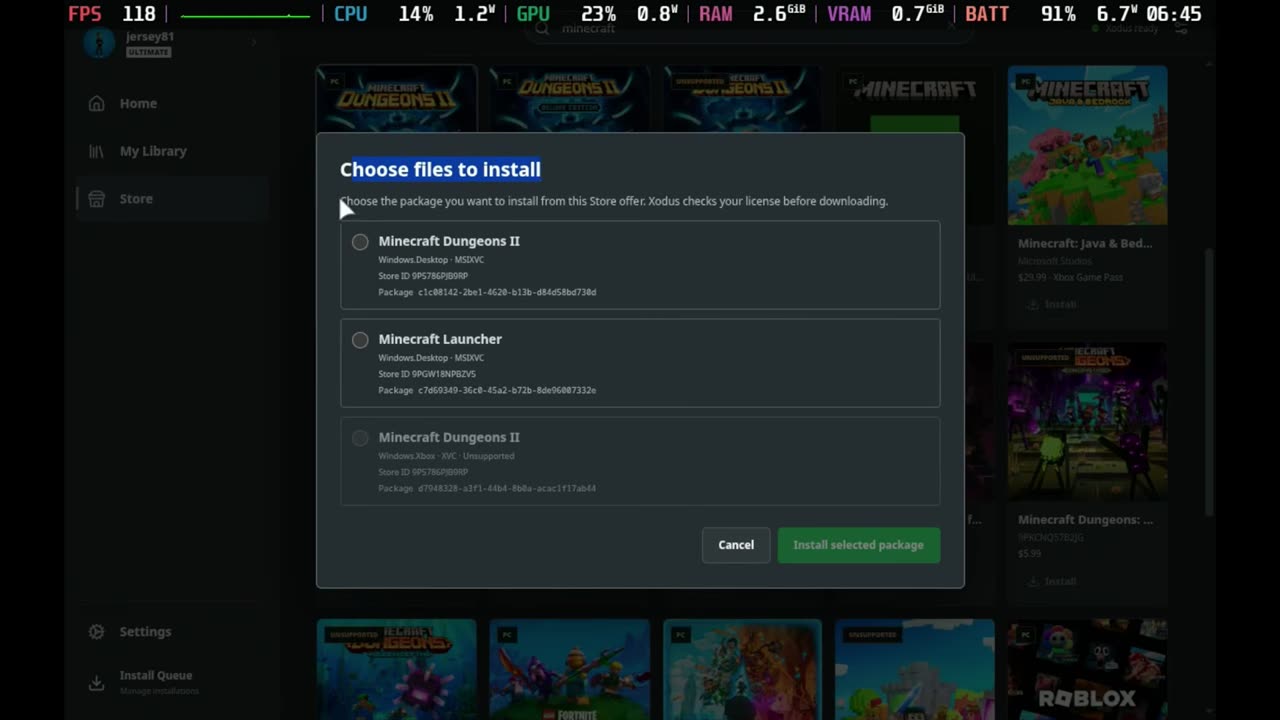
- In Choose files to install, select Minecraft Dungeons 2 and click Install selected package.
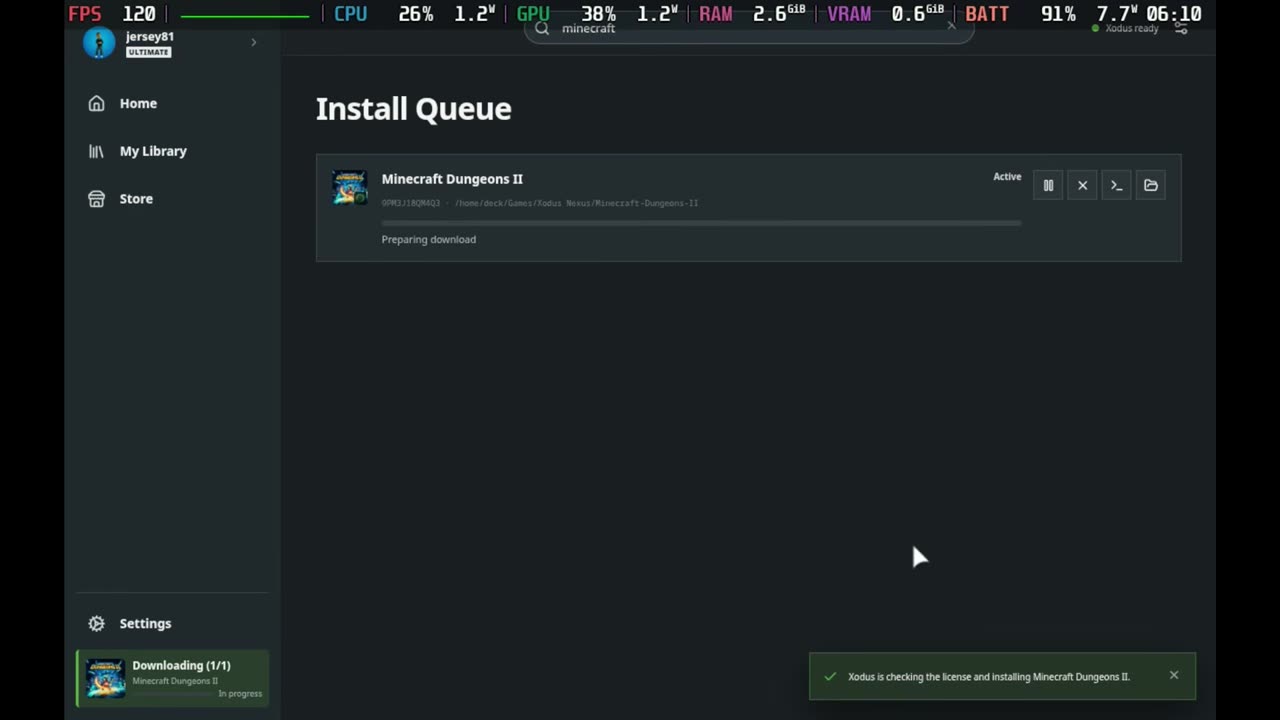
- It goes through a download and install that looks like the normal Xbox app.
- When it finishes, the game pops up in the sidebar and in My Library under installed games, and I believe on the home screen in recents.
Step 10: Fix the VC++ error and play
The first launch might fail. Some games are going to do that. I got a warning at the bottom about the VC++ runtime needing to be installed. Right-click the game in your library and click the VC++ install/update option. It does that really quickly, and then you can launch the game. It's a quick extra step you might have to do, at least for now.
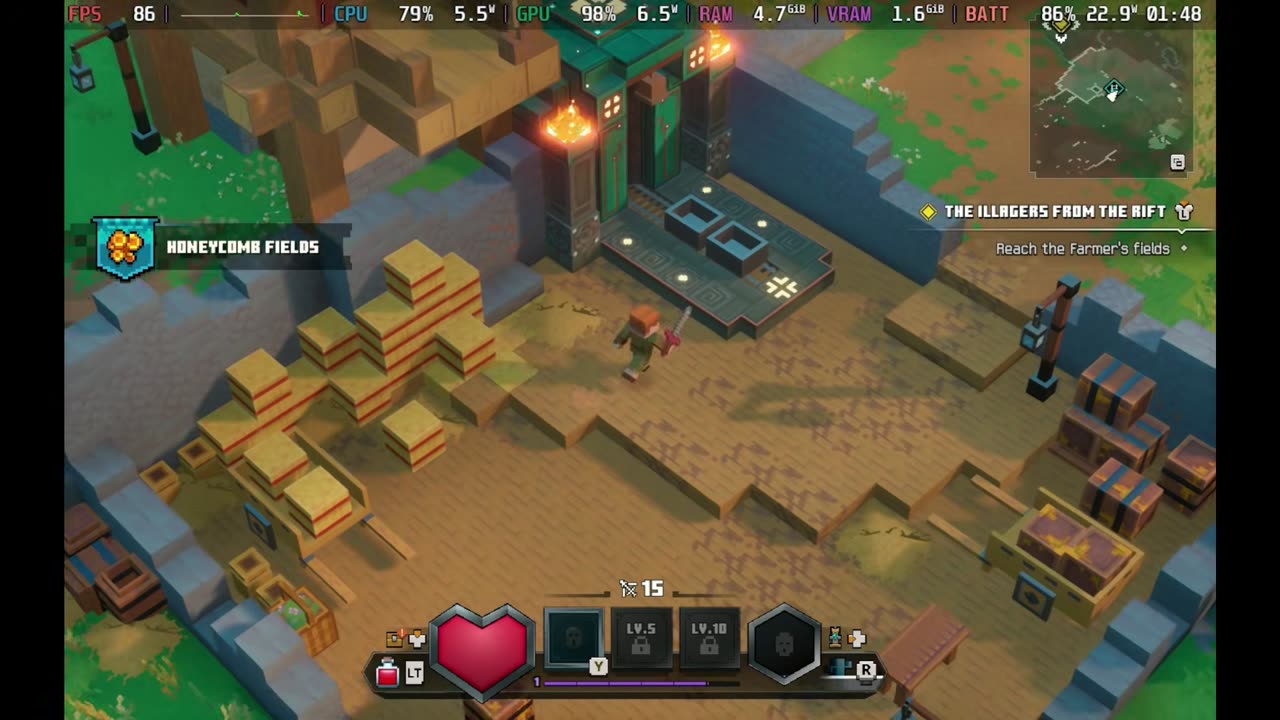
I only recorded the VC++ fix on my Steam Machine, where I did the same setup, but I did the same right-click install on the Steam Deck and it worked exactly the same. After that I clicked Play, and it launched all the way through to the Xbox Game Studios logo and into the game. I was logged into my Xbox account, had my save, and was online playing Minecraft Dungeons 2 through my Game Pass subscription, a game I don't own.
How it's working so far
This was meant to be an install guide for the current state of things, not a game test, and Minecraft Dungeons 2 is the only game I tested. On both my Steam Machine and Steam Deck it's been working fine. In games it's been absolutely fine. The app itself is pretty clunky to navigate, though. There were times I had to use the touchscreen or the touchpads, or really mess around with the controls. It's had a few issues here and there, but nothing has stopped me.
This is how things are at the time I made the video, and I'm sure it's going to update rapidly. If it keeps getting updates, I'll do more game testing and comparisons, because this could be really handy: if games come out on Game Pass, I don't necessarily have to buy them on Steam if they run well this way. I'm kind of excited to check out more Game Pass games on the Steam Machine on the TV too. It's very much early days, but it's proof of concept for sure, and it's pretty awesome to finally see something we've been looking forward to for a long time.
Want more handheld tests?
New Steam Deck, ROG Ally, Legion Go and Steam Machine performance videos every week.