 ▶Watch on YouTube
- Lenovo posted BIOS 15WW (RRCN15WW) for the Legion Go 2 Z2 Extreme on March 3, 2026. That's the third or fourth BIOS since launch (12WW, 13WW, 14WW and now 15WW), but still no new GPU driver.
- The only change listed: "Add direct bios for UMA frame buffer size." I couldn't find any new way to change the VRAM size after installing it.
- Nothing showed up in Legion Space or Windows Update for me, so I downloaded it from the Lenovo support site.
- My settings didn't change, including 10GB VRAM.
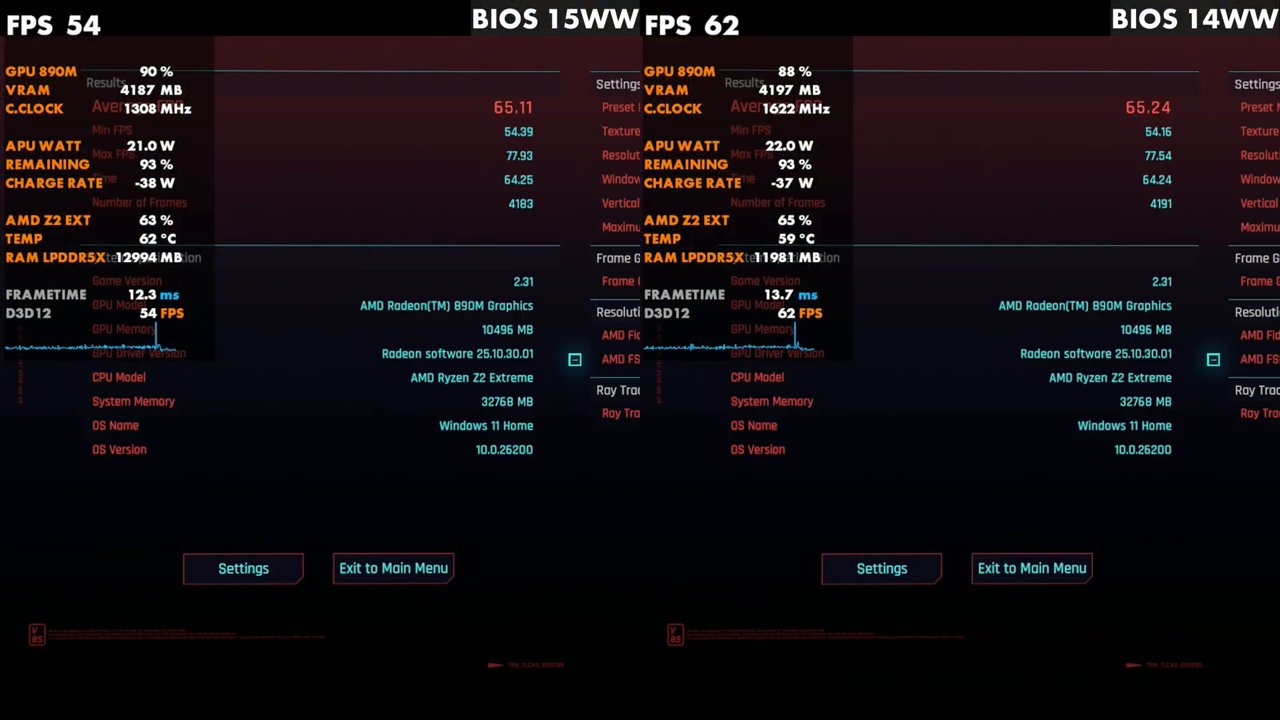
- Cyberpunk 2077 benchmark: 65.11 FPS on 15WW vs 65.24 on 14WW at 25W, and 46.28 vs 46.88 at 17W. Basically the same, and nothing broken.
Lenovo has been putting out BIOS updates for the Legion Go 2 Z2 Extreme pretty often since launch, and BIOS 15WW showed up on the support site on March 3, 2026. There still weren't any new GPU drivers when I installed it on March 5. Here's how I installed it, what the one listed change seems to be about, and how Cyberpunk ran on 14WW vs 15WW.
Lenovo has since released BIOS 16WW in April 2026. If you're updating now, see my Legion Go 2 BIOS 16WW guide. The install process is the same.
What's in BIOS 15WW
On the Lenovo support site for the Legion Go 2 (listed as Legion Go 8ASP2), the BIOS/UEFI section shows the BIOS update for Windows 11 (64-bit) as version RRCN15WW, 15.087 MB, released 03 Mar 2026 and marked Recommended. The summary of changes lists one fix: "Add direct bios for UMA frame buffer size." The EC notification says NA.
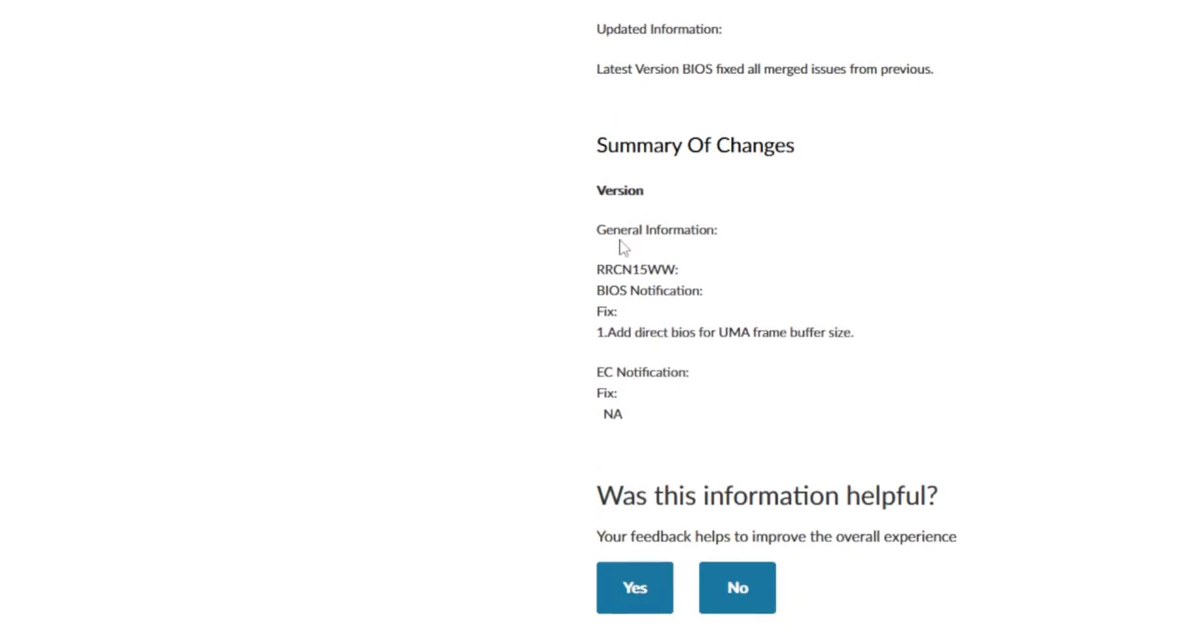
My guess was that this would tie into Legion Space, so you could finally change the VRAM size in the software and just restart instead of going into the BIOS every time. I'm not saying that's what it's for, but it kind of made sense to me. After installing it, I looked all over the place, in Legion Space, the quick access menu and the BIOS itself, and couldn't find any new VRAM option. No other updates showed up for Legion Space either. Maybe this is getting things ready for Legion Space and Xbox full screen experience updates coming down the line.
Before you start
- Don't count on Legion Space. I checked it for updates a couple of times, and nothing showed up there for the BIOS or anything else. It hasn't done a whole lot for me since launch.
- Windows Update didn't have it either. Sometimes BIOS updates and drivers do pop up there on this device, so it's worth a look.
- Plug in before you start. A BIOS install will usually prompt you to be plugged in, even with a full battery.
How to install BIOS 15WW
- Open the quick access menu and go to online support to get to the Lenovo support site. You can also go to the site directly and find the Legion Go 2 under PC.
- Go to Drivers & Software, then Manual Update.
- Open the BIOS/UEFI section and click Download on the RRCN15WW update. It's a quick download.
- Close the browser, open your Downloads folder and double-click the BIOS file. Make sure you're plugged in first.
- Click Next through the prompts. They'll remind you to stay plugged in. Don't power off the device once it starts.
- The device restarts and you'll see an install progress bar. Then the red blinking lights come on. That's normal, so don't panic.
- After that you get a screen telling you not to power off, then another progress bar, and then it restarts back into Windows on BIOS 15WW.
It's the same process as the 12WW, 13WW and 14WW updates.
Did anything change?
I checked Task Manager afterward, and my 10GB VRAM setting was still in place. Looking around the BIOS, I didn't notice any changes there either. As far as I can tell, the VRAM options are how they already were.
How Cyberpunk 2077 ran: BIOS 14WW vs 15WW
I haven't had time to get into a bunch of games yet, but I have a lot of Cyberpunk footage from the 12WW, 13WW and 14WW tests. So I ran it again at 25W and 17W to make sure nothing was broken and clocks were similar. The benchmark screen showed Cyberpunk 2.31 on Radeon Software 25.10.30.01, Windows 11 Home.
| TDP | BIOS 14WW avg | BIOS 15WW avg | 15WW min / max |
|---|---|---|---|
| 25W | 65.24 FPS | 65.11 FPS | 54.39 / 77.93 |
| 17W | 46.88 FPS | 46.28 FPS | 38.17 / 58.81 |
Numbers are from the in-game benchmark results screens in the video. For the most part, it's running the same. Maybe some frame times are a little better here or there at 17W, and maybe even at 25W in a few areas, but the performance looks the same overall. I also played more Resident Evil Requiem, which I didn't record, and it ran just the same as when I tested it.
My take
This wasn't a big BIOS update, so I wasn't expecting anything different, and nothing is broken. What I really want to see are GPU driver updates. Lenovo has done great with a bunch of other updates, but I do wish they'd get us off this September GPU driver. We'll see what they do going forward with GPU driver support and everything else.
FAQ
What does Legion Go 2 BIOS 15WW change?
Lenovo lists one fix for RRCN15WW: "Add direct bios for UMA frame buffer size." I couldn't find any new VRAM option after installing it.
Where do I get the Legion Go 2 BIOS 15WW update?
From the Lenovo support site under Drivers & Software → Manual Update → BIOS/UEFI. It didn't show up in Legion Space or Windows Update for me.
Does BIOS 15WW change performance?
Not really. In Cyberpunk 2077 I got 65.11 FPS vs 65.24 on 14WW at 25W, and 46.28 vs 46.88 at 17W.
Does the update reset my VRAM setting?
No. My 10GB VRAM setting stayed the same after the update.
Want more handheld tests?
New Steam Deck, ROG Ally, Legion Go and Steam Machine performance videos every week.