 ▶Watch on YouTube
- Lenovo posted BIOS 16WW (RRCN16WW) for the Legion Go 2 Z2 Extreme on April 13, 2026, replacing 15WW.
- The summary of changes hadn't been updated yet when I installed it. It still listed the 15WW notes.
- Nothing showed up in Legion Space or Windows Update for me, so I downloaded it manually from the Lenovo support site.
- The install took about 5 to 8 minutes, and my settings, including 10GB VRAM, stayed exactly the same.
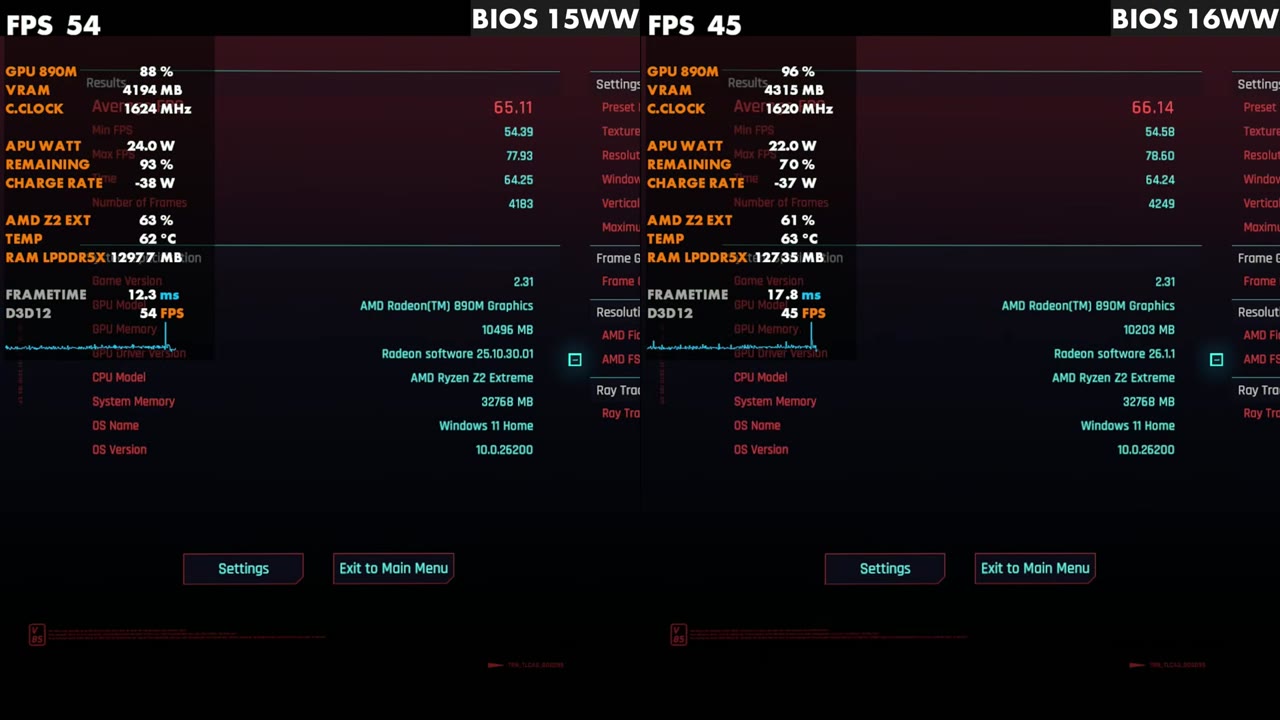
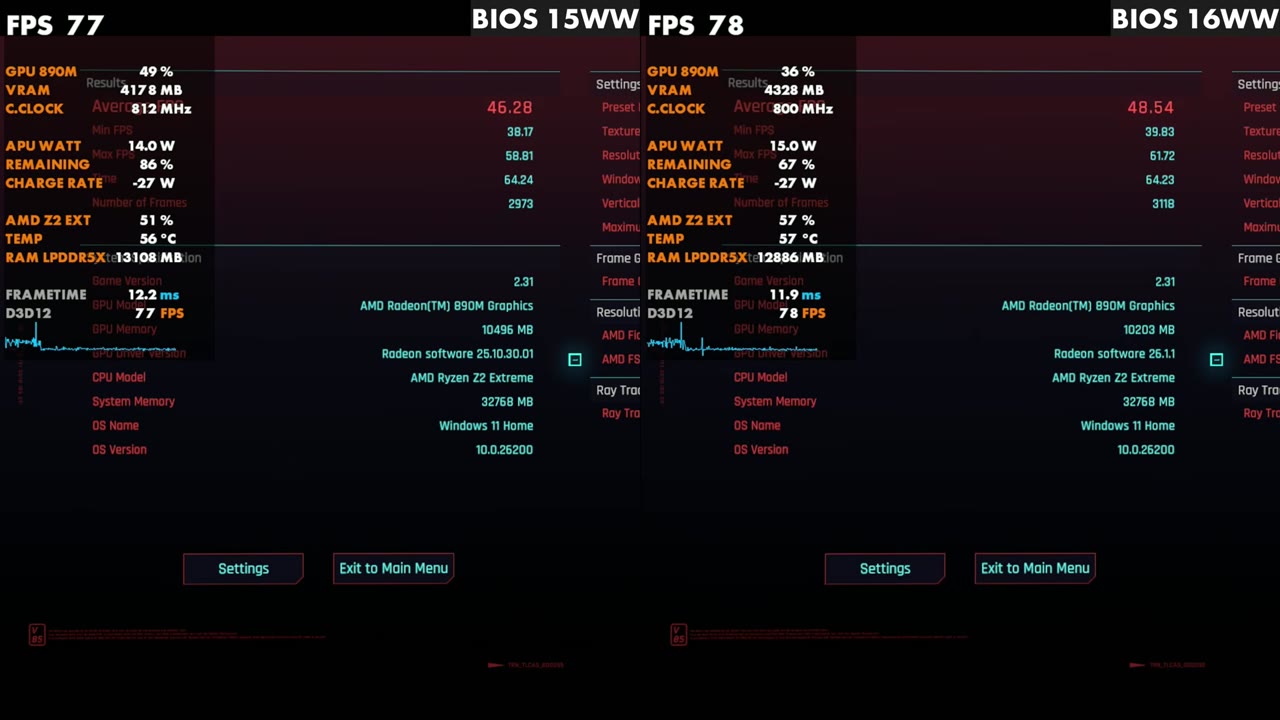
- Cyberpunk benchmark: 65.11 FPS average on 15WW with the older GPU driver vs 66.14 on 16WW with the newer one. At 17W it was about 2 to 2.5 FPS better.
Lenovo has pushed another BIOS for the Legion Go 2 Z2 Extreme. BIOS 16WW landed on April 13, 2026, a few days after a new GPU driver for the handheld. Here's how I installed it and how Cyberpunk ran on the old BIOS vs the new one.
What's new
On the Lenovo support site for the Legion Go 2 (listed as Legion Go 8ASP2), the BIOS/UEFI section shows the new package as version RRCN16WW, dated 13 Apr 2026. The Display and Video Graphics section also has a newer AMD VGA driver dated 07 Apr 2026, so if you haven't installed that one yet, it's worth grabbing too.
When I installed it, Lenovo still hadn't updated the summary of changes. It was the same 15WW list, so I hadn't seen any major differences myself, and without any notes it's hard to tell what changed. That's one to keep an eye on.
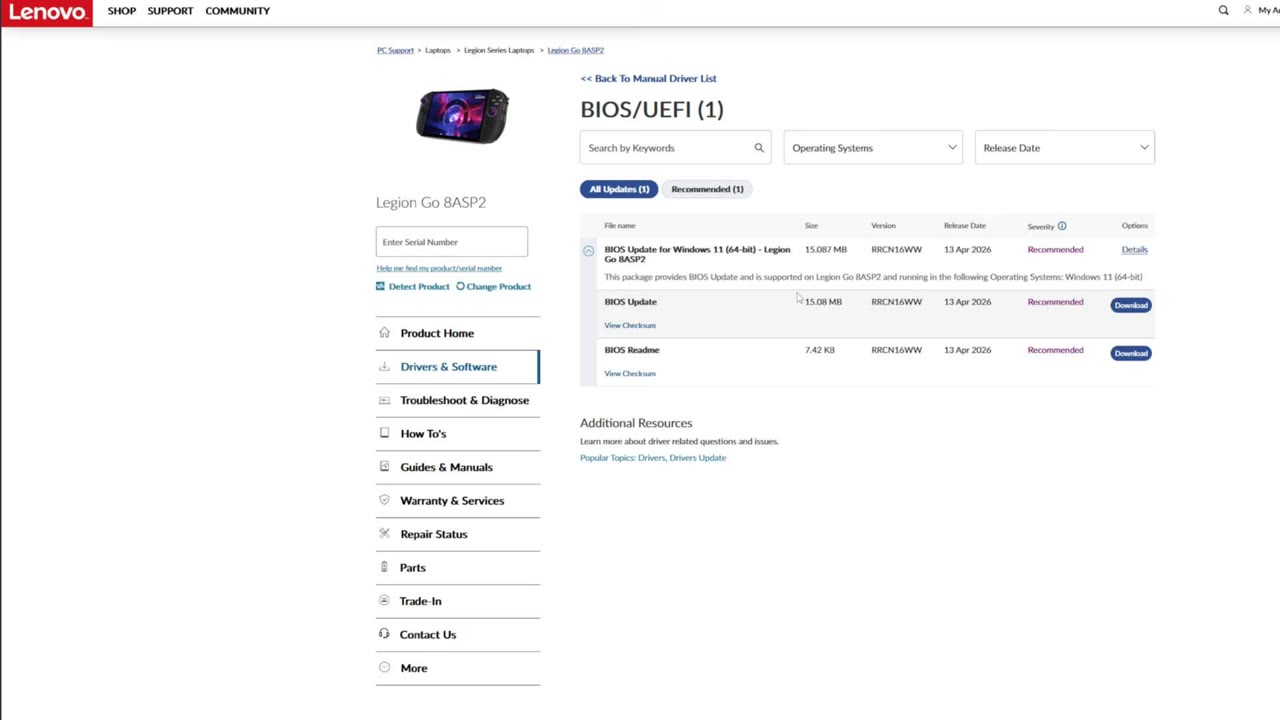
How to install
Legion Space only showed 15WW and no update for me. It never has offered BIOS updates there since this thing launched. I've gotten BIOS updates through Windows Update before, but not this one, at least not yet, so I downloaded it from the site.
- Open the quick access menu and go to online support to get to the Lenovo support site (or search for the Legion Go 2 there).
- Pick the PC you're on (my current device), go to Drivers and choose Manual Update.
- Open the BIOS section and download the 16WW BIOS update.
- Plug into power. You need to be plugged in to install a BIOS, and it's a good habit anyway.
- In Downloads, double-click the BIOS file. It runs the install for you; just click Next through the prompts until it starts.
- It restarts, shows a loading bar, then the red rings and a "please be patient, do not turn off power" warning, then another loading bar. Let it finish.
The red rings scare people. I wish Lenovo would change them to something other than red, since red usually means an error, but that's just part of the process. Nothing changed from past installs, and it took the usual 5 to 8 minutes. Afterward the quick access menu and Legion Space worked fine, all my settings stayed the same and VRAM was still set to 10GB. Nothing got reset.
The Microsoft Store also had updates for the Xbox app and AMD Adrenalin, even though the graphics driver itself is the same, so if it's been a while, jump in there and get your apps updated too.
Cyberpunk: BIOS 15WW vs 16WW
I haven't had a chance to test many games yet, but I keep Cyberpunk 2077 on hand and have tested it on every BIOS and GPU driver so far for the Go 2. Keep in mind the new side is also on the newer GPU driver (the benchmark shows Radeon software 26.1.1 vs 25.10.30.01 on the old side), and that driver helped performance even in Cyberpunk. So the differences may not all come from the BIOS.
In the first comparison, the old BIOS and GPU driver averaged 65.11 FPS and the new BIOS and driver averaged 66.14 FPS. I ran it three times and those were the results. Very close, but it was a little better and a little cleaner on the new BIOS with a similar frame rate.
At 17W the gain felt a bit bigger. I ran it a few times and consistently got two to two and a half FPS more: 46.28 average on 15WW vs 48.54 on 16WW in the run shown. With some of these BIOS updates, it seems like Lenovo is working on power balancing at the lower TDPs, and that's where I noticed it here.
If you want to update your Legion Go 2 Z2 Extreme, download it from the support site and get on 16WW. If you haven't already, get on the new GPU driver too. It's been running a lot of games a little better for me, and Crimson Desert has definitely improved.
FAQ
Where do you get the Legion Go 2 BIOS 16WW?
From the Lenovo support site, under Drivers, Manual Update and the BIOS section. It didn't show up in Legion Space or Windows Update for me.
Does the 16WW BIOS reset your settings?
Not for me. My Legion Space settings and 10GB VRAM setting stayed the same after the update.
Does BIOS 16WW improve performance?
Slightly, together with the newer GPU driver: Cyberpunk went from 65.11 to 66.14 FPS average, and about 2 to 2.5 FPS more at 17W.
Want more handheld tests?
New Steam Deck, ROG Ally, Legion Go and Steam Machine performance videos every week.