 ▶Watch on YouTube
I've wanted to get SteamOS onto the Legion Go 2 Z2 Extreme for quite a while, and with some great updates over the past few months, it felt like a good time. This covers making the install media, getting Windows and the BIOS ready, installing SteamOS, a quick look at Decky Loader and non-Steam launchers, and how games run, including a quick comparison with Windows.
- You need a USB stick, a hub to plug it into the Go 2, the SteamOS recovery image and Rufus (on Windows).
- Turn off device encryption in Windows and Secure Boot in the BIOS before booting from the USB.
- The install itself took me about three minutes, and everything works right out of the box, including TDP control from 5 to 35 watts.
- Installing SteamOS wipes everything on the SSD, including your system recovery.
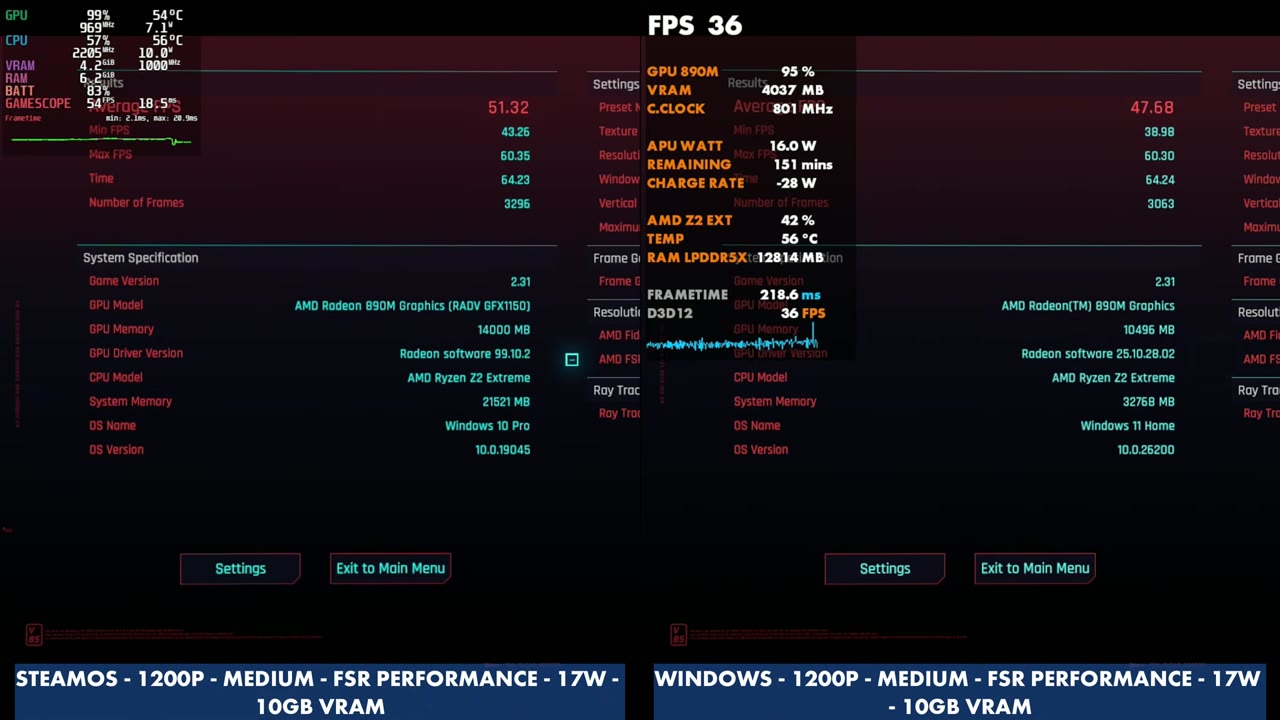
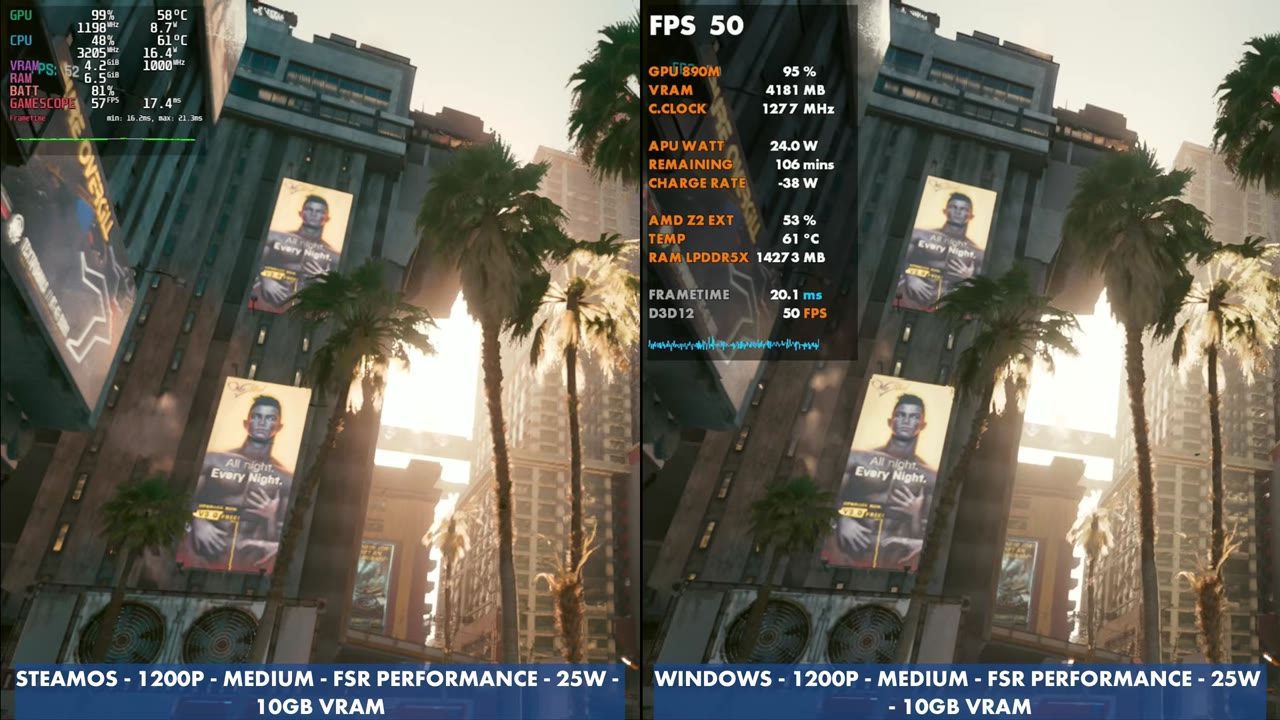
- Cyberpunk ran about 4 FPS better than Windows at 17W and 25W, with a bit cleaner frame times, and load times felt much faster.
What you need
- A USB stick for the SteamOS recovery media (I used a 32GB stick)
- A USB-C hub to plug the stick into the Legion Go 2 (I used my 5-in-1)
- The SteamOS recovery image from Valve
- Rufus to write the image if you're on Windows (Linux and macOS use different tools)
⬇ Download the SteamOS image (Valve)
help.steampowered.com/en/faqs/view/65B4-2AA3-5F37-4227#install
Heads up: installing SteamOS wipes everything on the SSD, and you lose the Windows system recovery too. To get back to Windows with Lenovo's factory image later, see my Legion Go 2 factory reimage guide.
Step 1: Make the SteamOS install media
Go to Valve's SteamOS install and repair page and scroll down to the Installing SteamOS section. It has the link to the SteamOS image at the top, plus the tools for making your media, like Rufus. I'm on a Windows desktop PC, so I used Rufus (version 4.15 when I made the video).
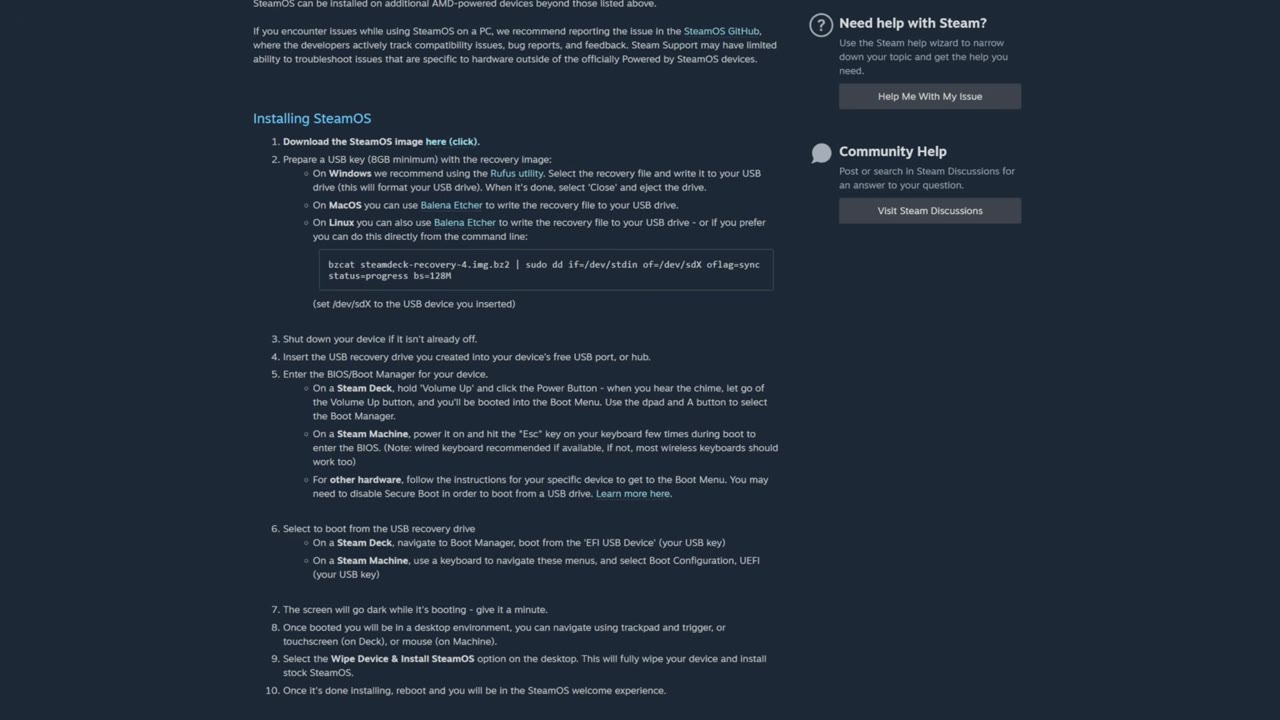
- Download Rufus, then accept the agreement and download the SteamOS image. Those are the only two downloads you need. You don't have to extract or unzip the image.
- Open Rufus and make sure it's picking up your USB stick, not another drive you don't want to wipe.
- Click Select and pick the SteamOS image. No other changes are needed.
- Click Start. It warns you that it will wipe the stick. Confirm, and wait for it to write the image.
- When it's done, click Close and eject the USB stick. This media works on other devices too, not just the Legion Go 2.
Step 2: Turn off device encryption in Windows
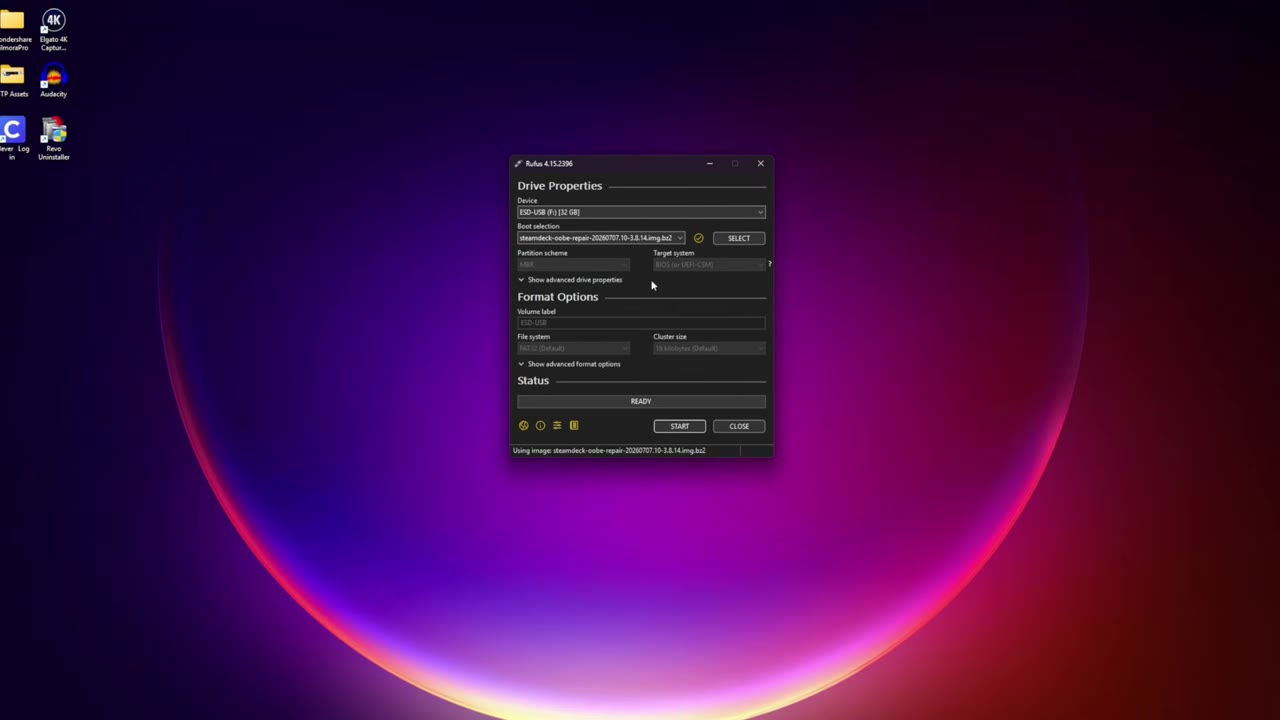
On the Legion Go 2, go to the Windows desktop and open Settings → Privacy & security → Device encryption and turn it off. Otherwise, you'll run into needing your BitLocker key, which is really long and may have to come from your Microsoft account. I just disable device encryption and wait for it to finish.
Step 3: Disable Secure Boot in the BIOS
- Hold volume up, press the power button and keep holding volume up until the menu comes up.
- Choose BIOS Setup, then More Settings.
- On the Security tab, disable Secure Boot. That's the only thing I needed to change. USB boot was already enabled.
- Go to Exit and exit saving changes.
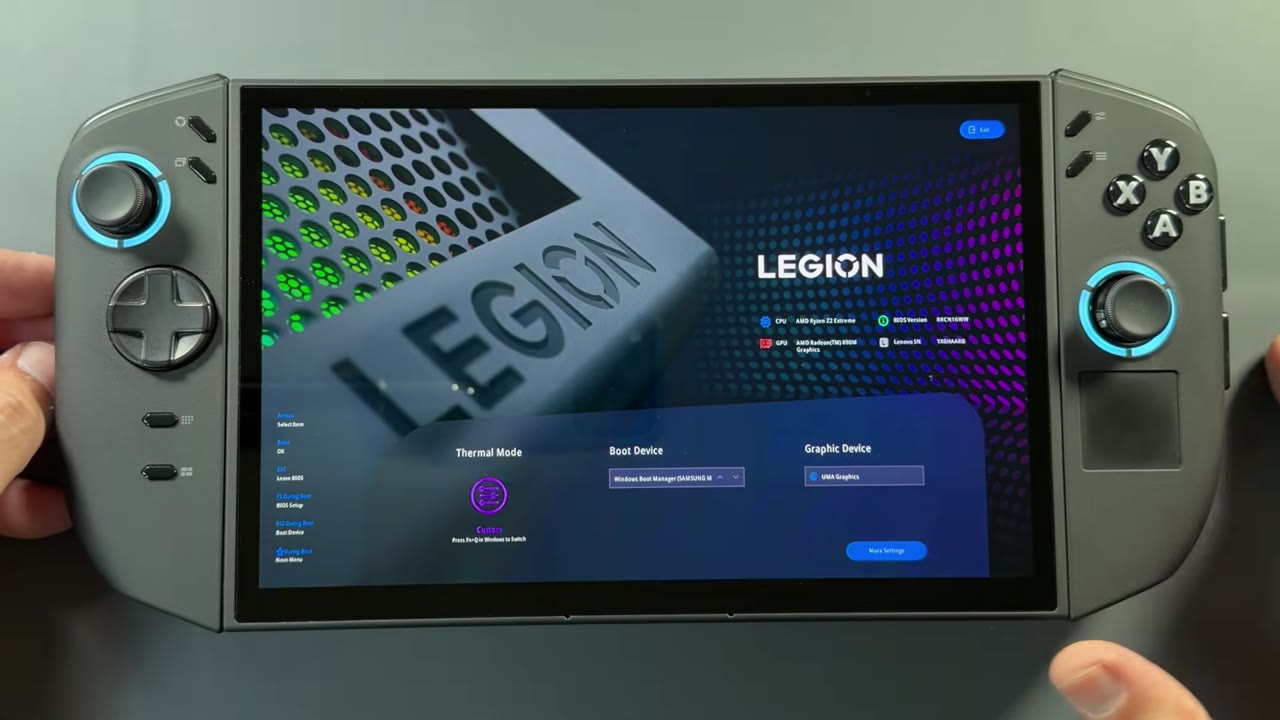
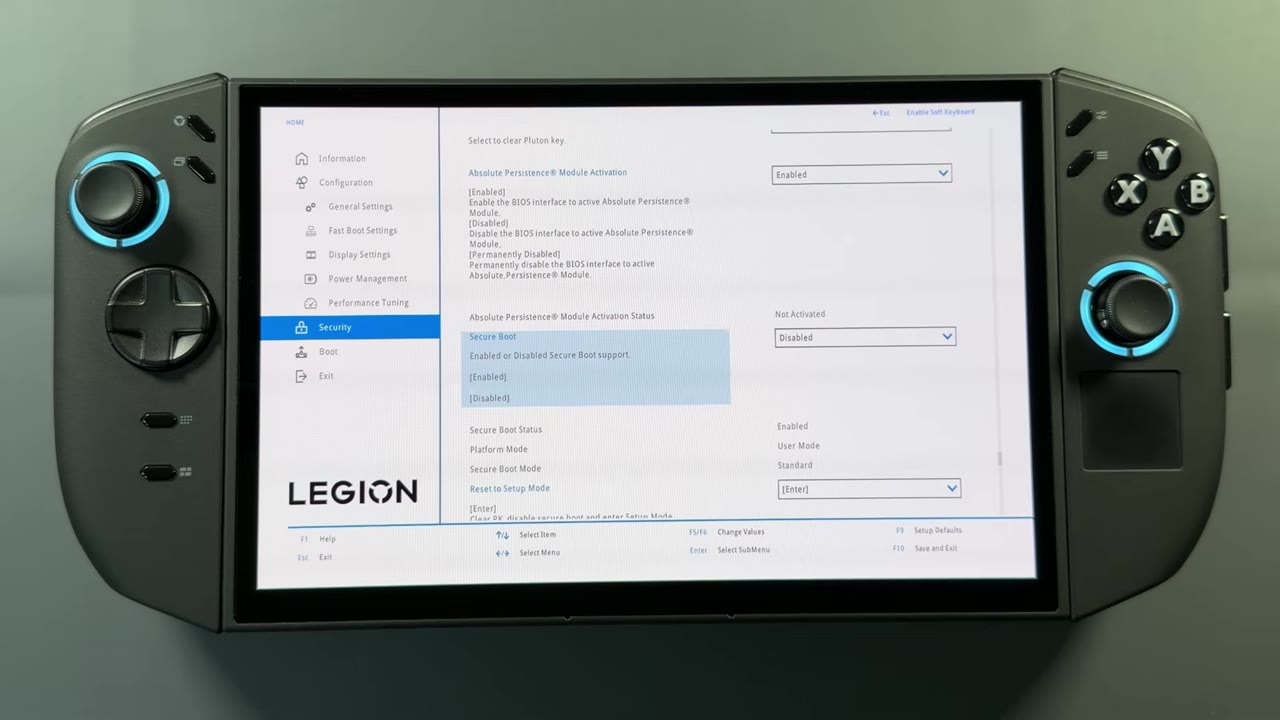
I didn't have my USB stick plugged in the first time I went into the BIOS, so I couldn't change the boot order. Instead, I saved, restarted, held volume up again and went to the Boot Menu, where my USB device showed up. Select it and the Go 2 boots from the stick in the hub.
Step 4: Wipe and install SteamOS
It takes less than a minute to boot to the SteamOS recovery desktop. There are four options at the top. The one you want is all the way on the right: Wipe Device & Install SteamOS. It warns you that everything on the SSD will be wiped. Choose Proceed.
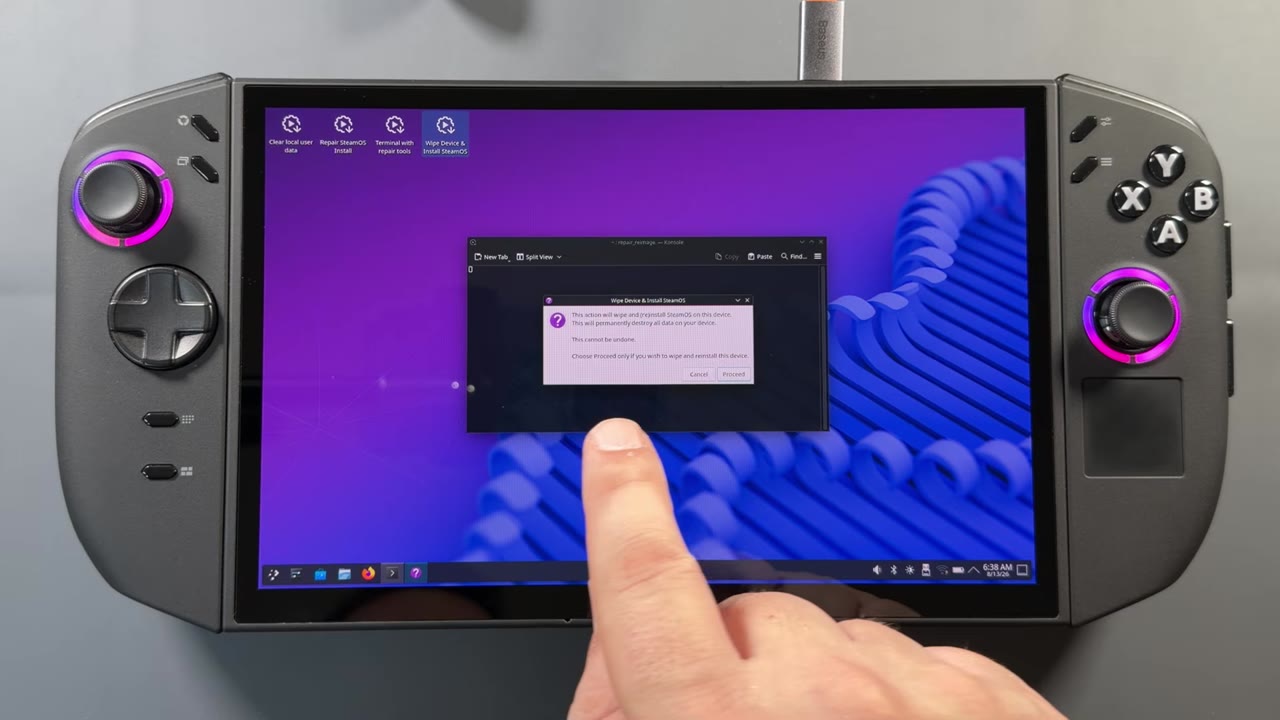
The install only took me about three minutes. When it's done, click Proceed again and let it restart. Once the screen goes black, I unplug the USB stick so it doesn't even attempt to boot from it.
Step 5: First boot and setup
After a small warning at the start, it goes right into the setup you're probably familiar with if you've set up SteamOS before. Pick your language and time zone, connect to Wi-Fi, let it do a couple of minutes of updates and sign in. Then you're at Welcome to SteamOS, the same sight as on the Steam Deck and a lot of other devices. Other than downloading your games and making your own adjustments, that's it.
A few things to know on the Go 2:
- The keyboard and screenshot buttons work, and the Legion Space button on the top left becomes the Steam menu button.
- In Settings, I'm on the Stable channel, and it picks up the Z2 Extreme.
- It shows 14GB of VRAM even though I have 10GB set in the BIOS. I triple-checked, and it's just the way it reads here.
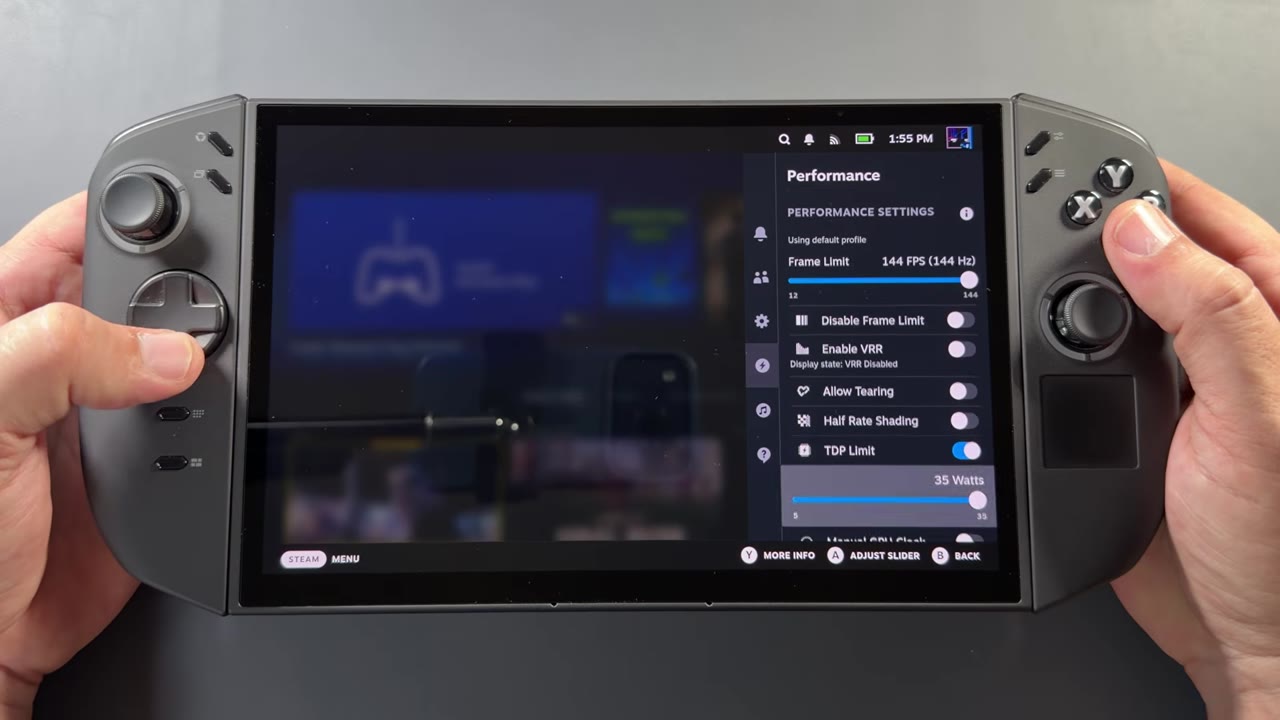
- The quick access button on the top right has everything you're used to, including the performance view with frame limit, VRR, TDP and manual GPU clock.
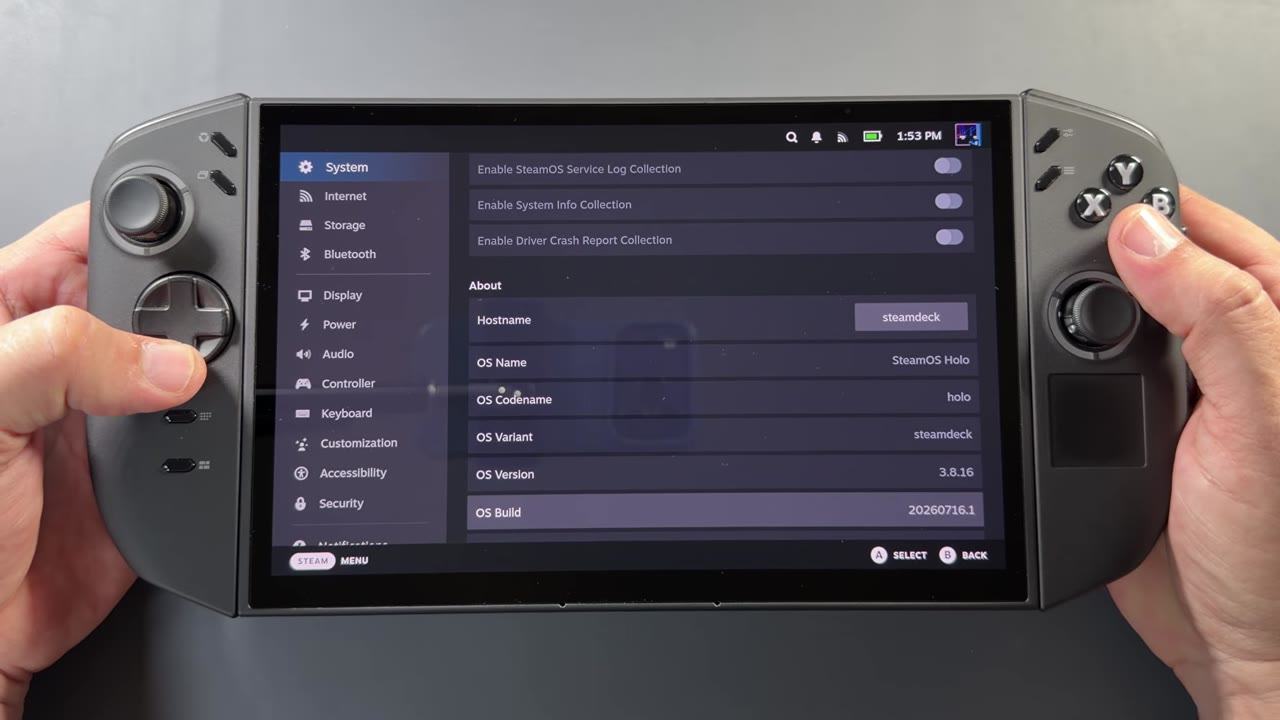
You don't have to sideload anything to control TDP. It's built in, all the way up to 35 watts handheld or plugged in and down to 5. I typically run 17 to 25 watts on a Z2 Extreme, depending on what I'm playing. All the menus work right out of the box, as they should.
Bonus: Decky Loader and non-Steam launchers
With SteamOS you also get desktop mode, where you can sideload things, install apps, add plugins and use a browser. At the very least, I highly recommend Decky Loader and NonSteamLaunchers. Decky Loader lets you use a bunch of plugins from game mode. It takes less than two minutes to install, and it shows up in the quick access menu with its store ready to go. Major SteamOS updates can sometimes break it, but usually it ends up fine, or you can do a quick reinstall. I go through the plugins I use on this device in How to Make SteamOS Better on the Legion Go 2.
⬇ Download Decky Loader
decky.xyz
NonSteamLaunchers handles launchers that aren't on Steam, like Ubisoft Connect, the Epic Games Store, Battle.net and GOG. The only thing you can't get yet is Game Pass, the Xbox app. Download the desktop version, pick your launchers and click OK, and it installs them for you. The first time you open one, choose Steam, not the UMU plus Steam option, which doesn't work. It adds the launcher to Steam with artwork, so it shows up in your Non-Steam tab in game mode. It's the same process on the Steam Deck or even a Steam Machine.
⬇ Get NonSteamLaunchers (GitHub)
github.com/moraroy/NonSteamLaunchers-On-Steam-Deck
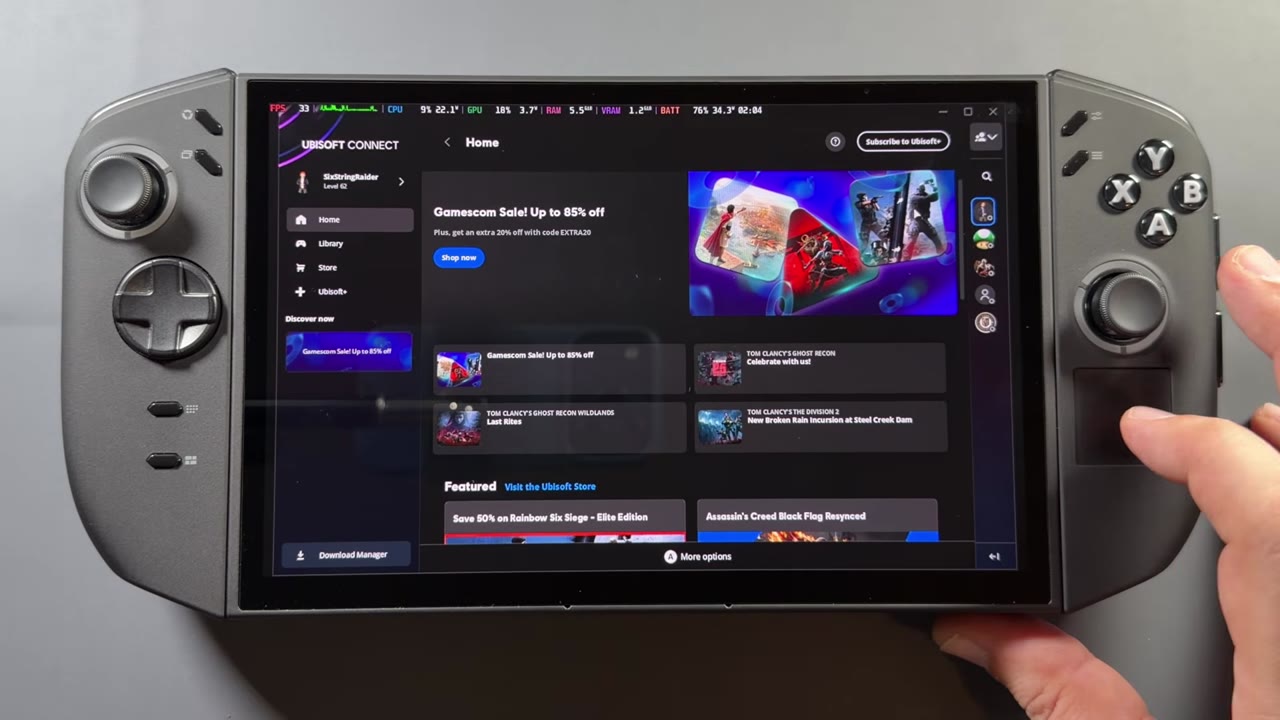
I used Ubisoft Connect to install Assassin's Creed Black Flag Resynced, which I already owned there. It took less than five minutes to set up, and performance has been very similar to the Steam version. For more on this, see my non-Steam launchers guide for the Steam Deck.
Game performance
Cyberpunk ran about as I expected, on par with or beating Windows depending on the area. I used 1200p Medium with FSR Performance at 25 watts for a lot of it. I didn't go into some of the harder-to-run areas. HDR support is good too. I could turn it on and off in games, including 007 First Light, without a problem. One thing I've liked about SteamOS is that it makes PC HDR gaming really easy compared to Windows, and it looks great on the OLED.
In Forza Horizon 6, the load from your compound out to the open world is extremely fast on SteamOS. On Windows, that transition takes like 30 to 45 seconds sometimes. Load times in other games felt much quicker overall too. Easier-to-run games like Sonic Superstars, one of my favorites, run pretty close to 120 FPS with no real stutters, and Terminator 2D: No Fate runs a solid 144 FPS.
SteamOS vs Windows in Cyberpunk
I compared SteamOS and Windows in Cyberpunk with matched settings: 1200p, Medium, FSR Performance and 10GB VRAM. In some areas you get the same performance, but at 17 watts the frame times look a bit cleaner on SteamOS. They're not perfect, and that could be partly down to the overlays. In certain areas, SteamOS really takes off, beating Windows by about 4 FPS. That doesn't sound like a lot, but it's quite a difference when you look at it.
At 25 watts, it's a similar story. SteamOS beats Windows a bit more often, with slightly cleaner frame times, though not by as much as at 17 watts in some spots. Overall, you end up with about a 4 FPS gain there as well.
Final thoughts
Whether I'm throwing harder-to-run games or easy stuff at it, the Go 2 runs really well on SteamOS, on par with or beating Windows most of the time, with what seem like faster load times. I'll definitely be going back to Windows once I'm done with the content, so I can test the device properly as intended. Still, it's really, really nice to run SteamOS on here. It's a lot quicker to set up than Windows, you can have it installed in a few minutes and get your games downloaded, and there's lots of room to customize with Decky Loader, non-Steam launchers and more. For more SteamOS game tests on this handheld, see Legion Go 2 on SteamOS: 7 Games Tested.