 ▶Watch on YouTube
- GTA 6 is console-only so far, and Xbox Cloud Gaming for it is locked to consoles right now, so I used Xbox Remote Play from my own Xbox Series X to the ROG Xbox Ally X.
- The Series X is wired. The Ally X is on Wi-Fi.
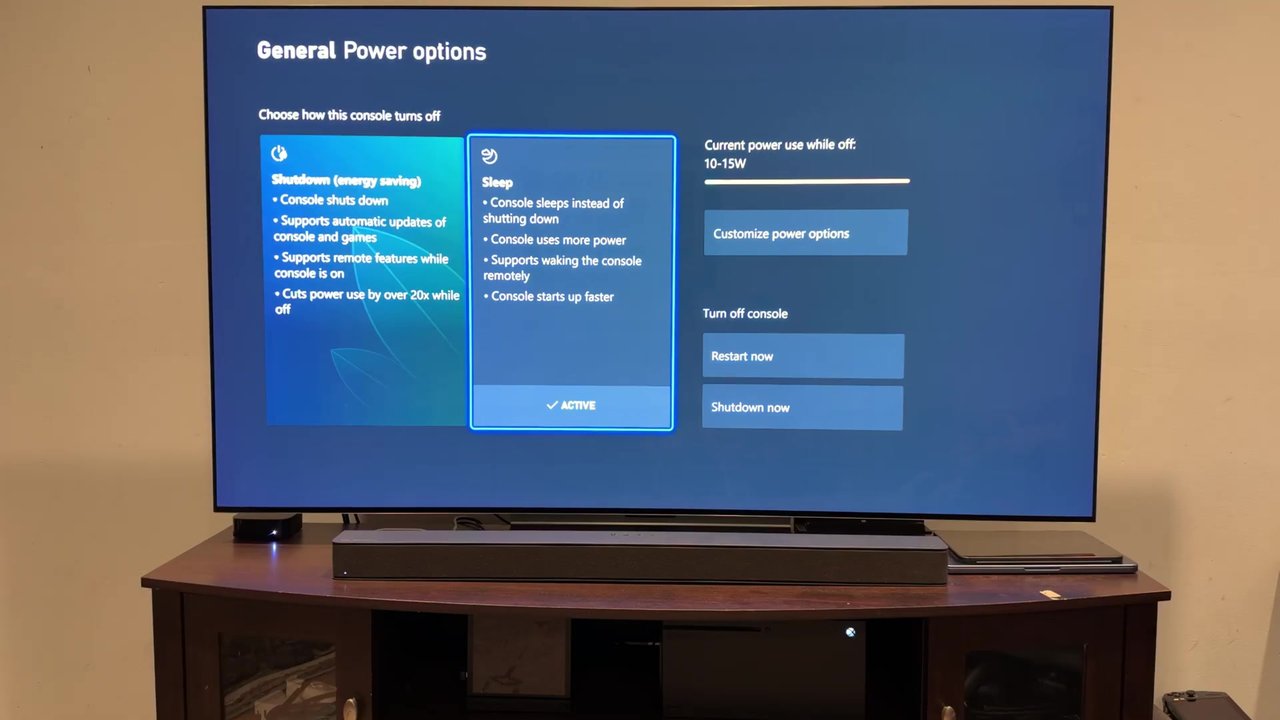
- On the console: Settings → Devices & connections → Remote features, turn remote features on, and set power to Sleep if you want to wake it remotely.
- On the Ally X, the Xbox app does the rest: Remote Play settings first, then connect to the console. This same path works on other Windows handhelds and PCs too.
- I started at 1440p Max Quality and later switched to 1080p High Quality. A 1080p 60 stream was a little lighter and easier to handle, especially on a 1080p screen.
- The game itself is running at 30 FPS on the console, and that adds to the input latency you feel over a stream. Image quality was pretty clean once I had a solid connection. I do recommend turning motion blur off unless you really prefer it.
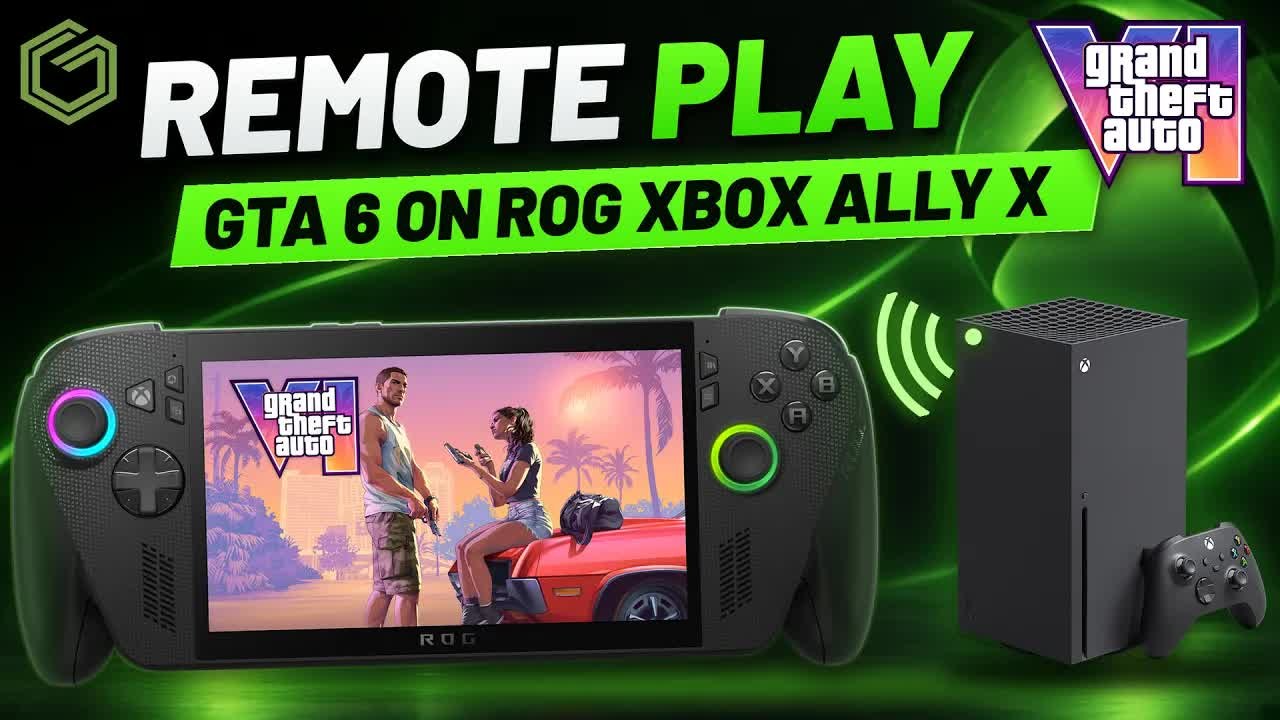
GTA 6 is finally here, but it's only on consoles so far while we wait for the PC release. Xbox Cloud Gaming is locked to consoles for it right now, so the option I had was Xbox Remote Play. I streamed it from my own Xbox Series X to the ROG Xbox Ally X, and I'll walk through that setup and how it feels when you're playing a 30 FPS game this way.
Microsoft's own Xbox Remote Play setup page is a useful official reference alongside this.
Setup at a glance
| Setting | What I used |
|---|---|
| Console | Xbox Series X, wired |
| Handheld | ROG Xbox Ally X, Wi-Fi |
| App | Xbox app on Windows |
| Stream settings I used | 1440p Max Quality, then 1080p High Quality (both at a 60 FPS stream) |
| Game frame rate on the console | 30 FPS |
| Better Wi-Fi spot | About 300 Mbps up and 1,000 Mbps down |
Step 1: Turn on remote features on the Series X or Series S
The first thing you want is the console set up for remote play. Go into Settings, then Devices & connections, and open Remote features.
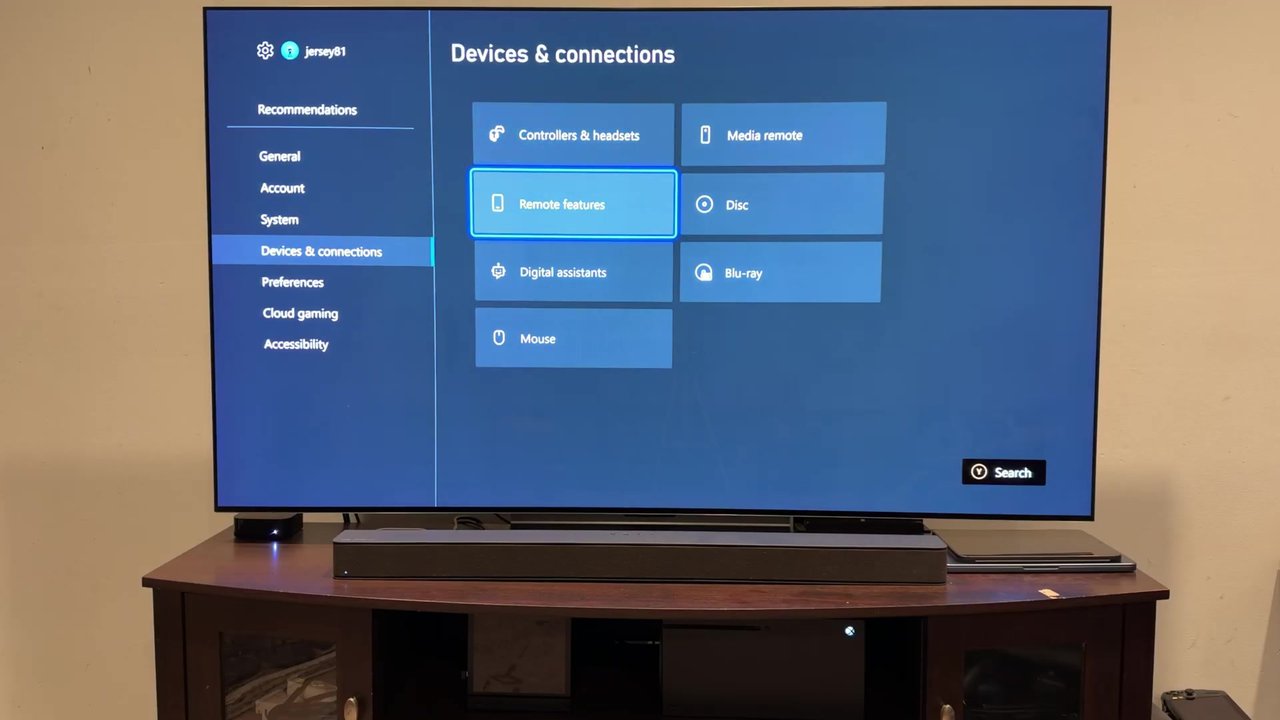
Make sure Enable remote features is turned on. That lets you play games from the console with Xbox Remote Play, turn the console on and control it, and use the other remote options on that page. I already had it checked.
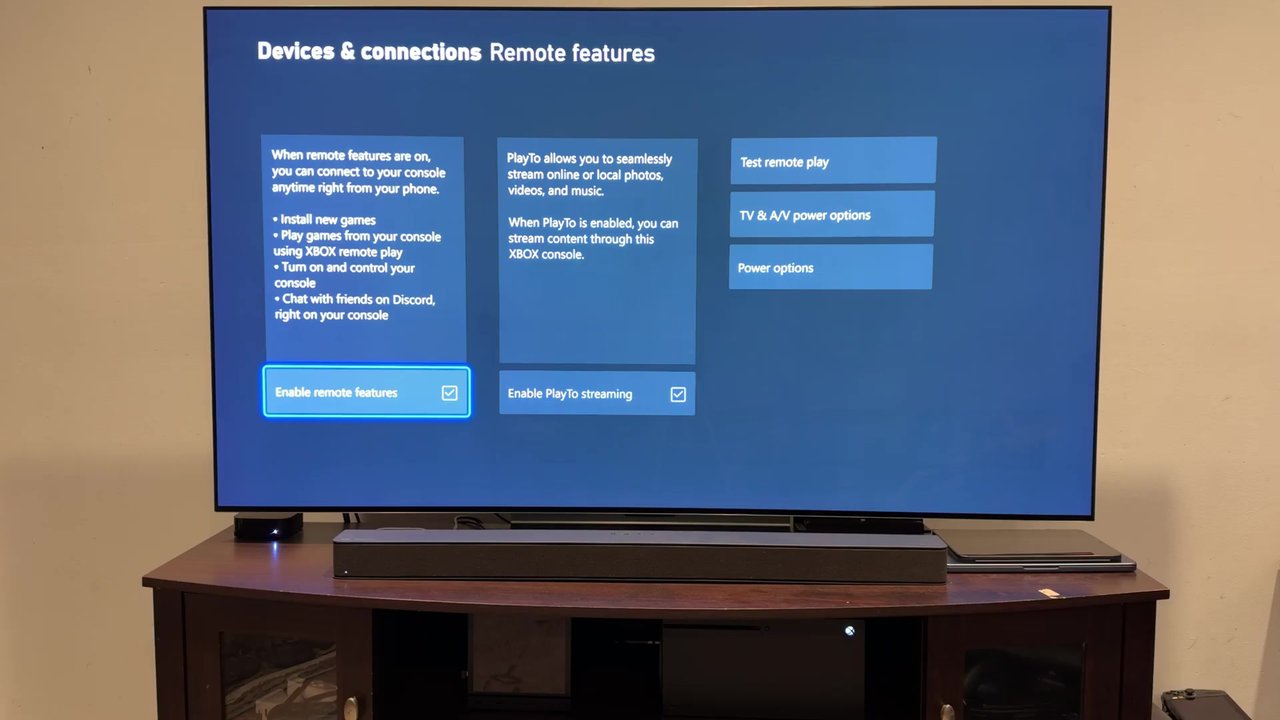
Step 2: Test the remote play setup
On that same page you can run Test remote play. My result came back You're good to go, with the note that remote play should work well based on this setup. The on-screen results were:
- NAT type: Open. Open or Moderate tends to work fine for me. If you're on worse than that, you can run into problems.
- Upstream bandwidth: Over 9 Mbps
- Network latency: Less than 60 ms
- Network type: Wired
- Outbound port: Open
- Power option: Sleep
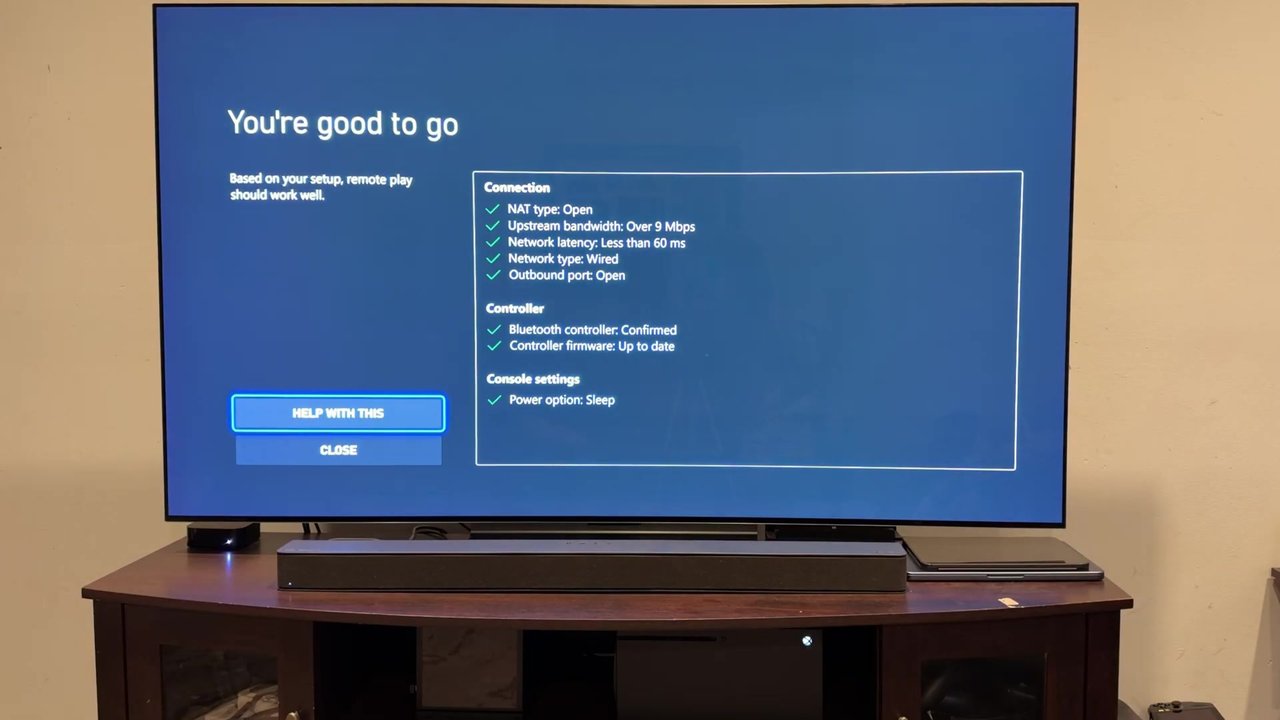
Everything has been testing out fine for me. I am wired with the Xbox, and the Ally X is on Wi-Fi.
Step 3: Set the console to Sleep
Check your General Power options as well. If you want to use remote play without walking over and turning the Xbox on yourself, the console needs to be on Sleep. That supports waking it remotely. Shutdown is the energy-saving option, but it won't do that for you.
Step 4: Set up Remote Play in the Xbox app
From here it's the Xbox app on the Ally X, and this is the same idea on any Windows device or Windows handheld PC. I opened my profile and went into Settings to look at the Remote Play options before connecting.
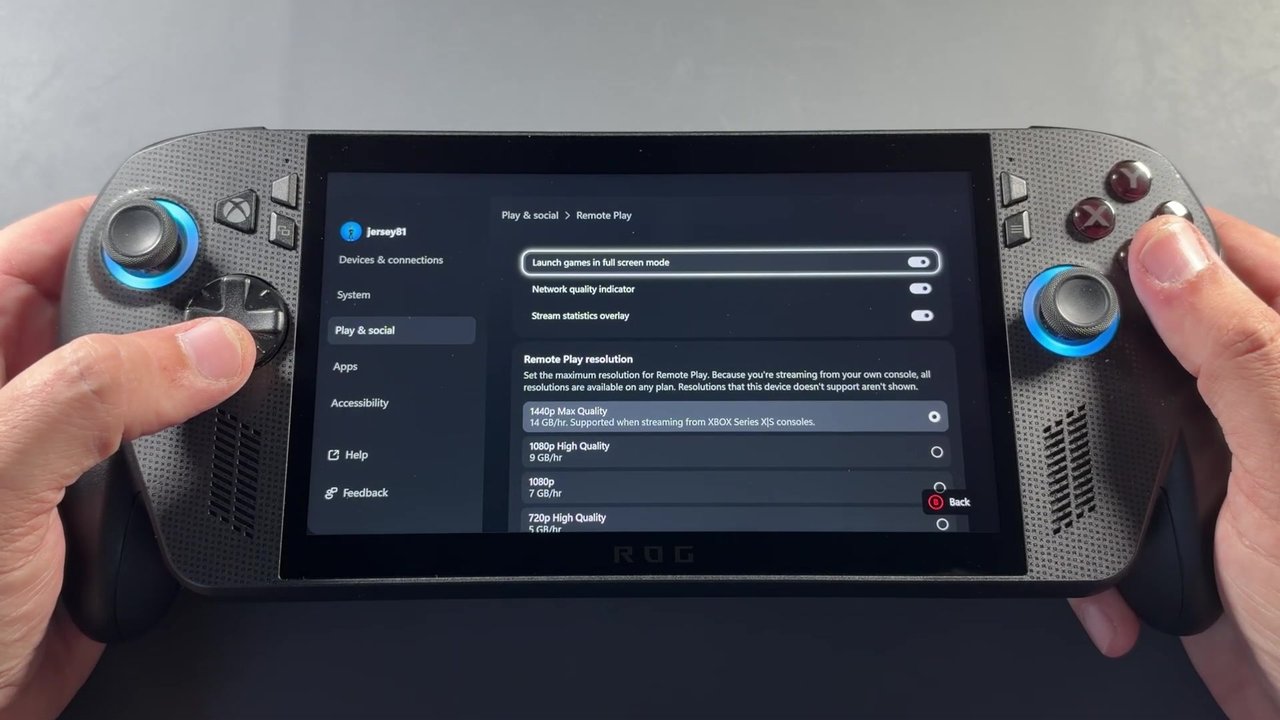
On the left, go to Play & social. You'll see Cloud Gaming and Remote Play listed there. We don't have cloud gaming for this game right now, so it's Remote Play.
In the Remote Play settings I turned on Launch games in full screen mode and the Stream statistics overlay, so I could see what the stream was actually doing. Then I set the Remote Play resolution. I started at 1440p Max Quality because that's how I already had it, and the app notes that option is supported when streaming from Xbox Series X|S consoles. It also lists 1080p High Quality, 1080p, 720p High Quality, and 720p. I switched it to 1080p later, since I don't really need 1440p on this display or with this game.
Step 5: Connect to the console
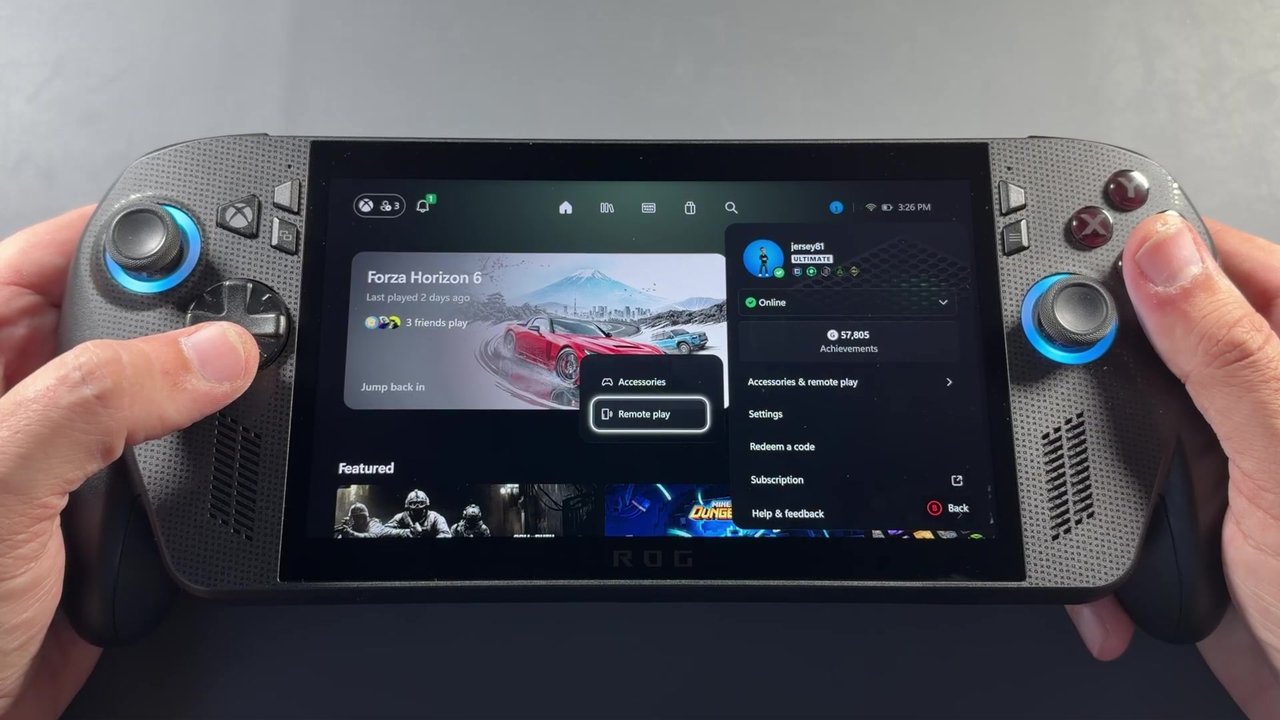
Go back to the profile, then Accessories & remote play, and choose Remote play.
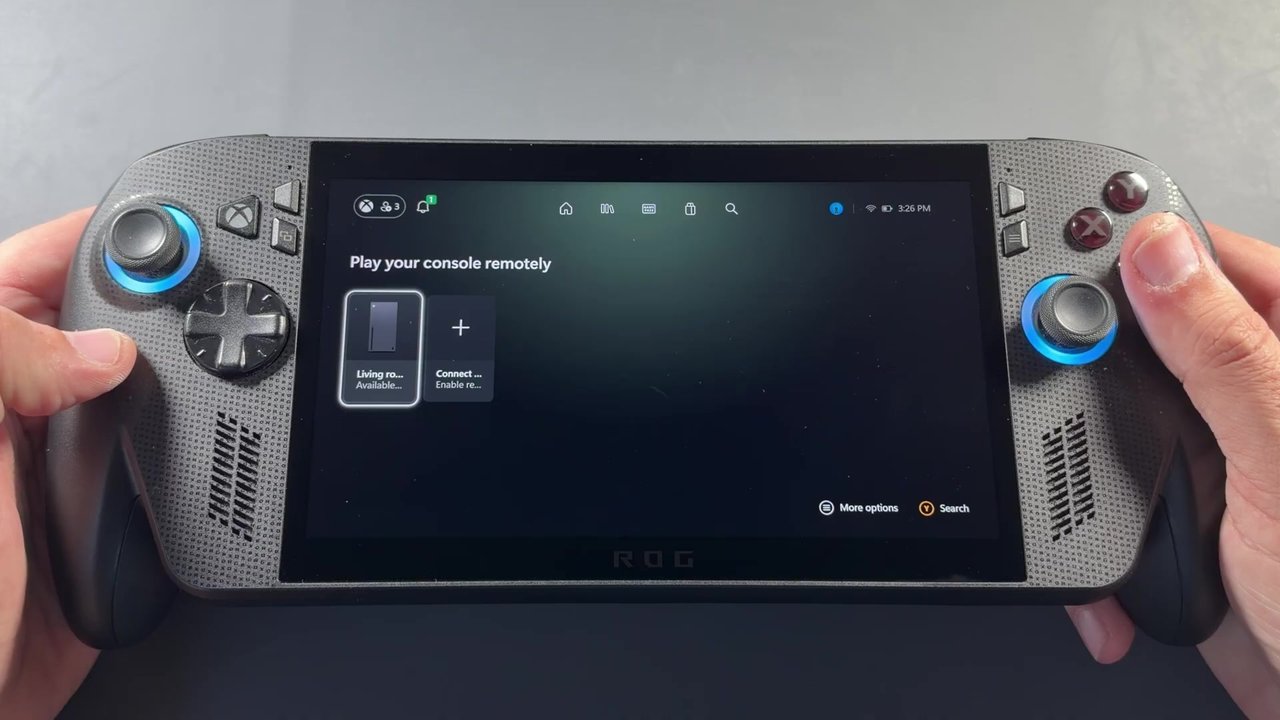
You'll land on Play your console remotely. Mine already had the Series X listed and available. If you haven't added one yet, there's a plus to go through the connect process. It's super easy as long as everything is signed into the same Xbox account.
First connect, then a better Wi-Fi spot
I let the first connection run in real time from a pretty bad Wi-Fi location, where remote play and cloud gaming don't work too well for me. It's a good example of a weak spot before I moved closer to the router. We still connected, and the stream statistics overlay read a 1440p 60 stream from the Series X. I had GTA 6 ready on the home screen and launched it from there.
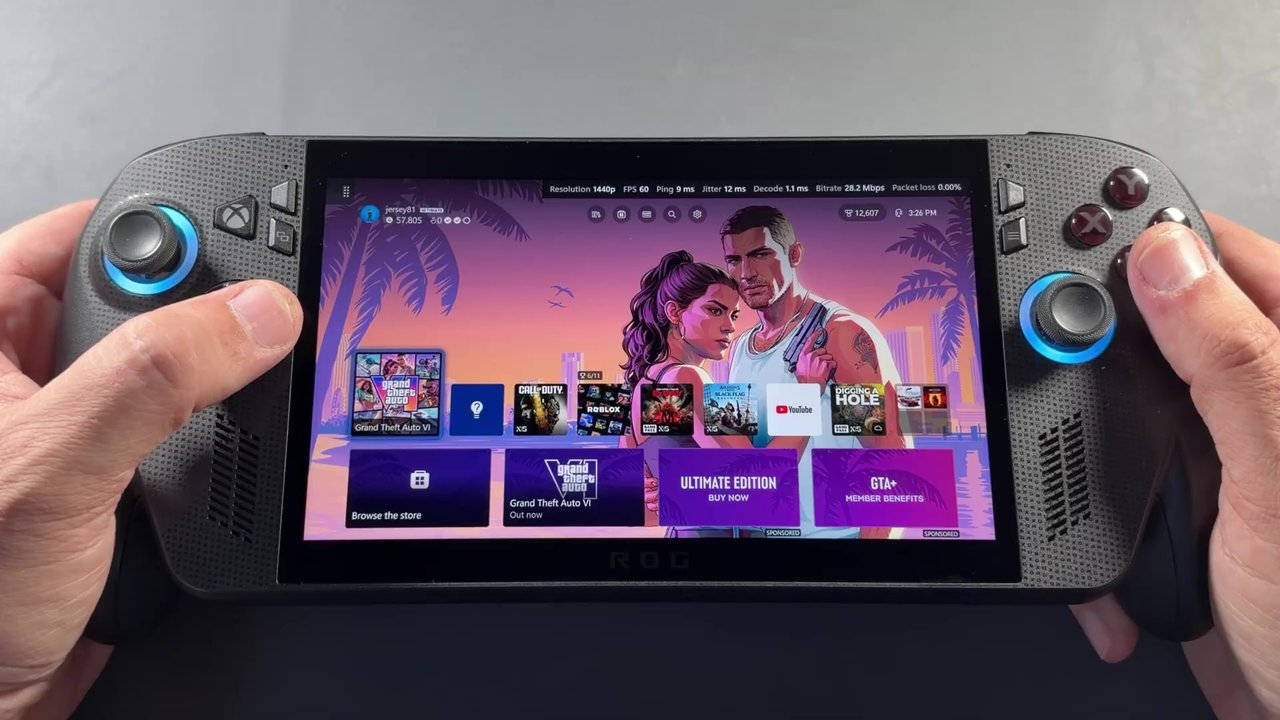
That first location is a poor area for Wi-Fi, especially trying to do 1440p. If you get packet loss, it causes a lot more stutter and jitter. Sometimes it plays just fine where I started, and sometimes it pretty much just loses it. There was a little more input latency there than there would be after I moved.
I then moved closer to my Wi-Fi, where I get about 300 Mbps up and 1,000 Mbps down. That's pretty much the best experience I was going to get. Everything tested out fine there, and I was still on 1440p at first.
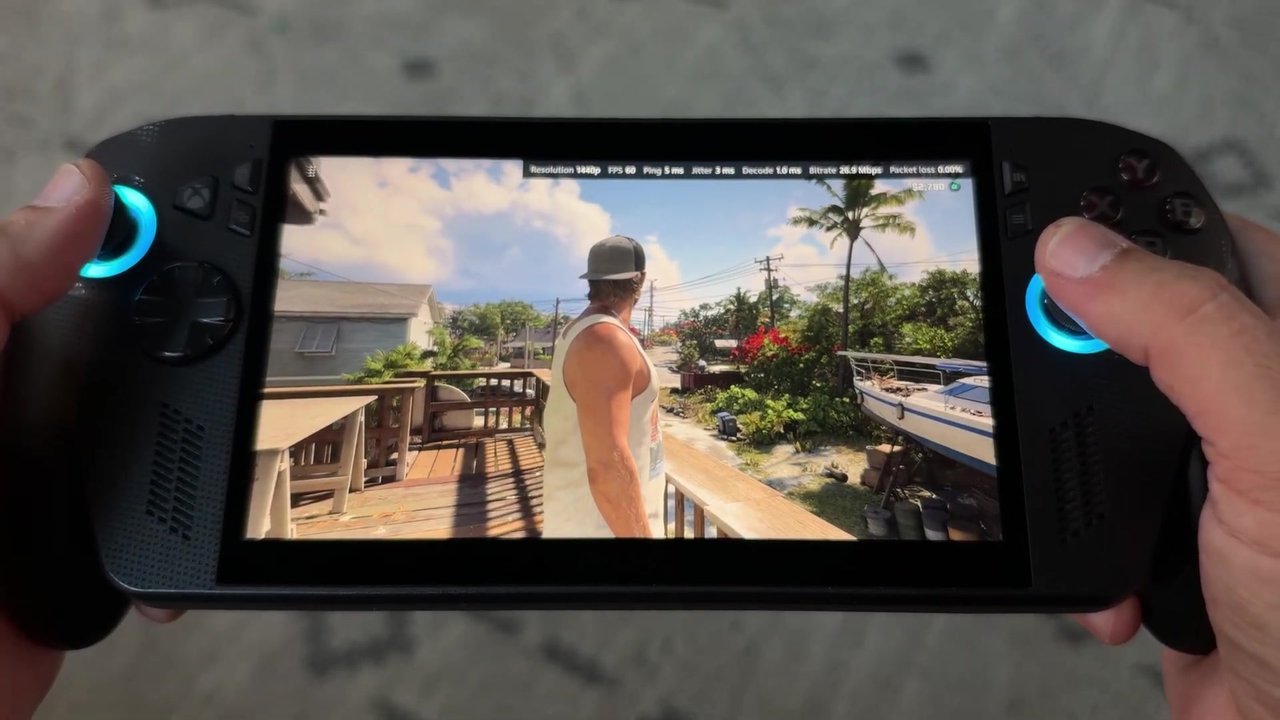
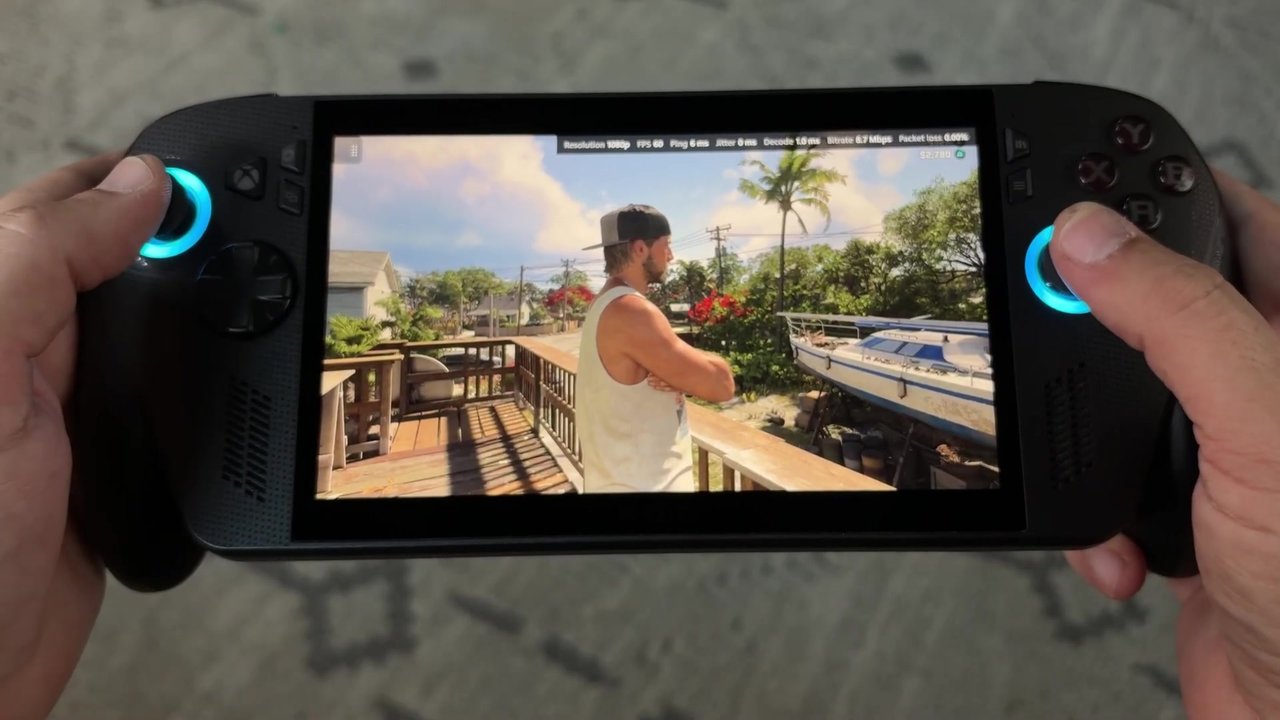
I switched the Remote Play resolution down to 1080p High Quality, then clicked the console again to reconnect. The controller dropped off for a moment and came back, and the stream switched over to 1080p 60. That's a little lighter and easier to handle, especially for input latency and your network, and especially on a 1080p screen.
Stream overlay readings
These are readings from the Xbox app's stream statistics overlay, not a benchmark I ran, and the stream FPS is the remote play stream, not the game's 30 FPS on the console. A few of the moments I checked:
| Moment | Stream | Overlay |
|---|---|---|
| Weaker Wi-Fi, Xbox home, 1440p | 1440p 60 | Ping 36 ms, then 9 ms; jitter 10–12 ms; bitrate 27.1–28.2 Mbps; packet loss 0.00% |
| Closer to Wi-Fi, in-game, 1440p | 1440p 60 | Ping 5–6 ms; jitter 3–4 ms; bitrate 26.4–26.9 Mbps; packet loss 0.00% |
| After the switch, handheld, 1080p | 1080p 60 | Ping 5–6 ms; jitter 0–4 ms; bitrate 8.7–12.2 Mbps; packet loss 0.00% |
| Docked to the capture card, 1080p | 1080p 60 | Ping 7 ms; jitter 2 ms; bitrate 15.5 Mbps; packet loss 0.00% |
How it felt
There's still additional input latency. That's just the way it is when you're streaming from a console, and the game being 30 FPS, not 60, adds to what you feel over the stream. When I was covering cloud gaming a lot in 2020 to 2022, we talked about that a lot: 30 FPS games on the cloud were much less playable than 60, where the higher frame rate helped mitigate some of that latency. That's the kind of thing you contend with here on Remote Play from the Series X as well. Your own network and setup are really going to affect what you get.
At least I wasn't getting a lot of re-buffering or pixelation once I was on the better connection. Even though it's not a high bitrate, they did a pretty good job of making it fairly clean.
I also docked the Ally X to the capture card at 1080p 60, so you can see the image better than just the overhead shot of the screen. Considering YouTube compression on top of the stream, the Remote Play picture from the Series X is pretty clean. It's pretty good, and pretty impressive.
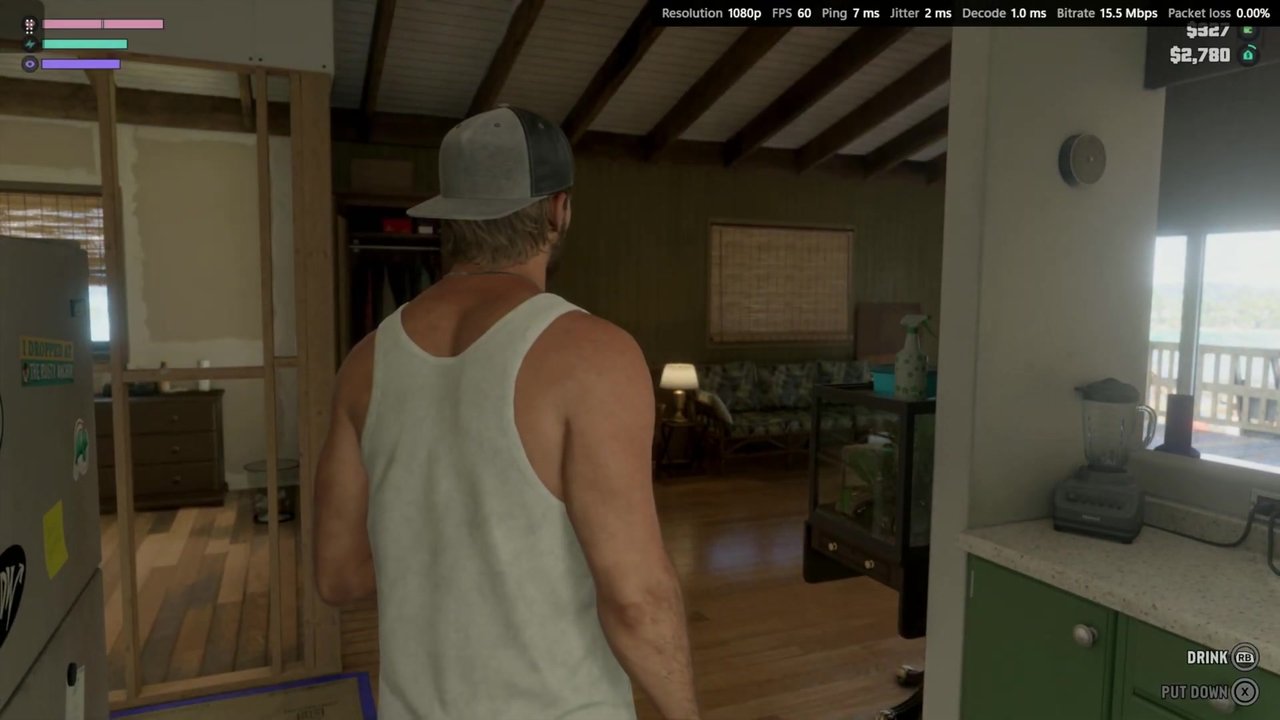
I don't really like the input latency, and some of the stutter, and the 30 FPS. I definitely recommend turning motion blur off unless you really prefer it. That helps with cloud gaming or remote play. Image quality wise, it's fine. If the game were able to do a performance 60 mode, it would definitely feel better to control and play. I'm sure later on, driving and gunplay are going to be a little more difficult with that extra latency from the 30 FPS stream.
I'm going to keep playing with it and try different devices, with more videos coming. For me, it's kind of handy when my wife wants to take over the TV: I can stream this to one of my devices on the couch, still hang out, and still be able to play.
FAQ
Can you play GTA 6 on the Xbox Ally X through Xbox Cloud Gaming?
Not right now. Xbox Cloud Gaming for GTA 6 is locked to consoles, so I used Xbox Remote Play from my own Series X instead.
Do you need Sleep mode on the Xbox?
Yes, if you want to start remote play without manually turning the console on. Sleep supports waking the Xbox remotely. Shutdown won't do that.
Is 1440p or 1080p better for Remote Play on the Ally X?
I started at 1440p Max Quality, and the overlay did show a 1440p 60 stream from the Series X. I switched to 1080p High Quality because I didn't really need that on this display. The 1080p 60 stream was a little lighter and easier to handle, especially on a 1080p screen.
Why does GTA 6 feel laggy over Remote Play?
You're streaming from a console, and the game itself is running at 30 FPS, which adds to the input latency. I didn't get a lot of re-buffering or pixelation on a good connection, but that 30 FPS still makes it feel less sharp to control than a 60 FPS stream would.
Want more handheld tests?
New Steam Deck, ROG Ally, Legion Go and Steam Machine performance videos every week.