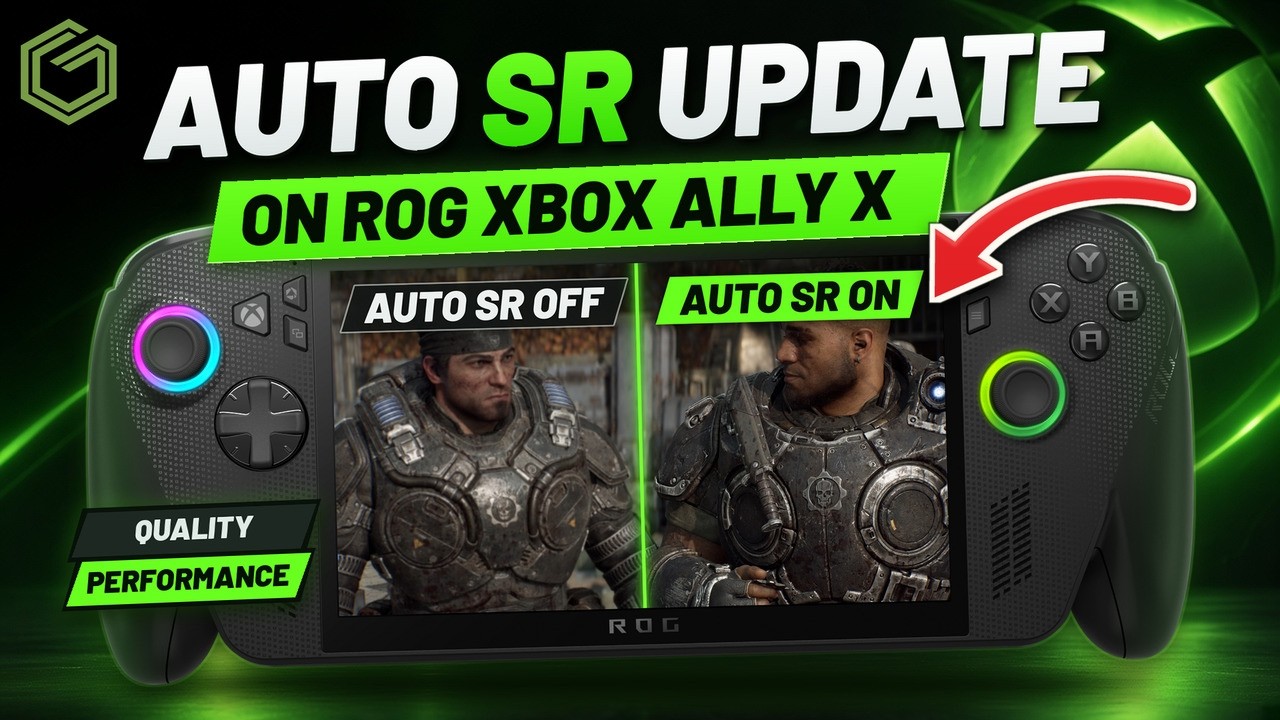
 ▶Watch on YouTube
- Microsoft's Auto SR update brings it to the Xbox Ally X's own 1080p screen, on battery. Before, you had to be docked, plugged in and going above 1080p.
- There's a new Quality and Performance mode in Game Bar. Microsoft says Quality supports up to about 75 FPS and Performance up to 120 FPS. The mode doesn't change your render resolution, just how heavy the AI model is.
- In Gears of War: E-Day at 25W, Quality and Performance mode ran within a couple of FPS of each other. This game sits well under 75 FPS, so Performance mode is really meant for faster-running games.
- Turning Auto SR off gained me a few FPS, usually 4 to 6 FPS. Stacking FSR Quality under Auto SR got a 720p game into the mid to high 40s.
A couple of days ago Microsoft put out its update to Auto SR, and it brings back the ability to run it on battery, on the Xbox Ally X's own display, up to 1080p. When it launched and I covered it back in May, you had to dock it, have it plugged in and go above 1080p. Now you can just use it handheld, with nothing plugged in, on the 1080p screen. I tried it in Gears of War: E-Day with both of the new modes, on its own and stacked with FSR.
Microsoft's DirectX blog post from November 10 says Auto SR is now out of preview on the ROG Xbox Ally X and X20. Handheld play on battery and 1080p game support are available now, while Performance mode is still rolling out with Windows updates, so it may take a little time to reach your device. I put the news side of it together in this news post, and my earlier Auto SR preview test covers it docked at 1440p and 4K.
How to get the update and turn it on
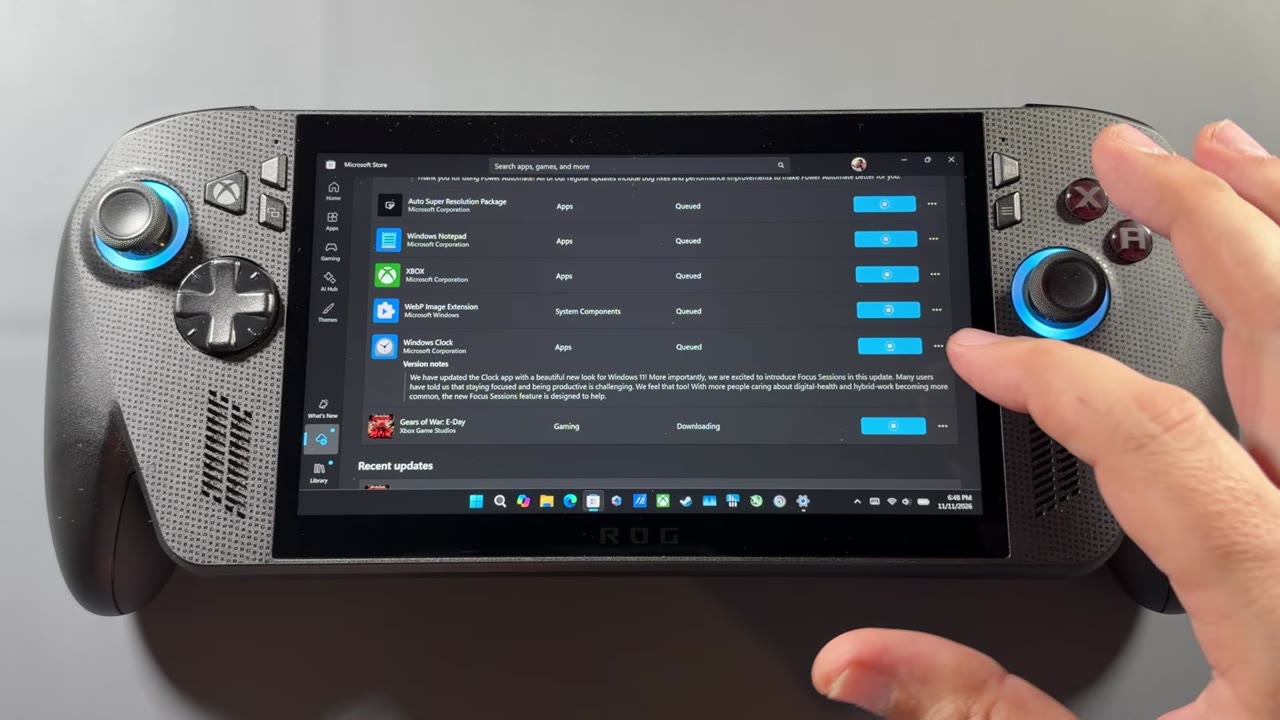
Before I updated, I had my normal Auto SR options in Game Bar, but not the new Quality and Performance options. Updating was pretty easy.
- Go to Windows and do all the typical updates: Windows Update and the Microsoft Store. Most of it for me was in the Store, where you can see the Auto Super Resolution Package update.
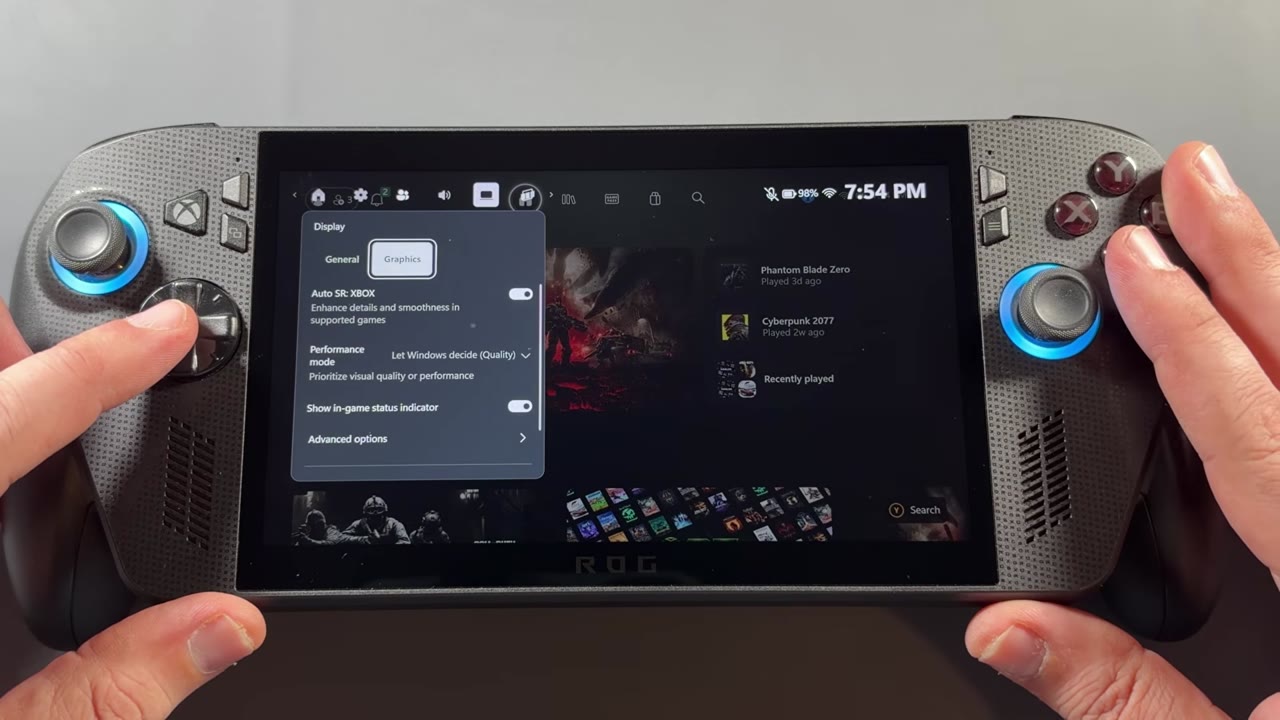
- Open Game Bar → Display → Graphics.
- Turn on Auto SR for the game and Show in-game status indicator, so you get the On icon in the top left corner when it's working.
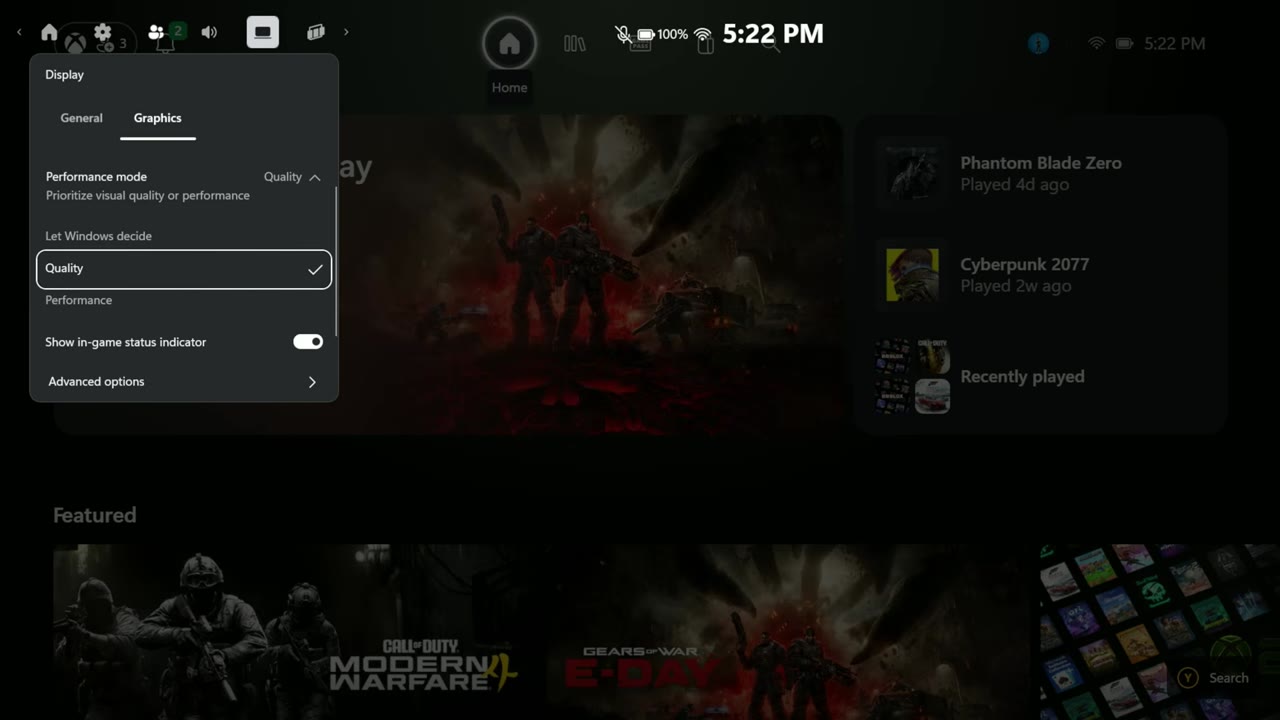
- Pick Performance mode: Quality, Performance or Let Windows decide. You can switch while the game is running.
How Auto SR works now
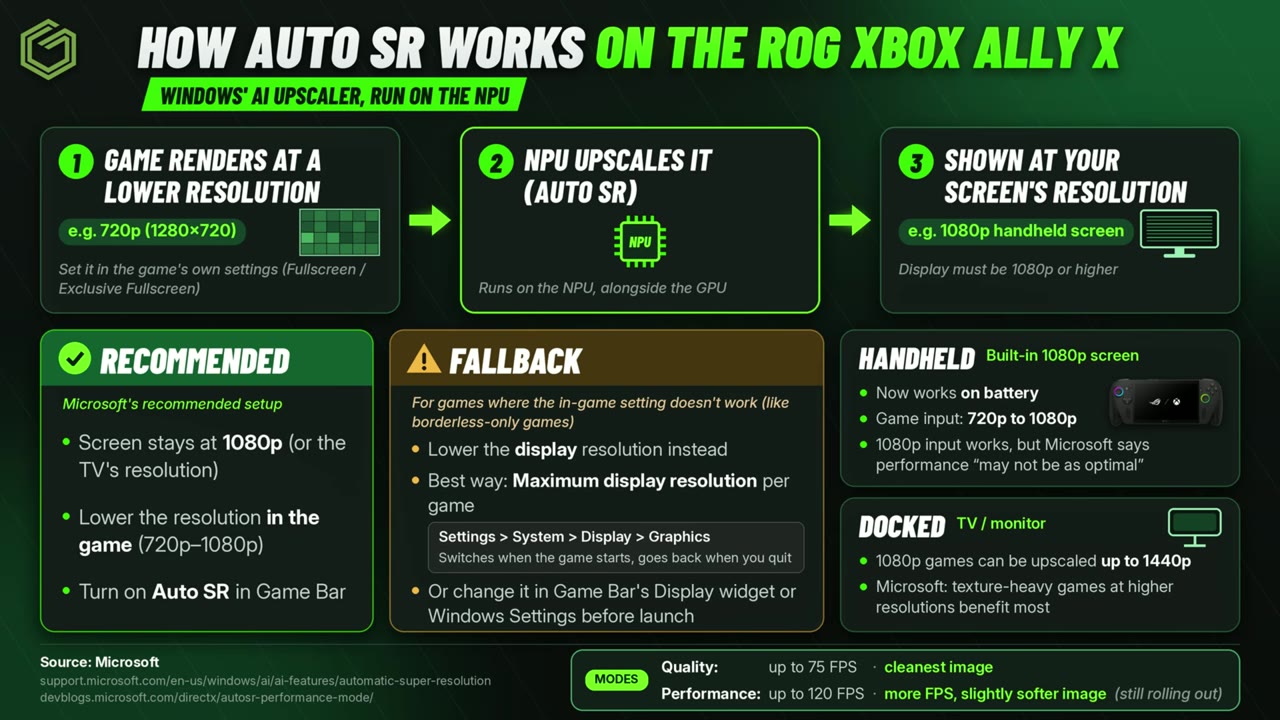
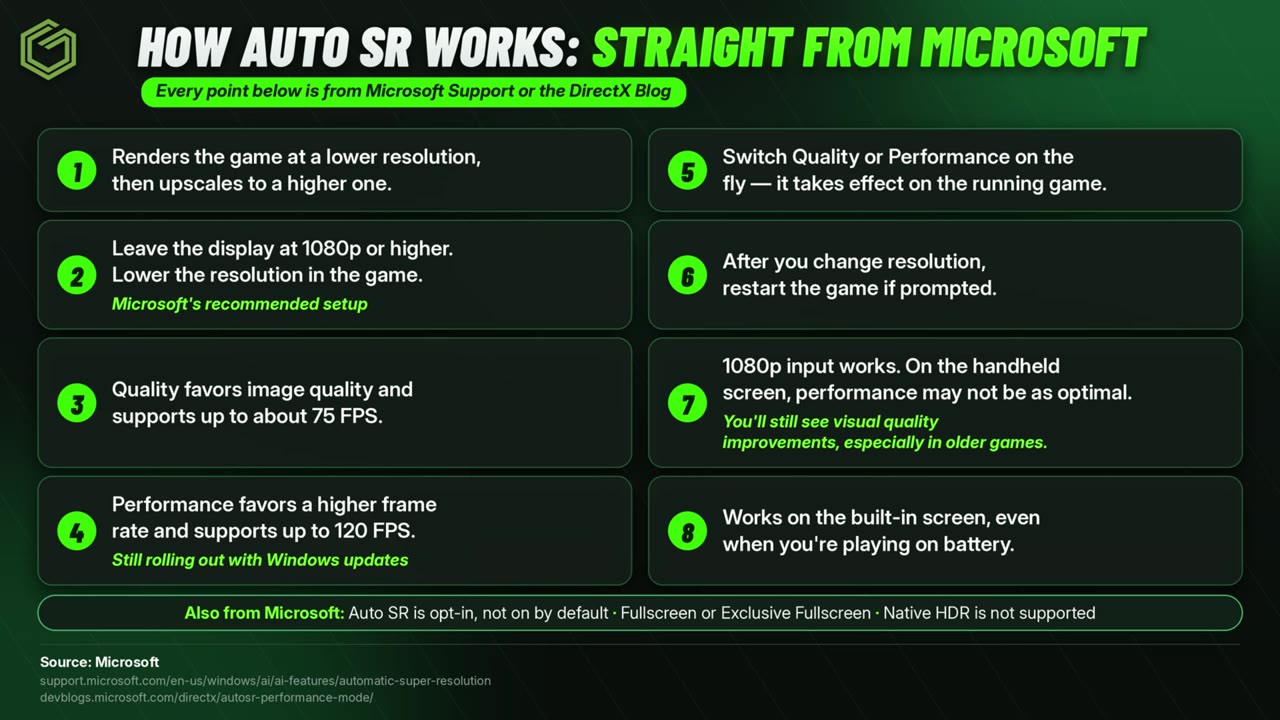
I've done a lot of digging since May and with this update, and Microsoft isn't always the best at explaining exactly what's happening, so I put it together in a couple of graphics. The short version: set your display to its native resolution (1080p on the Xbox Ally X), lower the resolution in the game and use full screen. If a game only has borderless, you'll have to set yourself to something like 720p ahead of time instead, but that's a fallback, not really how it's meant to be done.
Quality and Performance don't change the render resolution of the game. They change how heavy the AI model is that does the upscaling. Quality is meant for up to around 75 FPS and Performance for up to 120 FPS, according to Microsoft's Auto SR support page.
What I tested
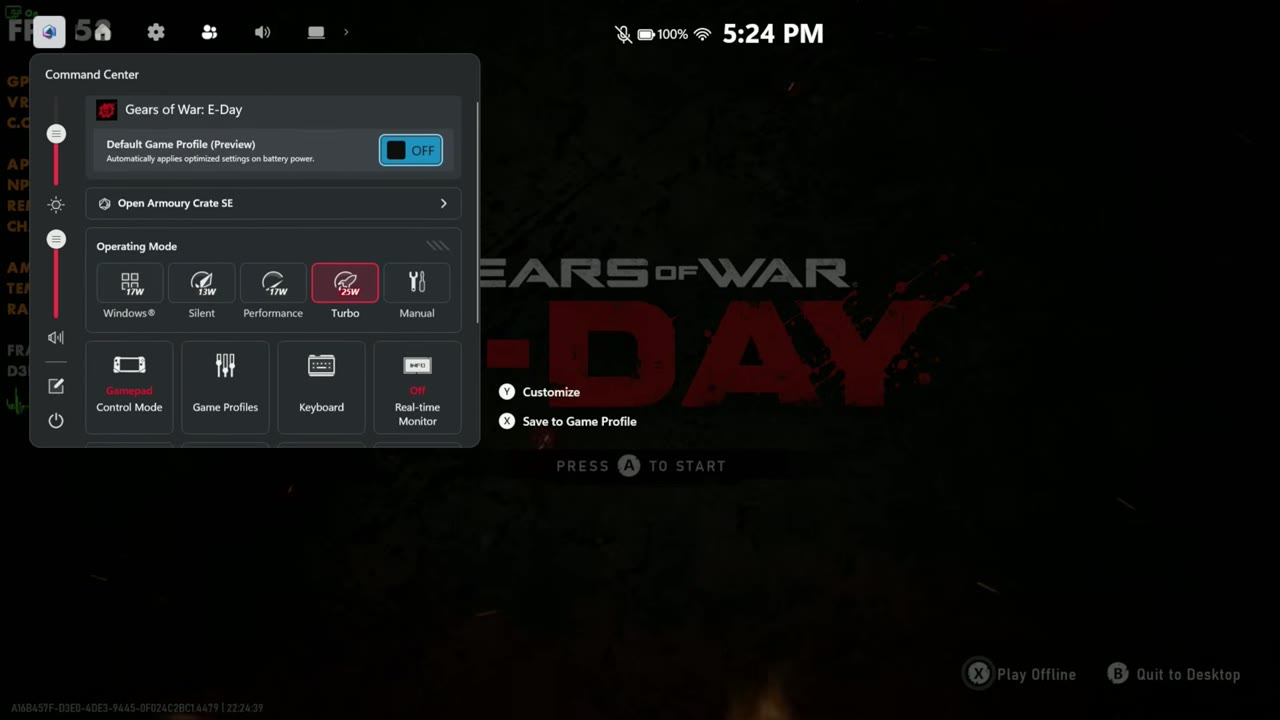
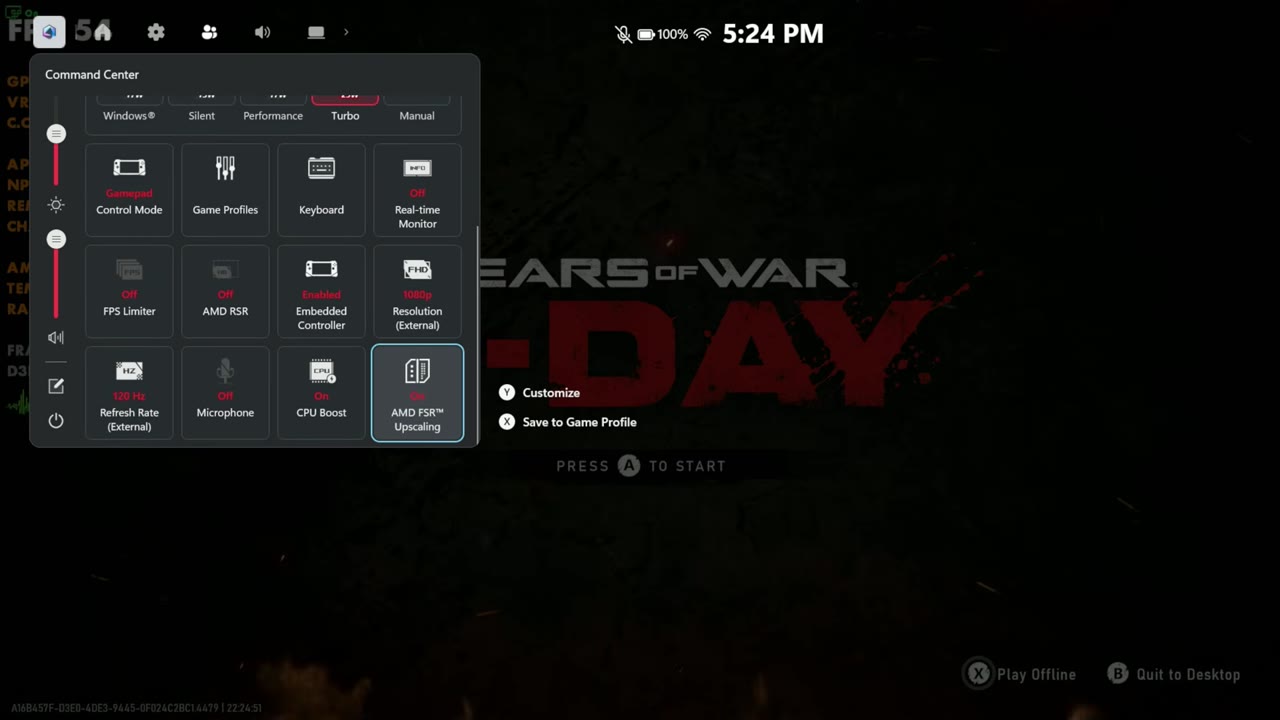
Everything here is Gears of War: E-Day on the ROG Xbox Ally X, not plugged into power. I had the game's default profile off so it didn't mess with anything, and stuck with 25 watts in Turbo. You'll want to adjust between 17 and 35 watts depending on your game. The AMD FSR Upscaling tile was on so the game could use FSR 4 through the driver. I'm using some custom graphics settings, which don't mean much for this video.
For the screen capture parts, the capture card was set up to stay at 1080p, the same as the built-in screen, so it mimics playing handheld.
| Setting | What I used |
|---|---|
| Game | Gears of War: E-Day, custom settings, Exclusive Full Screen |
| Power | 25W (Turbo), on battery |
| Default Game Profile (Preview) | Off |
| AMD FSR Upscaling (Command Center) | On |
| Display resolution | 1920 x 1080 |
| Game resolution | 1280 x 720 (upscaled to 1080p) or 1920 x 1080 |
| Auto SR mode | Quality, Performance or Off |
| In-game FSR | Native, Quality or Performance |
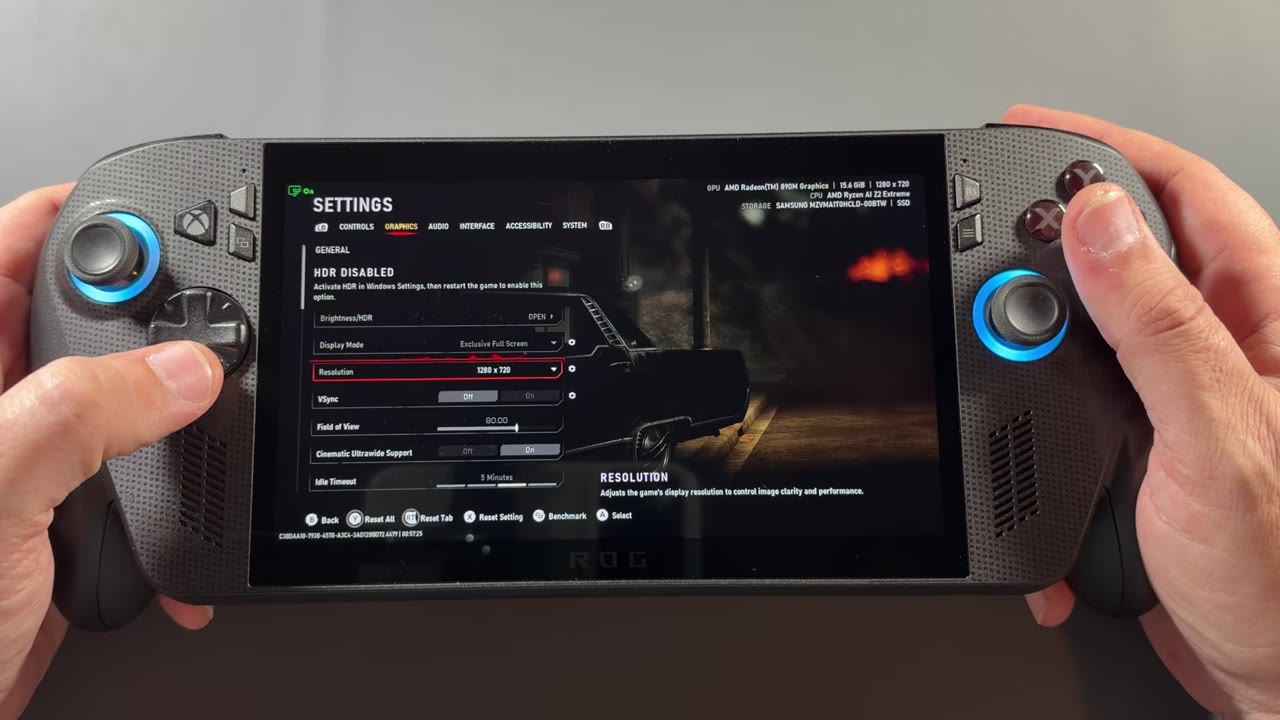
Handheld on the built-in screen
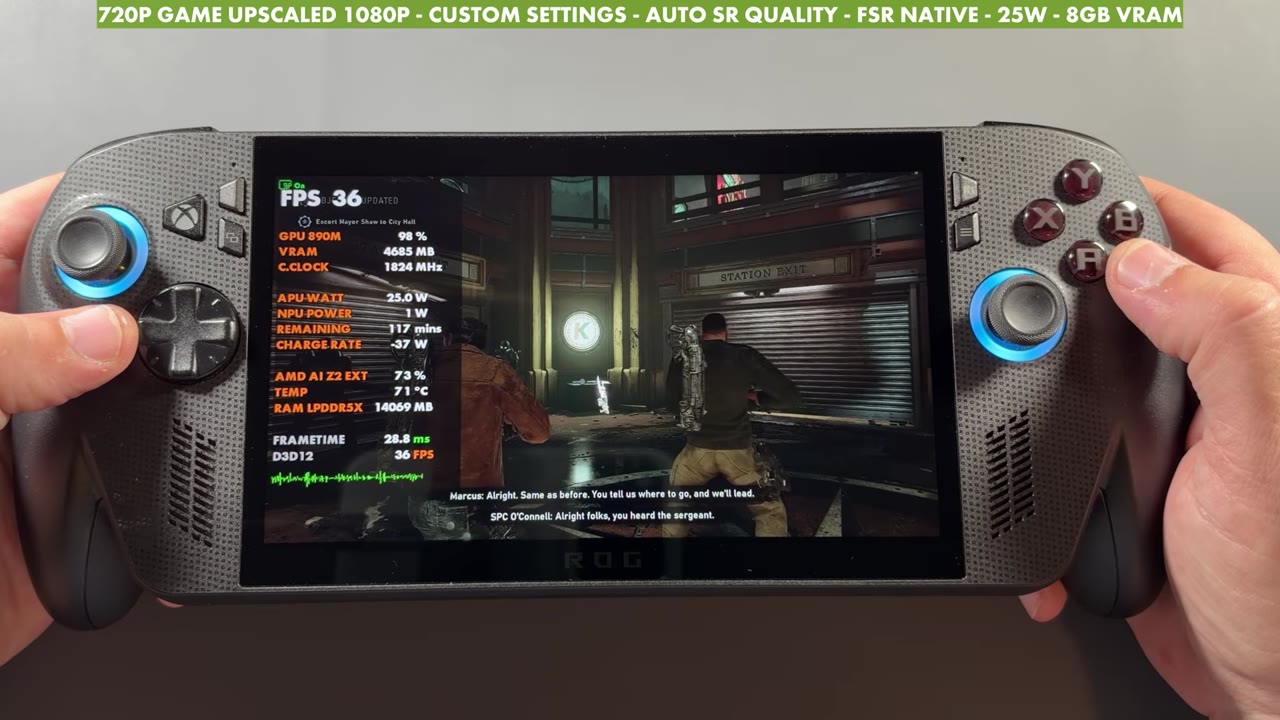
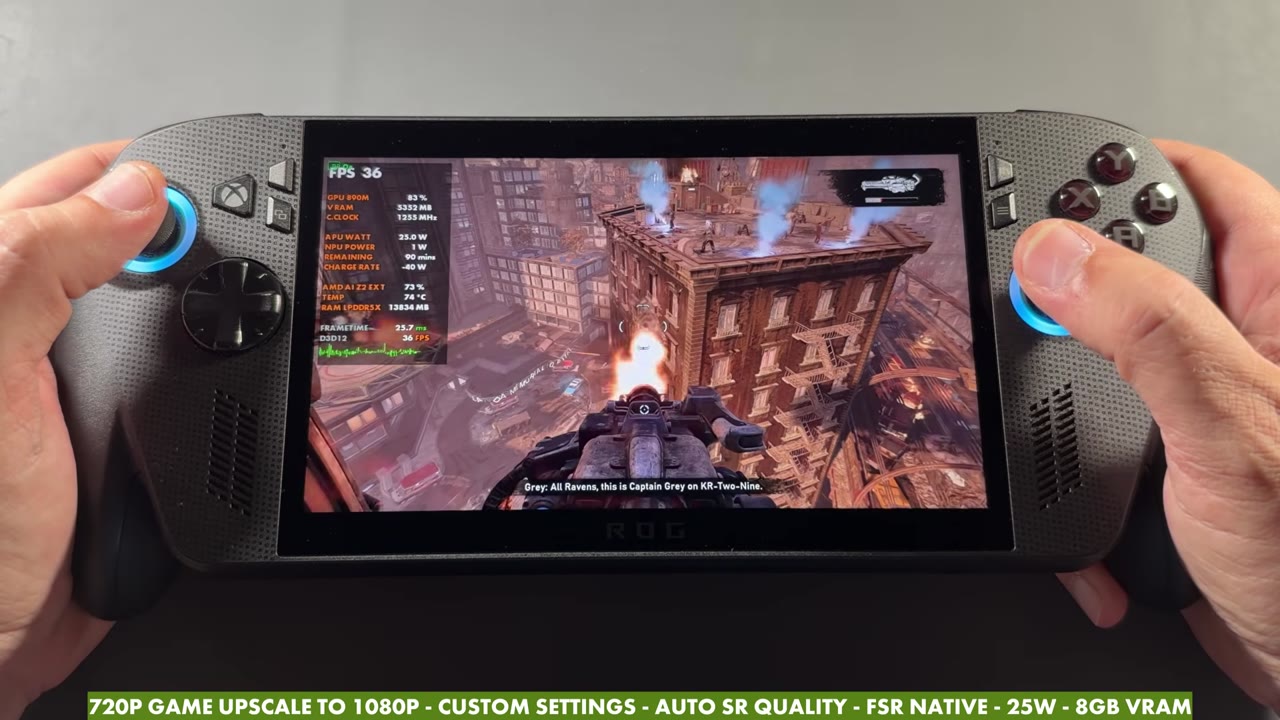
On the device itself, I'm at 720p in game and the device is at 1080p, like I'd do before. The On icon in the top left corner shows Auto SR is working. On Quality, with FSR on native, it was around 36 to 37 FPS standing still. With a game like this I probably wouldn't need to worry about Performance mode. It's more for something like Call of Duty, where I can push over 75 FPS. Switching to Performance, there wasn't a major difference, maybe a couple of FPS here or there depending on where it settles in. It's meant for higher FPS games with a bit less work on the AI side, so the image isn't as clean, but it doesn't touch the resolution.
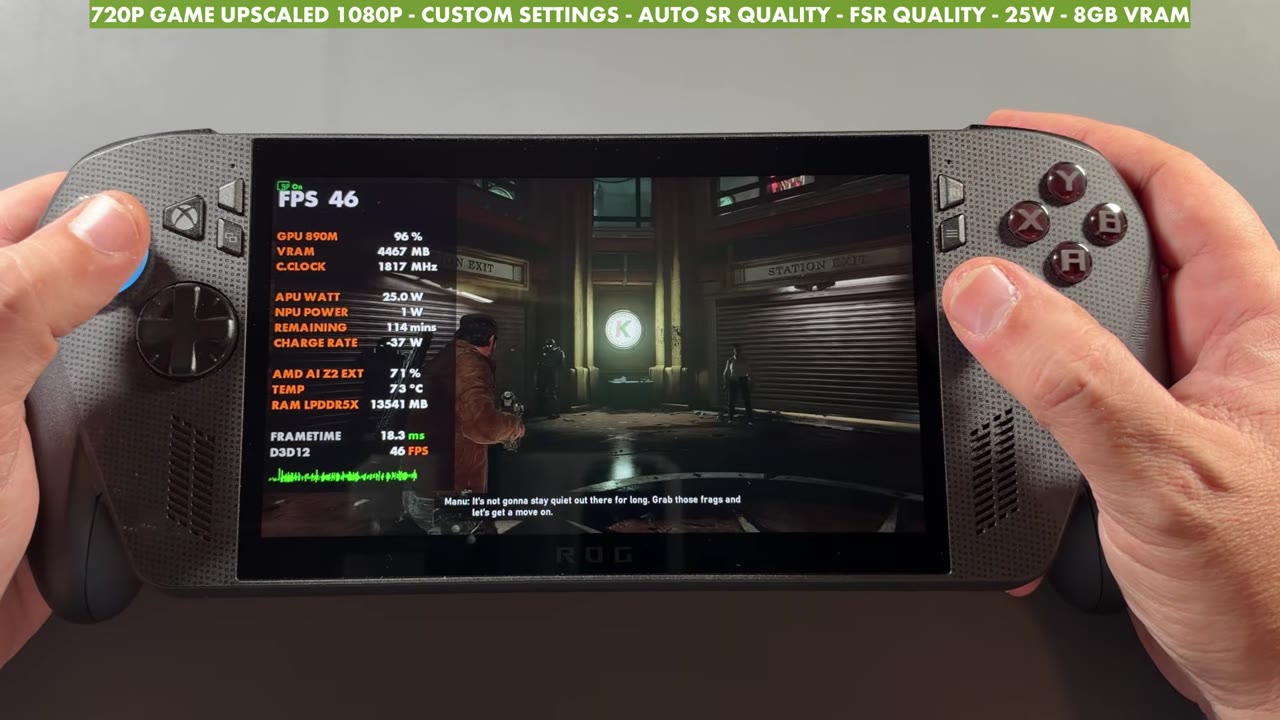
Turning FSR on to Quality stacks with Auto SR and takes the game below that 720p render resolution. In a game like this, that got me over 40 FPS, and FSR 4 and Auto SR stacked just fine.
A 1080p game with Auto SR
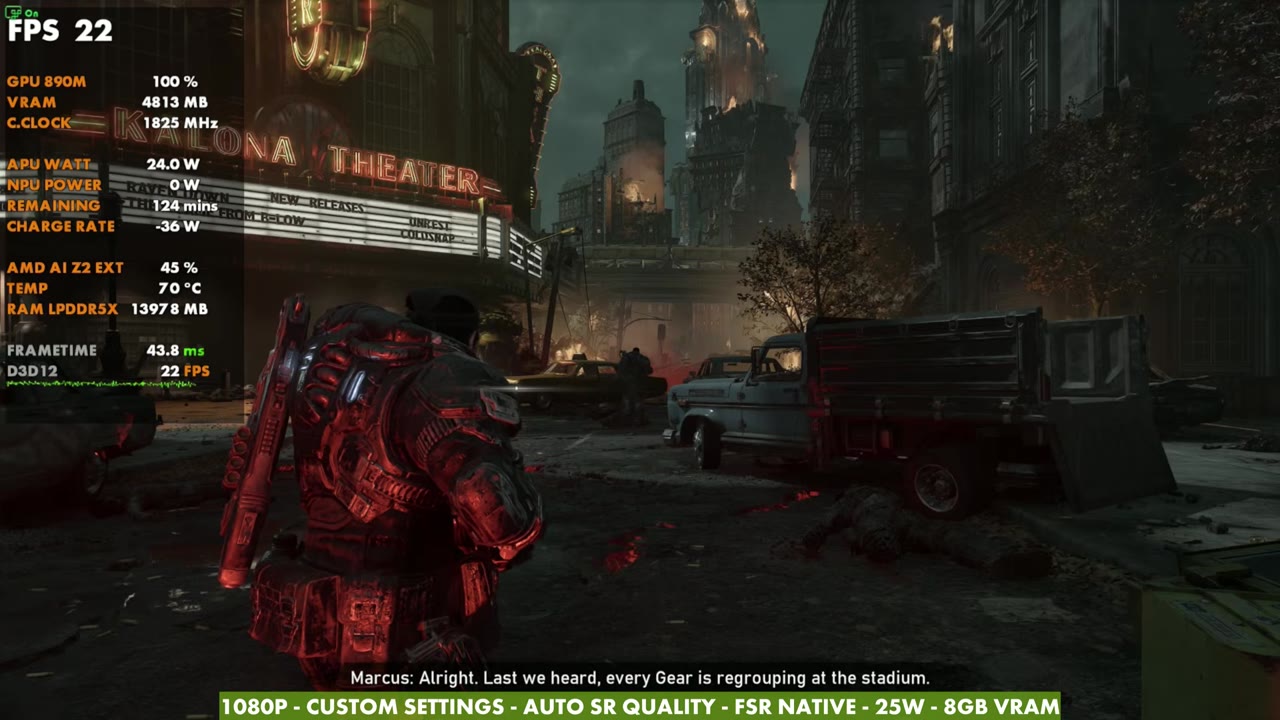
Microsoft says that even without any upscaling, Auto SR still cleans up your image if you run the game at 1080p on the 1080p screen. It used to not even turn on with that setup. I don't think a lot of people would go this route. Docked, you'd probably be at 1440p upscaling from 900p or 1080p. But I wanted to take a look. Native 1080p in this game is rough on a device like this, and nobody's really going to play it that way, but I left all the other settings the same to see what was going on.
I did see the NPU power get used a little, just not as much. The overlay reads zero because it won't show until it hits 1W, so it's probably something like 0.6 or 0.7. Switching to Performance didn't make any difference here either. It's a low FPS game at native, so we're not going to see much other than it maybe not working as hard on cleaning up the image.
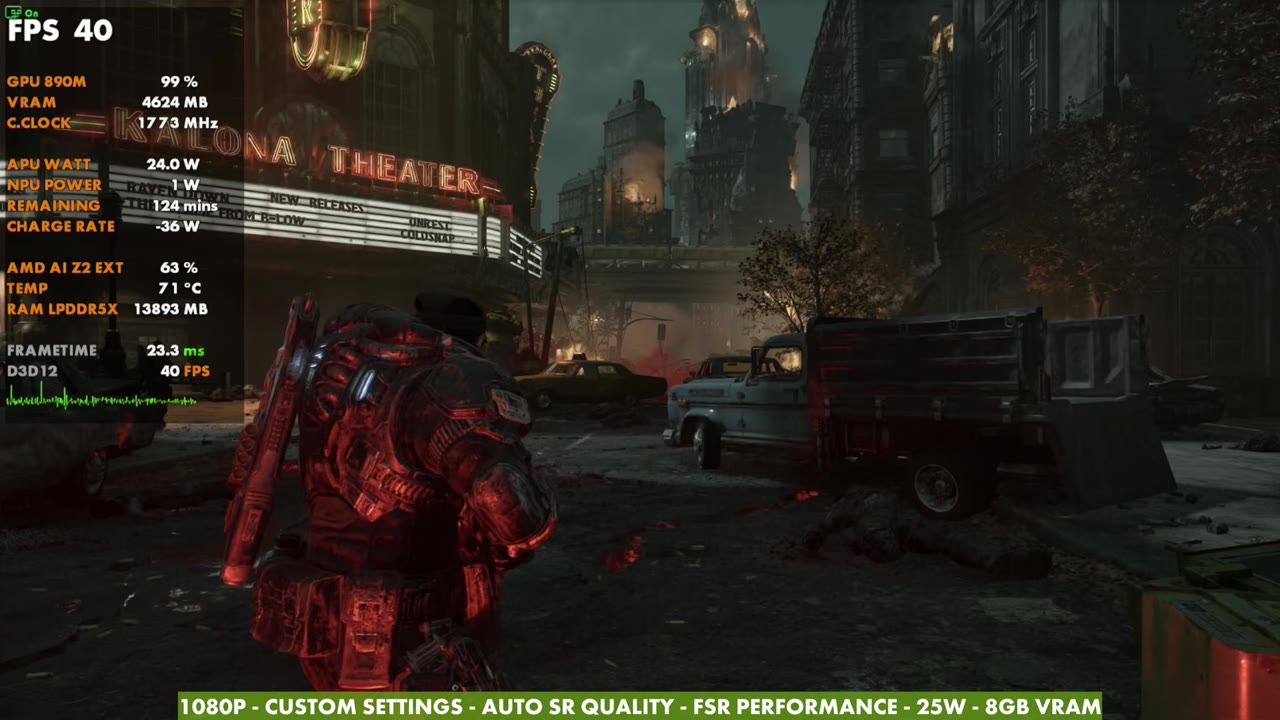
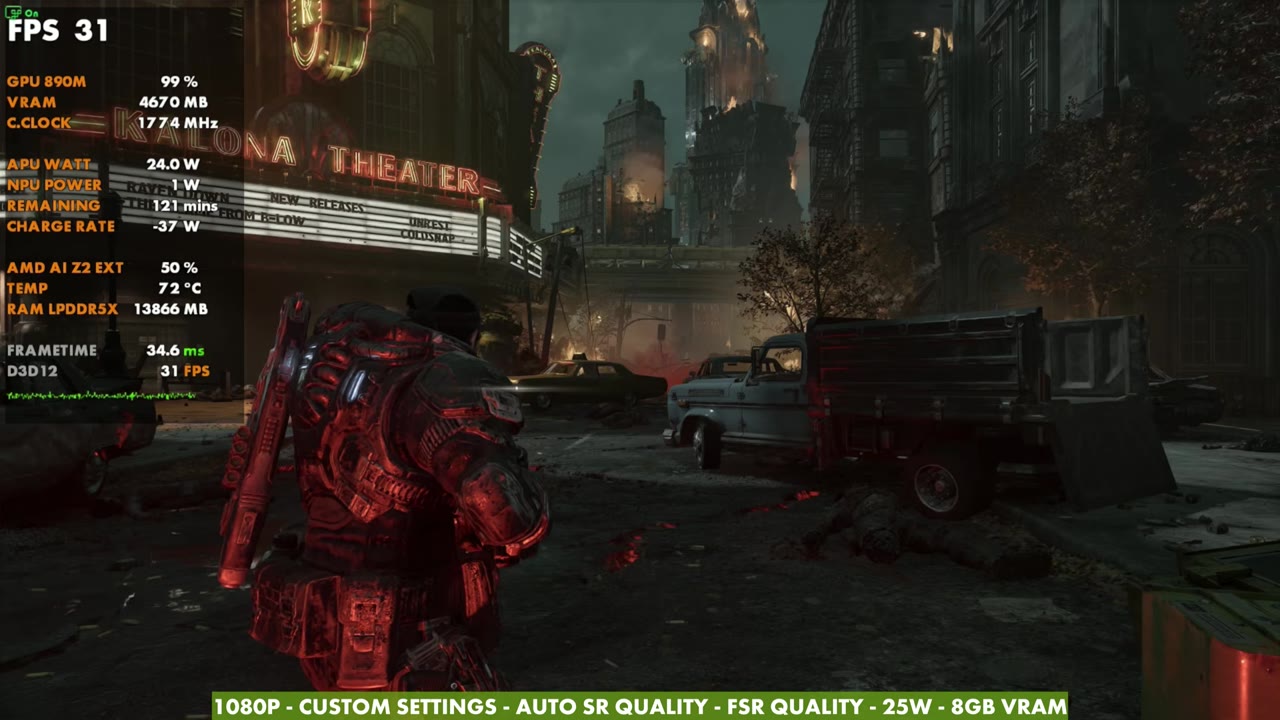
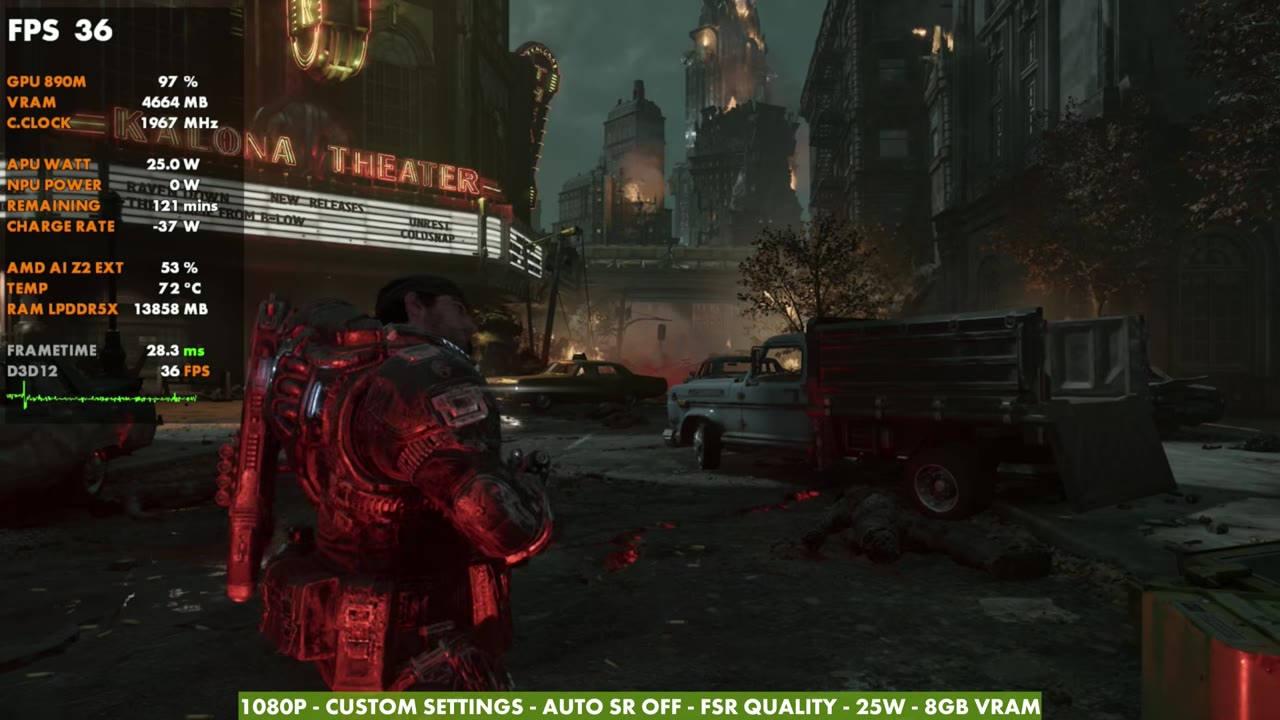
Stacking FSR 4 on Quality, Balanced or Performance helps a lot. At 1080p you'd probably go Performance, especially with how clean FSR 4 has been. With FSR Performance and Auto SR Quality stacked, it got up to 39, 40 FPS. Honestly though, if you're playing at 1080p you'd likely just use FSR 4 and leave Auto SR off. You don't need the additional cleaning. With FSR on Quality, turning Auto SR off gained about 4 FPS. I've tested this across a few different areas with different settings, and every time I turn Auto SR off I gain anywhere from 4 to 6 FPS depending on what's going on. That makes sense, because it draws power away from your GPU and CPU, and we're only at 25 watts here.
720p upscaled to 1080p
This is where Auto SR is actually upscaling: the game at 720p, brought up to the 1080p screen, on battery. That's something we couldn't do before. I left my display at 1080p because Gears has full screen. If the game only had borderless, I'd switch the display to 720p first.
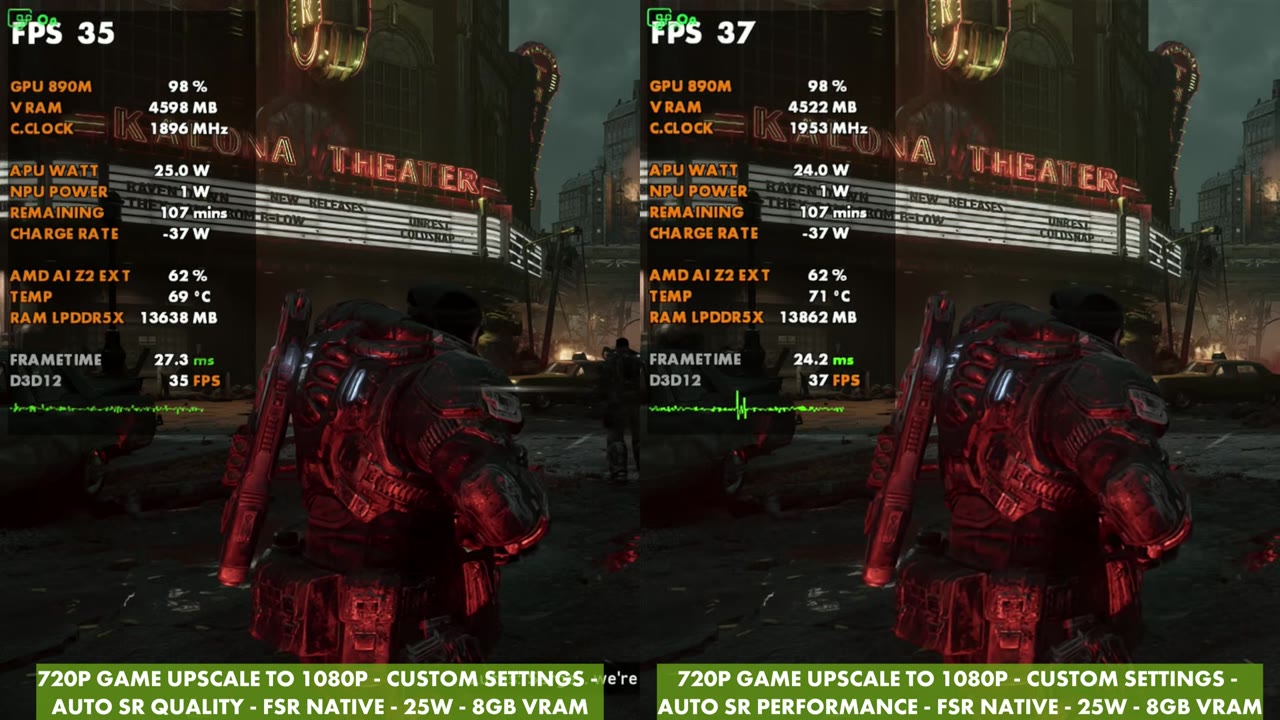
Switching between Quality and Performance, again there's not really a big difference, especially once it settles in. Performance mode is for higher FPS games, but I wanted to throw it in and see if I could notice any difference. With YouTube compression I'm not sure a side by side shows very much, but I can see a little difference locally with my native footage. Turning Auto SR off completely, so it's just a 720p game with no upscaling from anything, you gain a few FPS again. With Auto SR on, I can see some better clarity, especially locally.
Then I did the same thing as at 1080p and stacked FSR 4 on Quality with Auto SR on Quality. FSR takes the render below 720p and brings it up to 720p, then Auto SR takes it all the way up to 1080p from there. It's a stacked double whammy, and it gains a bit more.
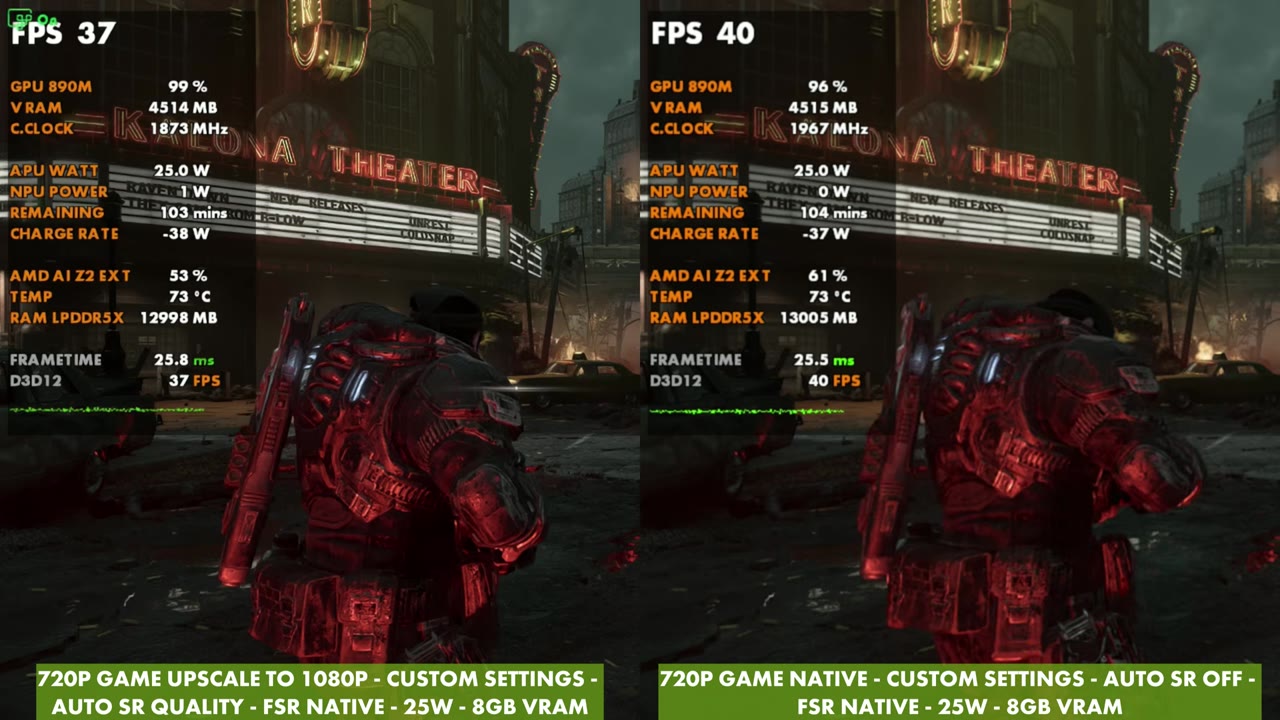
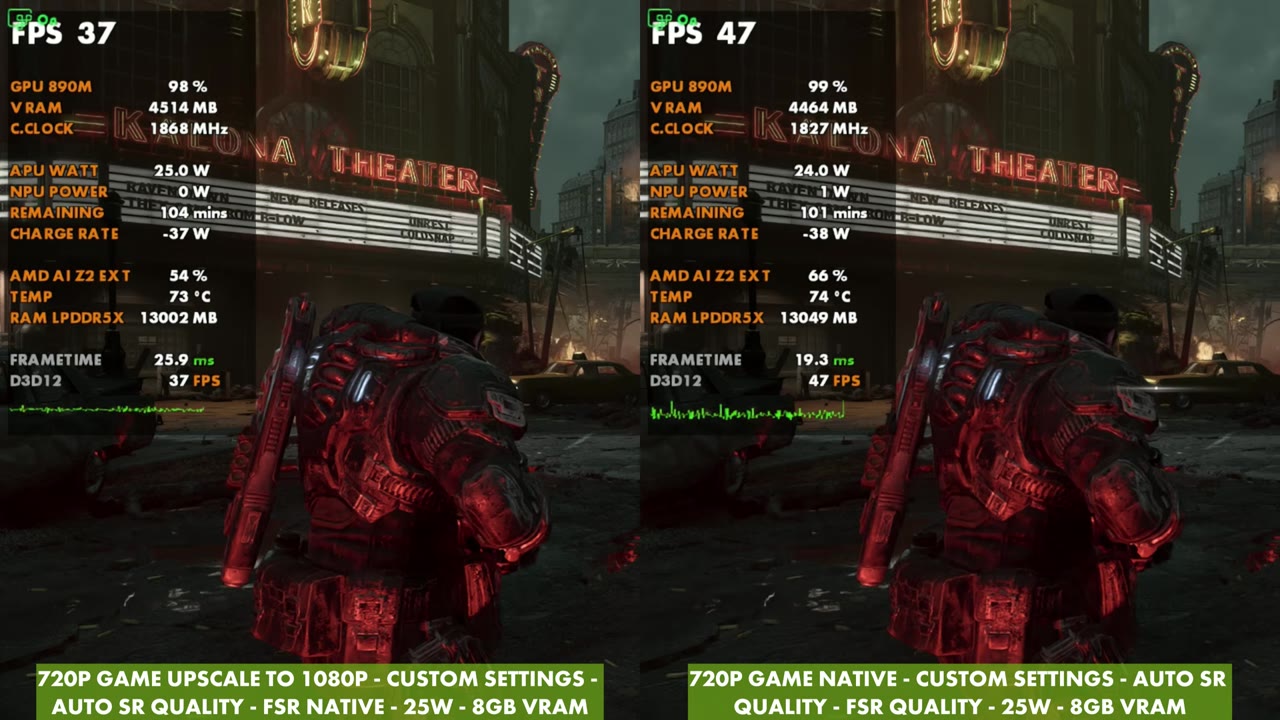
The overlay readings
Here's what the overlay showed in each setup, all in Gears of War: E-Day at 25W on battery with the display at 1080p. The handheld readings are from a different spot than the screen capture ones.
| Game resolution | Auto SR | In-game FSR | FPS (overlay) |
|---|---|---|---|
| 720p → 1080p (handheld) | Quality | Native | About 36–37 |
| 720p → 1080p (handheld) | Performance | Native | About 37 |
| 720p → 1080p (handheld) | Quality | Quality | About 46 |
| 1080p | Quality | Native | About 22 |
| 1080p | Performance | Native | About 22 |
| 1080p | Quality | Performance | About 37–40 |
| 1080p | Quality | Quality | About 31–33 |
| 1080p | Off | Quality | About 36 |
| 720p → 1080p | Quality | Native | About 34–37 |
| 720p → 1080p | Performance | Native | About 36–39 |
| 720p (no upscaling) | Off | Native | About 40 |
| 720p → 1080p | Quality | Quality | About 45–48 |
What's next
That's Auto SR's update working on the Xbox Ally X. Being able to use it unplugged on the built-in screen is new, and so is setting the game to 1080p. That helps docked too: if you want 1440p, you don't have to drop to 720p or 900p anymore to get there. So there are more options now, docked and handheld. Parts of it, like Performance mode, are still rolling out. I'd like to try more games, test the docked and higher resolution side again, and maybe mix Auto SR in and out with FSR in a multi-game test.
FAQ
Does Auto SR work on battery on the ROG Xbox Ally X now?
Yes. After Microsoft's November update, Auto SR works on the built-in 1080p screen unplugged. I tested it on battery at 25W in Gears of War: E-Day.
What's the difference between Auto SR Quality and Performance mode?
Neither changes the game's render resolution. Quality uses the heavier AI model for a cleaner image and supports up to about 75 FPS. Performance is lighter and supports up to 120 FPS. In Gears of War: E-Day, which runs well under 75 FPS, they were within a couple of FPS of each other.
Can you stack FSR 4 with Auto SR?
Yes. With a 720p game, FSR Quality plus Auto SR Quality read about 45–48 FPS, against about 34–37 with FSR Native.
Want more handheld tests?
New Steam Deck, ROG Ally, Legion Go and Steam Machine performance videos every week.