 ▶Watch on YouTube
- Hytale has a Linux version of its launcher (a Flatpak), so you install it in desktop mode on the Steam Deck.
- If clicking Sign In does nothing, run a dbus-monitor command in Konsole first, then sign in. That got me in every time.
- Add the launcher to Steam from the application menu, then play it from gaming mode.
- There's no controller support yet. Start with the keyboard and mouse template, then a community layout. The most popular one worked well for me.
- I turned off VSync, went full screen, used the low preset and capped it to 60 FPS. It's playable, but early access performance still has quirks.
Hytale is in early access, and it's a little rough around the edges, but it's definitely playable on the Steam Deck. There's a Linux version of the launcher, which makes this easier than a lot of PC games, though there are a few quirks along the way, like the sign-in button and the lack of controller support. Here's the whole process I used on a fresh Steam Deck, launcher build release/2026.01.14.
Before you start
- You need a Hytale account and to own the game first. When I made this, there were a few early access options from about $20 all the way up to $70.
- Everything at the start happens in desktop mode: press the Steam button, go to Power and pick Switch to Desktop.
- You may need a SteamOS user password for the install (see step 5).
Step 1: Download and install the launcher
- In desktop mode, open whatever browser you like and go to the Hytale website.
- Go to Download and choose Download for Linux. If it doesn't show automatically, there are Windows, macOS and Linux options right under it. This downloads the Flatpak installer.
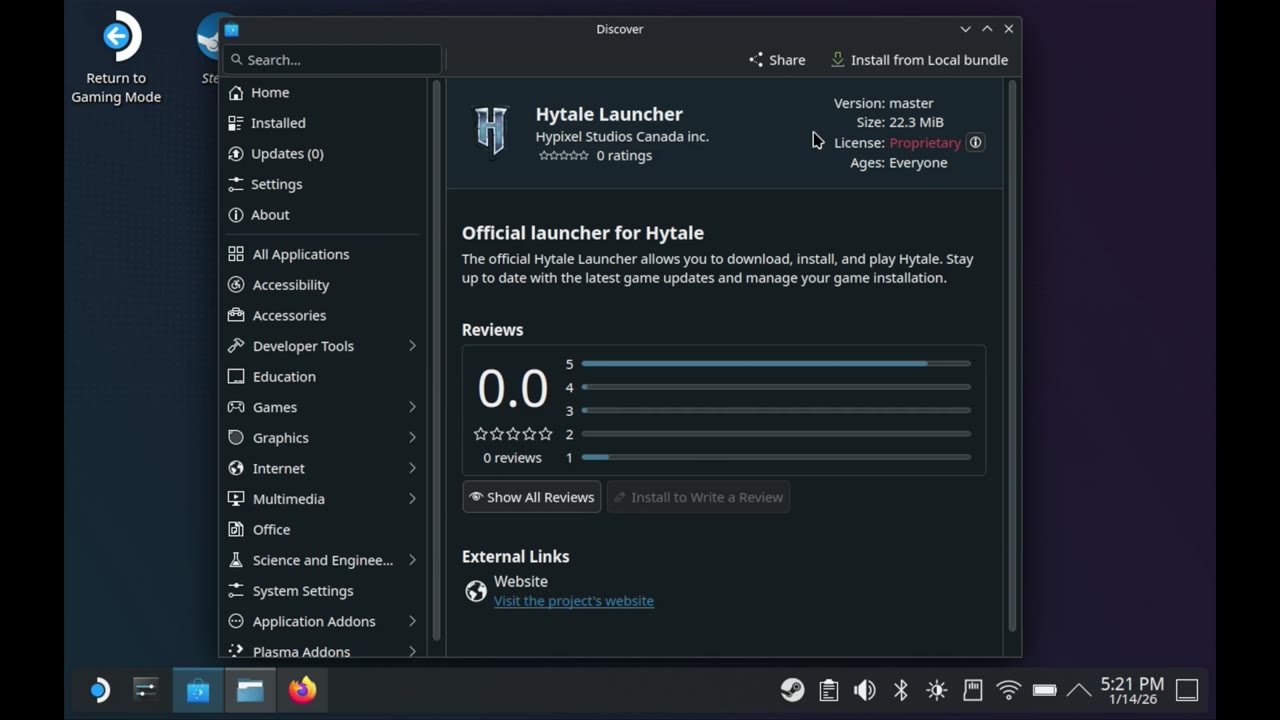
- Open Dolphin (the file manager), go to Downloads and double-click the Hytale launcher file.
- In the installer that comes up, click Install from Local Bundle at the top.
- I didn't get asked for a password, but some people do get asked for their SteamOS user password. If you don't have one, open the quick settings at the bottom of the desktop, scroll down to Users, click the SteamOS user and choose Change Password. Enter it twice and save.
- When the install finishes, click Launch to open the Hytale launcher for the first time.
Step 2: Sign in (and the fix if Sign In does nothing)
This is the quirk some people don't run into at all. For others, clicking Sign In does nothing and never takes you to the sign-in page. The fix is a dbus-monitor command that helps direct you to the login page. I didn't come up with it myself. A friend sent it to me, and it's from a post on Reddit. The command is in the video description too.
- Copy this line:
dbus-monitor --session "interface='org.freedesktop.portal.OpenURI'" - Open the SteamOS application menu, go to All Applications and open Konsole.
- Paste the line in (I used the left trigger, then the right trigger to paste), bring up the keyboard with Steam + X if you need it, and press Enter. Leave it running in the background.
- Open the Hytale launcher again from All Applications and click Sign In.
- Bring Konsole back up. You'll now see an account page link. Open that link and it takes you to the sign-in page.
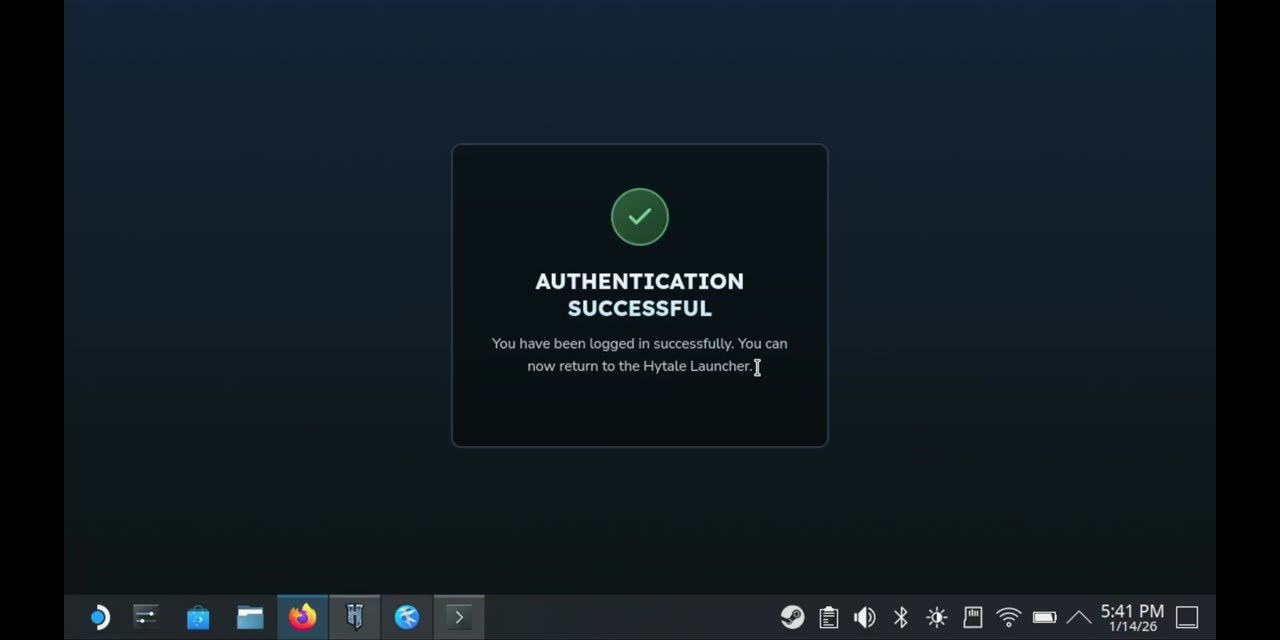
- Sign in with however you made your account (mine is an email), enter the authentication code they send you, and it authorizes the launcher.
- Close Konsole once you're signed in.
As long as I ran that command before trying to sign in, I didn't have any problems.
Step 3: Install the game and add it to Steam
- In the launcher, click Install and let it download the game.
- Before going back to gaming mode, I like to make sure it launches okay. Mine worked fine, so I quit right away.
- Open All Applications, find Hytale, bring up the menu with the left trigger and choose Add to Steam.
- Check your Steam library on the desktop to make sure Hytale Launcher shows up, so you don't have to come back to desktop mode later.
- Switch back to gaming mode.
Step 4: Controller setup in gaming mode
There's no controller support yet. The devs are working on it, but for now you're relying on Steam Input.
- Go to Library → Non-Steam and select Hytale Launcher. If you have Decky Loader, you can change the artwork quickly. I didn't on this fresh Steam Deck.
- Open the controller settings, go to Templates and apply the keyboard and mouse template to start.
- Press Play. The launcher and the game both opened pretty quickly for me.
- Once you're in a world, the keyboard and mouse layout works, but it doesn't give you easy access to your inventory and other things. Go back to the controller settings, open Community Layouts (press X to show them all) and pick one. I applied the most popular one at the time, and it played pretty well without any other changes.
With that layout I could move around, tab across the hotbar, open my inventory, switch to third person, craft items and move the mouse with the touchpad or the right stick. The right stick changes your perspective and brings up the emote wheel, and I moved around with the D-pad. That felt a little awkward at first, but it works out just fine for the most part. I'd still change a few things for my liking, but it's a good start.
Step 5: The settings I started with
- VSync: off (I capped the frame rate a little later instead).
- Display: full screen.
- Graphics: the low preset for now, because things are a little janky here and there.
- Frame rate: capped to 60 FPS.
- To type a world name, hold Steam and press X for the keyboard.
With VSync off and no cap, the overlay read 120 FPS in the menus. With the 60 cap, the gameplay overlay readings I saw were around 50 to 60 FPS, and there are still quirks here and there no matter what you cap it to. This is early access, and performance isn't the best depending on what's going on. I think there's potential for it to run really well on the Steam Deck and probably raise the settings later.
When I made this, the worlds were in (exploration and creation), and minigames and adventure mode weren't there yet. I spent my first time in the exploration world.
My take
The install isn't too bad. You might need your password, and you might need the sign-in workaround in desktop mode, but other than that I didn't run into too many problems in about an hour of playing on the Deck. It's playable, and I'm sure the devs are going to smooth this out and get it performing even better over time.
FAQ
Does Hytale run natively on the Steam Deck?
Hytale has a Linux version of its launcher, a Flatpak you install in desktop mode. Once it's added to Steam, you play it from gaming mode.
Why does Sign In do nothing in the Hytale launcher on Steam Deck?
Some people hit this and some don't. Running dbus-monitor --session "interface='org.freedesktop.portal.OpenURI'" in Konsole before signing in gives you a link to the sign-in page.
Does Hytale have controller support on Steam Deck?
Not yet. Start with Steam's keyboard and mouse template, then switch to a community layout. The most popular one worked well for me.
What settings did you use for Hytale on Steam Deck?
VSync off, full screen, the low preset and a 60 FPS cap. It's playable, with some early access quirks.
Want more handheld tests?
New Steam Deck, ROG Ally, Legion Go and Steam Machine performance videos every week.