 ▶Watch on YouTube
- GTA 6 is console-only so far, and Xbox Cloud Gaming for it is locked to consoles right now, so I used Xbox Remote Play from my own Xbox Series X to the Steam Deck and the Steam Machine.
- The setup is the same on both Steam OS devices. I used two methods: the official browser path in Google Chrome, and Greenlight. I prefer Chrome right now, especially on the Steam Machine.
- On the console: Settings → Devices & connections → Remote features, turn Enable remote features on, and set power to Sleep if you want to wake it remotely.
- In Chrome I set Remote Play to 1080p High Quality. The stream overlay read a 1080p 60 stream. The game itself is running at 30 FPS on the console, and that adds to the input latency you feel over a stream.
- On my network I really didn't have problems with the visuals or stream quality. Image quality was similar on both methods, but the browser felt a little better for me. The Chrome method on my 4K OLED TV was the best experience I've had so far for latency. I do recommend turning motion blur off.
GTA 6 has been out for a couple of days, but it's not on PC yet, and Xbox Cloud Gaming for it is locked to consoles right now. The option I had was Xbox Remote Play from my own Xbox Series X. I already covered this on the ROG Xbox Ally X, which is the same idea on any Windows PC or handheld. This time it's Steam OS on the Steam Deck and the Steam Machine, and the setup is a little different.
I used two methods: Greenlight, an open-source client for Xbox Remote Play and xCloud, and the official browser path in Google Chrome. I prefer the Chrome method right now, especially for the Steam Machine. Microsoft's own Xbox Remote Play setup page is a useful official reference alongside this, and Greenlight is also on GitHub.
Setup at a glance
| Setting | What I used |
|---|---|
| Console | Xbox Series X, wired |
| Devices | Steam Deck and Steam Machine (Steam OS) |
| Methods | Google Chrome (the one I prefer) and Greenlight |
| Remote Play resolution I used | 1080p High Quality |
| Game frame rate on the console | 30 FPS |
| Chrome launch window | 1280×800 on the Deck, 1920×1080 on the TV |
Step 1: Turn on remote features on the Series X or Series S
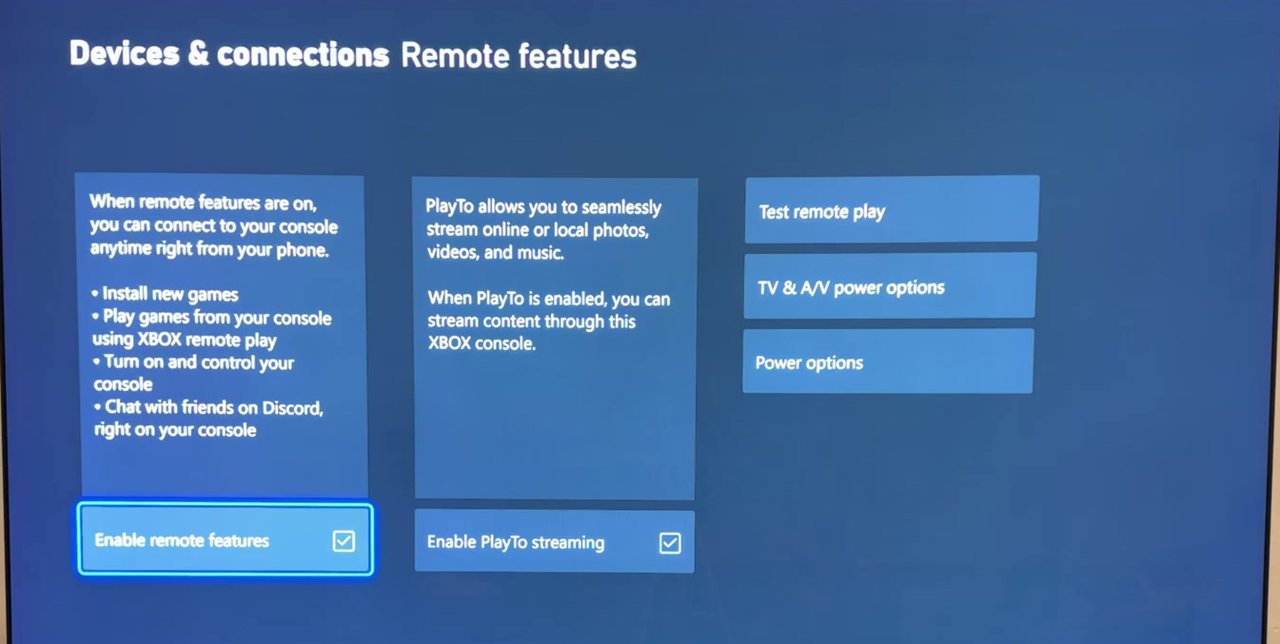
The first thing you need is the Xbox set up for remote play. On the console, go to Settings, then Devices & connections, and open Remote features.
Make sure Enable remote features is turned on. That lets you play games from the console with Xbox Remote Play, turn the console on and control it, and use the other remote options on that page. I also had Enable PlayTo streaming turned on.
Step 2: Test the remote play setup
On that same page you can run Test remote play. I usually run a test anyway. You want to make sure nothing is going to hold you up, like your NAT type not being open. I typically don't have a problem with that here, and everything came back fine. My result was You're good to go, with the note that remote play should work well based on this setup. The on-screen results were:
- NAT type: Open
- Upstream bandwidth: Over 9 Mbps
- Network latency: Less than 60 ms
- Network type: Wired
- Outbound port: Open
- Power option: Sleep
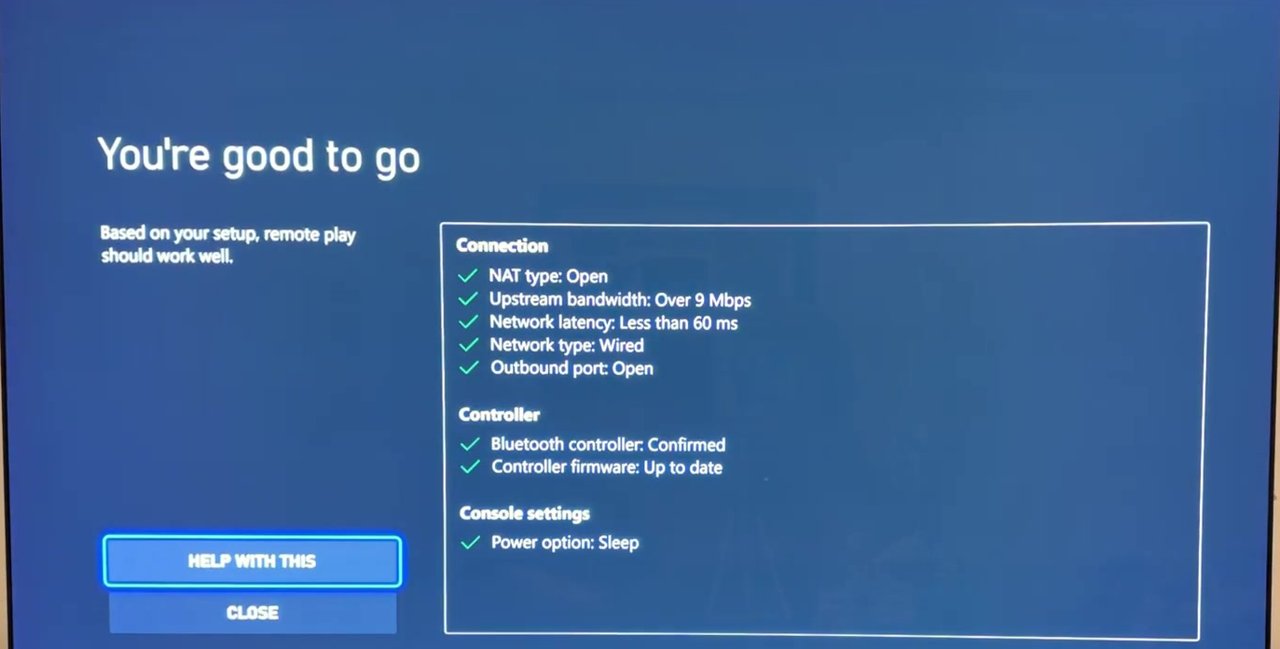
I have a pretty good setup, so this is kind of the best I'm going to get out of it. The test also showed a Bluetooth controller confirmed and firmware up to date.
Step 3: Set the console to Sleep
Check your General Power options as well. If you want remote play to wake the Xbox and start a game without walking over and turning it on yourself, the console needs to be on Sleep. That supports waking it remotely. Shutdown is the energy-saving option, but it won't do that for you.
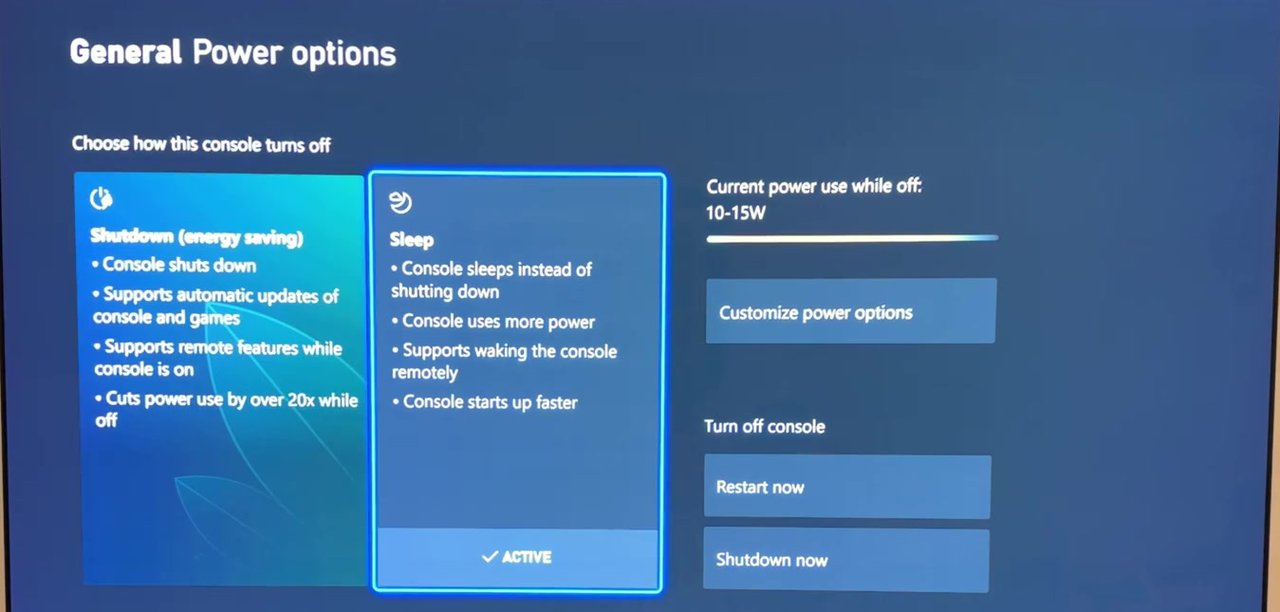
That's pretty much it for the Xbox itself. From here, the Steam Deck and Steam Machine use the same exact method.
Greenlight: install and sign in
Switch to desktop mode and open the Discover store. Search for Greenlight, all one word. You should find it in the store, listed as an open-source client for xCloud and Xbox home streaming. Cloud gaming is blocked for GTA 6 except on consoles right now, so I only used it for remote play from the console itself.
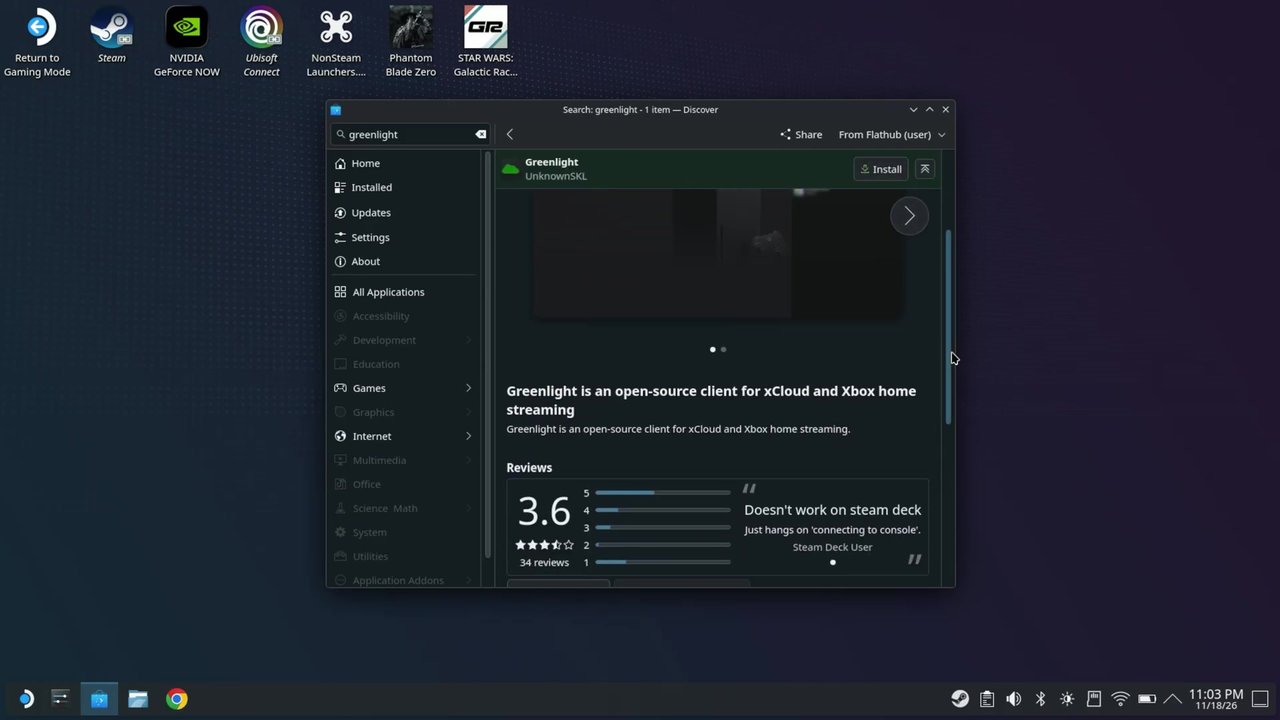
Install it, launch it, and sign into your Xbox account. The first thing that pops up is a code and a link. Go to microsoft.com/link, enter the code it gives you, and sign in. It goes pretty quick. I did this three times on three different Steam OS devices, and it was fine.
Greenlight streaming settings
Once you're signed in, you can get into the streaming settings if you want to mess with bitrate or anything like that. I left mine unlimited for this setup. The page also has audio, video, and input options. There's a note on the bitrate sliders that xHome and xCloud do not support more than 20 Mbps by default, and that this setting does not override that limit.
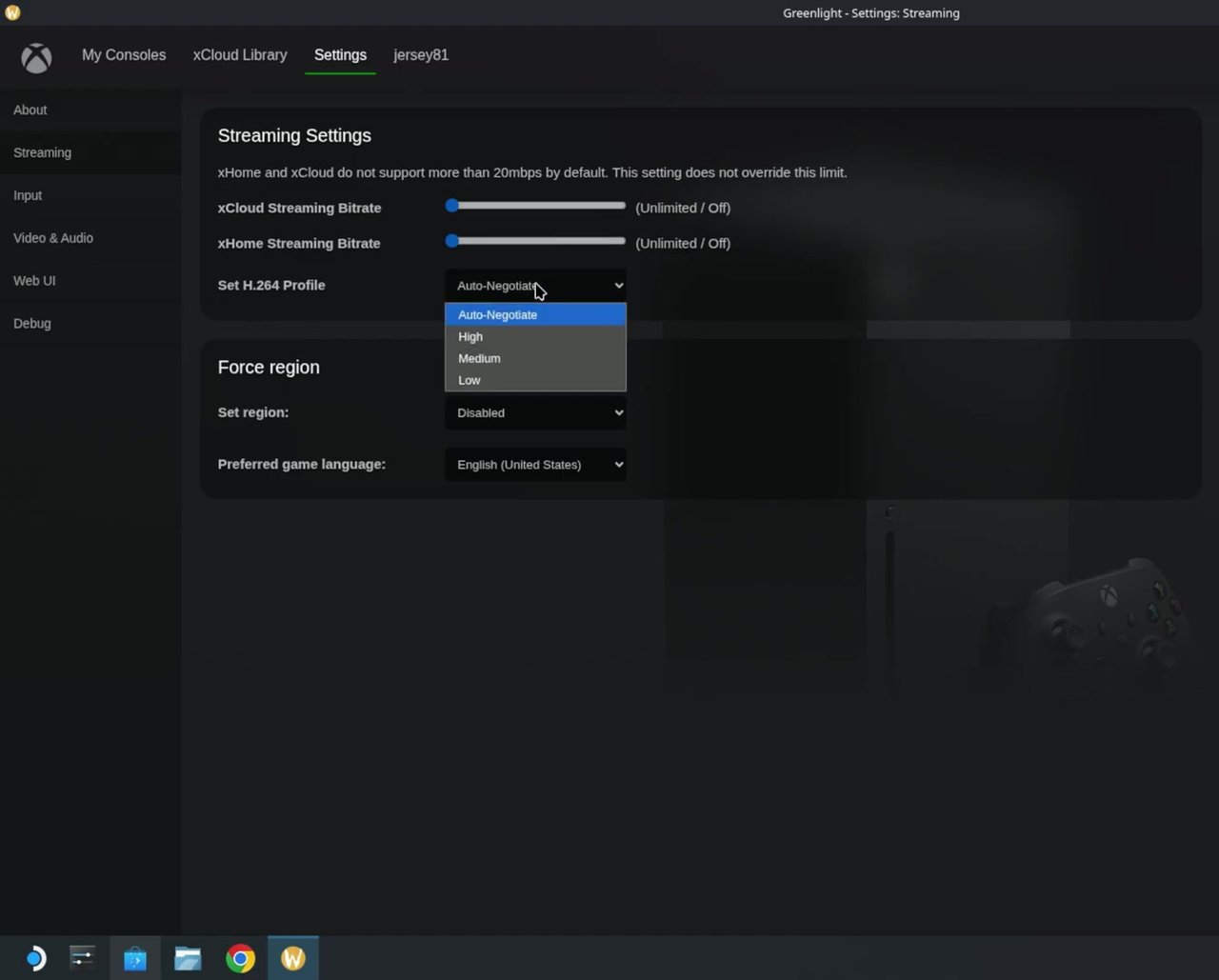
On the input page, my controller usually doesn't show up until I connect to the Xbox for the first time, and that's what I saw here: no controller detected yet. In Greenlight, there is no controller support in the app until you connect, so you need the trackpad to get around before that.
Add Greenlight to Steam
Before you start a stream, add it to Steam so it's there in gaming mode. Open Steam in desktop mode, click the plus at the bottom left, choose Add a game, then Add a Non-Steam Game. Find Greenlight, check it off, and click Add Selected Programs. I didn't bother with artwork for the video, but you can always add that later.
Return to gaming mode, go to Non-Steam games, and open Greenlight.
Greenlight controller layout
You don't have to do as much work here as you do with the Chrome setup, but the controller layout still matters, especially on the Steam Machine where you don't have a touchscreen. In controller settings, switch the template to Gamepad with Mouse Trackpad and apply it.
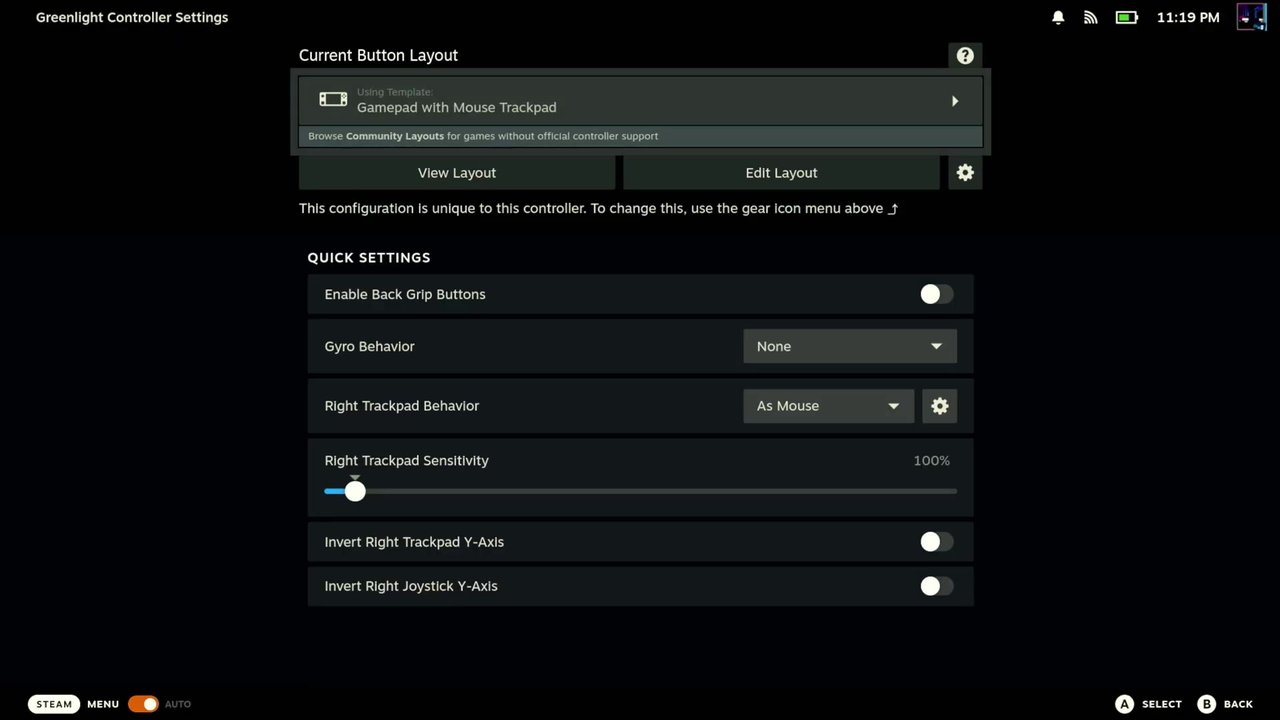
Then go to Edit Layout → Trackpads and change the right trackpad click from Right Stick Click to Left Mouse Click. That makes it much easier to navigate the app before you're connected.
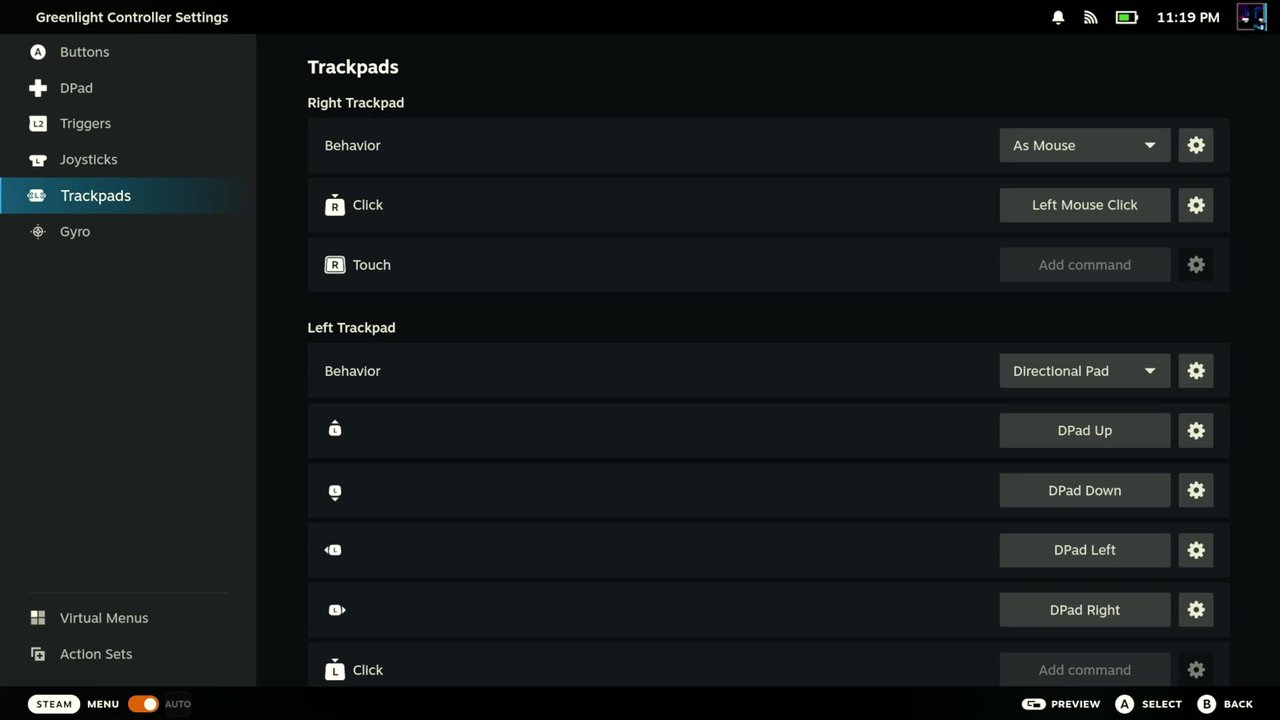
I also bound L4 to the N key. N is the shortcut for the guide button in Greenlight, so that made it easy to bring up the guide. You can use a different button if you'd rather.
From there, choose remote play (not cloud gaming), and start the stream. I let the first connection run in real time, and it was pretty quick. On the 16:10 desktop recording I was doing, the 1080p stream was letterboxed all the way around. It looks a lot better on the actual Steam Deck, or if you dock to 1080p.
Google Chrome: install and controller access
This is the official browser method, and again it's the same on the Steam Deck or the Steam Machine. If you don't already have Chrome on the Steam OS device, go back to the Discover store, search for Google Chrome, and install it. That's the easiest one I've found. Edge is the other official option from Microsoft, but I've been having good luck with Chrome.
Once Chrome is installed, you need a command in Konsole so the controller can work through Chrome. I'll put that here so you can copy it:
flatpak --user override --filesystem=/run/udev:ro com.google.Chrome
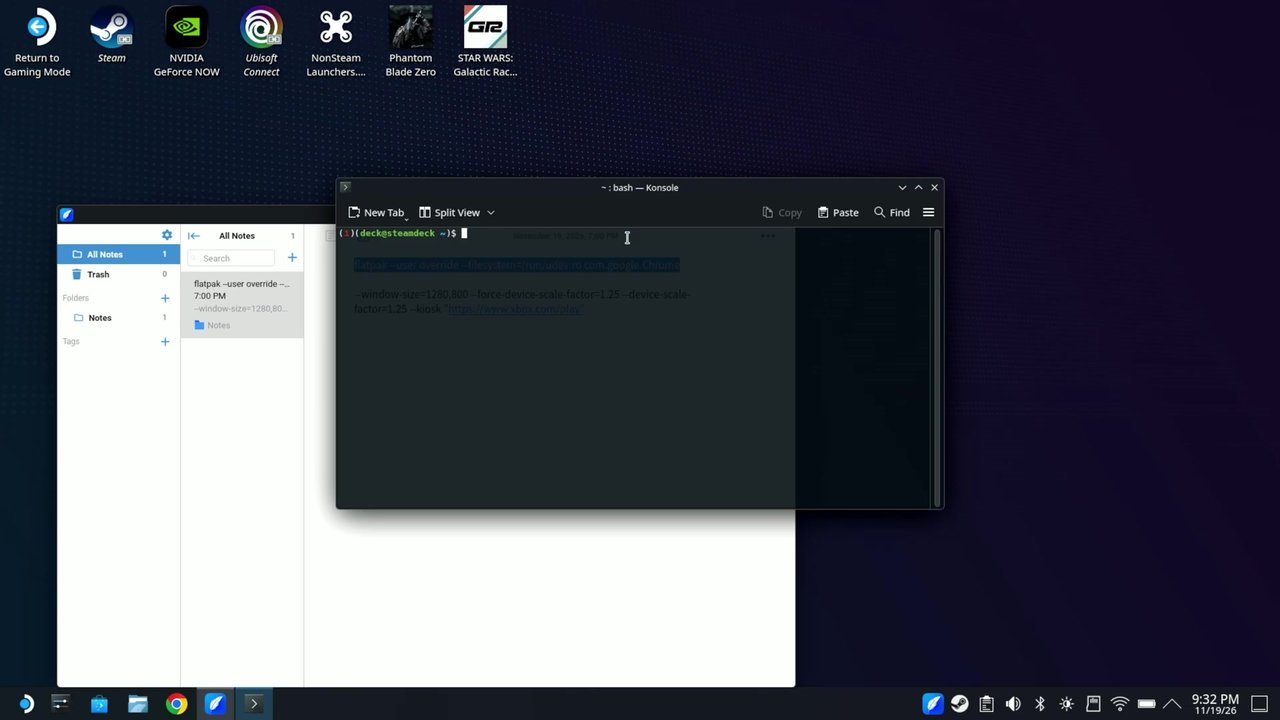
Paste it into Konsole, bring up the keyboard if you need it, and press Enter.
Add Chrome to Steam and set the launch options
Add Chrome to Steam the same way you did with Greenlight: Add a Non-Steam Game, find Google Chrome, and add it. Then open its Properties and go to the launch options.
You need to paste the launch options after what's already there, not instead of it. Go all the way to the end of the line, to the @@u @@ part, and paste this after it:
--window-size=1280,800 --force-device-scale-factor=1.25 --device-scale-factor=1.25 --kiosk "https://www.xbox.com/play"
Those window settings make it look more like an app instead of a browser page, which is what you want in gaming mode. On a TV, change the window size to --window-size=1920,1080 so it fits 16:9. That's what I did on the Steam Machine, instead of the 800p window I used on the Deck.
I also renamed Google Chrome to Xbox Remote Play so it's easier to find in the list. You can add Chrome more than once and rename the shortcuts if you want separate ones.
Chrome controller layout, then sign in
Head back to gaming mode, open the renamed Xbox Remote Play shortcut, and set the controller the same way: Gamepad with Mouse Trackpad, then change the trackpad click to Left Mouse Click. I didn't add any other shortcuts for this one. The right trackpad covers anything the controller won't do once you're in the stream, like the menu in the top left.
Sign in, and you'll have access to your settings, your console, and streaming. In Settings → Audio & Video, I switched Remote Play resolution to 1080p High Quality. I'm usually at 1440p for streaming to my other PCs, but I went with 1080p here since it's going to kind of cap me that way anyway.
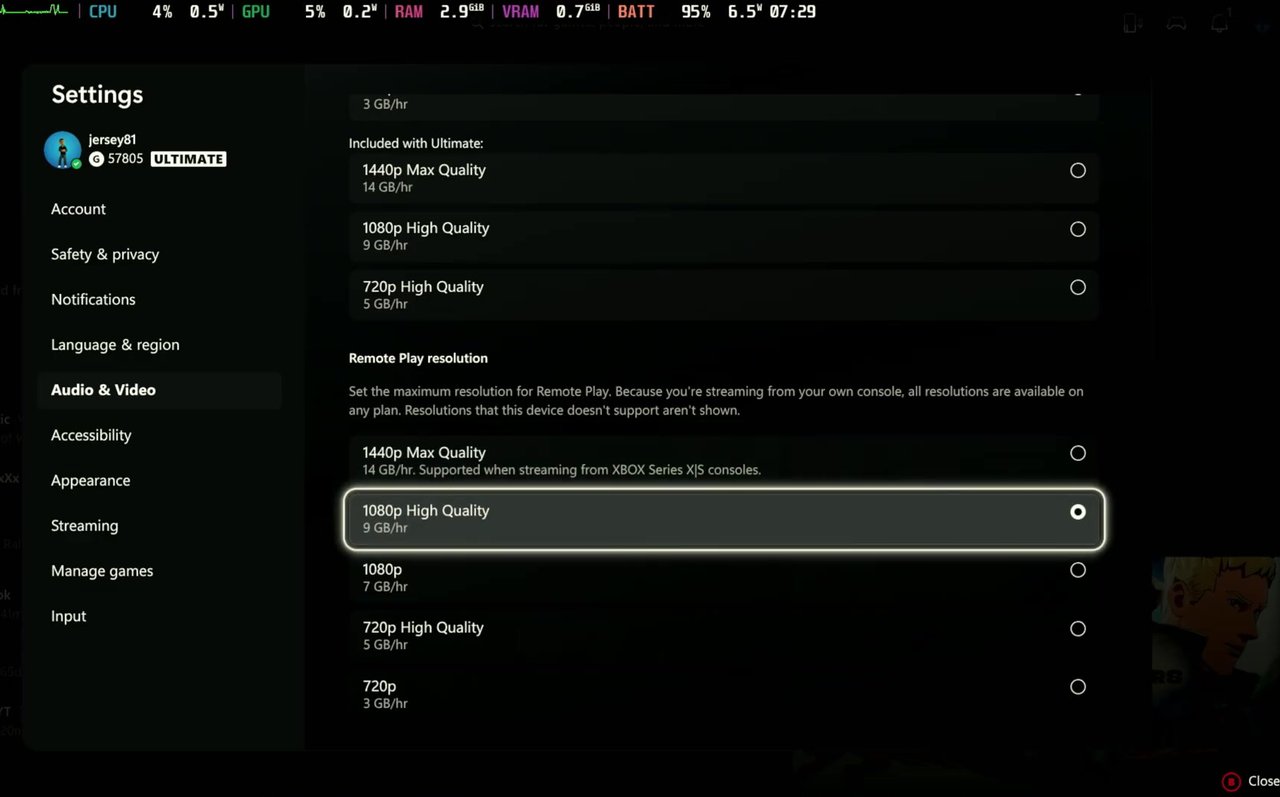
Then go to Remote Play and pick your console. Mine was listed as Living room Xbox. If it isn't already connected, you can add it here, especially if you're signed into the same account on both. On xbox.com/play, make sure you pick your console for Remote Play, not Cloud Gaming.
The right trackpad also gets you to the Xbox guide (that's the actual guide on your Series X, so you can go home) and the three-dot menu for full screen, settings, and disconnect. Other than that, controller support handles the rest pretty easily.
Stream overlay readings
These are readings from the Xbox Remote Play stream overlay in the browser, not a benchmark I ran. The stream FPS is the remote play stream, not the game's 30 FPS on the console. A few of the moments I checked, all at 1080p High Quality:
| Moment | Stream | Overlay |
|---|---|---|
| Chrome, Xbox home (setup recording) | 1080p 60 | Ping 2 ms; jitter 1 ms; decode 1.1 ms; bitrate 15.6–17.8 Mbps; packet loss 0.00% |
| Same session, one brief spike | 1080p 59 | Ping 45 ms; jitter 6 ms; decode 1.7 ms; bitrate 13.5 Mbps; packet loss 0.00% |
| Chrome on the Steam Deck, in-game, on foot | 1080p 60 | Ping 3 ms; jitter 1 ms; decode 1.2 ms; bitrate 13.6 Mbps; packet loss 0.00% |
| Chrome on the Steam Deck, in-game, driving | 1080p 59 | Ping 3 ms; jitter 1 ms; decode 1.3 ms; bitrate 17.7 Mbps; packet loss 0.00% |
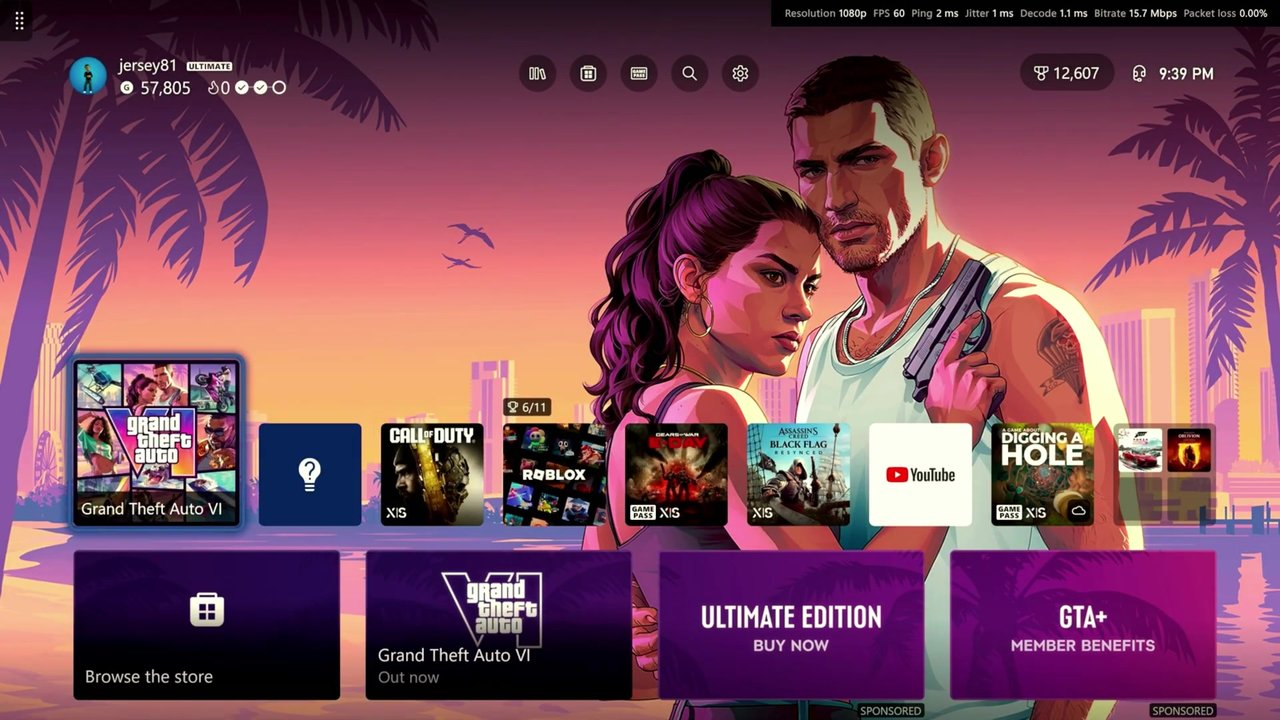
Most of the time the overlay was around 2–3 ms ping and 1 ms jitter, with bitrate in the mid teens and no packet loss. There was one brief spike to 45 ms ping and 6 ms jitter on the Xbox home screen before it settled back down.
Using it on the Steam Deck
On the Steam Deck, Greenlight works fine and fills the screen properly at 800p. I really didn't have any problems with it on the Deck. I still preferred the way the browser was working and feeling when I was playing, but Greenlight is a solid option here.
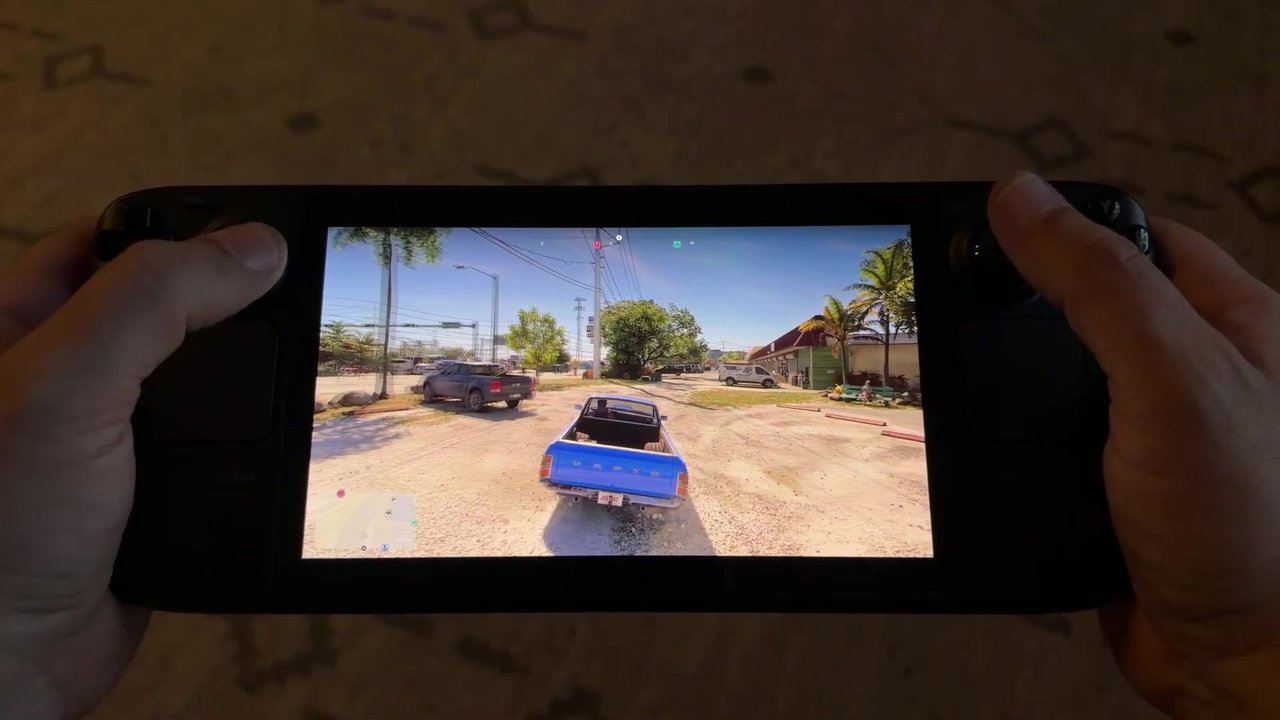
On my network I really didn't have problems with the actual visuals or stream quality. It's really just the extra input latency from the game being 30 FPS and then being streamed on top of that. Streaming is usually a lot better with 60 FPS and up. Visual quality wise, I really couldn't complain other than that.
With the Chrome shortcut, the launch options cut the browser chrome off and make it look like an actual app. It runs great, with full controller support, plus the right trackpad and the touchscreen. I was using a newer look in the browser as an insider, and I think that's rolling out to everybody soon enough. I resumed GTA 6 right where I left off in Greenlight. I don't really notice much of a difference in image quality between the two. Input latency is very similar, though the browser felt a little better for me.
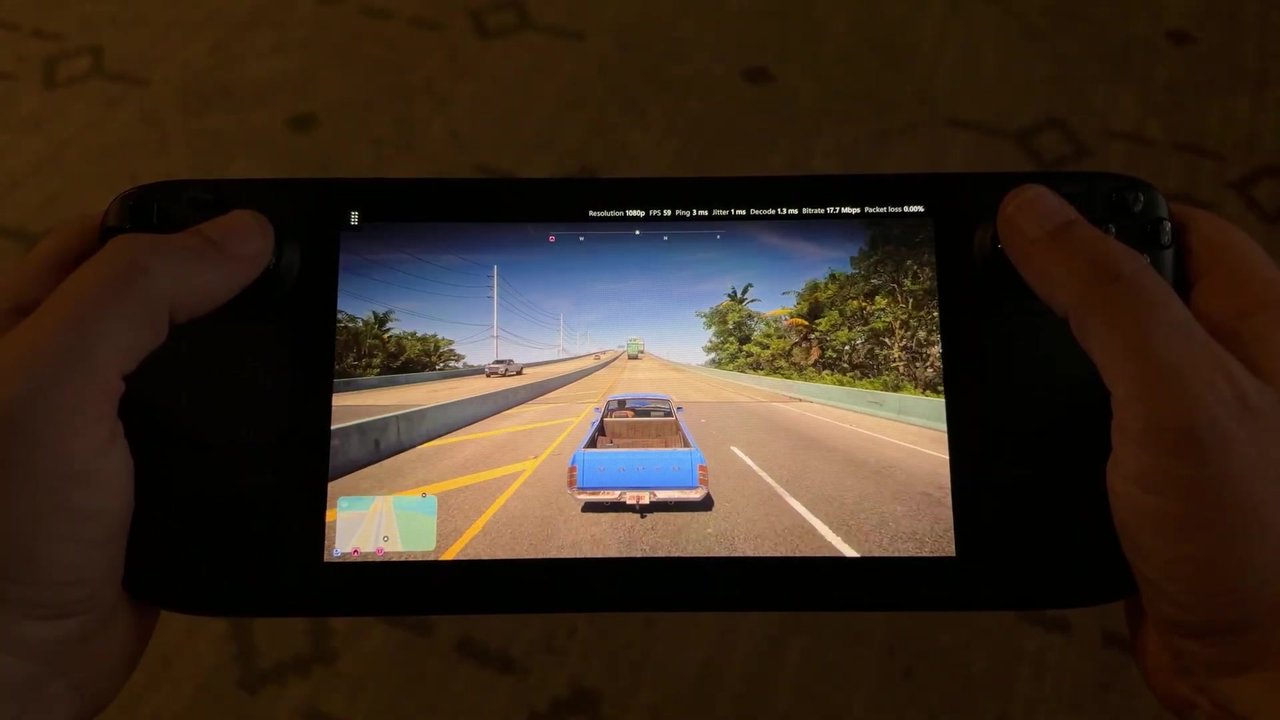
It's only going to feel and work so good when you're streaming a 30 FPS game to another device, but for the most part it stays fairly playable. I think it might struggle later on in some combat, or if I'm driving faster cars and really having to weave in and out of traffic. That extra latency from a 30 FPS stream could cause some problems and maybe fail some missions. If I keep it kind of light when I'm doing remote play, I really don't think it's an issue. I've been enjoying it the past couple of nights on the couch while my wife's got the TV, and I kind of know the limitations of the streaming here.
Using it on the Steam Machine
The setup is the exact same on the Steam Machine: Greenlight, and the Xbox Remote Play shortcut for Chrome. I used the 1080p window size in the launch options instead of 800p, so it fits 16:9 on the TV.
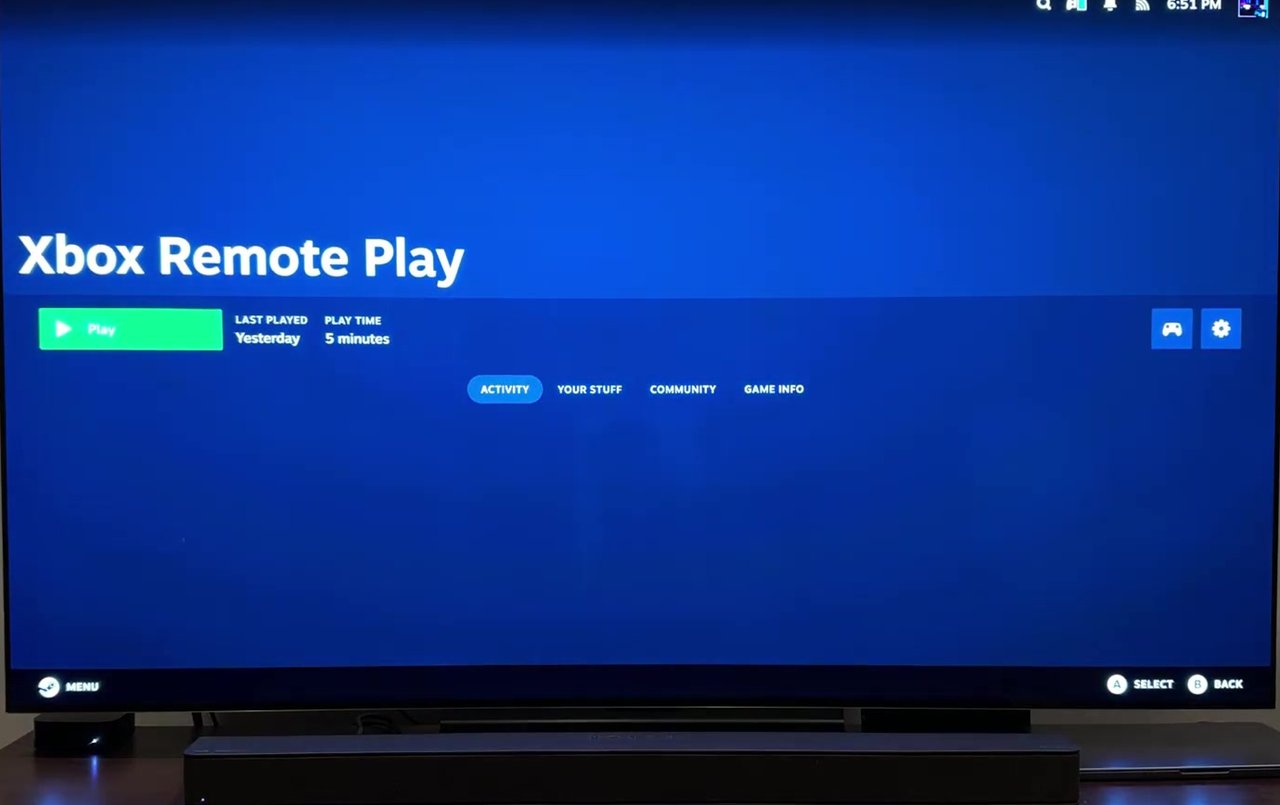
When it came to actually using them, the browser method was just a bit better for me. I set up Greenlight with the same controller layout and the N key for the guide, but Greenlight itself just didn't work as well here. It stayed 16:10 no matter what I did, and I could never really get it to go full screen. I don't know if that's just something on my end, but I preferred the browser method.
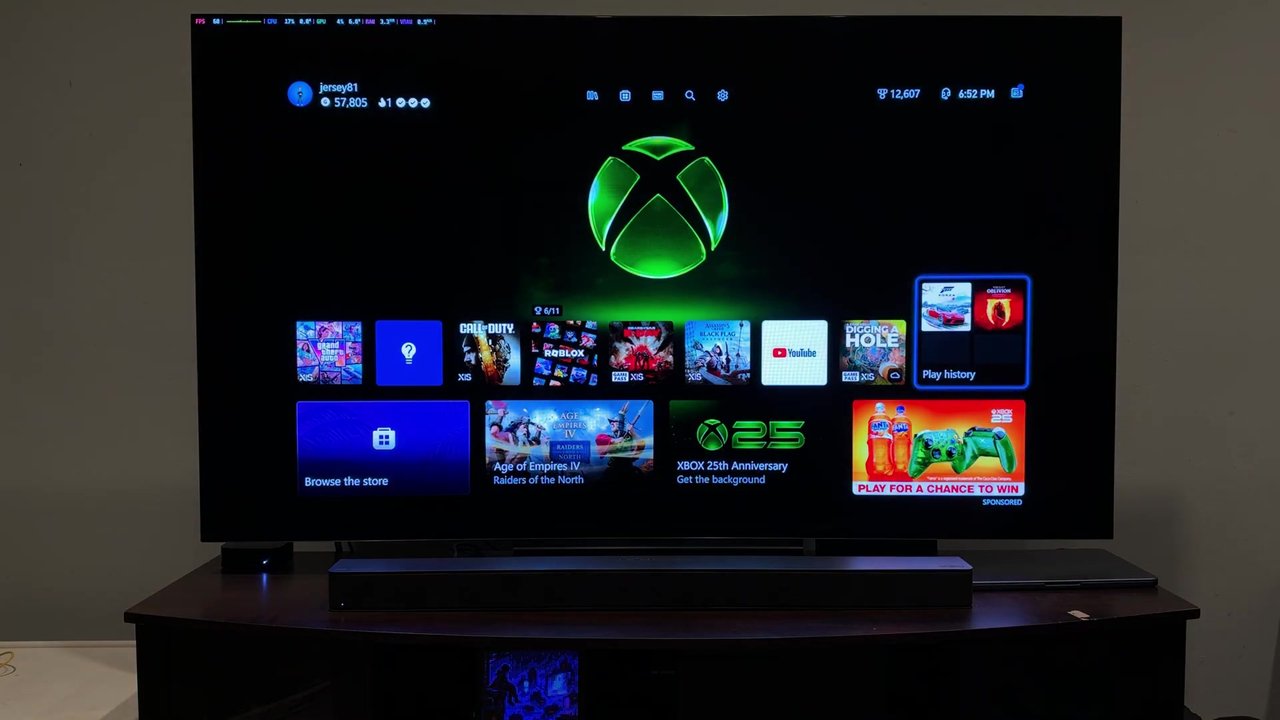
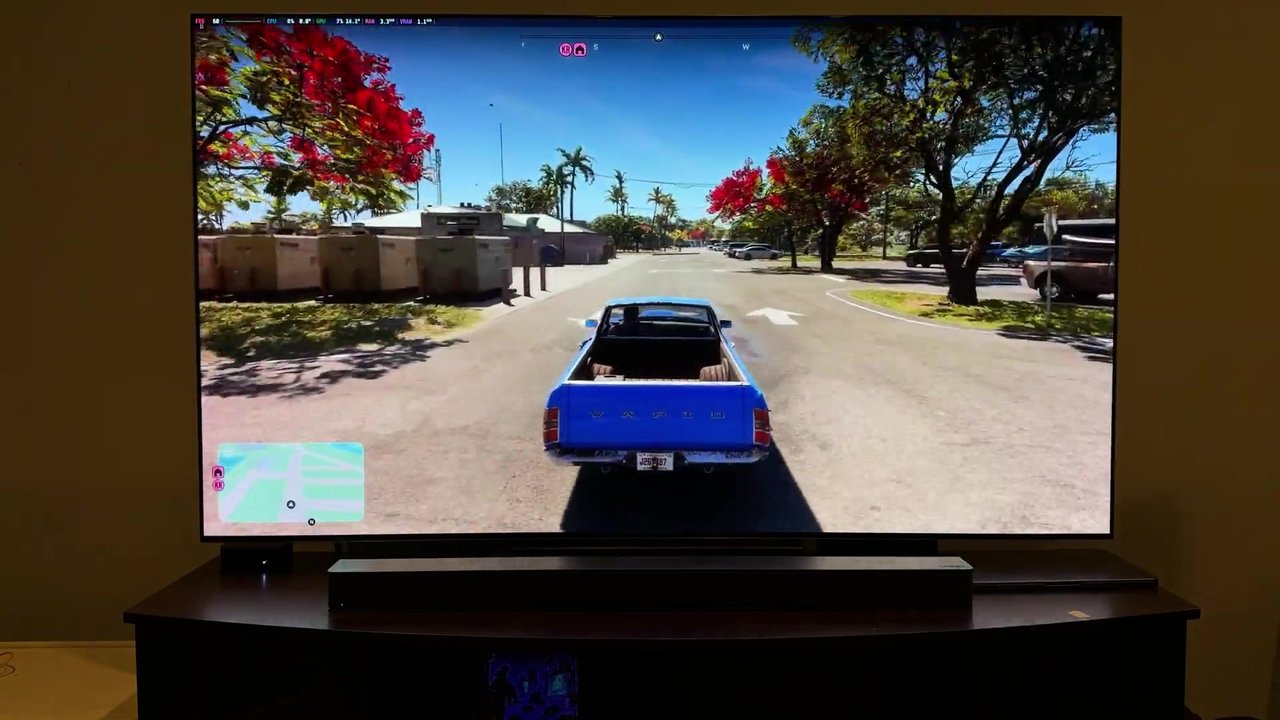
With Chrome, everything worked great. I had no problems, and full controller support right off the bat. It was a pretty good experience on the Steam Machine, actually. Out of all the devices I've tried so far, and I know this isn't a handheld, it's been the best as far as latency. Picture quality looks pretty good on my 4K OLED TV, streaming from the Series X.
How it felt
You still get some additional input latency with a 30 FPS game over a stream. That's just the way it is. I do recommend turning motion blur off in the settings. For me, that helps a bit with 30 FPS in general, and it also helps a bit with streaming when you're moving around.
That's the full setup for remote playing GTA 6 from an Xbox Series X or Series S. There's no cloud gaming for this other than consoles right now. It was still a good grab from Xbox to get it streaming on Xbox One, so people there at least have a chance to play it. I'd imagine they have a similar experience, where a 30 FPS game can still be pretty rough. But if it's your only option, at least you have it.
FAQ
Can you play GTA 6 on the Steam Deck or Steam Machine through Xbox Cloud Gaming?
Not right now. Xbox Cloud Gaming for GTA 6 is locked to consoles, so I used Xbox Remote Play from my own Series X instead.
Should I use Google Chrome or Greenlight on Steam OS?
I prefer the Google Chrome method right now, especially on the Steam Machine. Greenlight worked fine on the Steam Deck and filled the 800p screen. On the Steam Machine, it stayed 16:10 and I could never really get it to full screen.
What Remote Play resolution did you use?
I set Remote Play to 1080p High Quality. I'm usually at 1440p when I stream to my other PCs, but I went with 1080p here. The stream overlay read a 1080p 60 stream (sometimes 59).
Why does GTA 6 feel laggy over Remote Play?
You're streaming from a console, and the game itself is running at 30 FPS, which adds to the input latency. On my network I really didn't have problems with the visuals or stream quality, and the Chrome method on my 4K OLED TV was the best latency I've had so far. I still recommend turning motion blur off.
Want more handheld tests?
New Steam Deck, ROG Ally, Legion Go and Steam Machine performance videos every week.