 ▶Watch on YouTube
- Lenovo released BIOS 14WW (RRCN14WW) for the Legion Go 2 Z2 Extreme on February 4, 2026, a little less than 2 months after 13WW.
- The change list includes an MP2 firmware update for SteamOS, several security fixes and some balance tweaks.
- It wasn't in Legion Space or Windows Update for me. I got it from the Lenovo support site.
- The install took about 8 to 10 minutes, including the scary-looking red blinking lights. That's normal.
- Cyberpunk 2077 benchmark: 65.24 FPS on 14WW vs 64.92 on 13WW at 25W, and 46.88 vs 46.65 at 17W. Very negligible, but nothing broke.
- Still no new GPU driver.
Lenovo dropped another BIOS for the Legion Go 2 Z2 Extreme in early February 2026, moving it from 13WW, which came out a little less than 2 months before, to 14WW. Here's how I installed it from Lenovo's support site, what's in the change list, and a quick side-by-side of 13WW vs 14WW in Cyberpunk 2077 and Doom: The Dark Ages at 25W and 17W.
Lenovo has released newer BIOS versions since then. For the next one, see my BIOS 15WW guide, and for later, BIOS 16WW. The install process is the same.
What's in BIOS 14WW
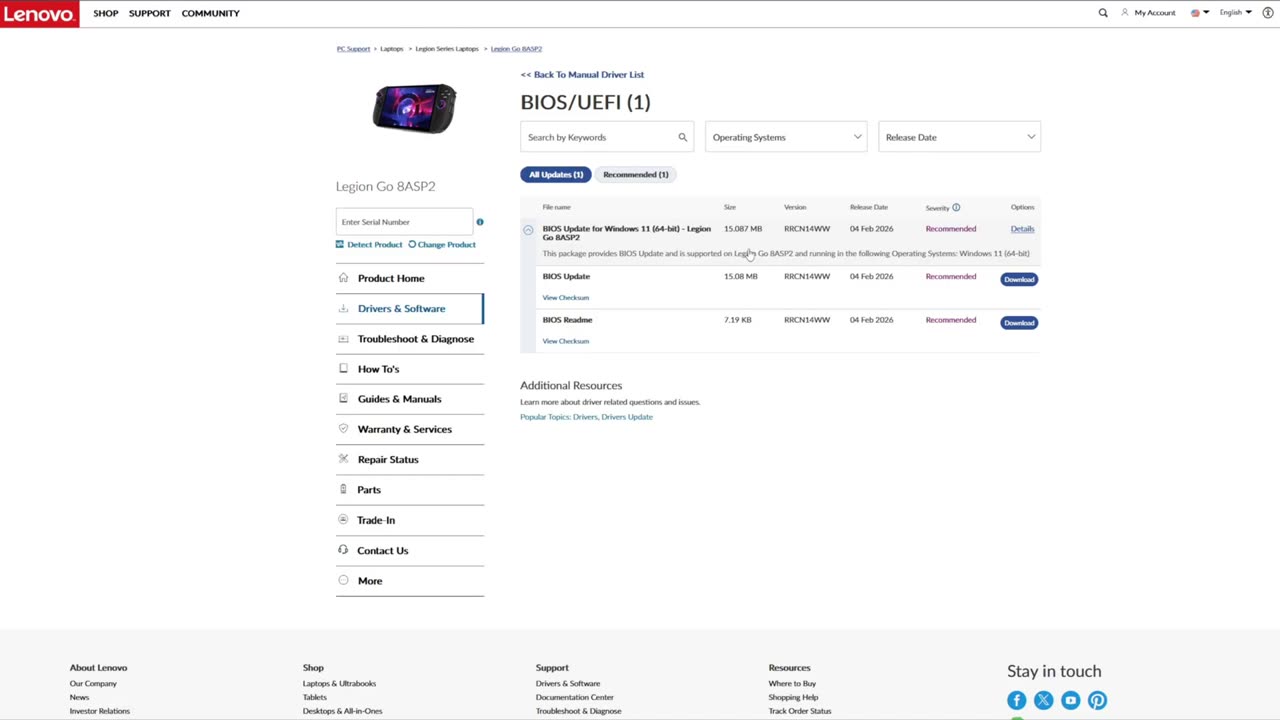
On the Lenovo support site for the Legion Go 2 (listed as Legion Go 8ASP2), the BIOS/UEFI section shows the BIOS update for Windows 11 (64-bit) as version RRCN14WW, 15.087 MB, released 04 Feb 2026 and marked Recommended. Click Details and you get the installation instructions and the summary of changes.
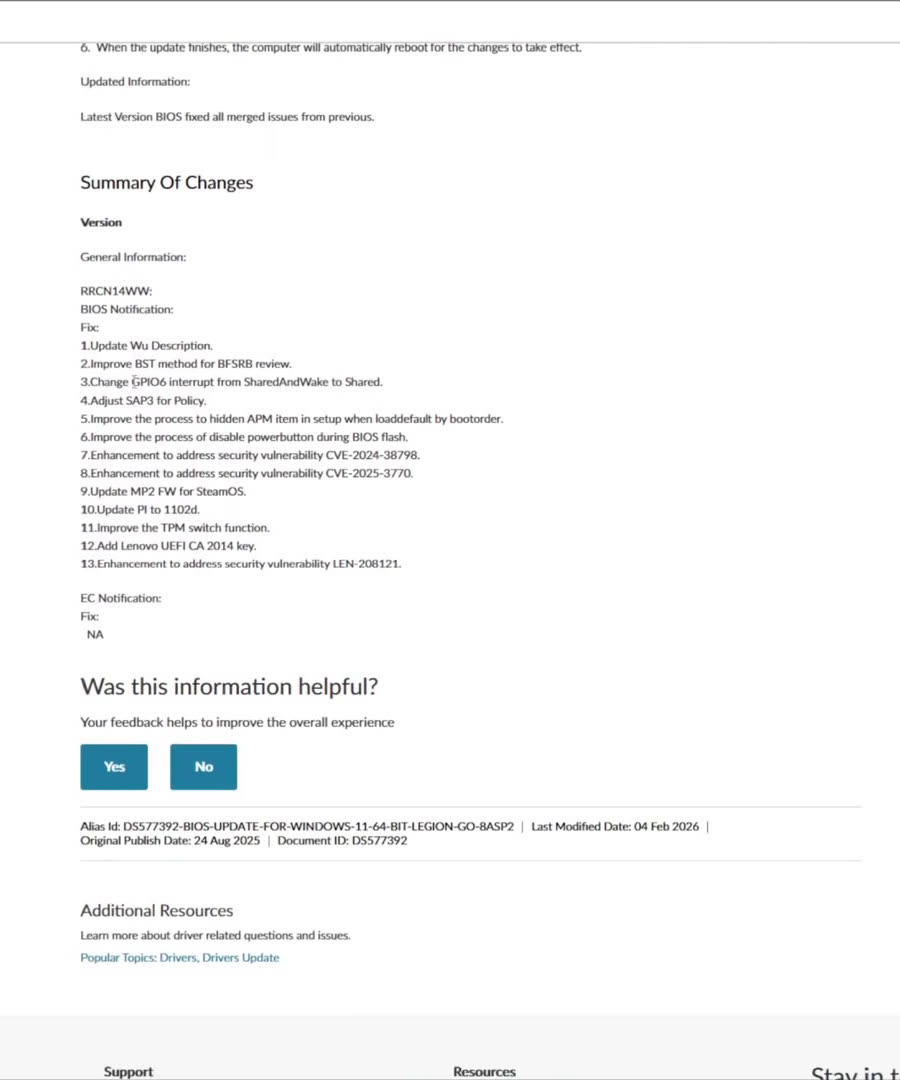
The summary of changes for RRCN14WW lists 13 fixes. The ones that stood out to me:
- Update MP2 FW for SteamOS. Lenovo has the SteamOS model of the Legion Go 2 coming out later in the year, so this is part of getting ready for that.
- Security fixes for CVE-2024-38798, CVE-2025-3770 and LEN-208121.
- Balance and housekeeping tweaks, like Update PI to 1102d, Improve the TPM switch function, Add Lenovo UEFI CA 2014 key and Improve the process of disable powerbutton during BIOS flash.
The EC notification says NA, so no embedded controller changes this time.
Before you start
- Check which BIOS you're on. In System Information, my Legion Go 2 showed the 13WW BIOS dated November 21.
- Don't count on Legion Space. 14WW didn't show up there or in Windows Update for me. I've never had updates come through Legion Space on this device since launch. It's always been Windows Update, the Microsoft Store and the support site.
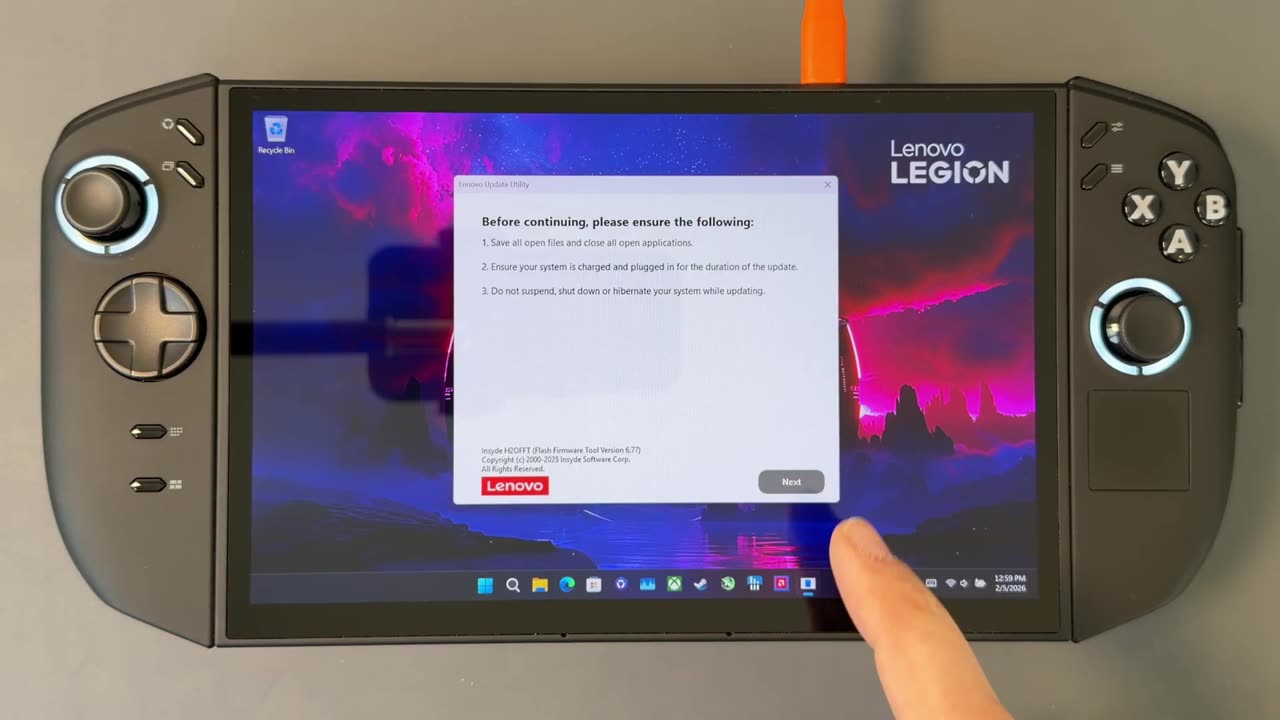
- Plug in. I always recommend being plugged into the wall or a power brick for a BIOS update, and the installer tells you to be plugged in and charged up anyway.
How to install BIOS 14WW
- Go to the Lenovo support website and find the Legion Go 2.
- Go to Drivers & Software, then Manual Update, and open the BIOS section. I went through all the other categories and didn't find any other new updates.
- Click Download on the RRCN14WW BIOS update to save it to the device.
- Plug in, open your Downloads folder and double-click the BIOS file.
- Click Next through the prompts. They tell you to save your work, stay plugged in and stay charged up.
- Don't shut down the device at any point. It restarts on its own and you'll see the BIOS update progress bar.
- After that first stage, the screen turns off and you get the red blinking lights. It looks like an error, like you broke your device, but you didn't. Let it keep going.
- It boots back up with a "do not turn off, please wait patiently" warning and another progress bar, then a final restart back into Windows.
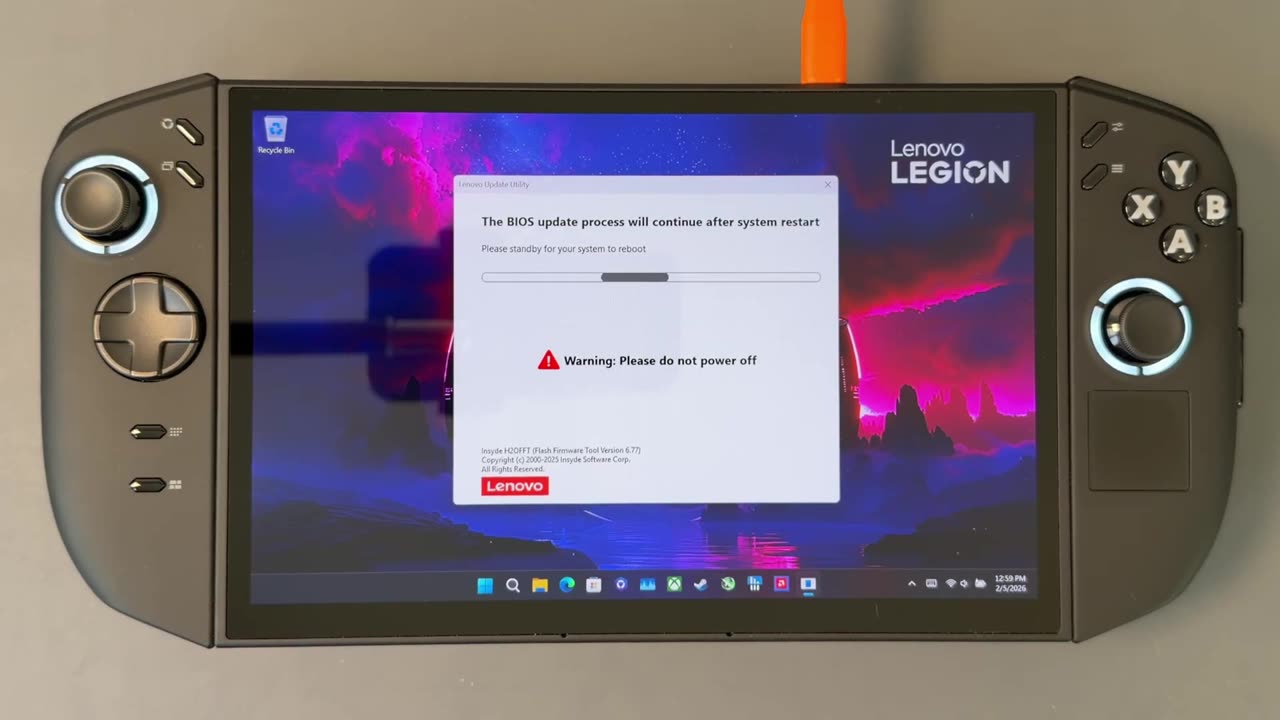
All in, it took me about 8 to 10 minutes, very similar to the last couple of BIOS updates. Back in System Information, I was on the RRCN14WW BIOS dated January 6, 2026.
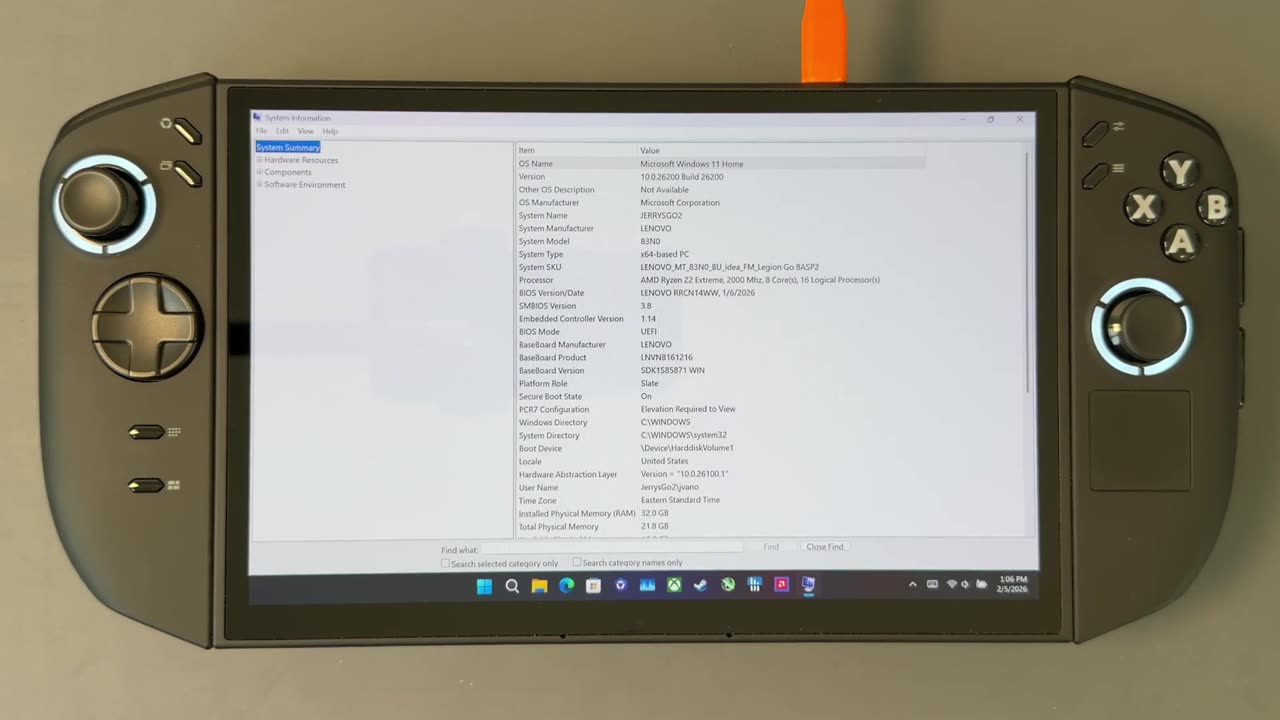
I checked around for other updates afterward and didn't find anything. I do wish we'd get a new GPU driver soon. We were still on the same driver from September.
How Cyberpunk 2077 ran: BIOS 13WW vs 14WW
I didn't expect much since this isn't a GPU driver, but I ran the Cyberpunk benchmark on both BIOS versions at 25W and 17W to look for problems or differences. The results screens show Cyberpunk 2.31 on Radeon Software 25.10.30.01, Windows 11 Home.
| TDP | BIOS 13WW avg (min / max) | BIOS 14WW avg (min / max) |
|---|---|---|
| 25W | 64.92 FPS (53.77 / 77.74) | 65.24 FPS (54.16 / 77.54) |
| 17W | 46.65 FPS (38.48 / 58.53) | 46.88 FPS (38.95 / 58.84) |
Numbers are from the in-game benchmark results screens in the video. At times the newer BIOS comes out a little ahead during the run, and by the end it's less than an FPS of difference at 25W. I saw a couple of posts online where people were getting 2 or 3 FPS more in certain games, and I could see that being the case in some real-world gameplay. At 17W it's also very similar. I actually saw more difference at the higher end, 20 to 25W, than at 17W this time, but they did already improve 17W and 15W in the last BIOS update with 13WW.
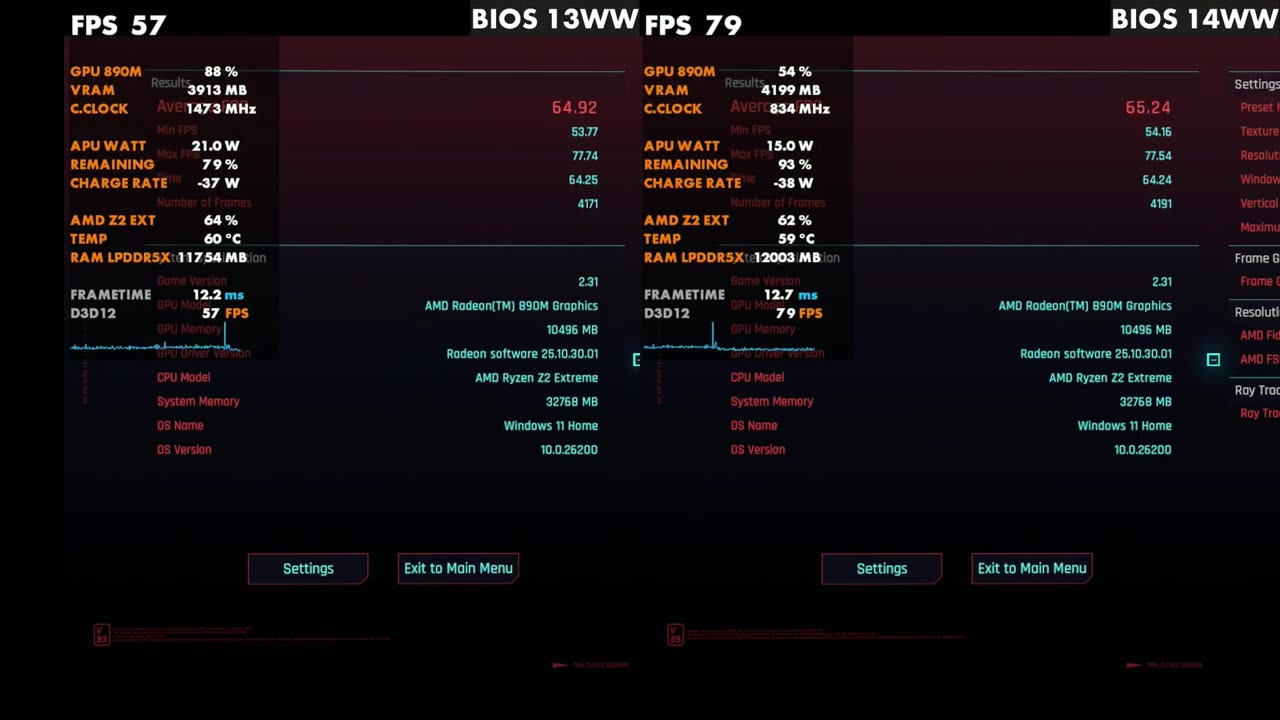
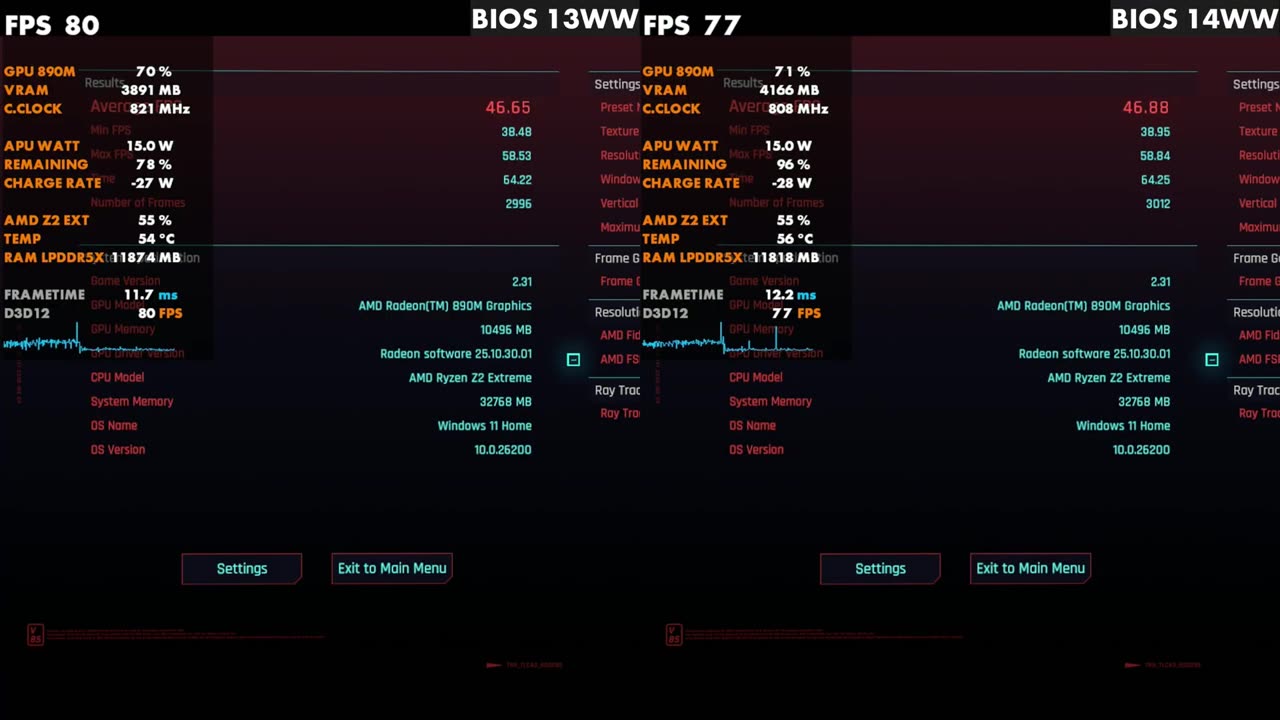
I also loaded into the same spots in the open world and just stood still at 17W and 25W. That's never the best way to tell since cars and people spawn differently, but in real-world gameplay it did feel like the newer BIOS came out a little ahead, at least at 25W in Cyberpunk.
How Doom: The Dark Ages ran
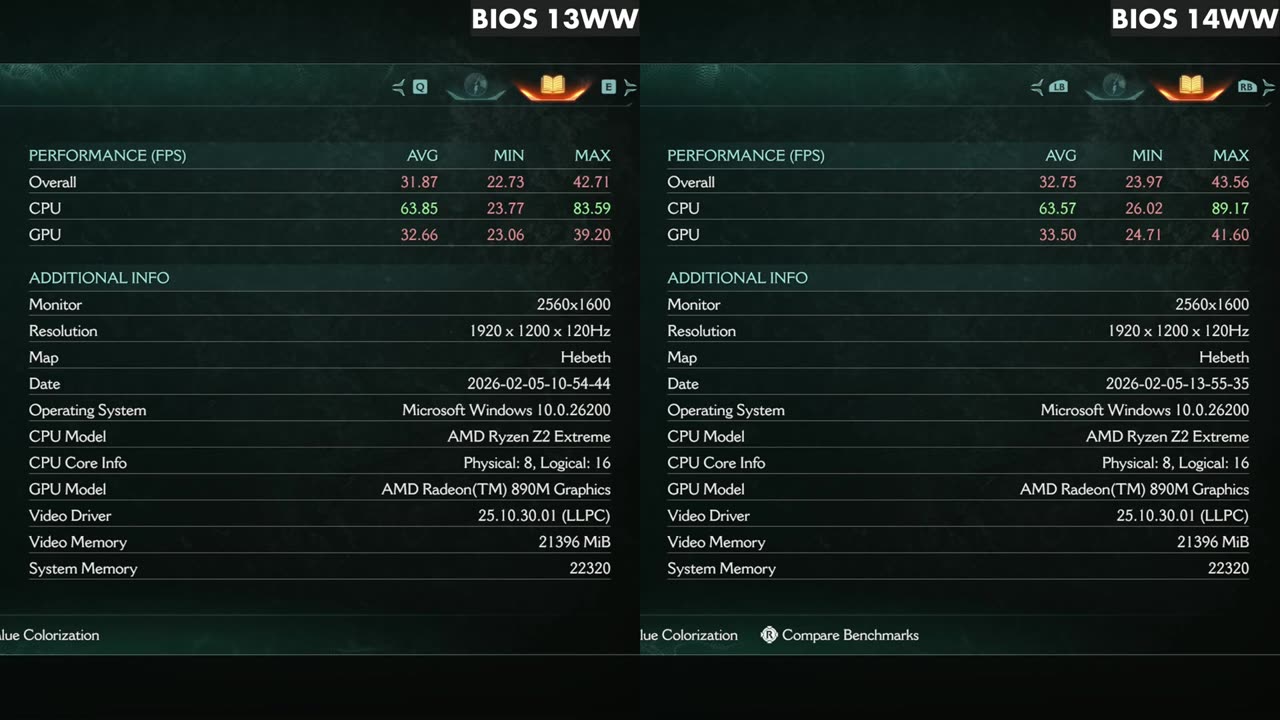
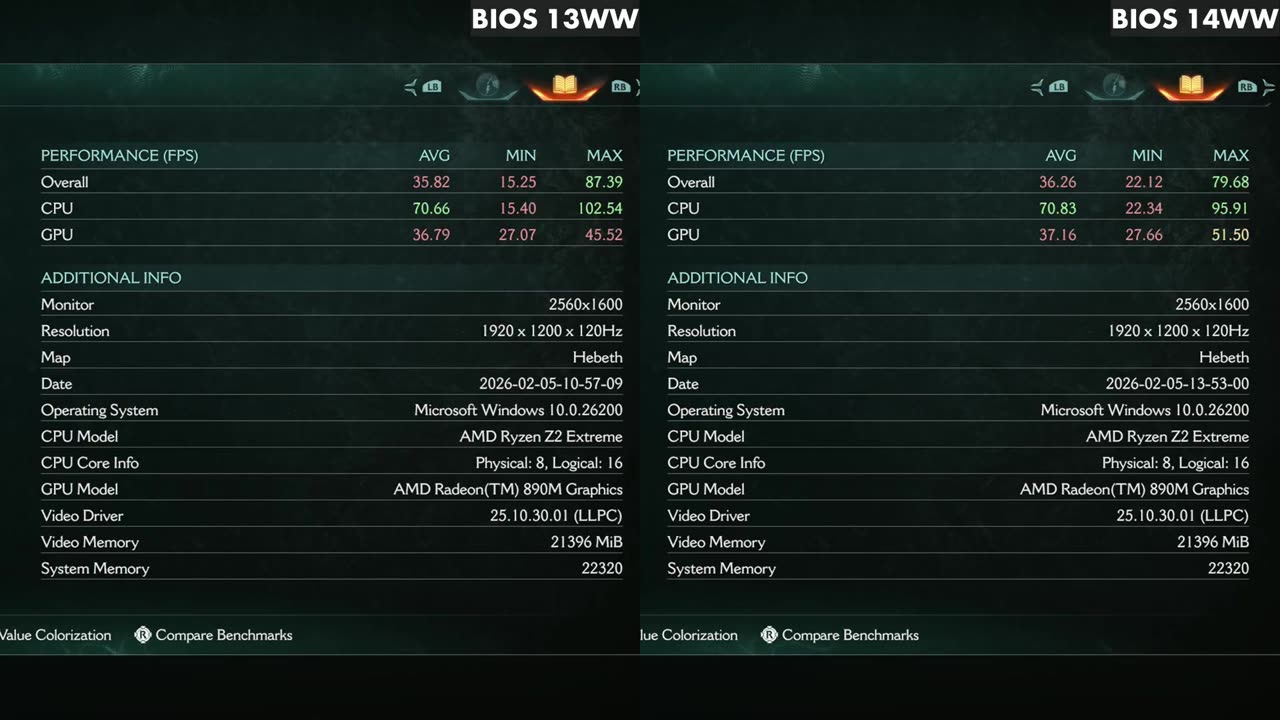
I took a real quick look at Doom: The Dark Ages with its built-in benchmark on the Hebeth map. The results screens show a 1920x1200 output on video driver 25.10.30.01.
| TDP | BIOS 13WW overall avg (min / max) | BIOS 14WW overall avg (min / max) |
|---|---|---|
| 25W | 35.82 FPS (15.25 / 87.39) | 36.26 FPS (22.12 / 79.68) |
| 17W | 31.87 FPS (22.73 / 42.71) | 32.75 FPS (23.97 / 43.56) |
Numbers are from the benchmark results screens in the video. That's about an FPS better on the newer BIOS at 17W, and a little less than an FPS better at 25W, however many times I ran it.
My take
Very similar performance, but nothing broke and nothing got worse. The BIOS installed fine, I didn't have any other problems with the system in the 24 hours of testing after, and the few games I jumped into were slightly better or the same. I'd have to go through a lot more games to see if there are any real major differences, but this one is an easy update to do.
FAQ
What does Legion Go 2 BIOS 14WW change?
Lenovo's RRCN14WW change list has 13 fixes, including an MP2 firmware update for SteamOS, security fixes for CVE-2024-38798, CVE-2025-3770 and LEN-208121, PI 1102d and a TPM switch improvement.
Where do I get the Legion Go 2 BIOS 14WW update?
From the Lenovo support site under Drivers & Software → Manual Update → BIOS. It didn't show up in Legion Space or Windows Update for me.
How long does the BIOS 14WW update take?
About 8 to 10 minutes for me, with restarts and red blinking lights along the way. The red lights are normal.
Does BIOS 14WW improve performance?
Barely. In Cyberpunk 2077 I got 65.24 FPS vs 64.92 on 13WW at 25W, and 46.88 vs 46.65 at 17W. Doom: The Dark Ages was about an FPS better at 17W.
Want more handheld tests?
New Steam Deck, ROG Ally, Legion Go and Steam Machine performance videos every week.