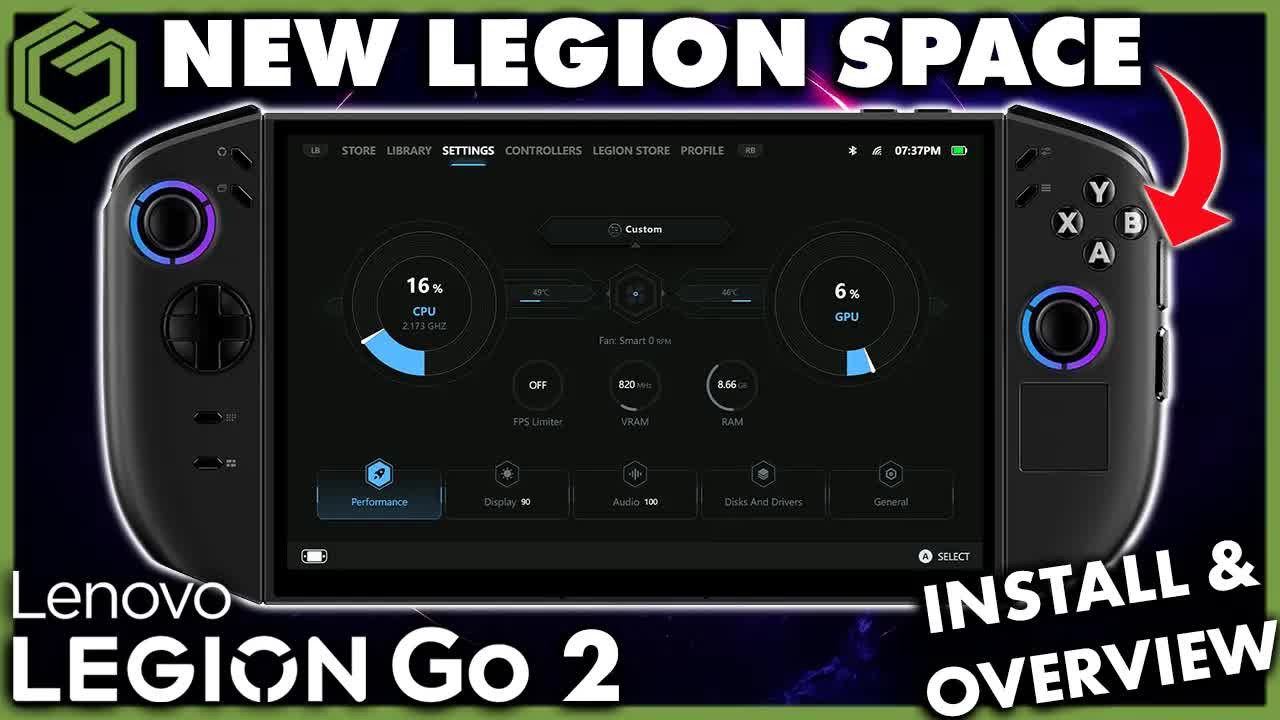
 ▶Watch on YouTube
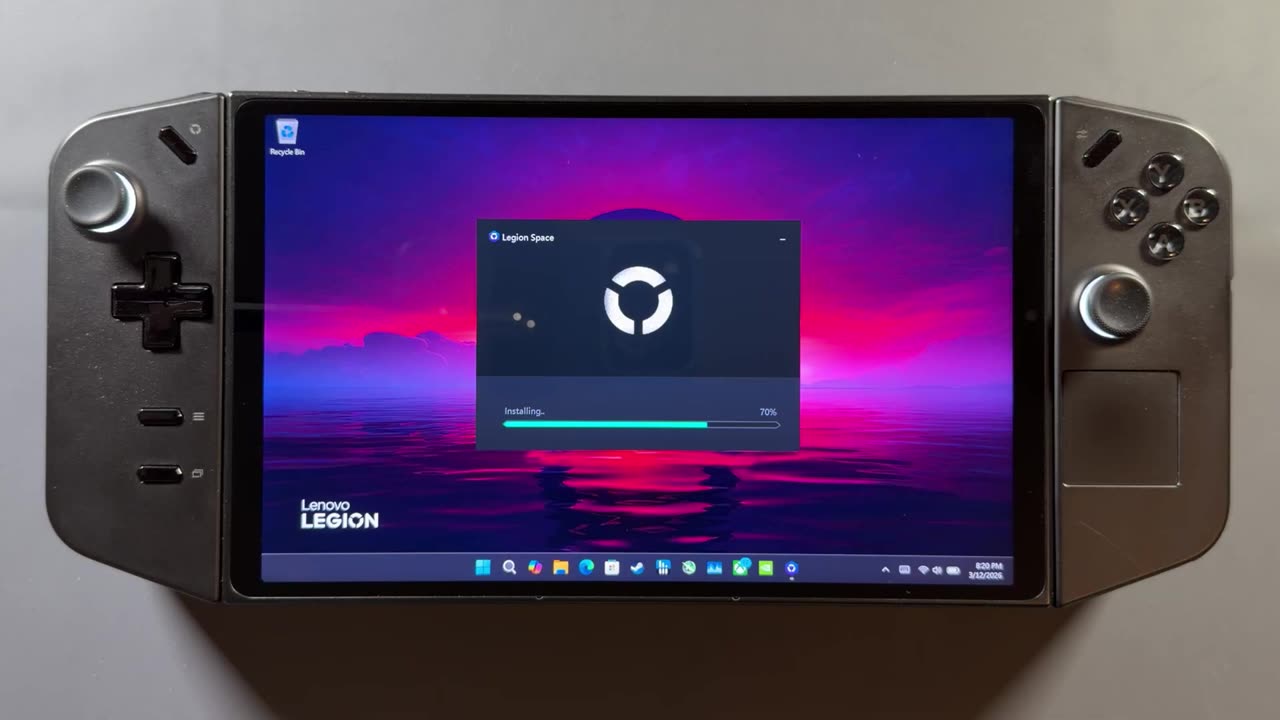
- A new Legion Space update landed in March 2026. As far as I can tell it's for all the Windows Legion Go devices. It worked on my Legion Go 2 (Z2 Extreme) and my original Legion Go (Z1 Extreme).
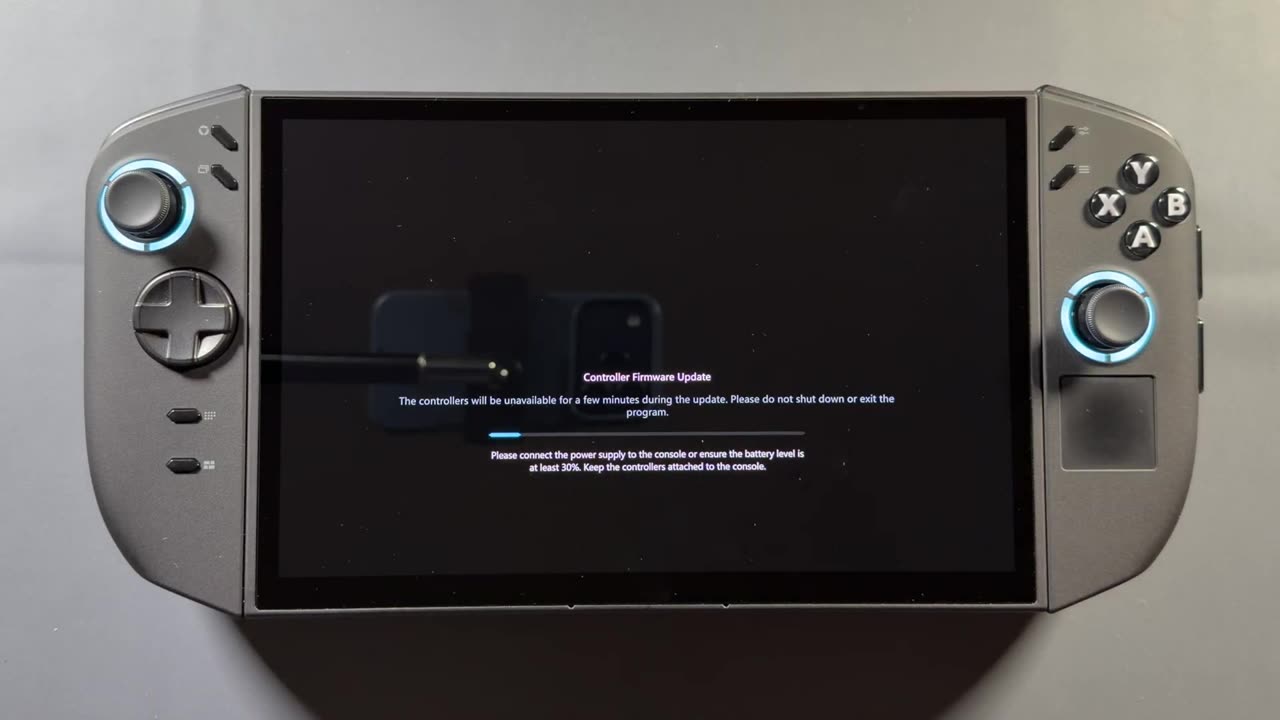
- A controller firmware update popped up on both devices too.
- Biggest change: on the Go 2, Settings → Performance now has UMA Frame Buffer Size, so you can pick your VRAM in Legion Space and restart. That ties into BIOS 15WW.
- The original Legion Go gets the same Legion Space update, but no VRAM option, since it hasn't had a matching BIOS update.
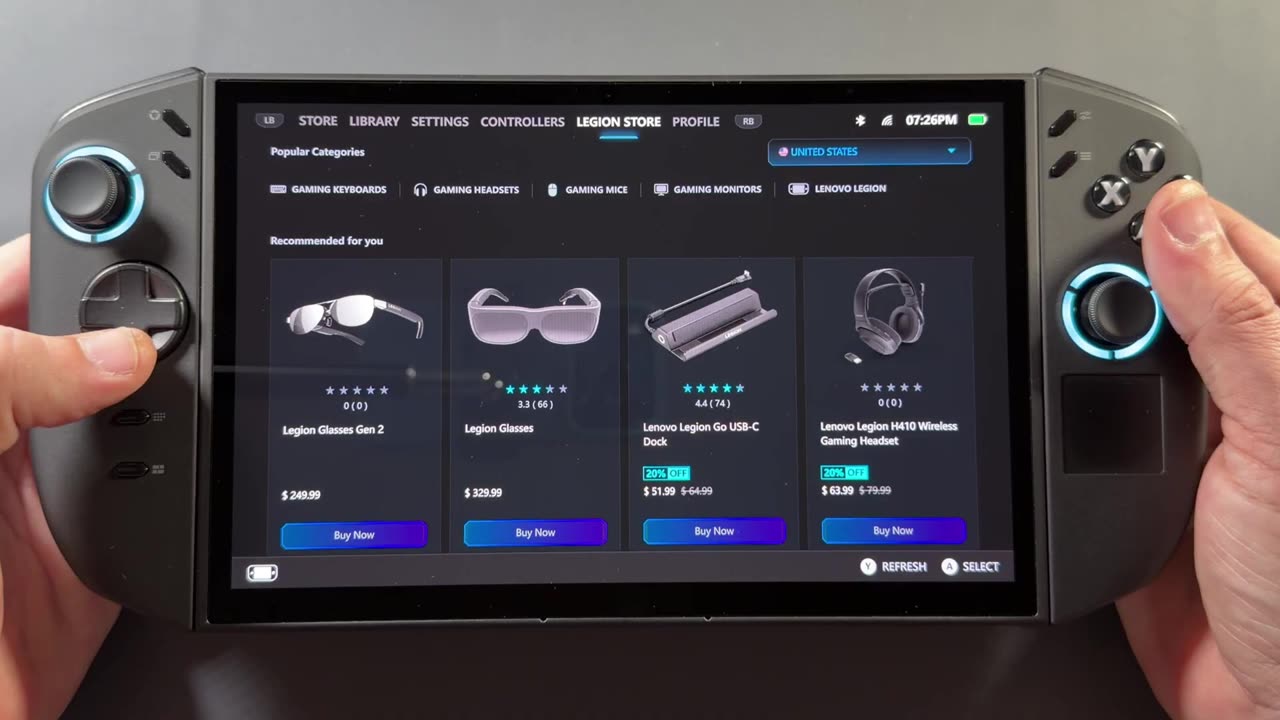
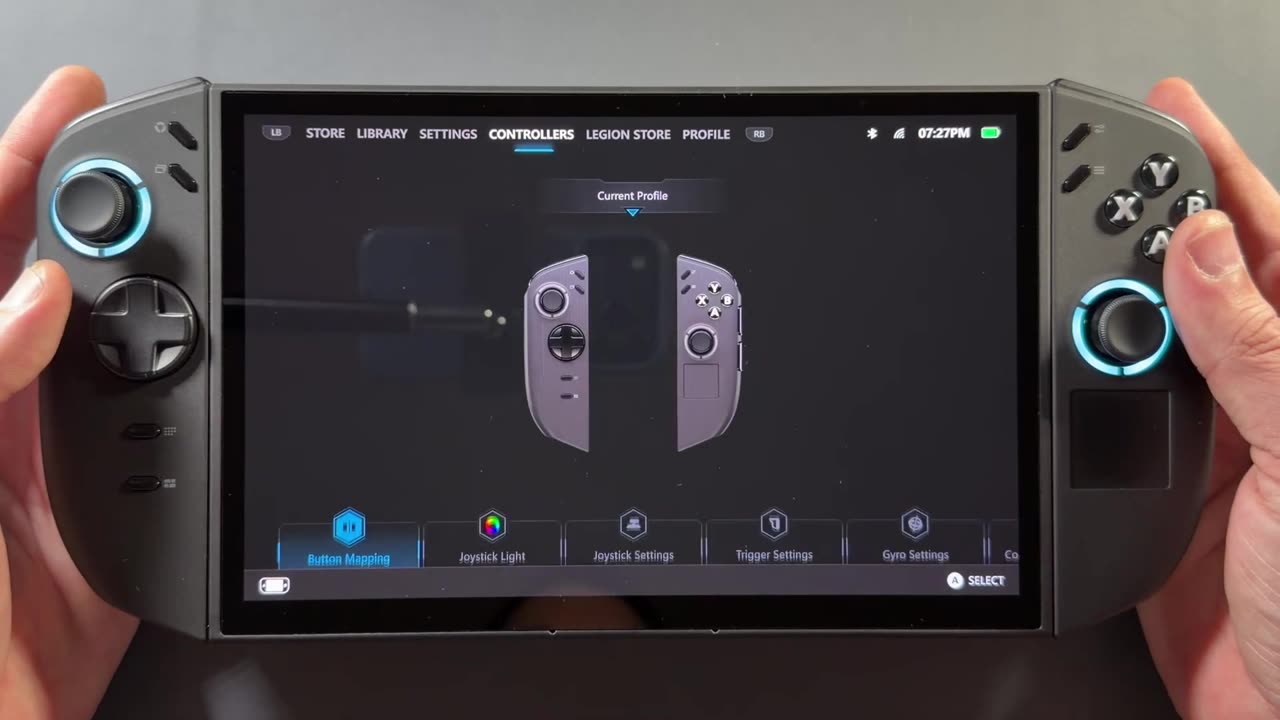
- Also new: a Legion Store tab and a redesigned button mapping screen that's easier to use with the controller. Most other settings pages only changed in looks.
Lenovo pushed out a new version of Legion Space, and it's a pretty big change in how everything looks. I updated it on my Legion Go 2 Z2 Extreme and my original Z1 Extreme Legion Go and went through every tab to see what actually changed. The most useful part, at least for me, is that the Go 2 can finally change its VRAM size right in Legion Space instead of going into the BIOS.
Before you start
- If you're on the Xbox full screen experience, I recommend switching to the Windows desktop to update Legion Space. It tends to be a bit easier.
- For the controller firmware update, the device asks you to connect the power supply or have at least 30% battery, and to keep the controllers attached. The controllers are unavailable for a few minutes while it updates, so don't shut down or exit.
- The VRAM option in Legion Space needs the Legion Go 2's BIOS 15WW. See my BIOS 15WW install guide if you haven't installed it. Lenovo has since released BIOS 16WW too.
How to update Legion Space
- Switch to the Windows desktop if you're in the Xbox full screen experience.
- Open Legion Space. It queues the update, downloads it and installs it automatically.
- If a controller firmware update pops up, let it run with the controllers attached and the device plugged in (or above 30% battery).
- If you're on the Xbox full screen experience, you'll get a pop-up about it in the updated Legion Space, since a few things tie into it.
How to change the VRAM size in Legion Space (Legion Go 2)
- Open Legion Space and go to the Settings tab.
- Open Performance.
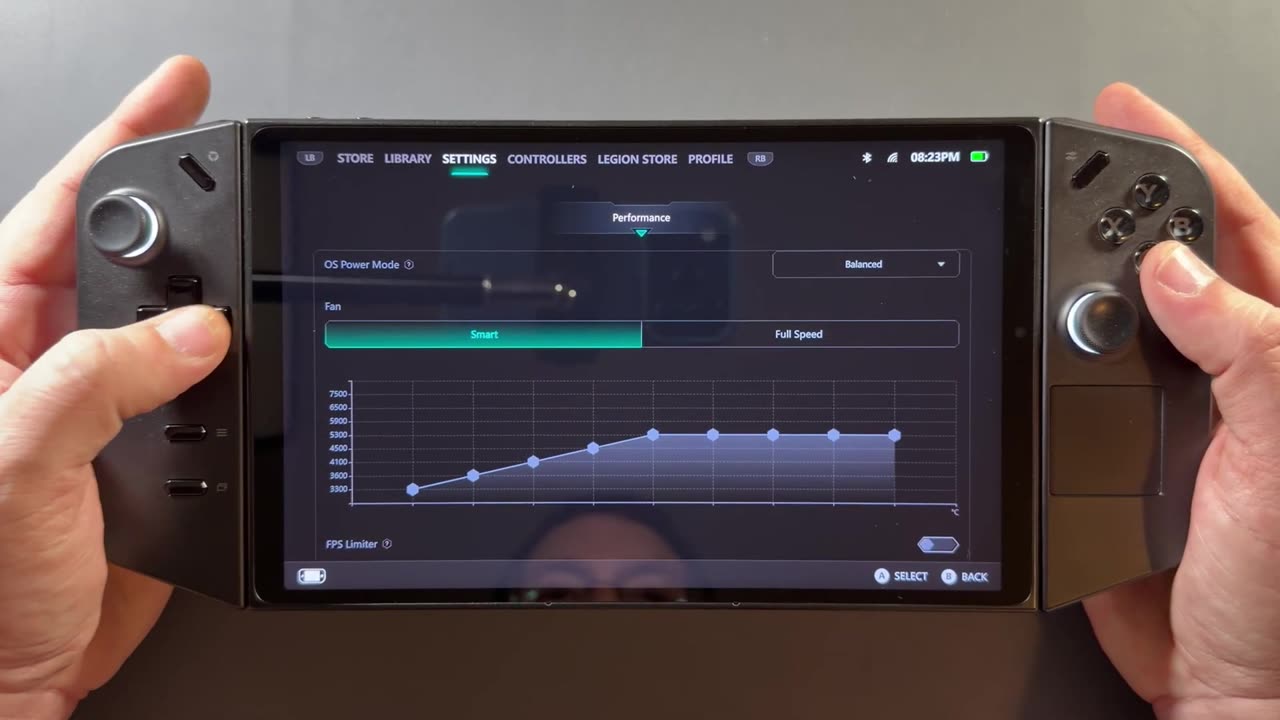
- Scroll down past the fan curve and FPS Limiter to UMA Frame Buffer Size.
- Pick your VRAM size. It has all the same options as the BIOS. Mine was set to 10GB.
- Restart the device for the change to take effect.
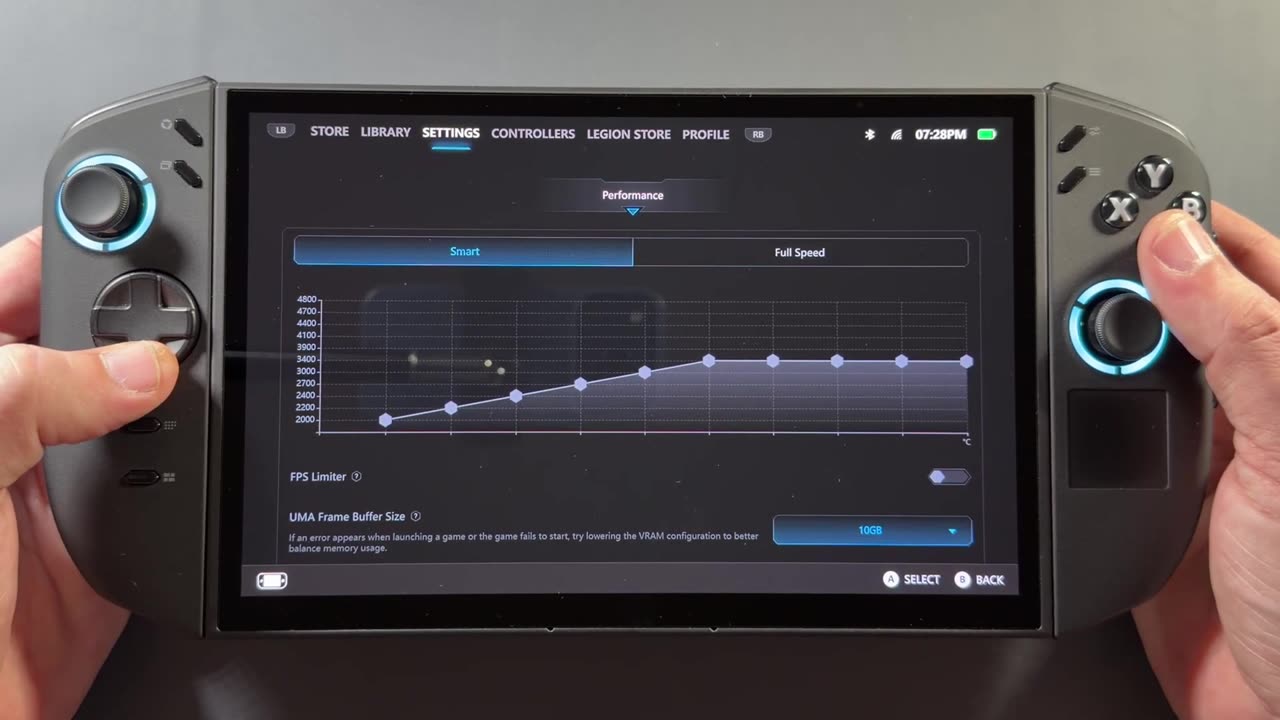
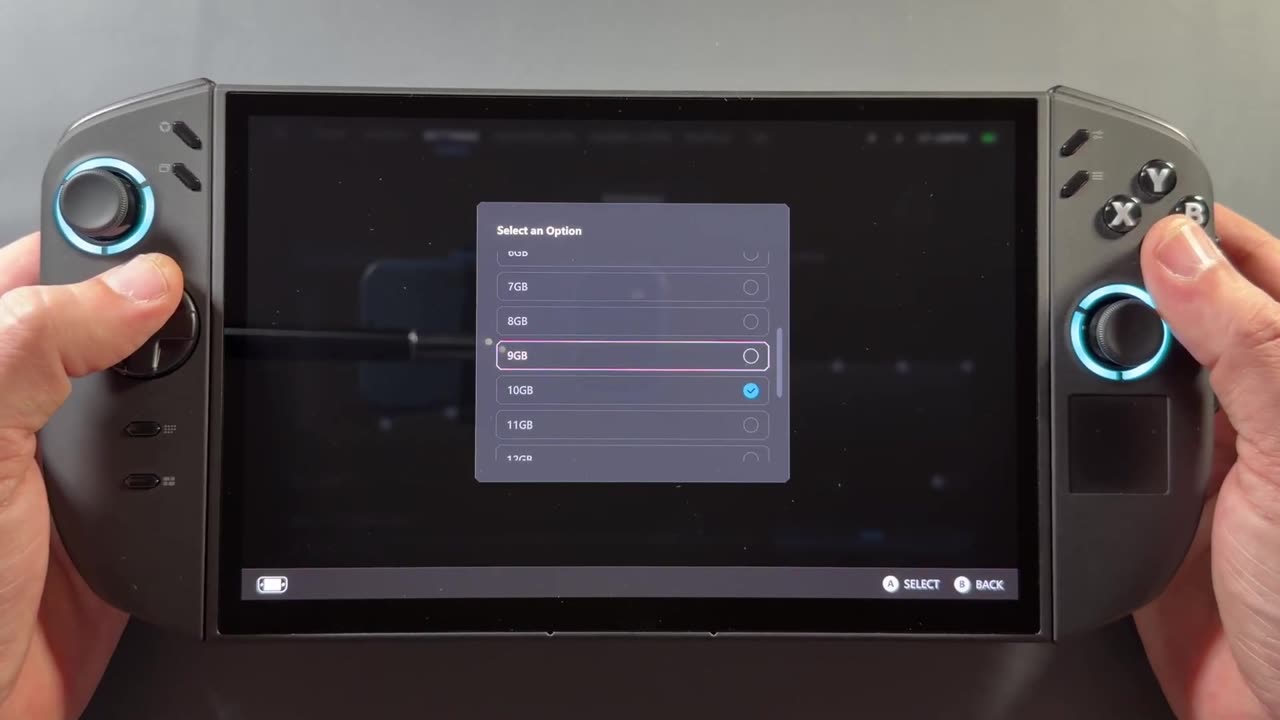
That's the "direct BIOS for UMA frame buffer size" Lenovo listed for BIOS 15WW. When I installed 15WW, I couldn't find any new VRAM option anywhere. It turns out it needed this Legion Space update to show up. All the options are here, whereas in something like AMD Adrenalin, not all of the RAM options show up or always work properly, at least for me.
What else changed
Legion Store. There's a new Legion Store tab next to the original store with your games, so you technically have two stores now. You can change your region, and clicking on any product opens a browser to the website to do the actual shopping.
Controllers. Button mapping has a new design and layout. It's a little easier to view and navigate with the controller, which is nice. In View and Edit Layout, you can now tab between the front and rear views instead of using the touchscreen or scrolling further down. The function shortcuts were already updated before for the Xbox full screen experience, and other than some looks, they're pretty much the same.
Settings. The settings home looks different, with your performance info up top and an overall new design. I didn't find any real changes in General, Disks and Drives (check for updates still just shows your newest installed BIOS), Audio or Display. The Profile tab only changed in looks, with online support, the help center and the download center all still there. The quick access menu has a couple of aesthetic changes, but nothing new that I could find.
Original Legion Go (Z1 Extreme)
On my original Legion Go, I got all the same Legion Space and controller firmware updates. The difference is in Performance: there's no UMA Frame Buffer Size option. There hasn't been a BIOS update for the original Go to go with it, so that feature is missing for now. Maybe Lenovo adds it in the future, maybe not. It's hard to tell.
What to watch out for
- Legion Space itself warns that if an error appears when launching a game, or the game fails to start, try lowering the VRAM configuration to better balance memory usage.
- Features vary by device. The original Legion Go gets the update but not the VRAM setting.
- A VRAM change needs a restart before it applies.
My take
This was a pretty big change in the way Legion Space looks, and I like having the VRAM size in there, along with the button mapping changes. With all the BIOS and Legion Space updates Lenovo has been putting out, hopefully we get some GPU driver updates soon and the support we've been looking for on the Go 2 Z2 Extreme.
FAQ
How do I change VRAM in Legion Space on the Legion Go 2?
Go to Settings → Performance and scroll down to UMA Frame Buffer Size. Pick the VRAM size and restart the device. It needs BIOS 15WW and the March 2026 Legion Space update.
Does the original Legion Go get the VRAM setting?
Not yet. The original Legion Go (Z1 Extreme) got the same Legion Space and controller firmware updates, but no UMA Frame Buffer Size option, since it hasn't had a matching BIOS update.
What else is new in Legion Space?
A Legion Store tab, a redesigned button mapping screen that's easier to navigate with the controller, and a new look for the settings pages.
Should I update Legion Space from the Xbox full screen experience?
I recommend switching to the Windows desktop to update it. It tends to be a bit easier.
Want more handheld tests?
New Steam Deck, ROG Ally, Legion Go and Steam Machine performance videos every week.