 ▶Watch on YouTube
Valve made it possible to put SteamOS on the MSI Claw 8 AI+ about a month before I made this video, and I've been curious to see how it's coming along. I'll be honest: it's still a little early for this in my opinion. A lot of newer games can't perform as well as they do on Windows yet, but that's going to change with time, and it's already improved with the updates over the past few weeks. This covers making the install USB, getting Windows and the BIOS ready, installing SteamOS, update channels, Decky Loader with SimpleDeckyTDP, and a first look at games.
- You need a USB stick (I used a 32GB one), a hub for the Claw, Valve's SteamOS recovery image and Rufus on Windows.
- Turn off device encryption in Windows (or have your BitLocker key ready) and disable Secure Boot in the BIOS.
- Installing wipes the whole SSD, Windows included. From finished USB to installed SteamOS took me about 5 to 10 minutes.
- All the buttons and controls work now, on every update channel I tried. The early June control issues are fixed.
- There's no built-in TDP control on the Claw yet, so I use Decky Loader + SimpleDeckyTDP.
- Newer games still run well behind Windows. Easy-to-run games already match it.
Why I normally run Windows on the Claw
I usually use my MSI Claw 8 AI+ on Windows 11 with the Xbox mode, and it's very optimized there by Windows, MSI and Intel. It's gotten some gains with updates and usually sits up around my Z2 Extreme devices in performance. Intel also updates the GPU, Wi-Fi, Bluetooth and NPU drivers very often, so Windows stays pretty up to date for newer games. At least right now, that's an advantage for Windows on the Claw. Still, I always like checking in on SteamOS, and Valve has been pushing a lot of updates to the stable, beta and main channels that add MSI Claw and Intel support.
What you need
- A USB thumb drive for the recovery image (mine is 32GB)
- A USB-C hub to plug the drive into the Claw
- The SteamOS recovery image from Valve's SteamOS installation and repair page (Intel support is still listed as experimental there)
- Rufus to write the image on Windows (macOS and Linux have other tools listed on Valve's page)
⬇ SteamOS installation & repair (Valve)
help.steampowered.com/en/faqs/view/65B4-2AA3-5F37-4227#install
Heads up: this is not a dual boot. Installing SteamOS wipes everything on the Claw's SSD, including your Windows install and any data on the device. I'll be doing a full system recovery to get back to the Claw's Windows image later.
Step 1: Make the SteamOS install USB
- On Valve's page, accept the user agreement and download the SteamOS (Steam Deck) image. The normal stable 3.8 image that was out at the time works fine. There's no need to unzip it.
- Download Rufus (there was a fairly new version out, so I grabbed it again).
- Plug in the thumb drive, open Rufus and make sure it has picked your thumb drive, not another drive.
- Leave the boot selection on Disk or ISO image, click Select and pick the SteamOS repair image from your downloads. Nothing else in the options needs changing.
- Click Start, then OK. It wipes everything on the thumb drive, so double-check the drive first. Writing takes a few minutes.
- When it's done, Rufus usually opens the drive and shows the EFI and SteamOS folders. Close everything, eject the drive and plug it into your hub with the Claw.
Step 2: Get Windows and the BIOS ready
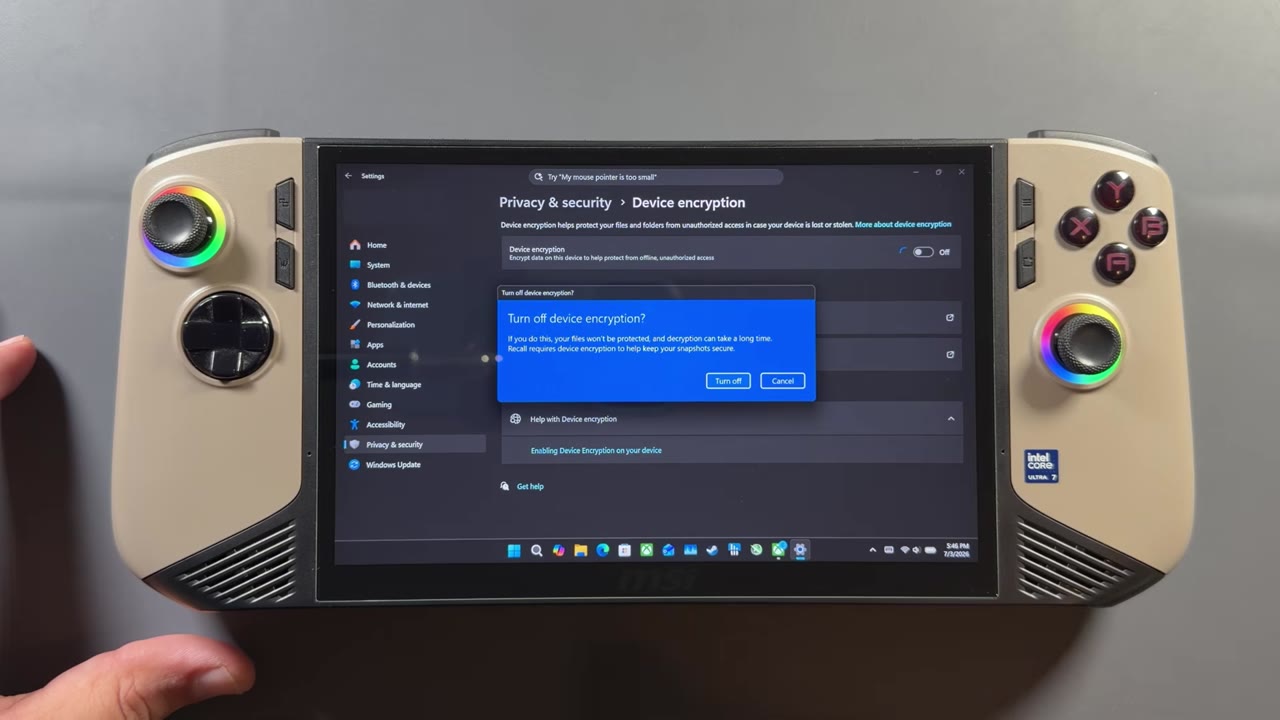
BitLocker recovery can come up on you, because device encryption is often on by default in Windows 11. Either have your recovery key ready, or do what I usually do on my handhelds: turn off device encryption (Settings, Privacy & security, Device encryption) and let it finish before you start.
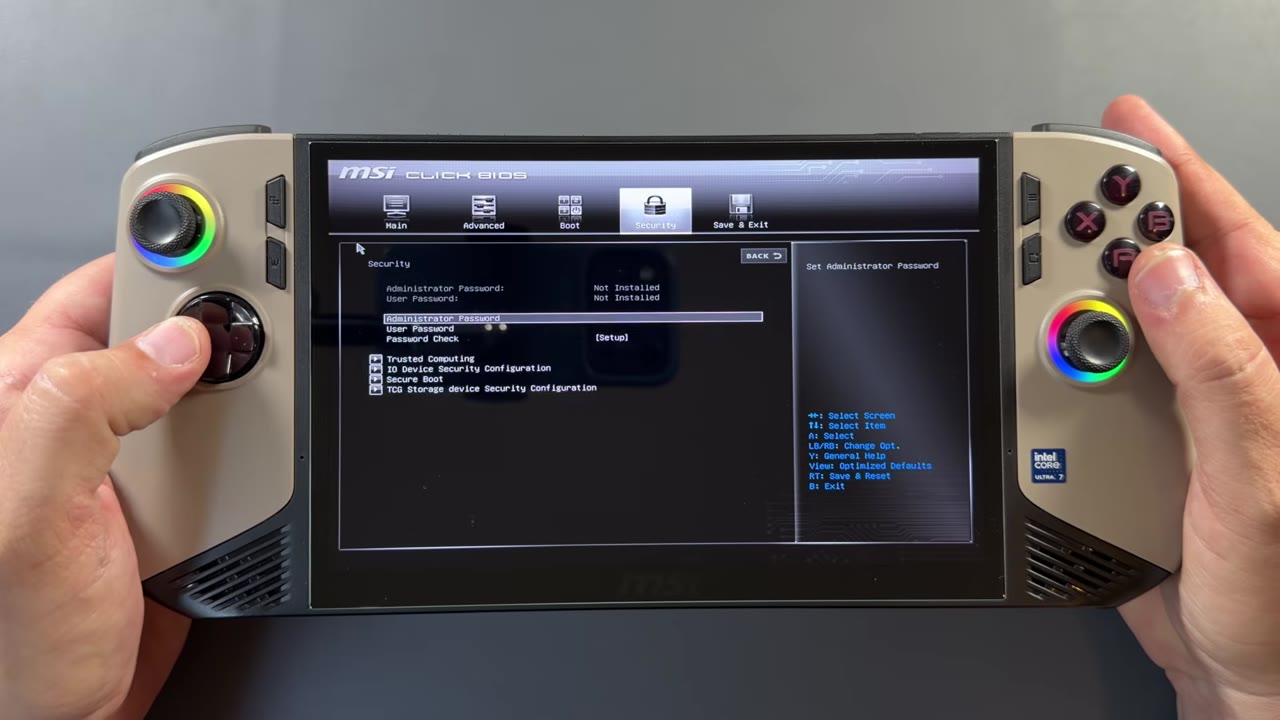
Next, get into the BIOS. Power the Claw on while holding the BIOS button combo shown in the video and keep holding until the BIOS comes up. Then:
- Make sure Boot Mode Select is set to UEFI.
- Set your USB drive as the first boot option.
- Set Secure Boot to Disabled. That's better for the SteamOS install and for Decky Loader updates, and you can turn it back on later if you need to.
- Save and exit. The Claw boots from the thumb drive into the SteamOS recovery desktop.
Step 3: Wipe and install SteamOS
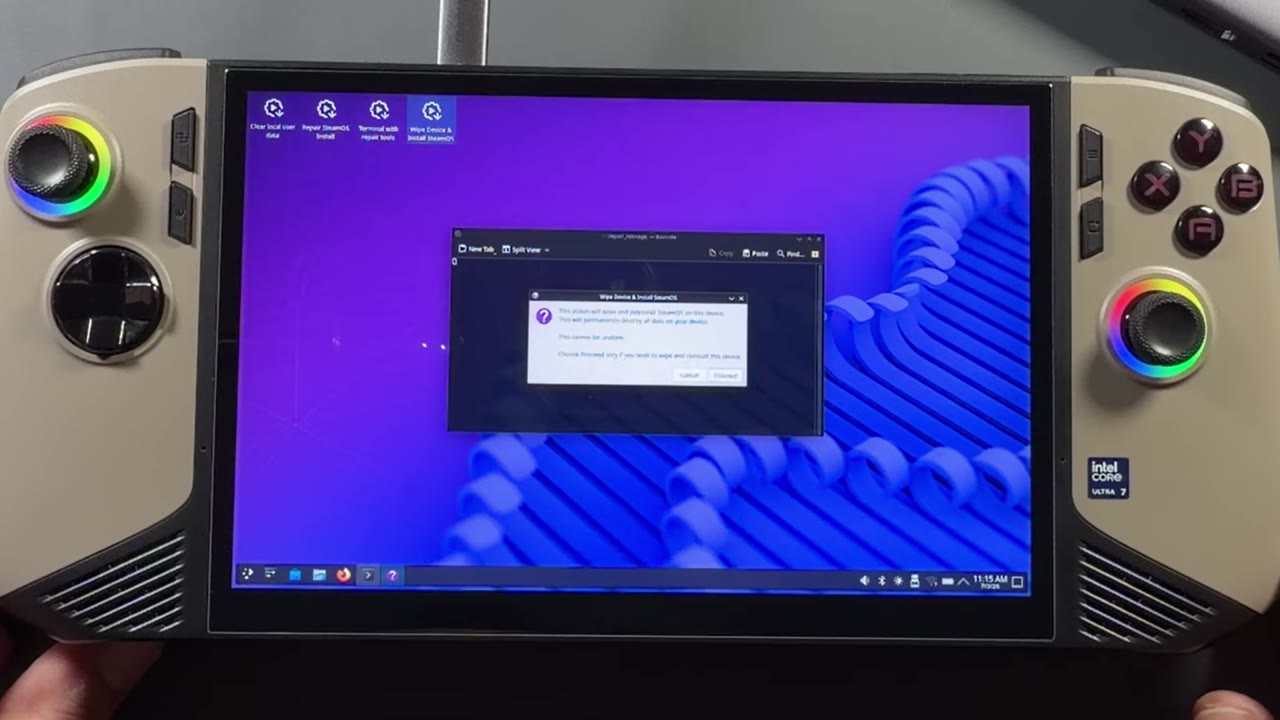
The recovery desktop looks basically like the SteamOS desktop, except for the repair and reimage options along the top.
- Select Wipe Device & Install SteamOS.
- It warns you that this permanently deletes all data on the device and can't be undone. Choose Proceed.
- The install is pretty quick. When it finishes, let it restart, and once it powers down, unplug the USB drive so it doesn't boot back into the recovery desktop.
From the time Rufus finished making the USB to having SteamOS installed, it only took about five to ten minutes. Then you're at the Welcome to SteamOS screen to get set up and signed in.
First startup: controls and update channels
Things work really well out of the box as far as controls go. Every button works as it should, which was an issue back in early June but isn't now. For every game and every menu so far, all the buttons, quick access and the Steam button have been snappy and haven't given me any problems, no matter which channel I was on. I've gone through stable, main, beta and preview trying to get better game performance, since that still needs a lot of work on the Claw.
I ended up on the main update channel with the Steam beta. I did try the experimental Steam Runtime 3 option but had to turn it off, because it often breaks the performance overlay. That put me on pretty much SteamOS 3.9 for the Intel Arc, with a fairly new 26.1.2 driver in the update (it was 26.1.0 back in early June), and there are definitely some differences there.
To get to the main channel:
- Enable Developer Mode in the system settings.
- Go to the new Developer section at the bottom of the left side and turn on show advanced update channels.
- Go back to System and pick the update channel you want.
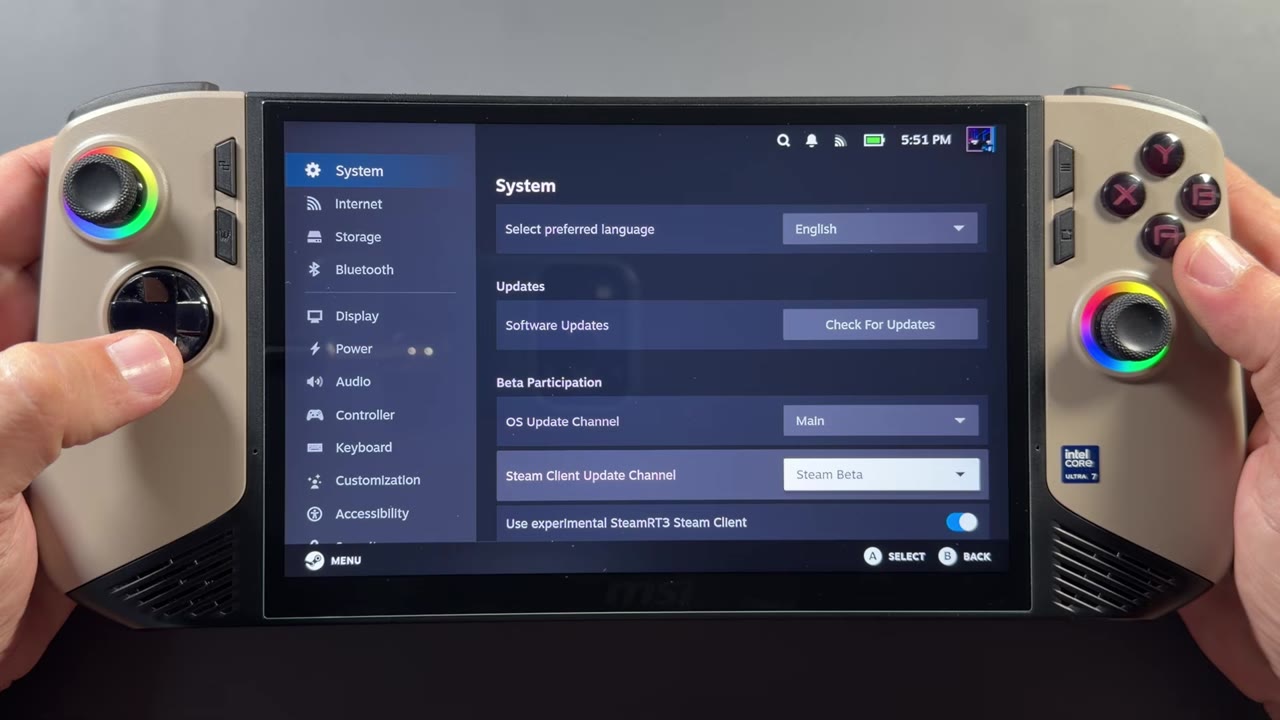
Main seems to be where things work best on the Claw right now. It can give you trouble on other devices, but until things get straightened out on the Claw, I want all the newest updates.
Step 4: Decky Loader and SimpleDeckyTDP
SteamOS doesn't have built-in TDP support on the Claw yet, which I'm sure will help a lot with game performance later. For now, SimpleDeckyTDP fills the gap. Switch to Desktop Mode for both installs.
SimpleDeckyTDP on GitHub
github.com/aarron-lee/SimpleDeckyTDP
- Go to decky.xyz and click the download link at the top right.
- Open the download from your Downloads folder, choose Launch, then Continue.
- It pops up about not having a password set. I let it set one and delete it right away, so click Yes.
- Pick the release version and click OK. It downloads and installs in a minute or two, depending on your connection.
- I like to go back to Game Mode at this point to make sure Decky Loader shows up and works before adding plugins.
- Back in Desktop Mode, open the SimpleDeckyTDP GitHub page and copy the quick install / update command.
- Open the Konsole terminal, paste the command and press Enter.
- It asks for your password. If you don't have one, go to Settings, Users, Change Password and set one (no need to change anything with the wallet). Back in Konsole, type the password (it won't show anything while you type) and press Enter to finish the install.
There are other ways to install it, like downloading a release and installing it manually. I tested some different methods, and installing it differently didn't change anything for me.
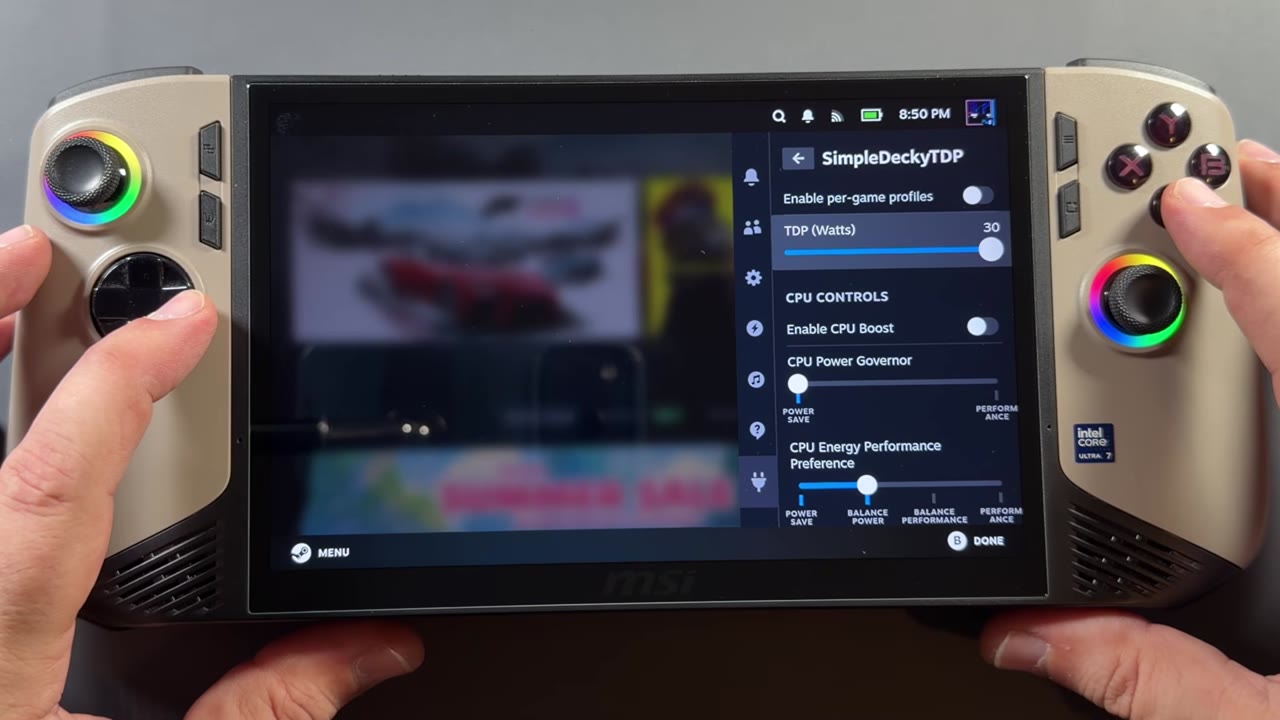
SimpleDeckyTDP gives you per-game profiles and TDP settings up to 30 watts. On Windows the Claw would typically just run at 30W because it scales so well on its own, so I've had to play with it a bit here. There's also CPU boost, which I'd typically keep on with this 8-core, 8-thread CPU. On Windows it doesn't typically pull anything away from the GPU.
How games run (early days)
I'm not doing a lot of game testing and comparing with Windows and other devices yet, since these updates have only been out for about four weeks. That'll come once performance is much more stable. Here's what I'm seeing so far.
Cyberpunk 2077 had a lot more stutter, frame time issues and large frame rate drops three or four weeks earlier. Newer updates made it smoother and cleaner, but we've also lost some overall frame rate, and I'm having trouble getting the GPU to clock all the way up and hold there. With matched settings (1200p, Medium, FSR Performance, 30W), Windows still gives me a lot more performance:
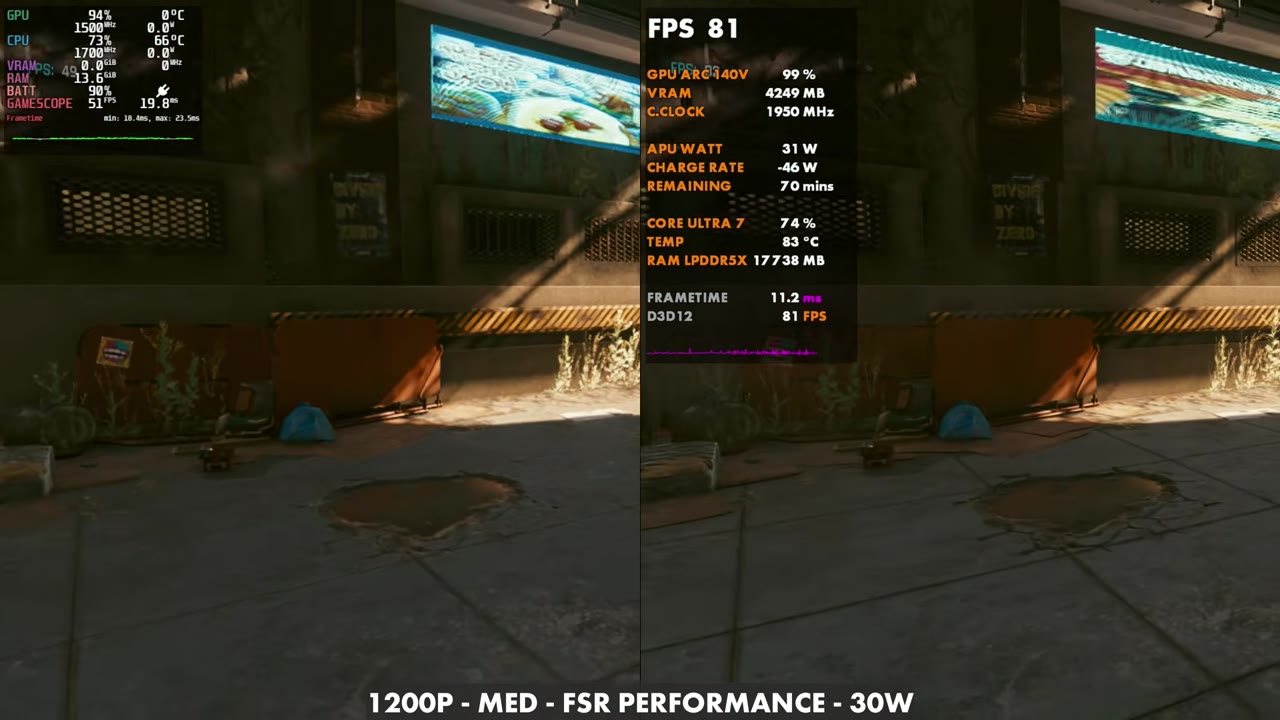
| Cyberpunk 2077, 1200p Medium, FSR Performance, 30W | SteamOS | Windows |
|---|---|---|
| FPS (overlay readings, same spots) | 47–52 | 73–82 |
| GPU clock (overlay) | 1500–1550 MHz | 1900–1950 MHz |
Once the driver support is where it should be, I think SteamOS will probably match or beat Windows for the most part, but Valve has a lot of work to do on the Intel side.
Forza Horizon 6 tells the same story. On SteamOS I'm on Low settings (on Windows I'm around Medium or High), with XeSS Performance at 1200p and 30W, and it doesn't matter whether I use FSR or XeSS. I have trouble getting it to even climb up to 50 FPS. I saw higher frame rates before the newer updates, but it's cleaner now with less stuttering.
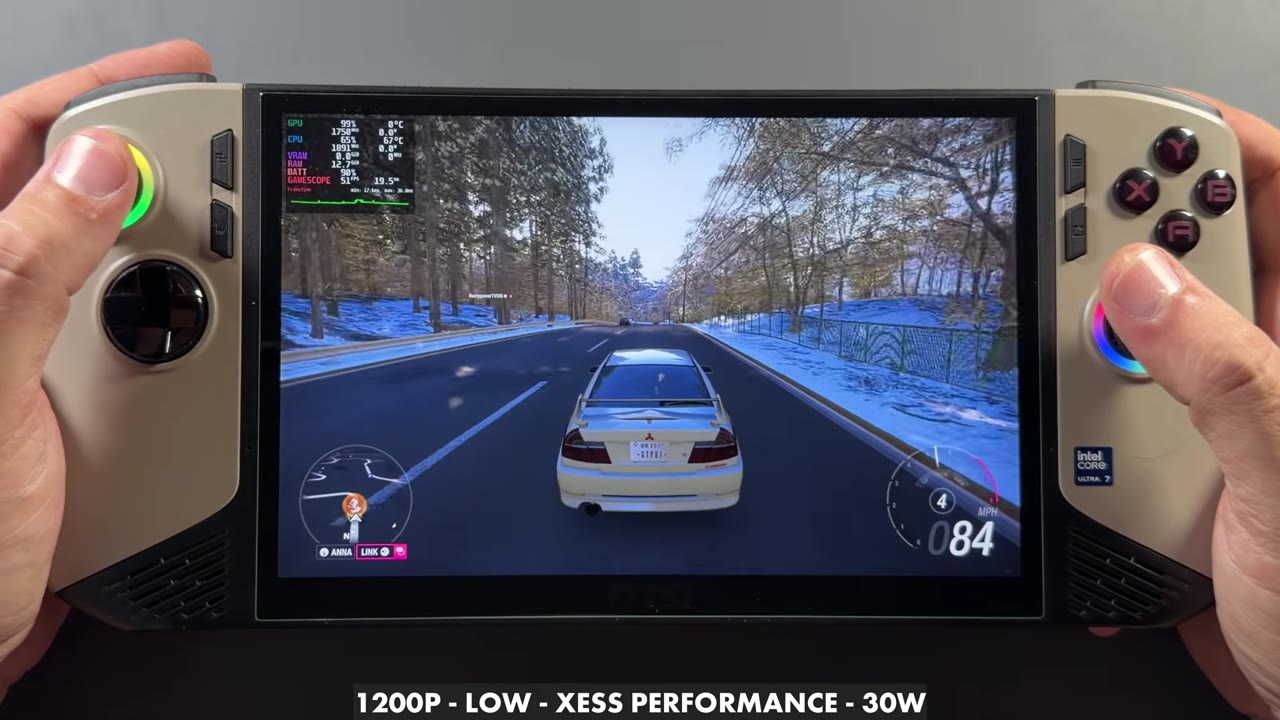
This second-gen Intel chip can run very well. On Windows you can run CPU boost fully maxed with the GPU at 1950 MHz and do really well, so the power balancing just needs to get worked out in SteamOS.
Older and easier-to-run games are already great, because they don't rely as much on that. A space shooter I tried maxed out the GPU at 1950 MHz on max settings and ran anywhere from 70 to the 90s. Sonic ran 110 to 120 FPS, fairly smooth with no major frame time spikes. Terminator 2D, one of my favorite side-scrollers, runs a solid 120 FPS. That's pretty much what I get on Windows for those easy games too.
Should you put SteamOS on your Claw?
Right now it's hit or miss, and it's very, very early days. If you care about getting the absolute best performance out of your MSI Claw 8 AI+, I'd recommend staying on Windows with the Xbox mode for now. Other than game performance, everything has been pretty good, with no real quirks. I don't think it'll take long for Valve to bring a lot more support with SteamOS updates, driver updates, built-in TDP and better power balancing. If they get SteamOS working really well this year, especially with the newer Intel G3 handhelds coming, it's going to be a nice option besides Windows on the Claw. I'm saving the deeper comparisons until performance is more consistent and closer to what this device does on Windows.
FAQ
Can you dual boot SteamOS and Windows on the MSI Claw 8 AI+ with this method?
No. Wipe Device & Install SteamOS erases the whole SSD, including Windows and your data.
Do the MSI Claw's buttons and controls work on SteamOS?
Yes. All the buttons, quick access and the Steam button worked on every update channel I tried. The control issues from early June are fixed.
Does SteamOS have TDP control on the MSI Claw 8 AI+?
Not built in yet. I use Decky Loader with the SimpleDeckyTDP plugin, which goes up to 30W with per-game profiles.
Is SteamOS faster than Windows on the Claw 8 AI+?
Not yet for newer games. Cyberpunk at 1200p Medium, FSR Performance and 30W ran around 47 to 52 FPS on SteamOS vs 73 to 82 on Windows. Easy-to-run games perform about the same.
Want more handheld tests?
New Steam Deck, ROG Ally, Legion Go and Steam Machine performance videos every week.