 ▶Watch on YouTube
- The new DLSS Enabler Decky plugin lets you turn on DLSS frame generation on the Steam Deck in games that support it. I tested it on the Steam Deck OLED with plugin version 0.2.1.
- You need Decky Loader first, then you install the plugin from its zip file through Decky's Developer tab.
- Each game gets patched with an injection method. For Cyberpunk 2077 I used version.dll. You can also turn FSR 4 on in the same patch, and Unpatch undoes it all.
- Two hotkeys on the back grips open the in-game menus: Insert and the backquote key (next to 1).
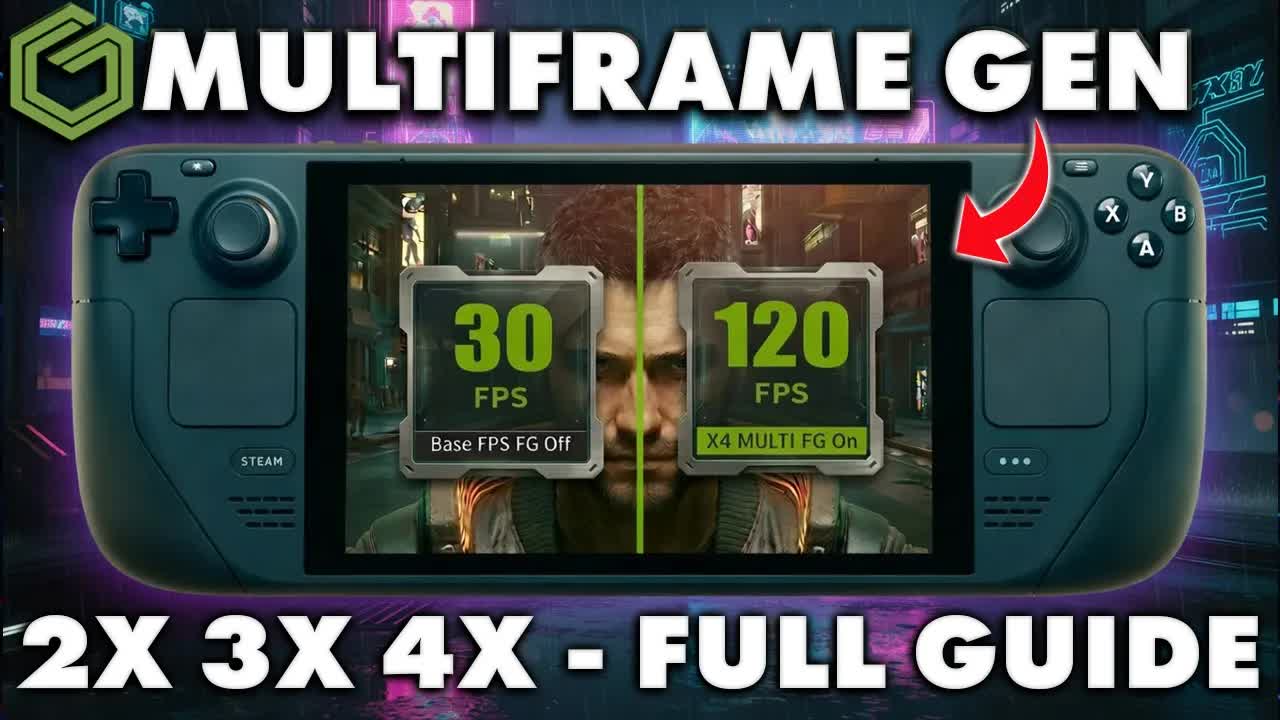
- In Cyberpunk at 800p with DLSS Balanced and low/medium settings, 3x frame gen gave me about double to two and a half times my base frame rate, and latency felt better than I expected, even at 4x.
DLSS frame generation on the Steam Deck sounds like it shouldn't be possible, but the newly released DLSS Enabler plugin for Decky Loader lets you force it on in games that support DLSS. My understanding is it can work in some games that don't as well, but I haven't gotten into that yet. I set it up on my Steam Deck OLED after a factory reset, so this covers the whole install from scratch: Decky Loader, the plugin, patching a game, the hotkeys for the in-game menus, and how it ran in Cyberpunk 2077.
What you need
- A Steam Deck. I used the Steam Deck OLED.
- Decky Loader (decky.xyz). I picked the release version, not the pre-release.
- The DLSS Enabler plugin from its GitHub page. Version 0.2.1 was the latest when I made the video.
- A game that supports DLSS. I used Cyberpunk 2077.
Step 1: Download the files in desktop mode
- From Game Mode, press the Steam button, go to Power and switch to the desktop.
- Open your browser and go to decky.xyz. Download the Decky Loader installer and keep it ready.
- Go to the DLSS Enabler plugin's GitHub page and open Releases. Scroll down a little and download the DLSS enabler .zip file. That's all you need from there.
Step 2: Install Decky Loader
Skip this part if you already have Decky Loader. I had done a factory reset, so I needed it again.
- Open your Downloads folder and double-click the Decky Loader installer.
- Click Execute, then Continue.
- If you haven't set a password on the Deck, the installer offers to create a temporary one and delete it afterward (it'll be "Decky" with a capital D). I clicked Yes to keep it easy.
- Pick the release version, not the pre-release, and click OK. The install takes less than a minute.
- With Decky Loader installed and the plugin zip downloaded, return to Game Mode.
Step 3: Install the DLSS Enabler plugin from the zip
- In Game Mode, open the Quick Access menu and go to Decky Loader, which should show up now.
- Open Settings at the top right. In the General tab, scroll to the bottom and turn on Developer mode.
- Go to the new Developer tab and choose Install plugin from zip file.
- Browse to Downloads, select the DLSS enabler zip you downloaded and click to install. It only takes a moment, and DLSS Enabler shows up in your Decky plugins.
Step 4: Patch a game
- Open DLSS Enabler in Decky. The Target game list picks up your installed games. Mine showed Cyberpunk, Crimson Desert and Death Stranding, and I chose Cyberpunk.
- Pick the injection method. Each game needs one of the options, like dxgi.dll, version.dll or winmm.dll. Which one a game needs takes some looking up, and I'm certainly not an expert at that. For Cyberpunk I went with version.dll, and from what I understand dxgi can still work too.
- Choose whether to enable FSR 4. The plugin can inject both together.
- Click Patch (it shows the method, e.g. "Patch with version").
- To check it took, open the game's Properties → General and look at Launch options. You should see an entry from DLSS Enabler there.
If a game won't launch, crashes or just isn't working right, select it and use Unpatch selected game to revert everything and start over. I had a couple of small crashes at the beginning, re-patched, and then it worked fine.
Step 5: Set up the menu hotkeys on the back grips
The plugin has two in-game menus that open with keyboard keys, so map them to the back buttons. I used L4 and R4, but L5 and R5 work just as well if you prefer.
- Open the game's controller settings and enable the back grips.
- Select L4, go to the number pad and assign the Insert key. That opens one of the menus.
- Select R4, scroll to the keyboard and assign the backquote key (`), the one next to the 1 key. That opens the other menu.
Step 6: Turn on DLSS frame generation in the game
- Launch the game. Cyberpunk defaulted to some older settings for me, so I had to lower a few things again.
- In the graphics settings, DLSS Super Resolution was enabled with the Transformer model. I used Balanced.
- DLSS Frame Generation is now available to turn on. At first it didn't show the 2x, 3x and 4x options. Restart the game and they show up.
The two in-game menus
To move around these menus, hold the Steam button and use the trackpad or the right stick. It can be a little clunky, but it works.
- Insert menu (OptiScaler): lets you change upscalers and a lot of other options, including FSR 3 and FSR 4 and different versions. I've barely scratched the surface here and only changed what I needed, like upscaling and frame gen.
- Backquote menu: cleaner and easier to use. It has screen space ray tracing you can adjust, which didn't seem to hurt performance much and could be worth experimenting with in some games. It also has V-Sync (I left it on App), an FPS limiter (I usually prefer the Deck's or the in-game limiter), Ghostbuster for ghosting, which did seem to help here and there, and dynamic frame generation.
Dynamic frame generation is the one I think is really cool. You set a target frame rate and it changes the frame gen to try to get you there, and you can customize where it scales instead of just leaving it on auto.
How it ran in Cyberpunk 2077
My test setup was 800p, fairly low/medium settings and DLSS Balanced on the Steam Deck OLED.
- Upscaling only, no frame gen: typically 45–55 FPS in this area.
- Frame gen on: like a lot of frame gen options and mods, turning it on does cost some of your base performance.
- 3x: a very noticeable jump, about double to two and a half times the base frame rate I had with upscaling only. It worked pretty well, and input latency felt pretty good, maybe a little better than Lossless Scaling when you're not locking the frame rate.
- 4x: I could feel it a little more. With everything on, the base frame rate was around 30–35 FPS. I expected the ghosting and latency to be worse than they were, and it was pretty usable.
Ghosting is likely to show up more with frame gen, especially at 4x, and that's what the Ghostbuster option is there for.
My take
I'm not always a big fan of frame generation. I like in-game frame gen for some things, but I prefer to run games without it if I can get comfortably over 30 or 40 FPS. Cyberpunk already runs great on the Deck without it, so I wouldn't necessarily recommend playing it this way. Still, it's working as intended here, and being able to pick 2x, 3x or 4x DLSS frame gen on a Steam Deck is really cool. Every game uses resources differently, so this is just one example, and I want to try it in others like Crimson Desert. The Steam Deck is kind of the ultimate tinkering device, and this has a lot of potential as the plugin improves.
FAQ
What do you need to use DLSS Enabler on the Steam Deck?
Decky Loader plus the DLSS Enabler plugin zip from its GitHub releases page (version 0.2.1 at the time), installed through Decky's Developer tab with Developer mode turned on.
Which injection method works for Cyberpunk 2077?
I used version.dll for Cyberpunk, and from what I understand dxgi can also work. Other games may need a different option, such as winmm.dll.
Why don't the 2x, 3x and 4x frame gen options show up?
Restart the game after patching. The multipliers only appeared for me after a restart.
What if a game crashes after patching?
Use Unpatch selected game in the plugin to revert it, then patch again. I had a couple of crashes at first, re-patched, and it worked fine after that.
Want more handheld tests?
New Steam Deck, ROG Ally, Legion Go and Steam Machine performance videos every week.