 ▶Watch on YouTube
The new PC port of The Legend of Zelda: Twilight Princess dropped a couple of days before this video, and it runs great on the Steam Deck. It's called Dusk, from Twilit Realm, and it's a decompiled version of the GameCube game with some Wii U-style touches, upscaling and other upgrades. It also runs on other handhelds and Windows PCs, but this guide is the Steam Deck setup, from desktop mode all the way to playing it from game mode.
Update (Nov 2026): since this video, the project has been renamed Dusklight and moved past version 2.0, with mod support added. The official site is twilitrealm.dev, and the old GitHub link now redirects to TwilitRealm/dusklight. Newer Linux releases are an AppImage download, so there's no zip to extract, but the rest of the setup below works the same way.
- You need your own copy of the game as an ISO (the GameCube version). The port doesn't include the game.
- Setup happens in desktop mode: download the Linux x86_64 build, run the AppImage, point it at your ISO once, and add it to Steam.
- Back in game mode, Decky Loader with SteamGridDB makes the library artwork look right.
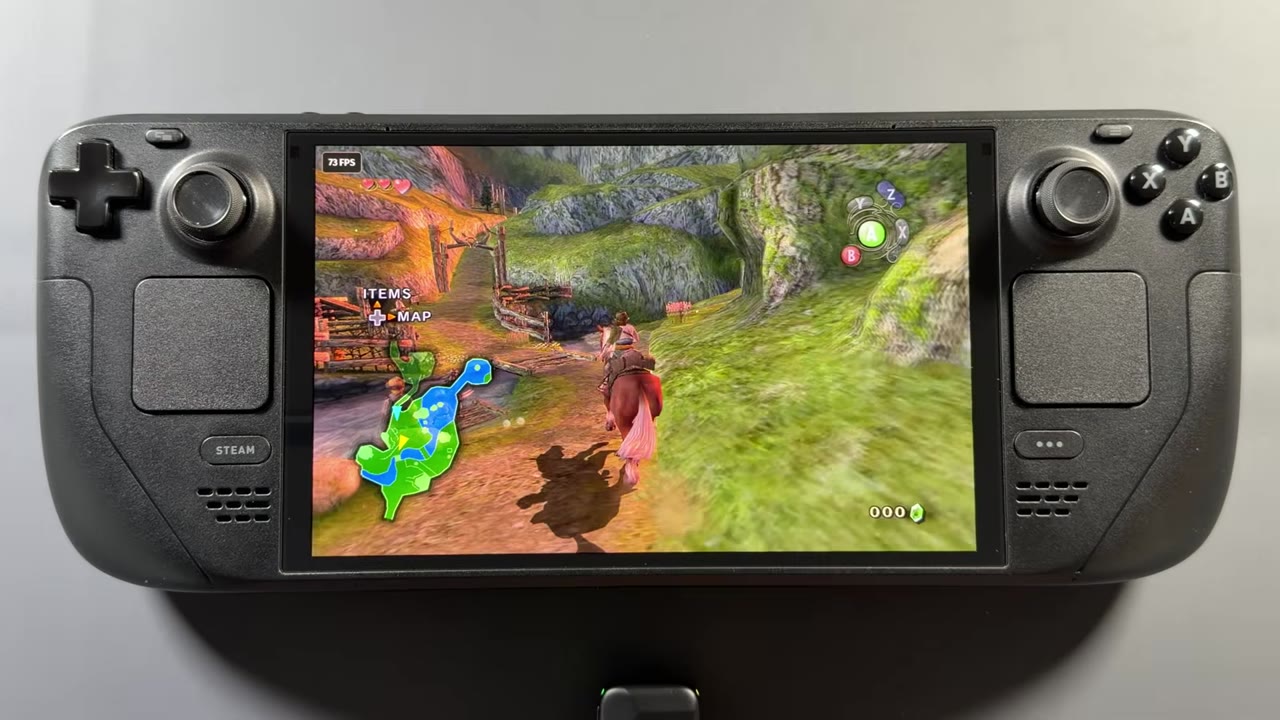
- Early in the game it ran pretty much 90 FPS at 800p (16:10), with drops to the 60s, 70s and 80s while loading into the first town.
What you need
- A Steam Deck (it also works on other handhelds and Windows PCs)
- Your own ISO of The Legend of Zelda: Twilight Princess for GameCube
- The Dusk release from Twilit Realm's GitHub. I used v1.0.0, the Linux x86_64 zip
- Optional: Decky Loader with the SteamGridDB plugin for artwork
Desktop mode setup
Everything at the start happens over on desktop mode, but once it's done you'll be able to play from game mode.
- Download the Linux build. In your browser, go to the Twilit Realm GitHub page for Dusk, scroll down to the release files and download the Linux x86_64 zip. That's the one for the Steam Deck.
- Make a folder for it. I suggest making a folder wherever you prefer so you can keep track of everything. I put one on the desktop and called it Dusk.
- Extract the zip. Right-click it and extract it, which gives you the AppImage for the player. Cut or copy it into your new folder.
- Move your ISO in too. I cut my Twilight Princess GameCube ISO from Downloads and pasted it into the same Dusk folder.
- Run the AppImage. Double-click it and choose Execute. That opens the Twilit Realm Dusk player.
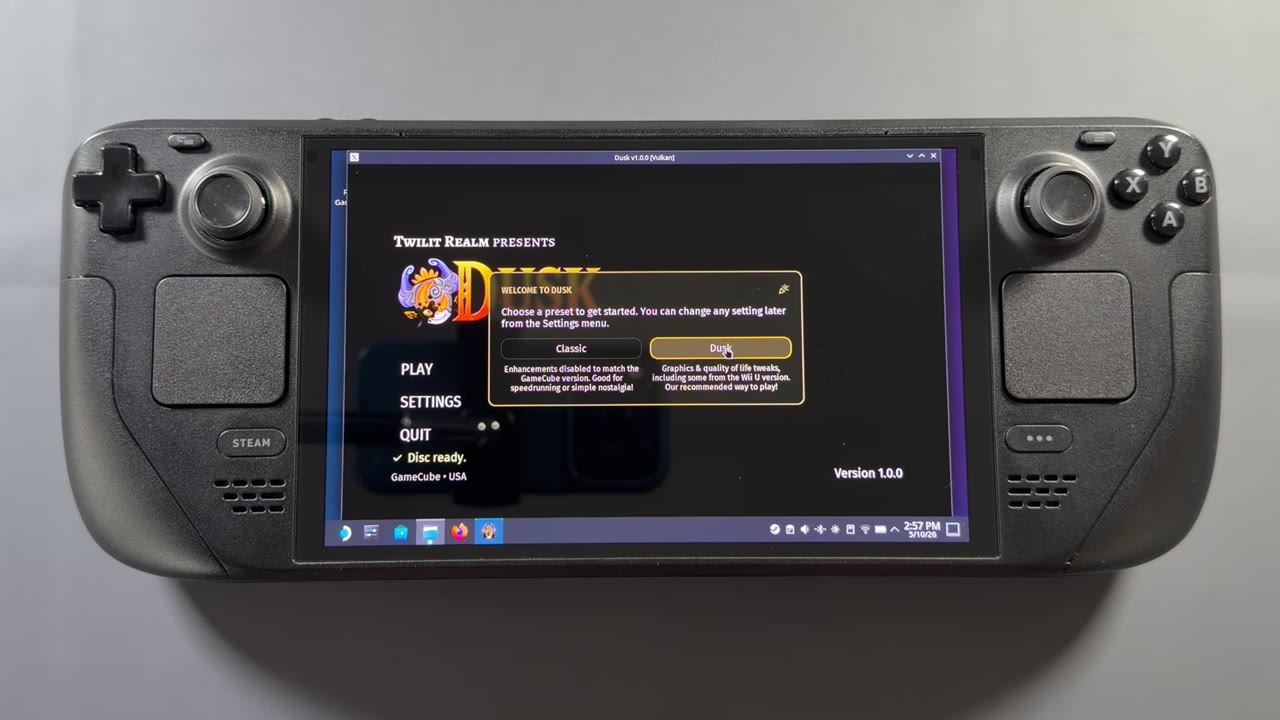
- Select your disc image. Click Select Disc Image, go to your Dusk folder and open your Zelda ISO. You only have to do this once. As long as you leave the file there, it loads automatically next time.
- Pick Classic or Dusk. I went with the Dusk version with some of the upgrades.
Settings and controls
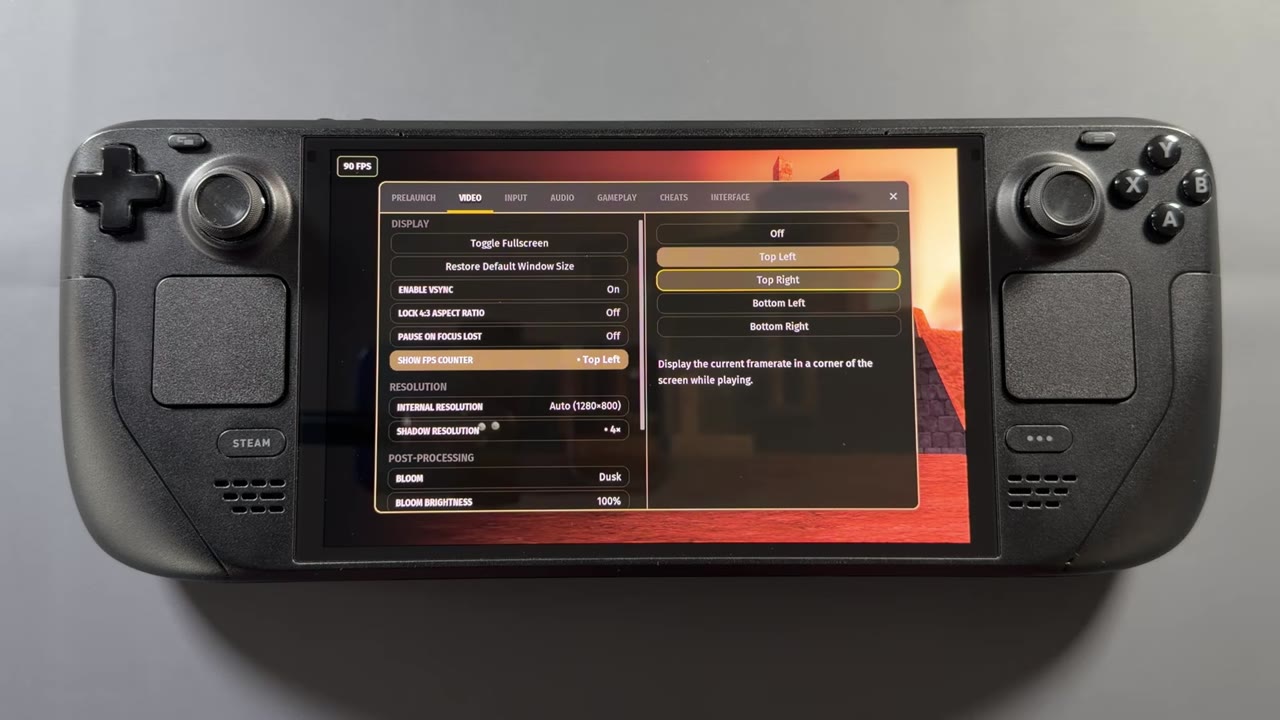
At that point you're set up to play, other than adding it to Steam and changing any settings or inputs you want. There aren't a ton of options, but there's plenty there to keep you going:
- Display: full screen (I left it on), V-sync, aspect ratio, an FPS counter (I turned it on to keep an eye on it) and auto resolution. Docked, you can go up to a higher resolution, but the Steam Deck will start to lose some performance above 800p. On the native screen it works really well.
- Audio and gameplay options, plus a cheats section you can toggle for easier or different kinds of playthroughs.
- Configure Controller: pick the Steam Deck controller, a Steam Controller or whatever you have attached, and remap buttons. If a mapping isn't working at some point in the game, you can remap that button here and get past it.
You can also add mod packs and texture packs, but I left it the way it comes out of the box.
Add it to Steam
- Right-click the AppImage and choose Add to Steam.
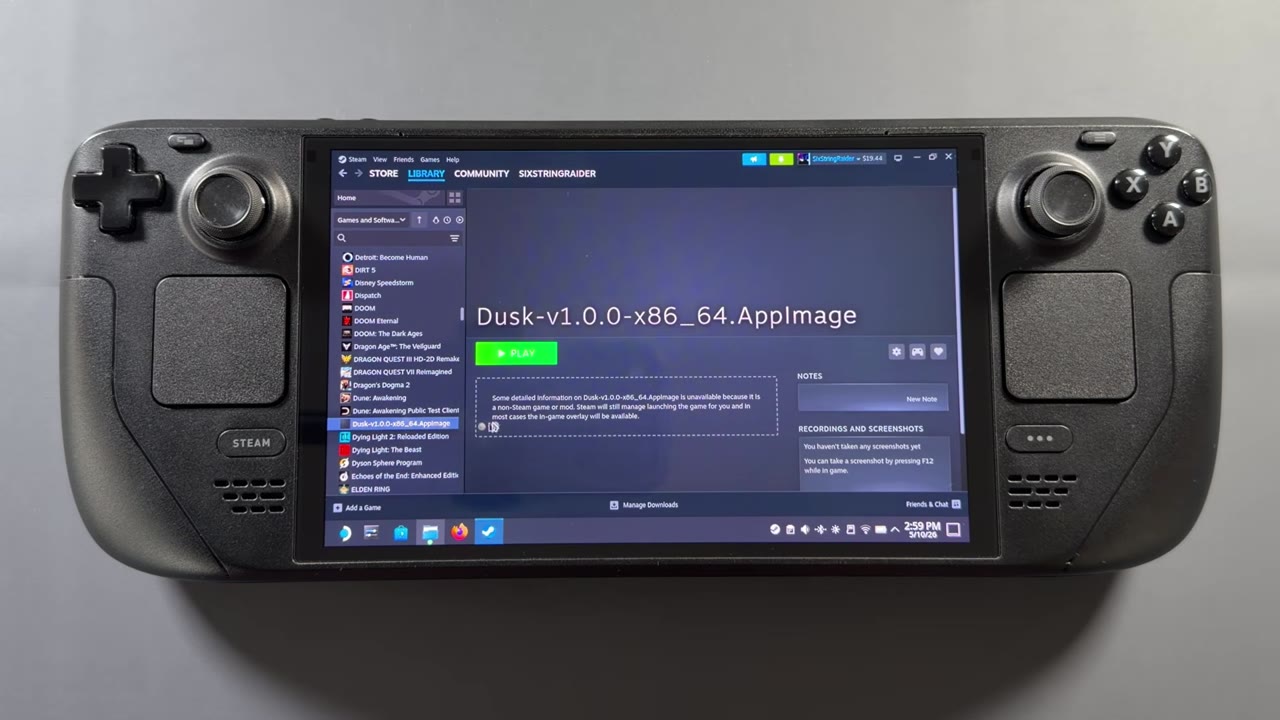
- I do like to check the library and make sure it showed up. It's under D for the Dusk AppImage.
- Head back to game mode.
Game mode cleanup
In game mode, go to your library and scroll over to Non-Steam games, and the Dusk AppImage will be there. Before jumping in, I like to clean it up a little:
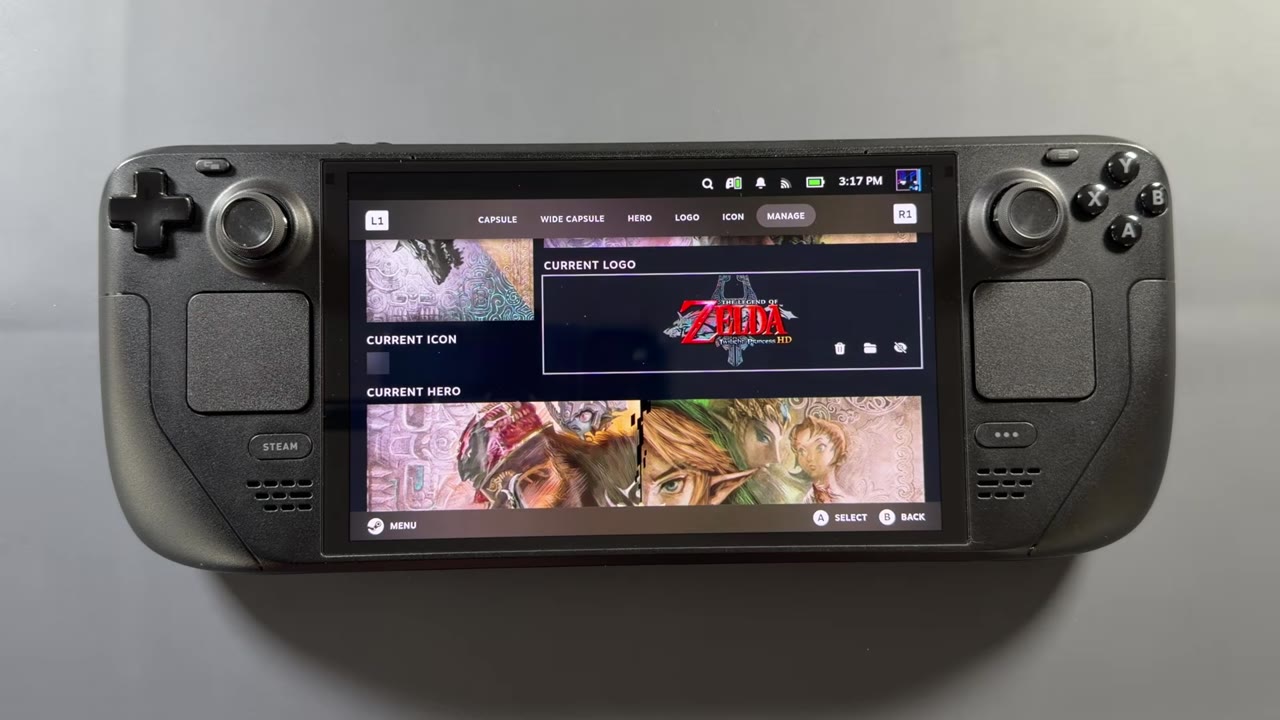
- Artwork: I already have Decky Loader on my Steam Deck, and I use the SteamGridDB plugin from its store. Press Start on the game, choose Change Artwork and pick Zelda: Twilight Princess (search or filter if it doesn't show up automatically). Pick your capsule, wide capsule, hero and the rest. You may need a restart after this.
- Name: go into Properties, then Shortcut, and rename it. I called mine Dusk Twilight Princess.
Launching and the in-game menu
Hit Play and it doesn't take long to launch. The Dusk player automatically picked up both of my controllers, the Steam Controller and the Steam Deck's own controls, and it already said the disc was ready because I'd pointed it at the ISO earlier. I turned off the Steam Deck performance overlay and just kept the FPS counter up.
Whether you're on a Steam Controller or not, the Back button brings up the Dusk player menu at any time in the game, with achievements, reset, quit and settings. So you can quickly reset or quit the game, or change any of those settings from earlier, right from there. It's a very clean, very easy player for the PC port.
How it runs at 800p
I'm only at the beginning, since I hadn't moved my save over from my PC yet. Up to where you first get to the village, all the early areas pretty much run at 90 FPS at 800p in the 16:10 ratio. Loading into the first town, it came down to the 60s, 70s and 80s in places, and once everything was loaded in, it settled back to 90 after a while.
Anywhere between 60 and 90, I'm pretty happy with. I don't know how it'll run farther into the game and in other areas, but right now it's working really well, and you could even dock and play it a little higher if you wanted. I love that it supports 16:10 and is made with the Steam Deck in mind, so I expect it'll keep getting updates and tweaks. And again, texture packs and mod packs can make it even better and let you play it how you want.
FAQ
Does the Twilight Princess PC port include the game?
No. You need your own copy of the game as an ISO. I used the GameCube version.
Which download do I need for the Steam Deck?
The Linux x86_64 build. In v1.0.0 that was a zip with the AppImage inside; newer Dusklight releases ship the AppImage directly.
Can I play it from game mode?
Yes. Add the AppImage to Steam from desktop mode, and it shows up under Non-Steam games in game mode.
How does it run on the Steam Deck?
In the early areas, pretty much 90 FPS at 800p, with drops to the 60s to 80s while loading into the first town.
Want more handheld guides?
New Steam Deck, ROG Ally, Legion Go and Steam Machine videos every week.