 ▶Watch on YouTube
- Asobi Remote Play is a Steam app for streaming your PS5 or PlayStation cloud games to the Steam Deck, Steam Machine and other Linux devices. No PS5 needed for cloud.
- Cloud streaming needs your own PlayStation Plus Premium subscription. Signing in with a QR code worked fine for me.
- On Wi-Fi, 720p, 1080p and 2K at 60 FPS all ran well. 1080p docked to the TV looked really good. Only 4K gave the Steam Deck trouble.
- For PlayStation cloud on the Steam Deck, it was about as good as anything else I've used on Linux.
Asobi Remote Play is a newer app on Steam for streaming your PlayStation 5 or PlayStation cloud games to the Steam Deck, and it's easy to install on a Steam Machine or other Linux device too. I've been testing it on the Steam Deck for the past couple of days, handheld and docked, all over Wi-Fi.
I usually use my PlayStation Portal for cloud streaming. I haven't had a PS5 here for probably over a year, so I stream a lot of PlayStation cloud. But you can't really dock the Portal the way you can a Steam Deck, Steam Machine or other Linux device, so this makes it easy to stream PlayStation games to a TV. It's not the only way to do this. I've covered Chiaki and others before. For another route on Windows, see my Wolverine with no console guide.
What you need
- A Steam Deck (or Steam Machine or other Linux device) with Steam
- Asobi: Remote Play from Steam
- A PlayStation Plus Premium subscription for PlayStation cloud streaming, or your own PS5 for remote play (I don't have a PS5, so this covers cloud only)
- A good enough internet connection. Results will vary with your connection and your distance from the data centers.
⬇ Get Asobi: Remote Play (Steam)
store.steampowered.com/app/4505440/Asobi_Remote_Play/
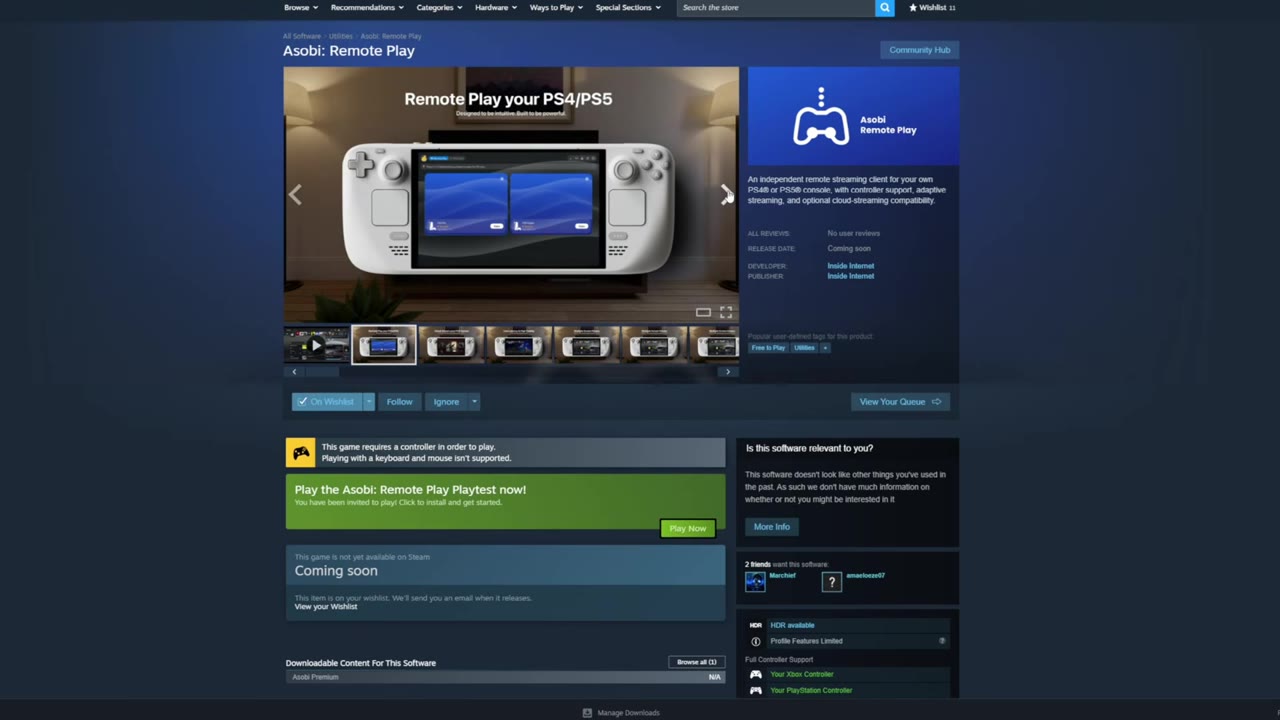
Installing and signing in
- Install Asobi from Steam. During the playtest there were two versions: the free playtest with all the premium features, and a premium page with no price yet.
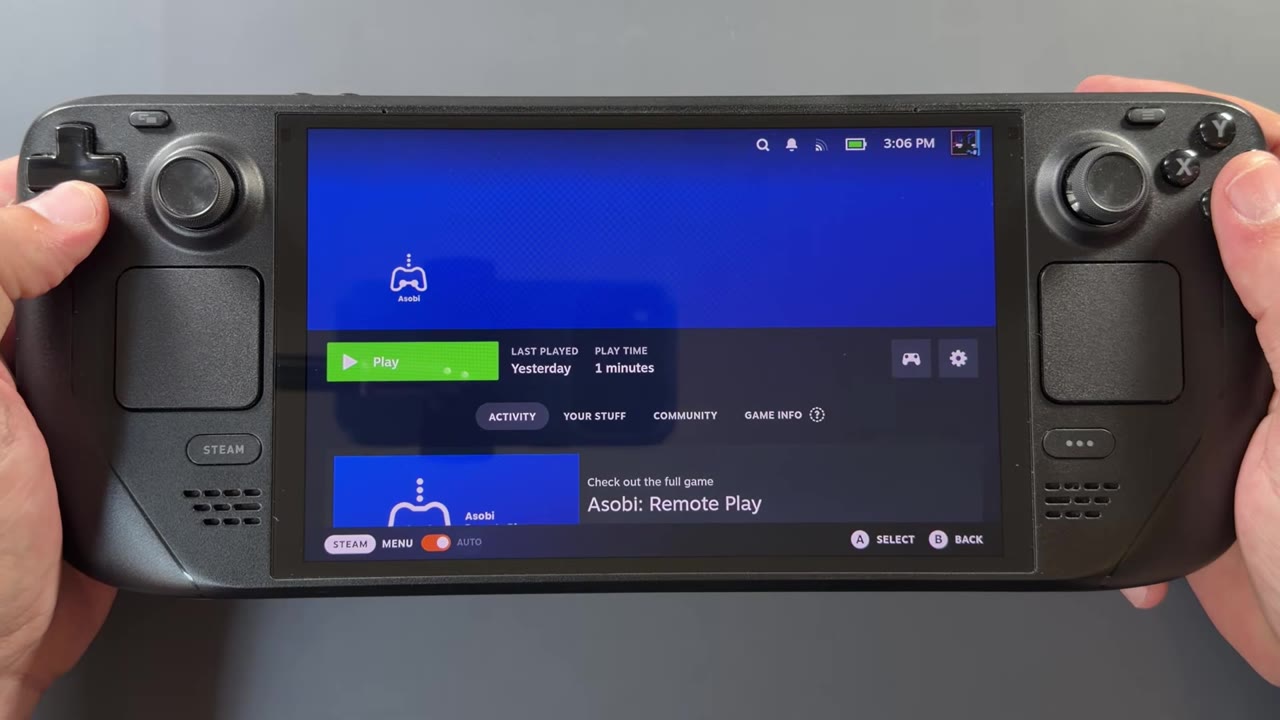
- Launch it from your library. I don't have a PS5 to connect to, so I skipped the Remote Play side.
- Scroll over to the PS Cloud tab.
- Click the upper-left corner to add your account and choose to sign in with PlayStation Network.
- It shows a QR code that takes you to a website to sign in with a key. It all worked fine for me, and I didn't have any problems getting signed in.
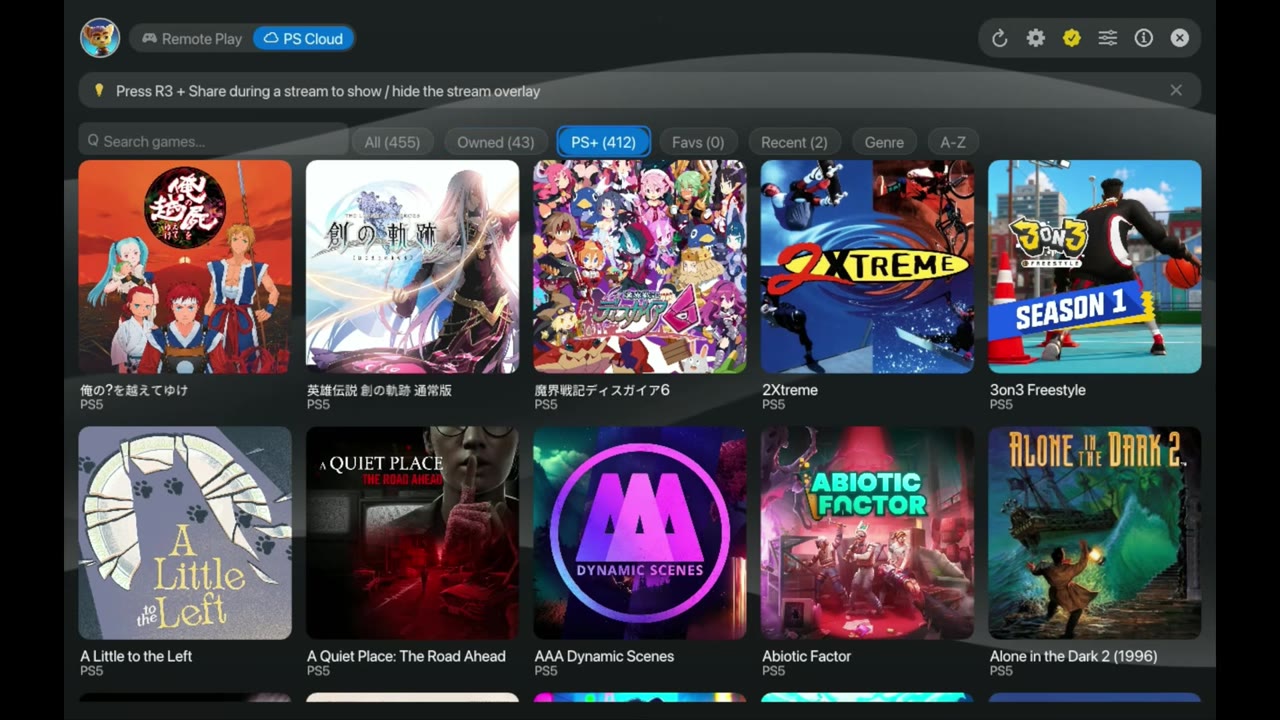
Once you're signed in, it populates all the cloud games: owned, all games, recent games and so on. Navigation is pretty good, and it isn't too laggy or clunky.
PS Cloud settings
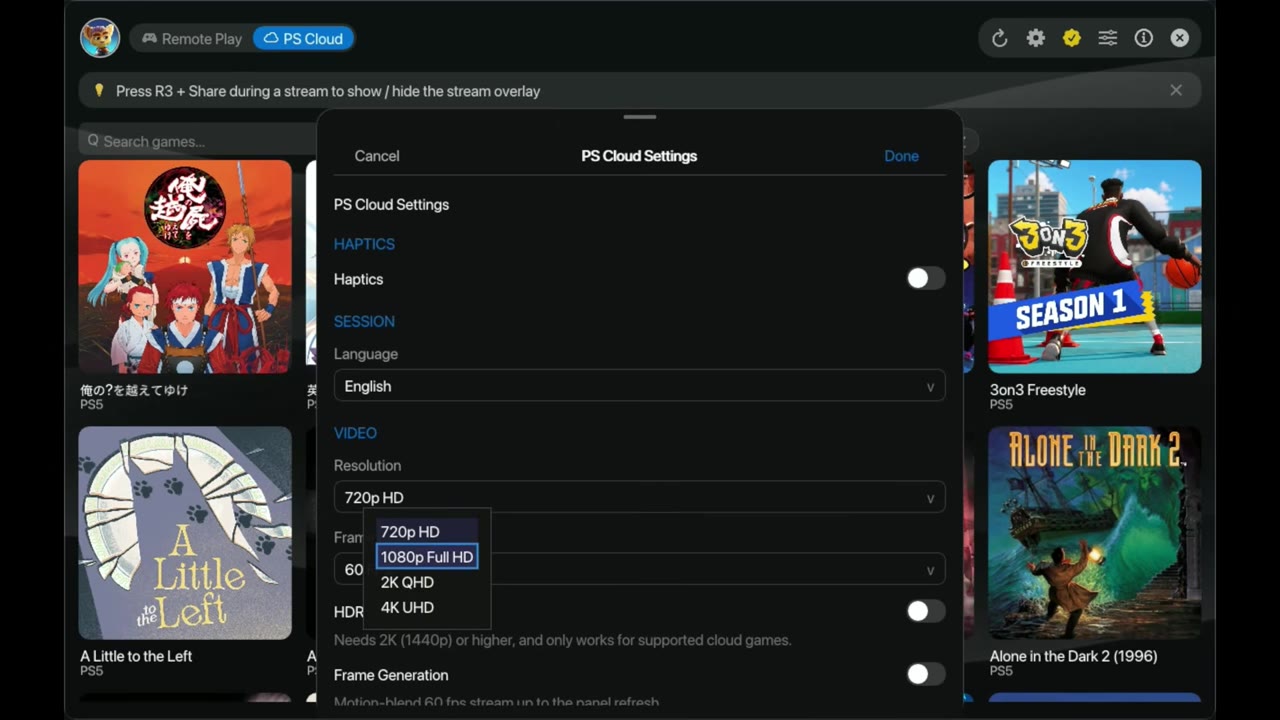
There are settings for PS Cloud and separate settings for the app itself, so go through both and get familiar with what you can adjust.
- Resolution: 720p HD, 1080p Full HD, 2K QHD or 4K UHD
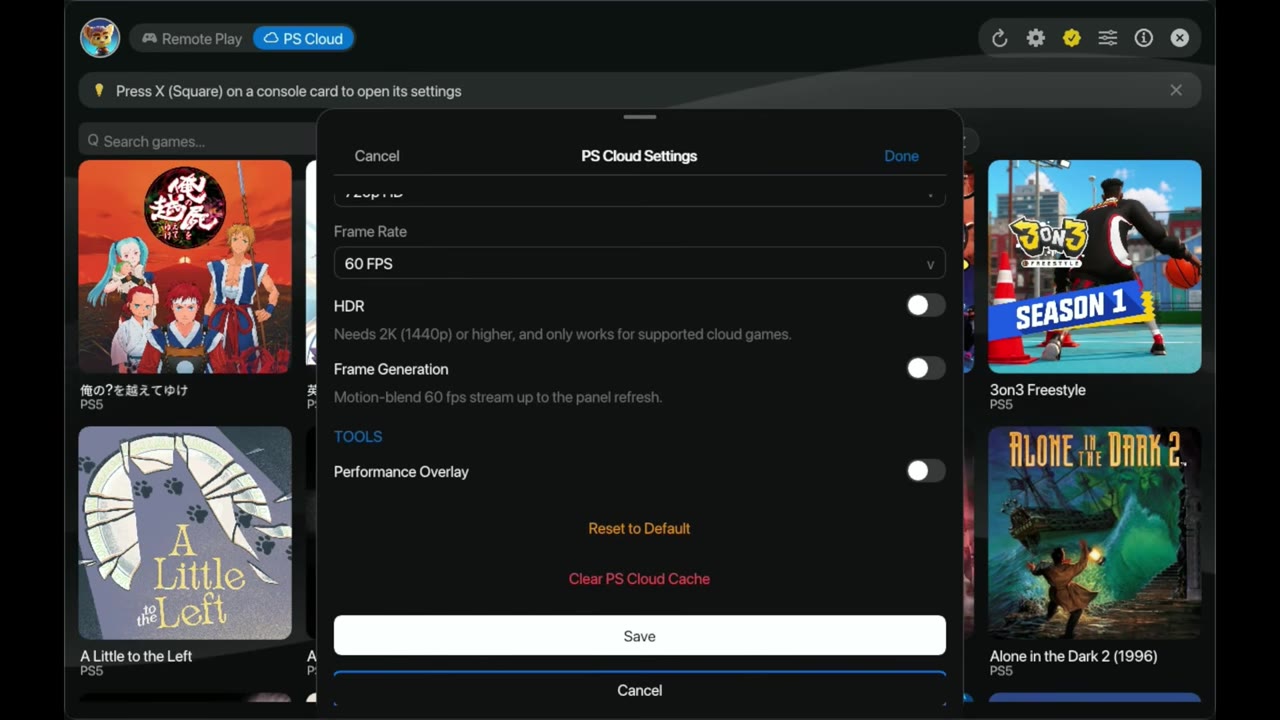
- Frame rate: 60 FPS
- HDR: I believe it's only for certain cloud games, and mostly for the console
- Frame generation
- Performance overlay: not working for me, and grayed out in a lot of the other menus
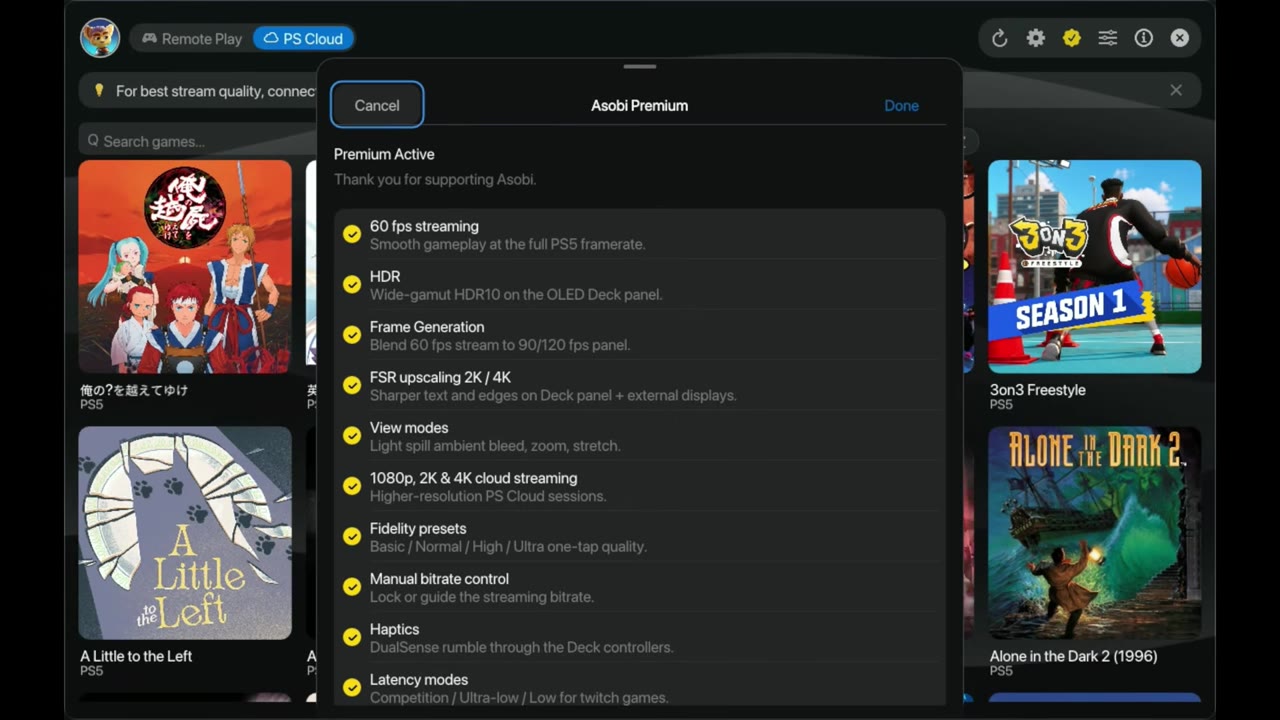
During the playtest there was a little gold check mark that said Premium was active. Once Premium comes out, those features drop off unless you pay for it.
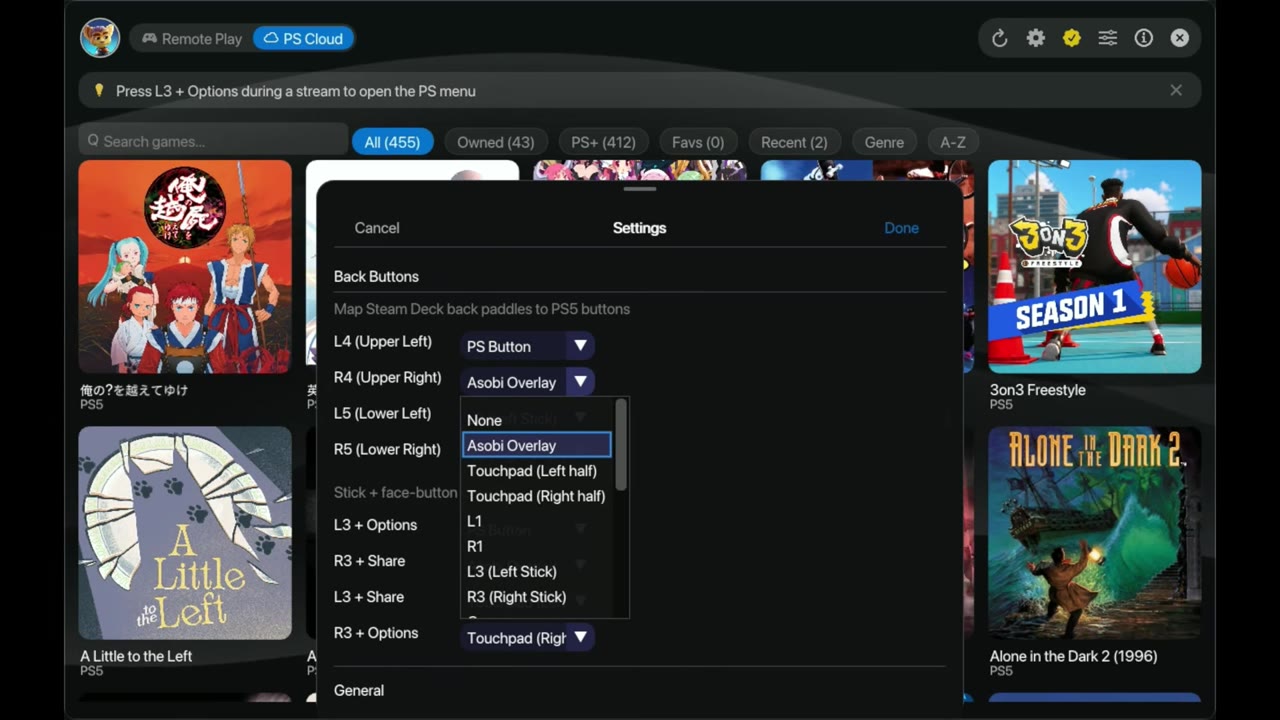
App settings and controls
The app's own settings tab covers things like the PS button and button mapping. The stick plus face button shortcuts worked fine for me. None of the Steam Deck's back paddle buttons worked, and I couldn't get them working for the video, but everything else was fine and I could still do everything I wanted. There's also an about page, and the X closes the app completely.
The stream overlay
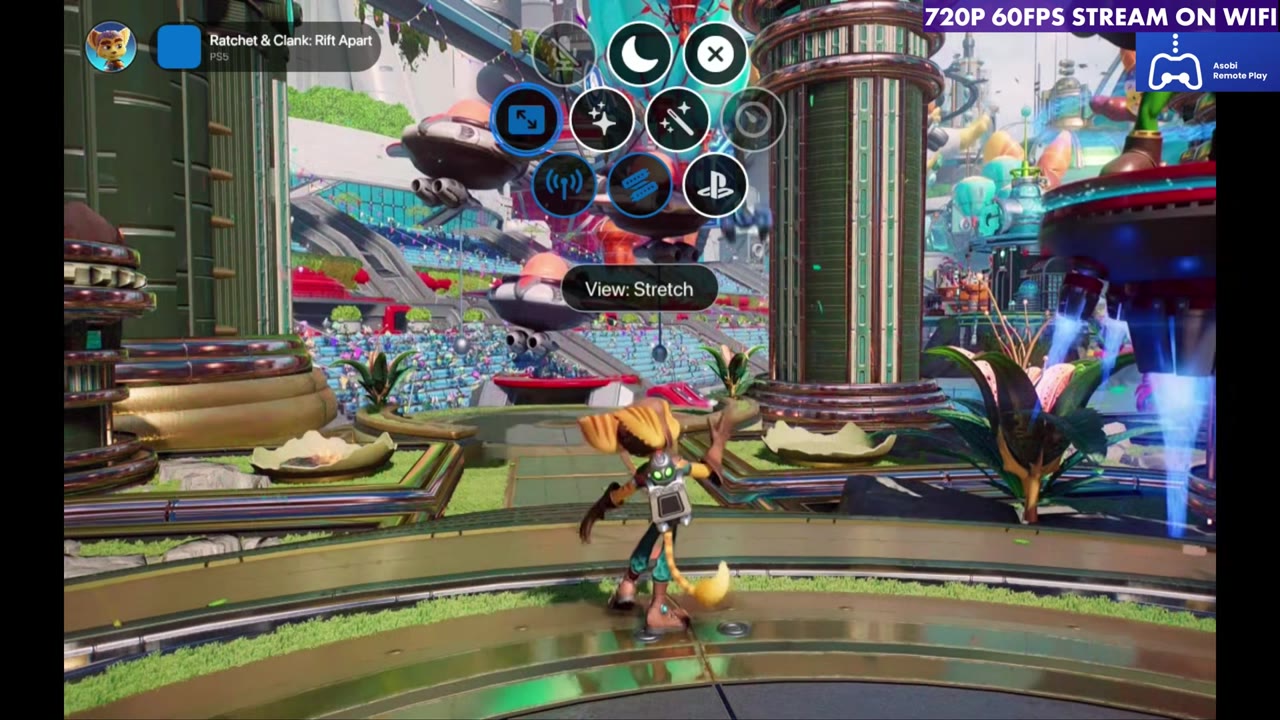
Clicking the right stick (R3) plus the menu button brings up the stream overlay really easily, so you can get in and change everything mid-stream. In it you get:
- Screen modes: normal, stretch, fit and light spill. Stretch fills the Steam Deck's 16:10 screen, since PlayStation streams are 16:9.
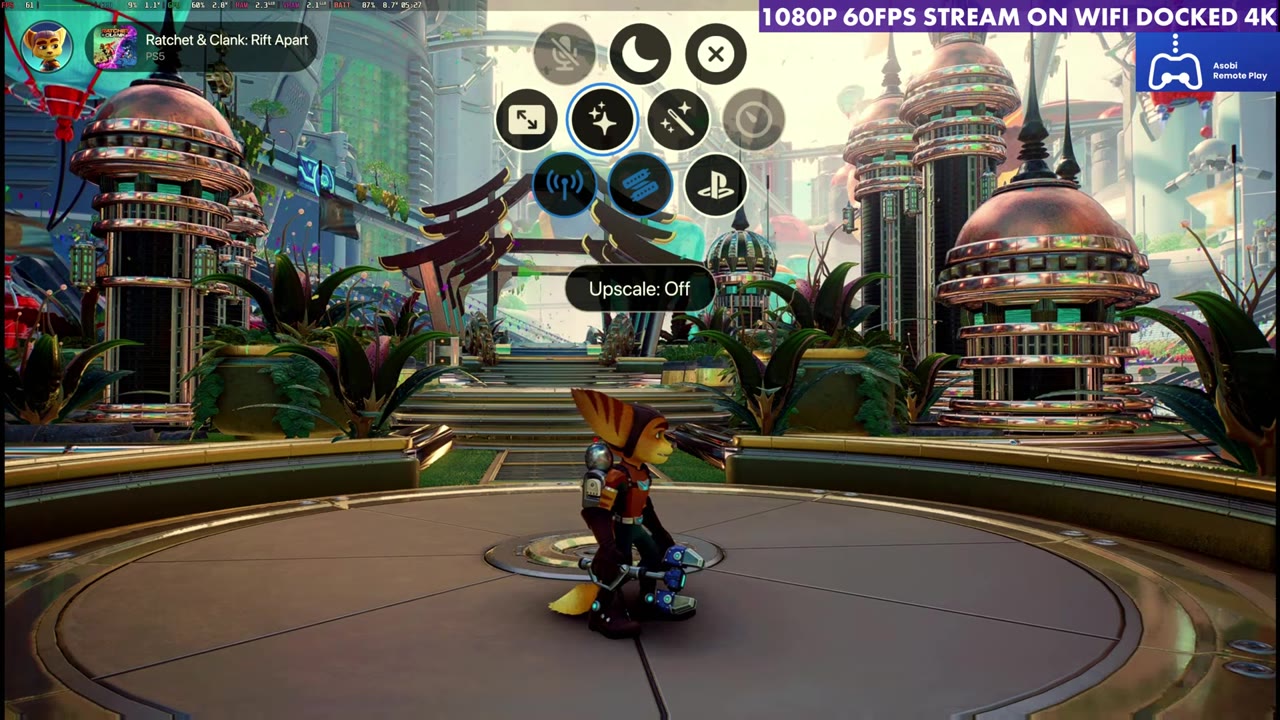
- Upscaling: 2K, 4K or off
- Frame generation
- The performance overlay (grayed out and not working yet), the PlayStation button, Wi-Fi, controllers and the microphone, which also doesn't work currently
It does a pretty good job and is quick and easy to use.
How the streams looked
All of this was on Wi-Fi. If you're docked, Ethernet could do even better.
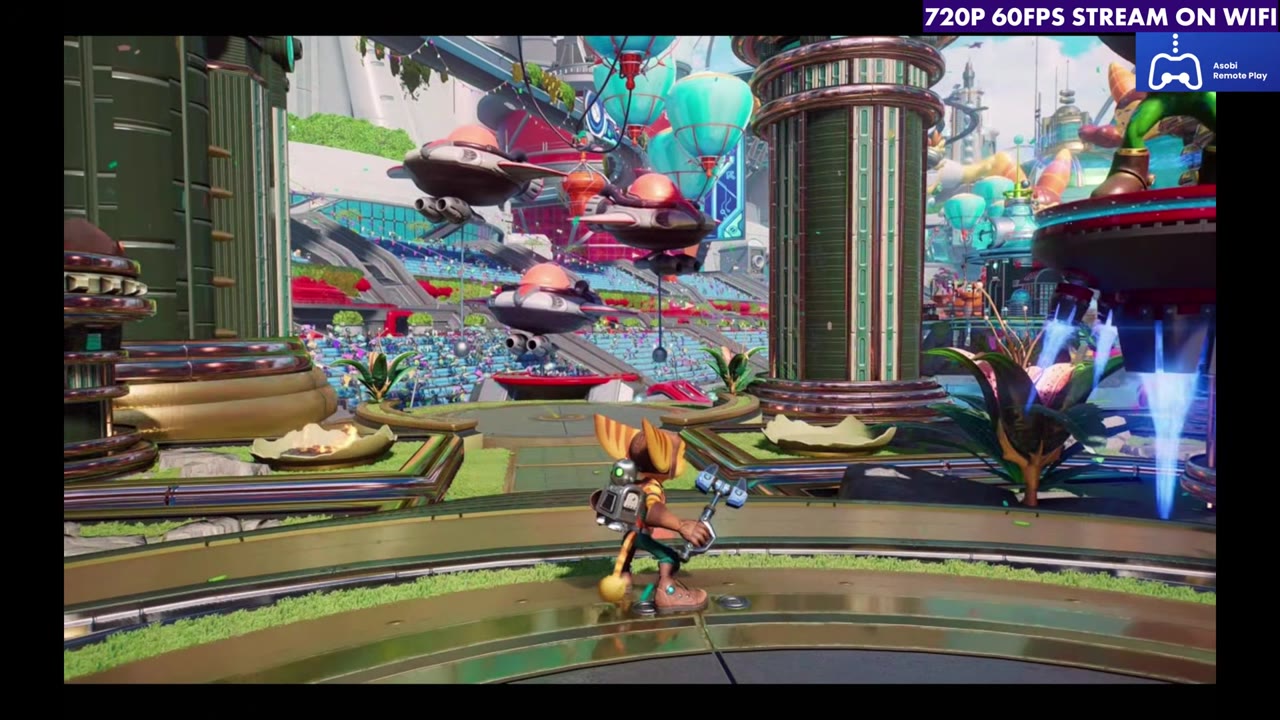
720p, 60 FPS: On the Steam Deck's 800p, 16:10 screen, I streamed at 720p 60 FPS, and it did pretty well. It looks a little muddy and not as clear as higher-resolution streaming, with the lower bitrate, but it works pretty good on the Deck's smaller screen when you're not docked.
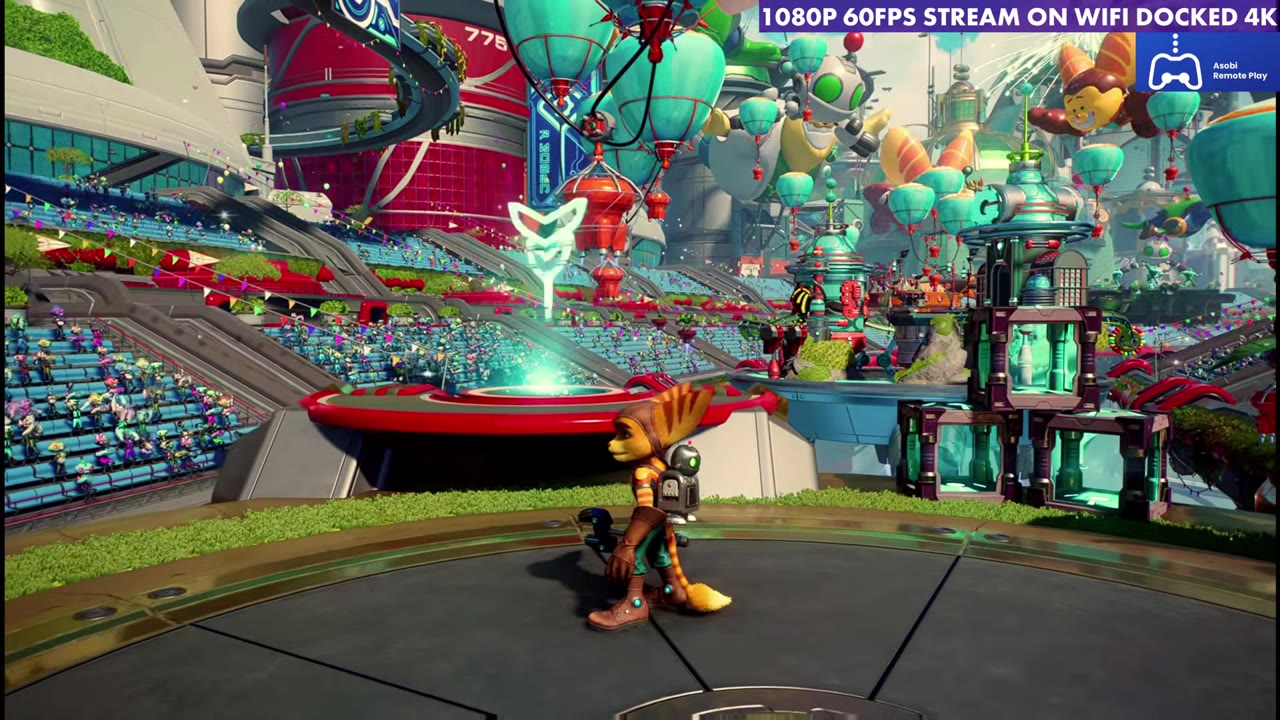
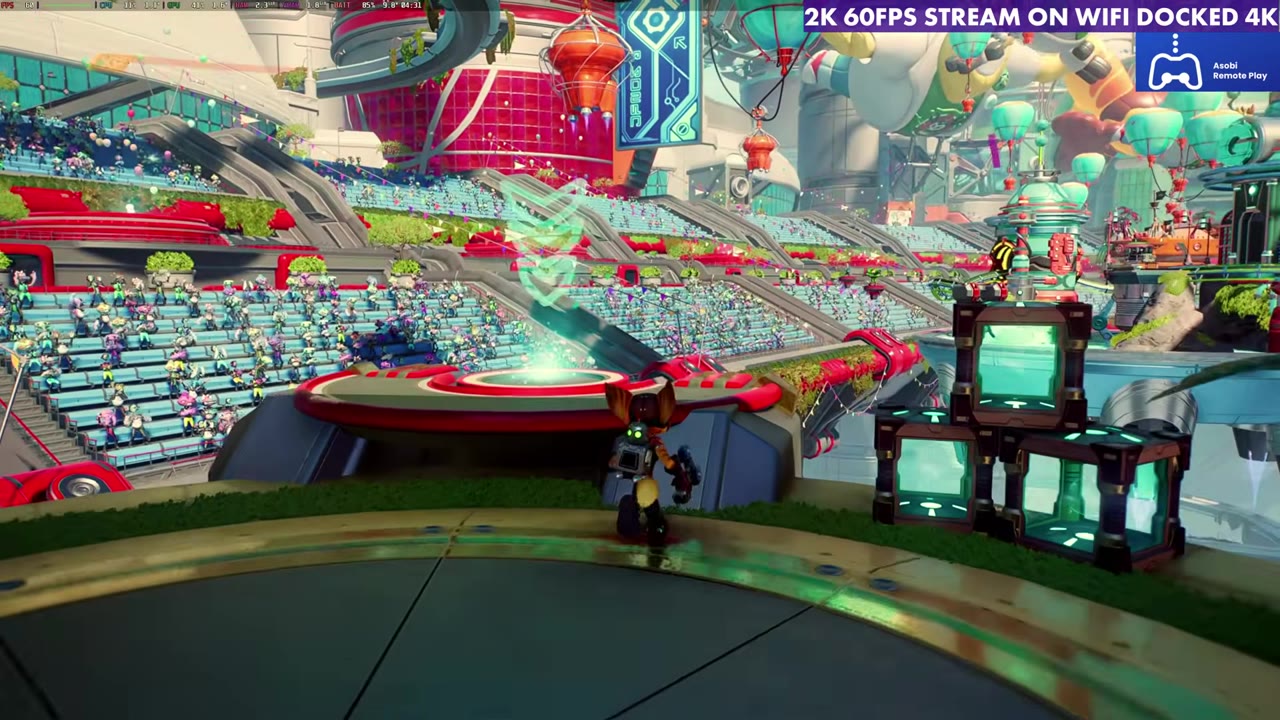
1080p, 60 FPS docked: Docked and still on Wi-Fi, 1080p 60 actually looks really good, way better than 720p on the Steam Deck. The stream was pretty clean, without a lot of stutter or dropped frames. You can also have Asobi upscale that 1080p stream to a higher resolution. If you're on a 4K or 2K TV or monitor, try it and see if it makes much of a difference. Honestly, 1080p 60 looked and played just fine for me on its own.
2K and 4K: 2K ran about as well as 1080p for the most part, trying to keep 60 FPS and looking pretty clean. A straight 4K stream with no upscaling is where the Steam Deck struggled. I was never really able to get 4K to run very well on the Deck. I think something like the Steam Machine, with a bit more decoding power, will handle that better, and we'll see how it goes with updates. On the Steam Deck, 720p, 1080p and 2K were easy.
First impressions
Ultimately, I thought this was pretty good. Input latency is decent, about what you expect for cloud, and PlayStation has done a good job with that. The picture is pretty clear, which PlayStation has been doing well for a couple of years, and Asobi handles it well. I tried quite a few games to see how they felt and looked, and I never really ran into buffering or pixelating where the stream had to catch up, even on Wi-Fi. It's going to be hit and miss for different people with different connections and distances from data centers, but in my initial testing it was pretty much as good as anything else I've used for PlayStation cloud on Linux or the Steam Deck. If it keeps getting updates and keeps working well, it's worth picking up on Steam as a quick, easy way to stream PlayStation to your Deck, Steam Machine or other Linux device.
FAQ
Do you need a PS5 to use Asobi on the Steam Deck?
Not for PlayStation cloud games. You need a PlayStation Plus Premium subscription for cloud streaming. A PS5 is only needed for remote play from your own console.
What stream resolutions worked on the Steam Deck?
720p, 1080p and 2K at 60 FPS all ran well on Wi-Fi. A straight 4K stream was the one the Steam Deck had trouble with.
Do the Steam Deck's back buttons work in Asobi?
Not in my testing. None of the back paddle buttons worked, but the stick plus face button shortcuts did.