 ▶Watch on YouTube
Death Stranding 2 is mostly playable on the Steam Deck OLED, but it can look and feel pretty rough depending on your settings. It's one of those games where we're just pulling it off. I tested it at 800p with the portable preset and FSR 3 Performance, then looked at in-game frame gen, Lossless Scaling and manual GPU clocks, which make a bigger difference in this game than in most.
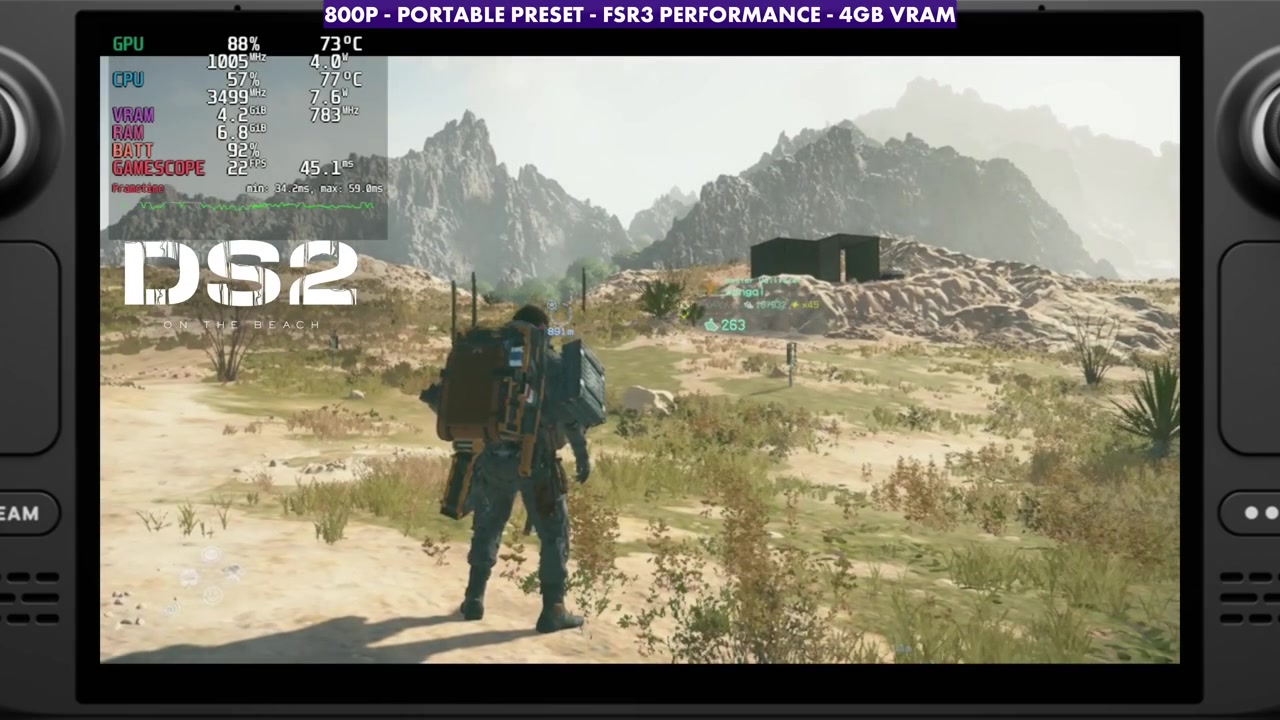
- Tested at 800p fullscreen (no 16:10 support), portable preset, FSR 3 Performance, 4GB VRAM.
- Without manual GPU clocks: about 15 to 25 FPS depending on where you are. FSR Quality or Balanced only changes things by a frame or two.
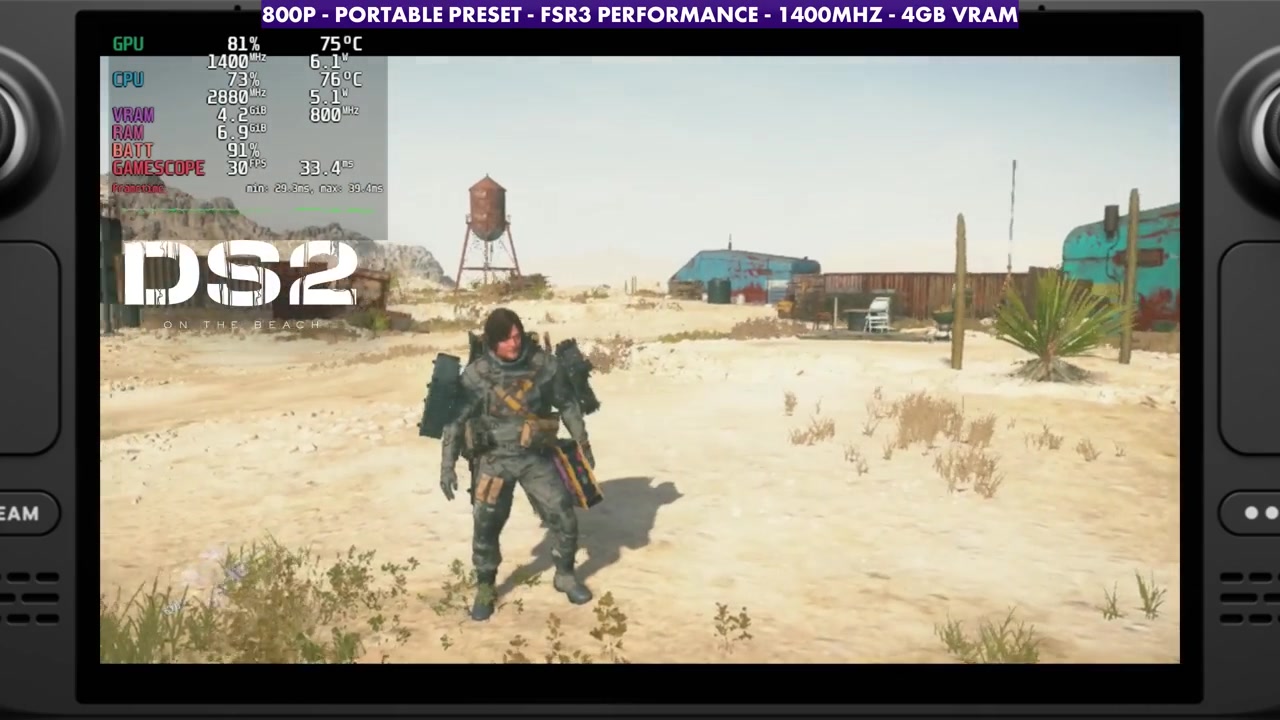
- A manual GPU clock adds about 8 FPS even without frame gen and stabilizes the frame time a bit. 1200, 1300 or 1400 MHz worked well for me.
- In-game frame gen looks and feels surprisingly decent for such a low base, and a little better than Lossless Scaling in this game.
- I'd recommend playing it any other way if you can, but it can be pulled off here.
What I tested
- Steam Deck OLED, SteamOS
- 800p (1280x800) fullscreen. There's no 16:10 support, unfortunately.
- FSR 3.1.5 on Performance, sharpness 5, dynamic resolution scaling off, V-sync off
- Portable graphics preset, 4GB VRAM
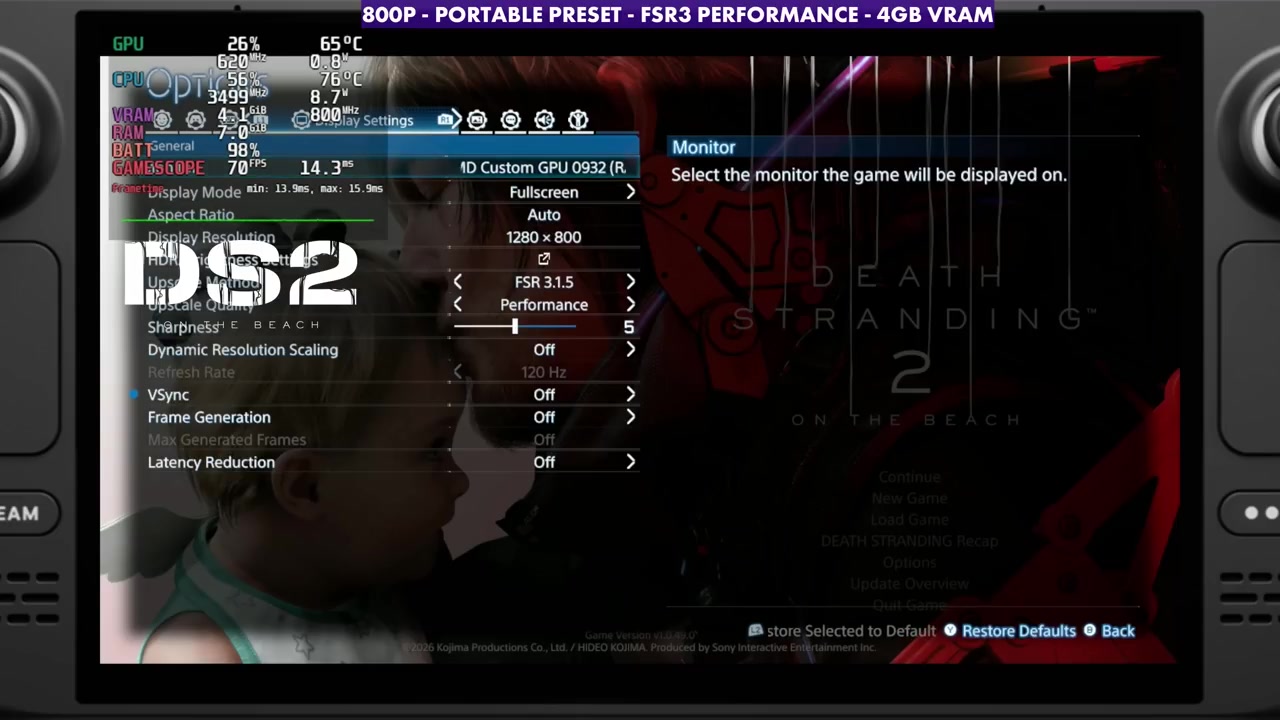
FSR is what I focused on. There's also XeSS and PICO, and PICO is another decent option. There are presets and individual settings to change, but I mostly stuck with the portable preset. The game is very difficult to run, and any time I bump things up it gets a bit iffy.
Base performance
Jumping in with the portable preset, 800p and FSR 3 Performance with no manual GPU clock, you're going to get anywhere from 15 to 25 FPS depending on where you are, and it can really vary.
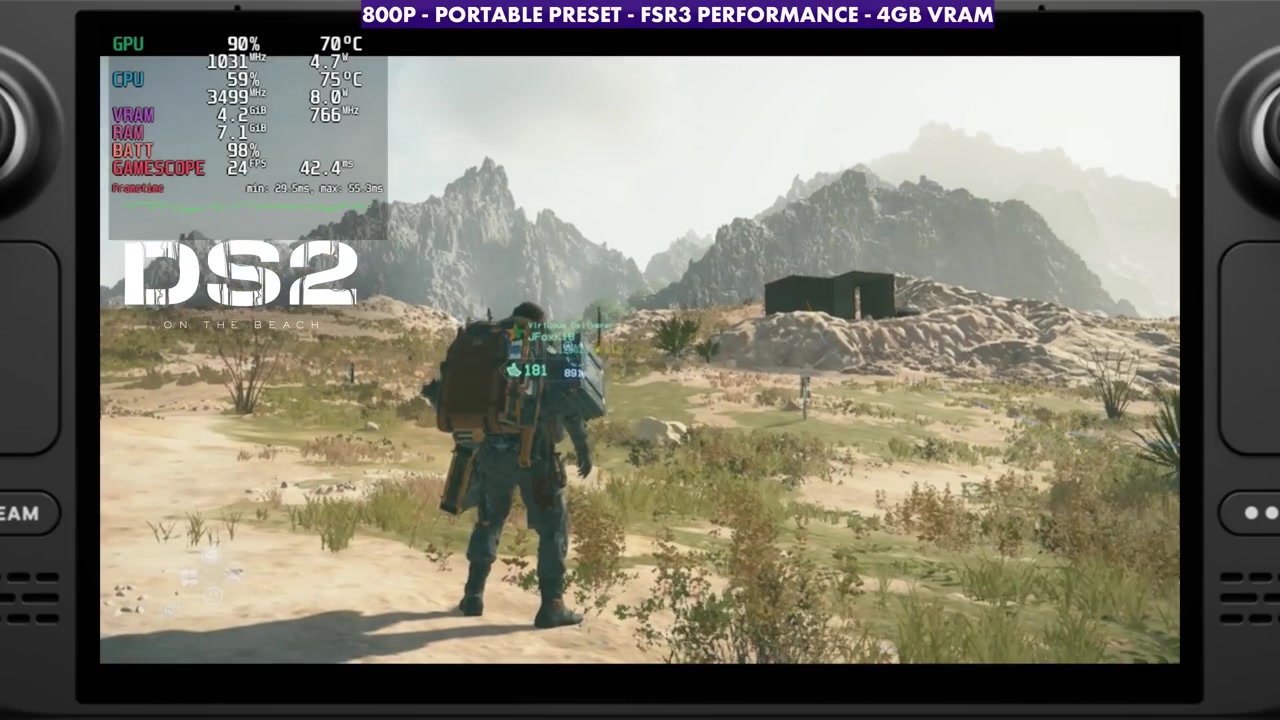
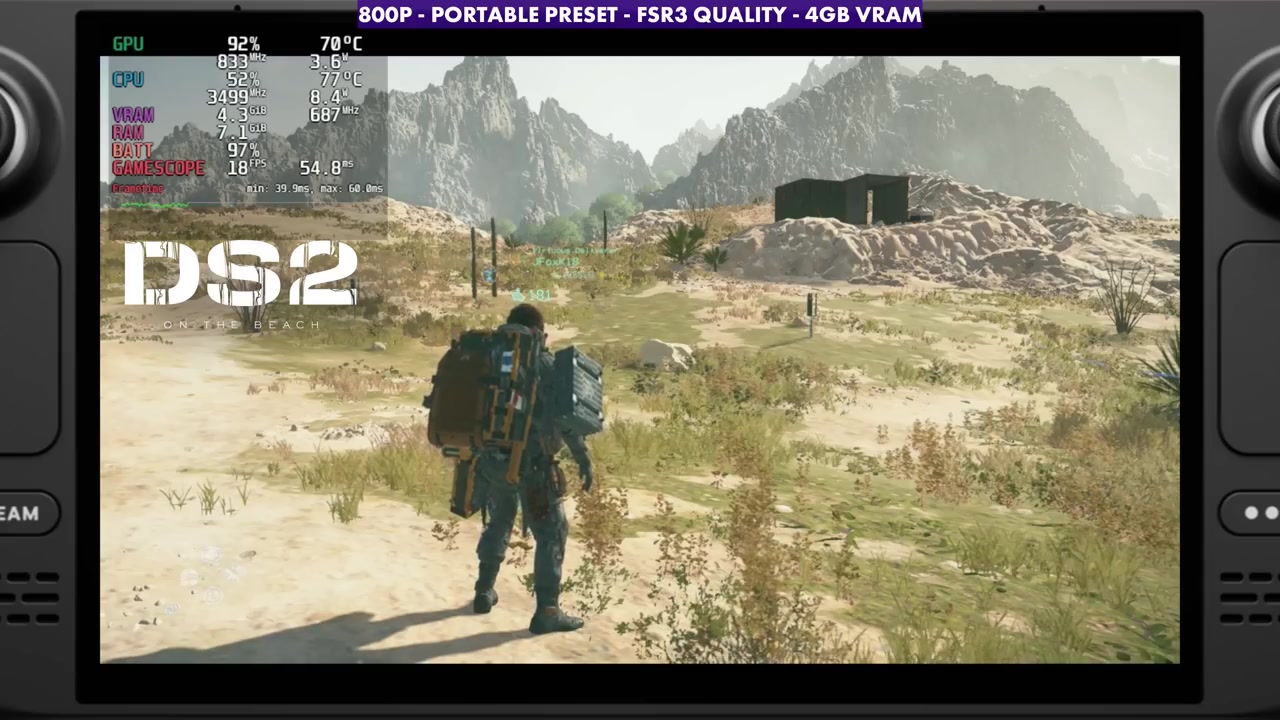
You can try FSR Quality or Balanced for around 18, 19 or 20 FPS, maybe a couple more. For the most part it's only a one or two FPS difference between them. The biggest changes come from GPU clocks and frame generation. I ended up on FSR Performance; it can be pretty rough, but on the smaller screen I can get away with it. Everyone has their preferences, so do whatever you want with your upscaling.
In-game frame gen and manual GPU clocks
The in-game frame generation gives you a bump in FPS, and it surprisingly feels and looks pretty decent considering how low a frame rate it's building from. That's with no manual GPU clock set, though, and this game really prefers a manual GPU clock, both with frame gen and even without it.
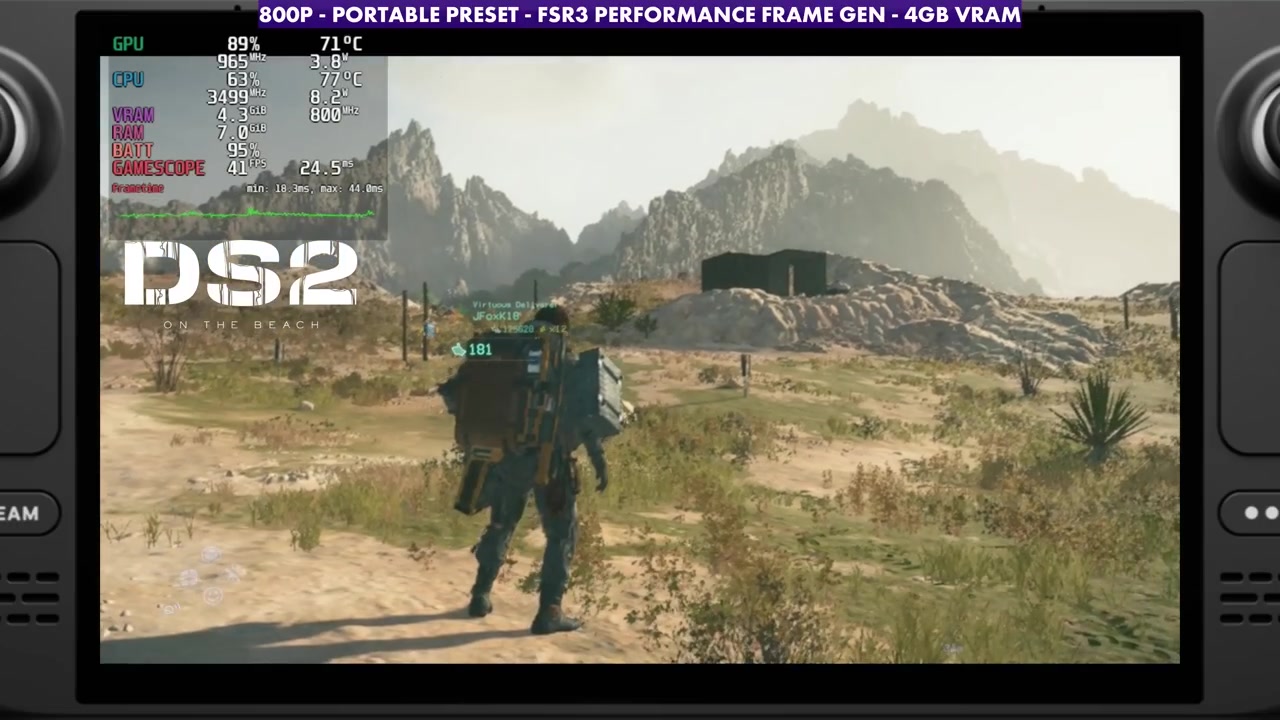
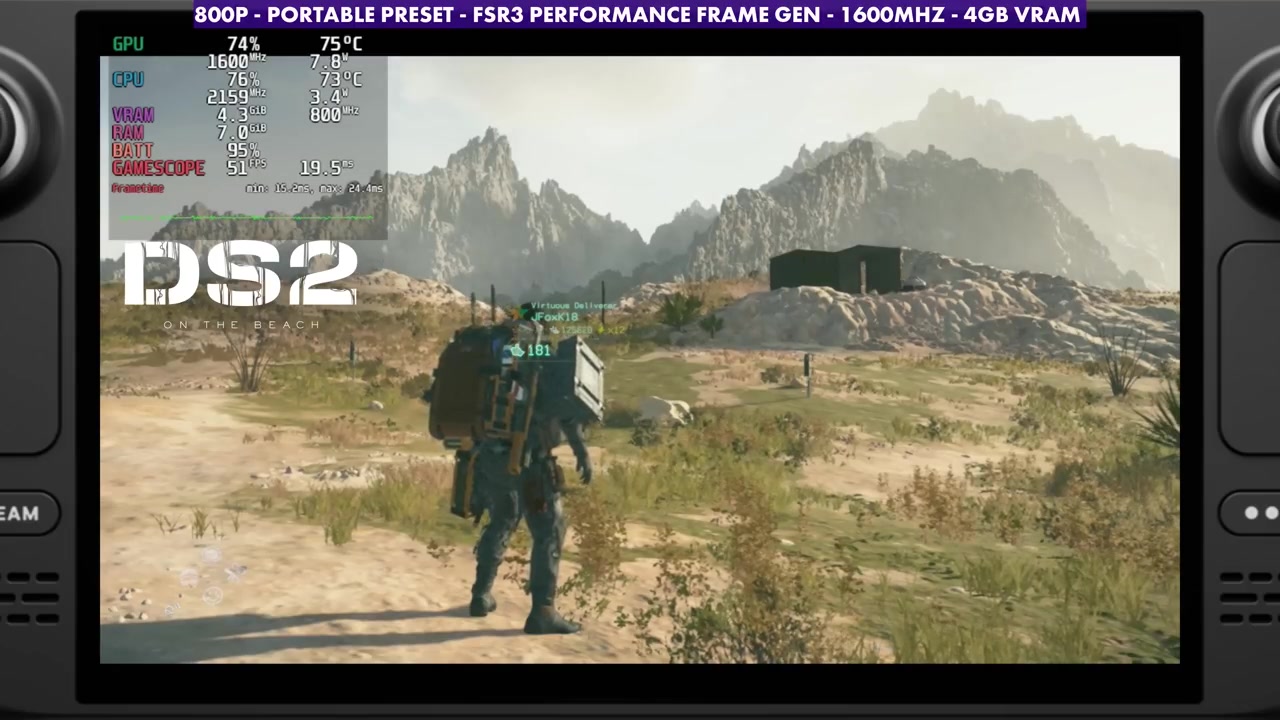
Forcing the GPU clock takes power from the CPU side, so you might have to adjust it down as certain areas get more intensive later in the game. You can set 1500, 1400, 1300, 1200 MHz or anywhere in between to find a balance so you're not stealing too much from the CPU. 1200, 1300 or 1400 MHz has worked out pretty well for me in this game so far with frame gen.
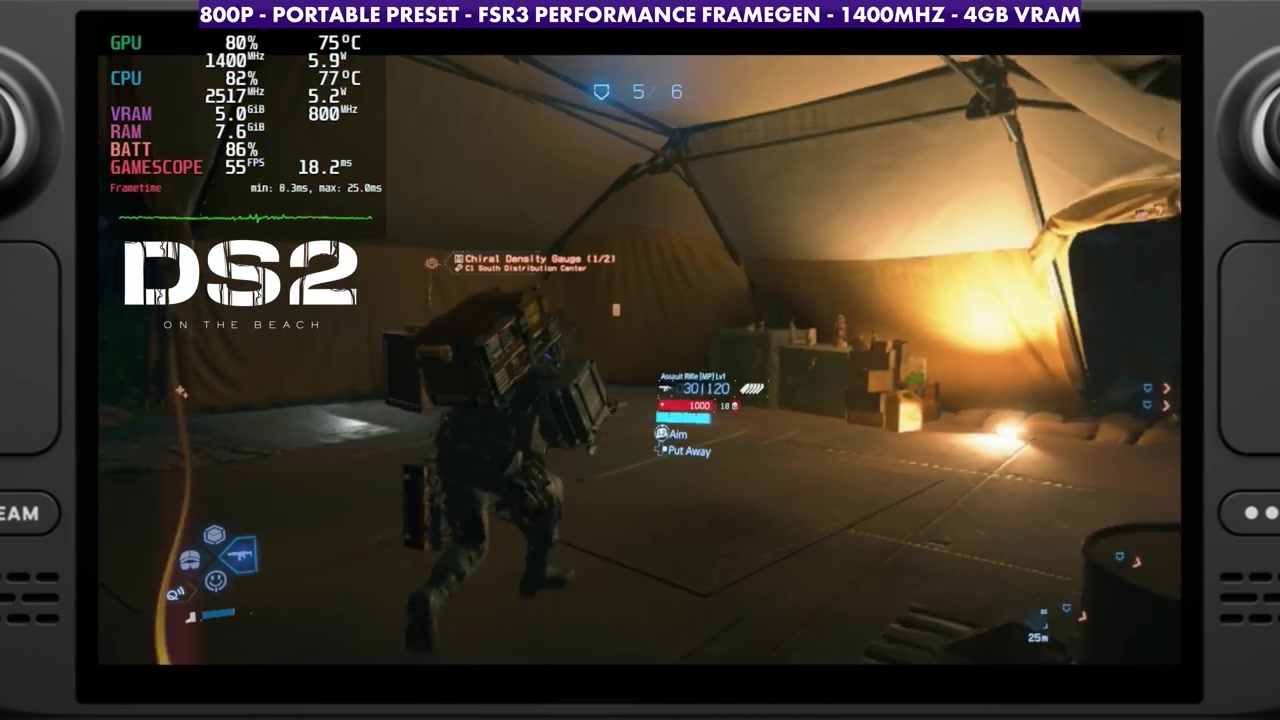
Lossless Scaling
Lossless Scaling is there too if you prefer it (here through the Decky LSFG-VK plugin; I have a full Lossless Scaling guide for the Steam Deck), and you can turn it on to double your frame rate. In my experience with this game so far, the in-game frame generation feels and looks a little better. You can't lock to 30 to get 60 because the base isn't that high here, and I didn't want to combine in-game frame gen with lossless. You could cap at 20 and go for 40 with lossless or the in-game frame gen and probably do pretty well, but I wanted to show things uncapped.
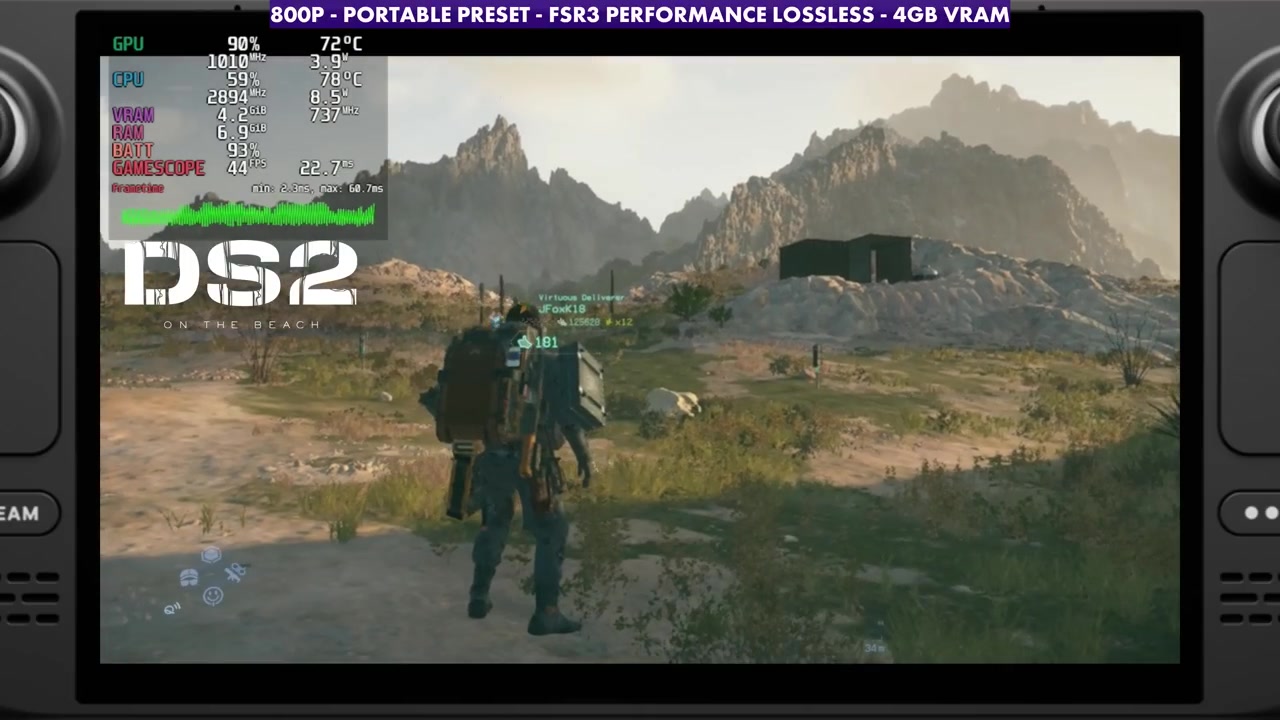
Manual GPU clocks help Lossless Scaling too, with a nice boost to FPS, and so far it hasn't taken enough from the CPU to cause frame time or stutter issues. There's also 3x and 4x in Lossless. I wouldn't recommend them because of the extra input latency, ghosting and artifacting, but they're there, and they worked surprisingly well considering the low base frame rate.
Manual GPU clocks without frame gen
Back on the normal portable preset with no frame gen, this game benefits quite a lot from a manual GPU clock. It brings things up about 8 FPS and stabilizes the frame time a bit. If I run into trouble later on, I can back it off a little to give the CPU more power. In most games I haven't really had to adjust this, but in this one I do.
Verdict
Manual GPU clocks, even without frame gen, make a big difference in making Death Stranding 2 more playable on the Steam Deck. If the Deck is the only way you can play it and you want it as playable as possible, these settings should help you get there. I'd recommend playing the game any other way if you can, but it can be pulled off here, and maybe it'll get even better in the future.
FAQ
What FPS does Death Stranding 2 get on the Steam Deck OLED?
At 800p with the portable preset and FSR 3 Performance, about 15 to 25 FPS without a manual GPU clock, depending on the area.
Do manual GPU clocks help Death Stranding 2 on the Steam Deck?
Yes, quite a lot. A manual GPU clock added about 8 FPS even without frame gen, and 1200, 1300 or 1400 MHz worked well for me. You may need to lower it in heavier areas so the CPU keeps enough power.
Is in-game frame gen or Lossless Scaling better for Death Stranding 2 on the Steam Deck?
In my experience so far, the in-game frame generation feels and looks a little better than Lossless Scaling in this game.
Want more handheld tests?
New Steam Deck, ROG Ally, Legion Go and Steam Machine performance videos every week.