 ▶Watch on YouTube
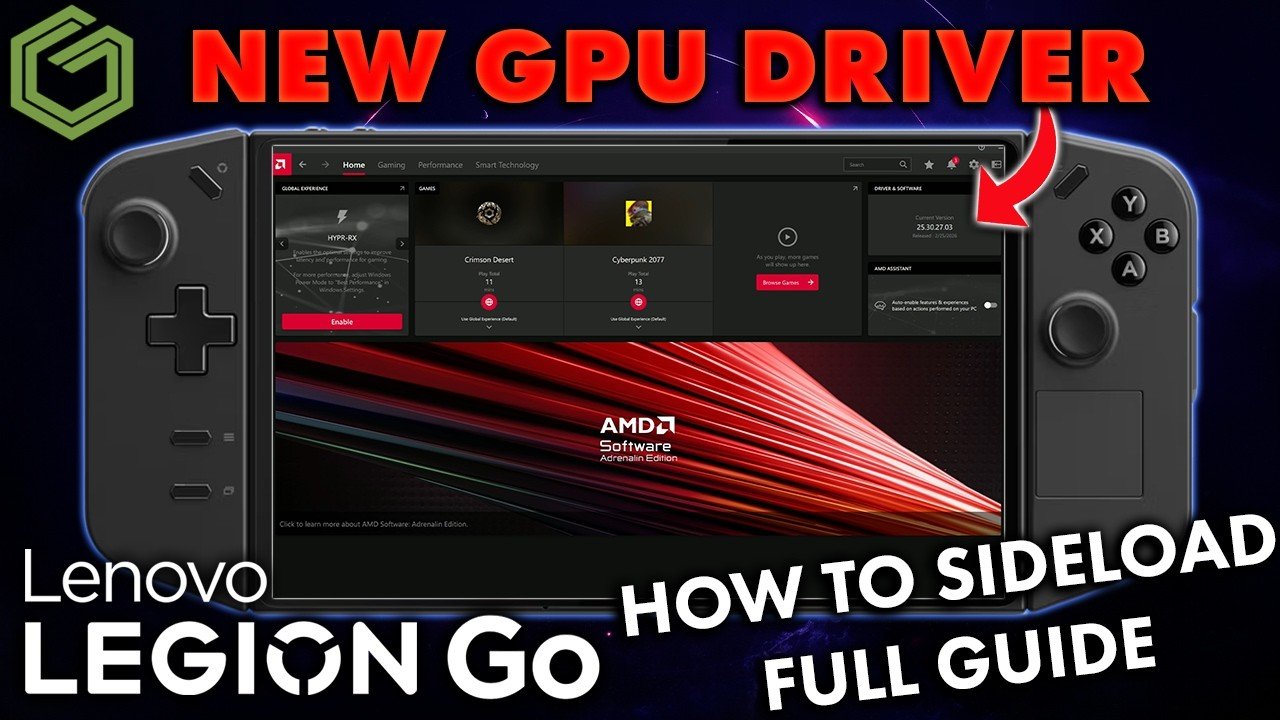
The original Legion Go Z1 Extreme has done really well for me over the past few years, but Lenovo hasn't kept up with GPU driver updates for it. The official driver on my device was dated July 1, 2025 and getting pretty old. ASUS has a newer set of AMD GPU drivers out for the original ROG Ally and Ally X, and you can side-load those onto the Legion Go to maybe fix some broken games or get a little more performance. Here's everything that worked for me.
- This is not official. Side-loading drivers like this is at your own risk, and you don't necessarily need to do it.
- The ROG Ally support page has newer drivers posted in March that are dated February 2026.
- The process: pause Windows Update, remove the Lenovo driver with DDU, extract (not install) the ASUS driver, then install it through Device Manager with Have Disk and pick AMD Radeon Graphics.
- Afterward, use Windows Update Show/Hide to stop Windows from overwriting it, and SRE if your resolutions go missing (it happened to me 1 time out of 4).
- Cyberpunk benchmark: 57.14 FPS average on the Lenovo driver (25.10.20.01) vs 58.57 on the ROG Ally driver (25.30.27.03), with cleaner frame times.
- Update: Lenovo later posted official April 2026 drivers for the original Legion Go. See Legion Go Z1 Extreme April 2026 drivers.
What you need first
There are a few downloads to have ready before you start. I put links for them in the video description.
- Windows Update Show/Hide (from GitHub), to keep Windows from replacing the new driver
- SRE, to add your screen resolutions back if they go missing. It's an easy fix: I did this four times in a week and only one of those times did my resolutions disappear.
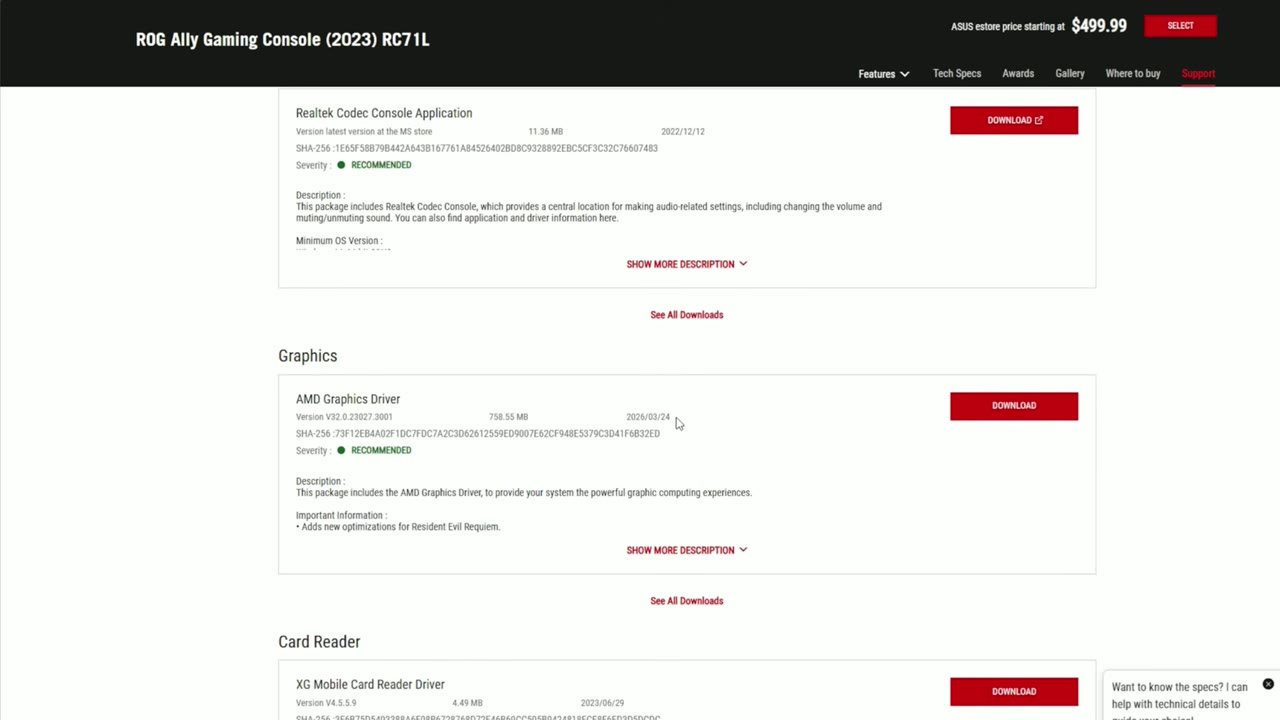
- The newer AMD graphics driver from the ROG Ally (2023) support page, under Graphics. These were posted in March and are dated February 2026.
- DDU (Display Driver Uninstaller), to remove the factory Lenovo driver properly
Step 1: Pause Windows Update
I deal with Windows Update twice in this process. First, go into Settings and pause Windows Update for a week or two, whatever you want. That keeps it from overriding anything for now. I use Show/Hide later, after the new driver is installed, because it doesn't always show the newer driver until then.
Step 2: Remove the Lenovo driver with DDU
- In Device Manager under Display adapters, you'll see AMD Radeon Graphics. On the Driver tab mine was the Lenovo driver dated 7/1/2025. That's what we're removing.
- Close Adrenalin and anything else that's open.
- Extract the DDU download, double-click the application inside (it extracts another folder), then open that and run Display Driver Uninstaller. You can do this in Safe Mode if you want to, but I've never needed to when I wasn't tinkering too much and everything was working fine.
- Get past the warnings and options, set the device type to GPU, make sure AMD is selected, and choose Clean and restart (the highly recommended option at the top).
Since this is a portrait display, the screen will probably flip back to portrait. After the restart, Device Manager shows Microsoft Basic Display Adapter, and Adrenalin is gone.
Step 3: Extract the ROG Ally driver
In Downloads, run the ROG Ally driver you downloaded: OK, Next, Agree, then choose Extract, not Install. That's a little different from how I used to side-load these drivers. Keep clicking Next. It says "installing", but it's only extracting a folder to your drive, and it shows you the location, so make sure you know where it's going. The Packages folder is what matters, but you can close it, because we're installing a different way.
Step 4: Install it with Have Disk
- Back in Device Manager, open Display adapters (it should still be Microsoft Basic Display Adapter), go to the Driver tab and click Update driver.
- Choose Browse my computer for drivers, then Let me pick from a list, then Have Disk and Browse.
- Go to the folder you extracted (for me it was on the C drive in a Drivers folder), open the AMD graphics folder, then Packages, Drivers, Display, and the INF folder inside that.
- Pick the INF file that starts with a U (there's usually only one), click Open and then OK to get a fuller list of drivers.
- Select AMD Radeon Graphics, then Next and Install.
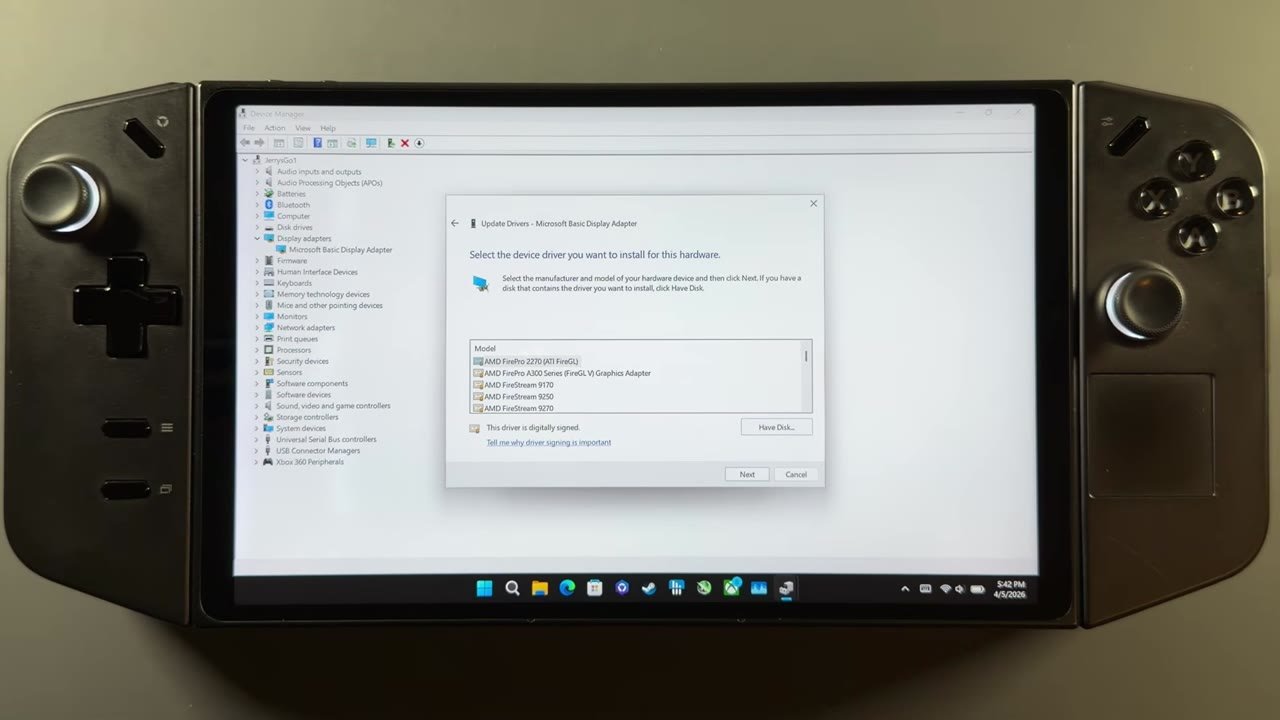
Normally I'd look for 780M or something like that in this list, but those names don't show up in this ROG Ally package. I spent days researching this and did it four different times on the device, and AMD Radeon Graphics is the only option labeled that way, so that's the one to pick. When it finishes, it'll probably flip back to portrait again. Close out, flip it back, and Device Manager shows AMD Radeon Graphics again, just like with the Lenovo driver, except now it's on the newer February driver, which works fine on the Z1 Extreme.
Adrenalin installed itself
This part surprised me. Normally there's another step, but all four times I did this, AMD Adrenalin installed automatically along with the driver. There was no Store update to do, and after a restart it still opened and worked the way it's supposed to. Quick access menu, Legion Space, Fluid Motion Frames and everything else that worked on the Lenovo driver is working on this one for me.
If Adrenalin doesn't work for you, the next step would be to go back to Downloads and run the ROG Ally driver again, but this time choose Install instead of Extract. It won't overwrite the driver; it just installs the proper Adrenalin.
Step 5: Hide the driver updates
Run Windows Update Show/Hide from your downloads and click Next. After it scans, choose Hide updates. Both the new and old graphics drivers showed up for me, plus another media item, and I checked them all. Click Next and it confirms they're hidden. In theory you can now unpause Windows Update and get everything else without it touching the graphics driver. Windows will overwrite your drivers pretty quickly if you let it.
If your resolutions disappear: SRE
On my fourth try, my resolutions disappeared. To get them back, extract SRE and run it as administrator. If Windows warns you, click More info and Run anyway. Then add your resolutions at the bottom of the list. For the four main ones this device uses in the menu, I added 1200p, 1600p, 1000p and 800p.
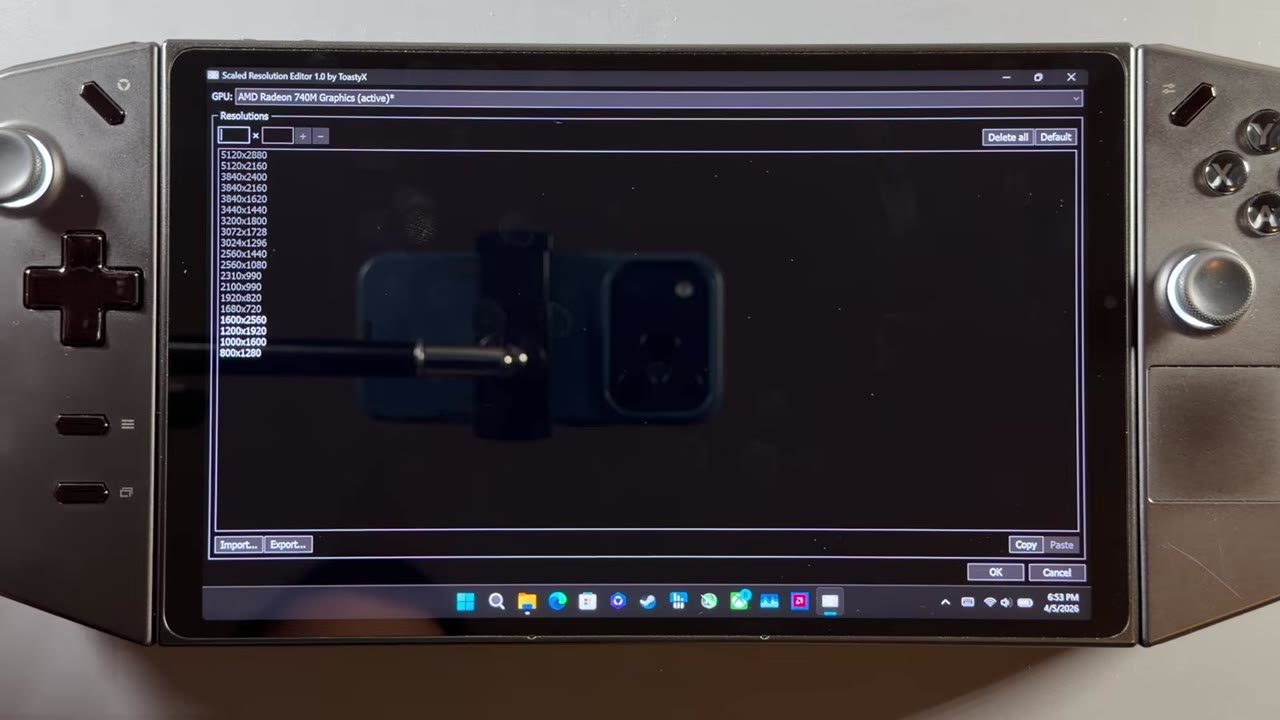
Remember this is a portrait display, so you have to enter them in reverse. 1920 x 1200 won't show up in the menu or work properly, because that's for a landscape display. Mine are 1600 x 2560, 1200 x 1920, 1000 x 1600 and 800 x 1280. If you wanted a true 1080p on the built-in screen, you'd enter it as 1080 x 1920. I forgot about the portrait thing and put them all in the wrong way the first time. Click OK, restart, and they all show back up in the quick access menu and Windows display settings.
Cyberpunk and Crimson Desert
I didn't get to test a lot of games before and after, but I ran the Cyberpunk benchmark and played a little Crimson Desert. It's not a big change, but I was pleasantly surprised that the ROG Ally driver ran a little better in Cyberpunk. Frame times were a bit cleaner, and FPS was up a little in a lot of places, even though the two swap back and forth sometimes. Cyberpunk is already well optimized and ran well anyway.
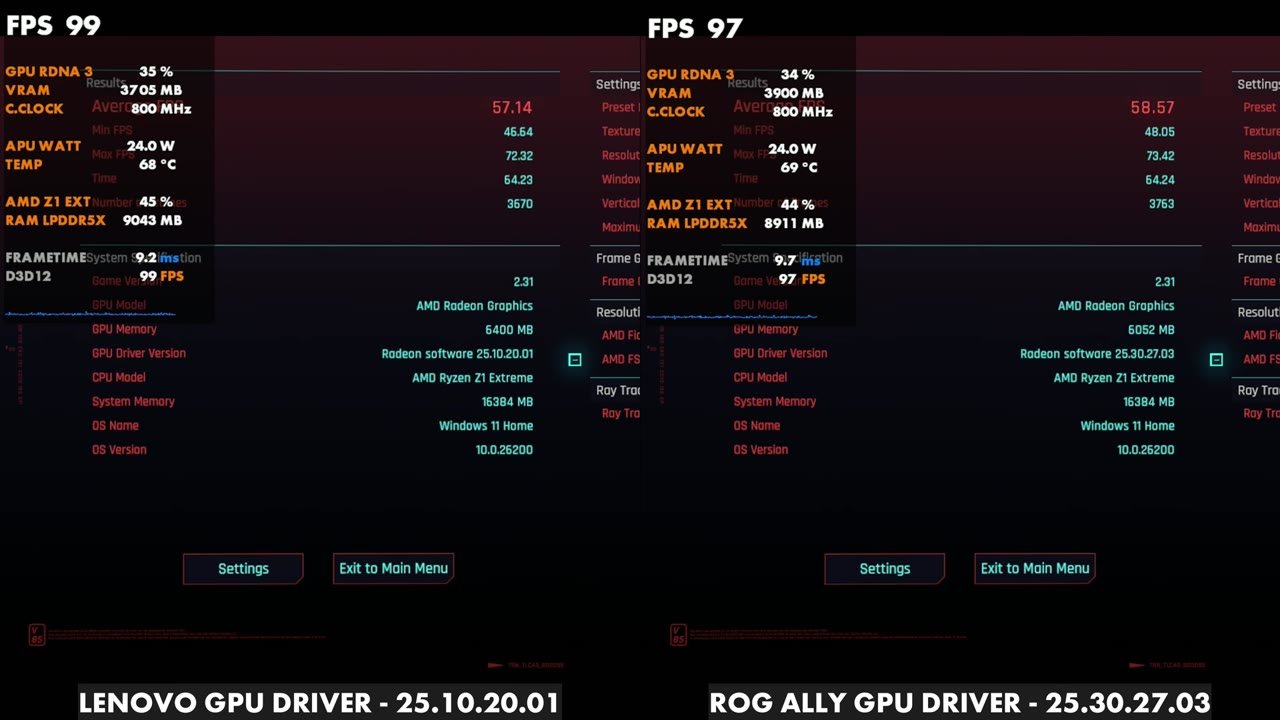
On the benchmark screen, the Lenovo driver (Radeon software 25.10.20.01) averaged 57.14 FPS with a 46.64 minimum and 72.32 maximum. The ROG Ally driver (25.30.27.03) averaged 58.57 FPS, with 48.05 minimum and 73.42 maximum. That's about 1.5 FPS better, which I think is worth noting.
Crimson Desert was similar. Frame rates were basically the same and swapped back and forth, and this game is pretty hard to run on a 16GB shared-memory device like this, but a lot of the time frame times were a little better. For me it felt like it played a little better on the newer driver, but I'd need a lot more time with it and more games to say for sure.
Final thoughts
This covers everything: the downloads, handling Windows Update, getting your resolutions back, removing the original driver with DDU and side-loading the new one. It took me a good 7 to 9 days this time. Normally it goes quickly, but I had more trouble and had to learn about the AMD Radeon Graphics option in that list. Again, this isn't official, so go in knowing you're tinkering with the device. If Lenovo drops an official driver, I'll go back to that.
FAQ
Can you use ROG Ally GPU drivers on the Legion Go Z1 Extreme?
Yes, by side-loading them. I removed the Lenovo driver with DDU, extracted the ROG Ally driver and installed it from Device Manager with Have Disk, choosing AMD Radeon Graphics. It isn't official, so it's at your own risk.
Why don't I see 780M in the driver list?
This ROG Ally package doesn't list 780M or similar names. AMD Radeon Graphics is the only matching option, and it's the one that worked for me all four times.
Does the newer driver improve performance?
A little. The Cyberpunk benchmark went from 57.14 to 58.57 FPS average with cleaner frame times, and Crimson Desert was about the same FPS with slightly better frame times a lot of the time.
Want more handheld tests?
New Steam Deck, ROG Ally, Legion Go and Steam Machine performance videos every week.